Have you ever been using Discord for a voice call or group meeting when your microphone suddenly went silent, even though there were no hardware error warnings? The conversation is interrupted, and the screen displays the discord error 3002 message, leaving many people confused.
In fact, when encountering this situation, many people mistakenly think that the Discord server is down or their account is having access issues. However, discord error 3002 is actually just a form of Silent Audio Input, meaning the microphone is still recognized by the operating system, but cannot capture any audio input.
So what is the core cause of discord error 3002, and how can it be completely resolved? Let's explore detailed and effective troubleshooting methods with Hidemyacc in the article below.
1. What is Discord Error 3002? & How to recognize it
Discord Error 3002 is an issue related to the audio input signal, also known as the Silent Audio Input error. When encountering discord error 3002, the system will display a message saying “Well, it looks like Discord is not detecting any input from your mic.”

This message means that Discord is not receiving any audio signal from your microphone. The nature of the error lies in the fact that the application can still connect to the recording device, but cannot record sound when the user speaks.
To accurately determine if your device is experiencing this situation, you can cross-reference the following characteristic signs:
- Microphone name is still displayed: The name of your microphone device still appears fully in the input settings (Input Device) of the Discord application.
- No sound waves during testing: When using the Let’s Check feature in Discord to test the microphone, the sound wave bar is completely still without any fluctuations.
- Works normally in other applications: The microphone still records clearly when used on other software like Zoom, Voice Recorder, or in-game voice chat features.
In case the microphone has no hardware errors and still records well on other platforms, it is highly likely that discord error 3002 lies in the audio settings or how Discord recognizes the input device.
2. Core causes of Discord Error 3002
To be able to fix discord error 3002, the first step is to accurately determine the source of the problem. Typically, this issue will stem from one of the three common groups of causes below:
2.1. Issues from the Windows or Mac system
Audio settings on the operating system are usually the first place errors occur that you should check, specifically including:
- Input volume drops to 0: Sometimes the operating system can automatically change the audio configuration after an update or a machine restart, bringing the recording level to the minimum.
- Operating system has not granted microphone access: Both Windows and macOS have very strict privacy security features. If you haven't allowed the Discord app permission to use the microphone in the system settings, the software won't be able to capture any sound.
Carefully reviewing system volume and privacy settings will help you eliminate barriers from the base software.
2.2. Hardware Issues
Sometimes the error doesn't lie in the software but comes from external physical impacts that we accidentally overlook:
- Physical mute button is turned on: Many gaming headsets or standalone microphones have a built-in physical mute button. It's highly possible you accidentally toggled this button without knowing.
- Loose or dusty connection ports: A 3.5mm jack or USB port not fully plugged in, poor contact, or heavily dust-covered ports on the computer can also hinder the audio signal transmission process.
Just a slight oversight in physical connections is enough to stop the microphone from transmitting signals, even if the application still recognizes the device.
2.3. Software conflicts and misconfigurations
Finally, conflicts or misconfigurations within the Discord app are also frequent causes leading to a loss of audio:
- Noise Suppression blocking signals: Discord's Noise Suppression feature sometimes acts too aggressively, unintentionally blocking even low-volume voice signals, causing a loss of audio.
- Conflicts with third-party audio software: Running third-party audio processing or management software like VoiceMeeter or Realtek simultaneously can cause direct signal conflicts with Discord.
- Selecting the wrong input device: Even though your microphone is connected correctly, Discord's settings might mistakenly have selected a virtual recording device or another unavailable device.
These configuration errors or software conflicts are usually not too complex, but they are the most common causes of discord error 3002 and can be entirely resolved quickly by adjusting to the appropriate settings.
3. 8 effective ways to fix Discord error 3002
Once the cause has been identified, you can sequentially follow the steps below to completely resolve discord error 3002. These methods are arranged in order from simple to advanced to help you save the most time.
3.1. Check Input volume and mute status in Windows
This is the first and most important step because the majority of audio loss cases are due to altered system volume settings:
- Navigate to: Settings > System > Sound > Input.
- Here, ensure that the microphone you are using is selected and the Input volume slider is not at 0. Additionally, you should also check if the speaker icon is displaying a crossed-out line indicating it is muted.
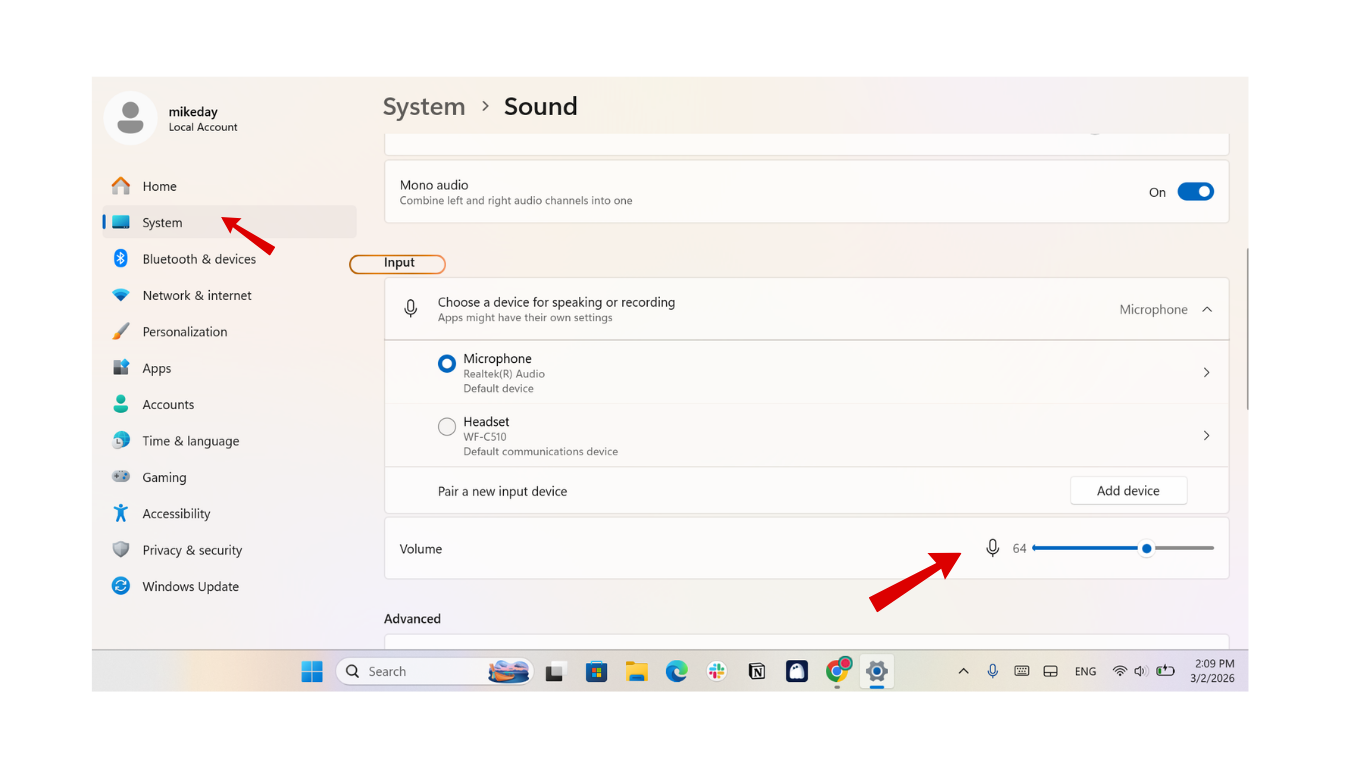
Readjusting the recording volume to a reasonable level will usually solve the problem immediately without needing deep software intervention.
3.2. Enable microphone access for Discord
If the operating system hasn't allowed the application access to the hardware, Discord will not be able to capture any signal:
-
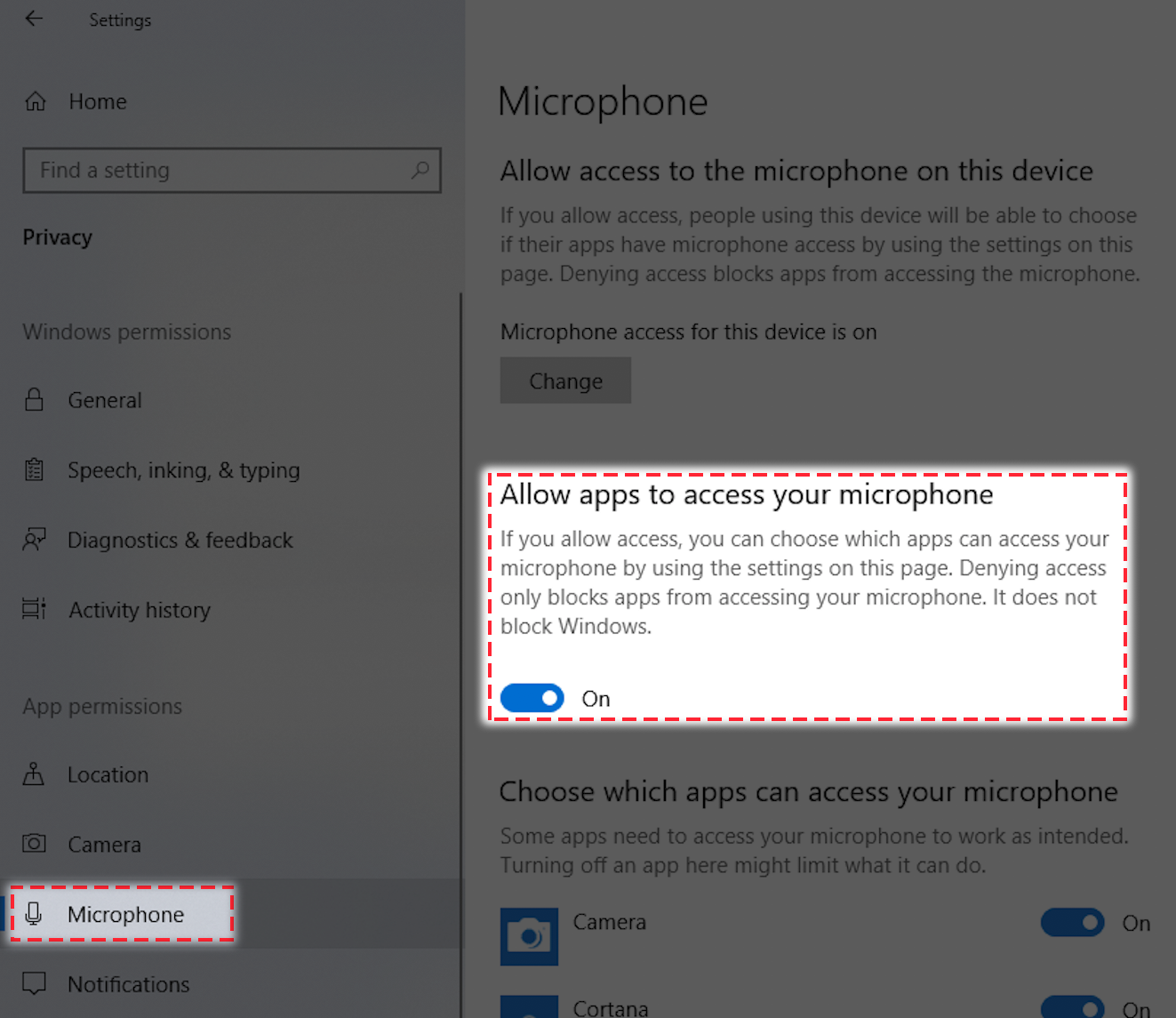
Navigate to: Settings > Privacy & Security > Microphone.
-
Ensure that the Microphone access and Allow apps to access your microphone options are both turned On. At the same time, you need to scroll down the list below to confirm that the Discord application has been granted permission.
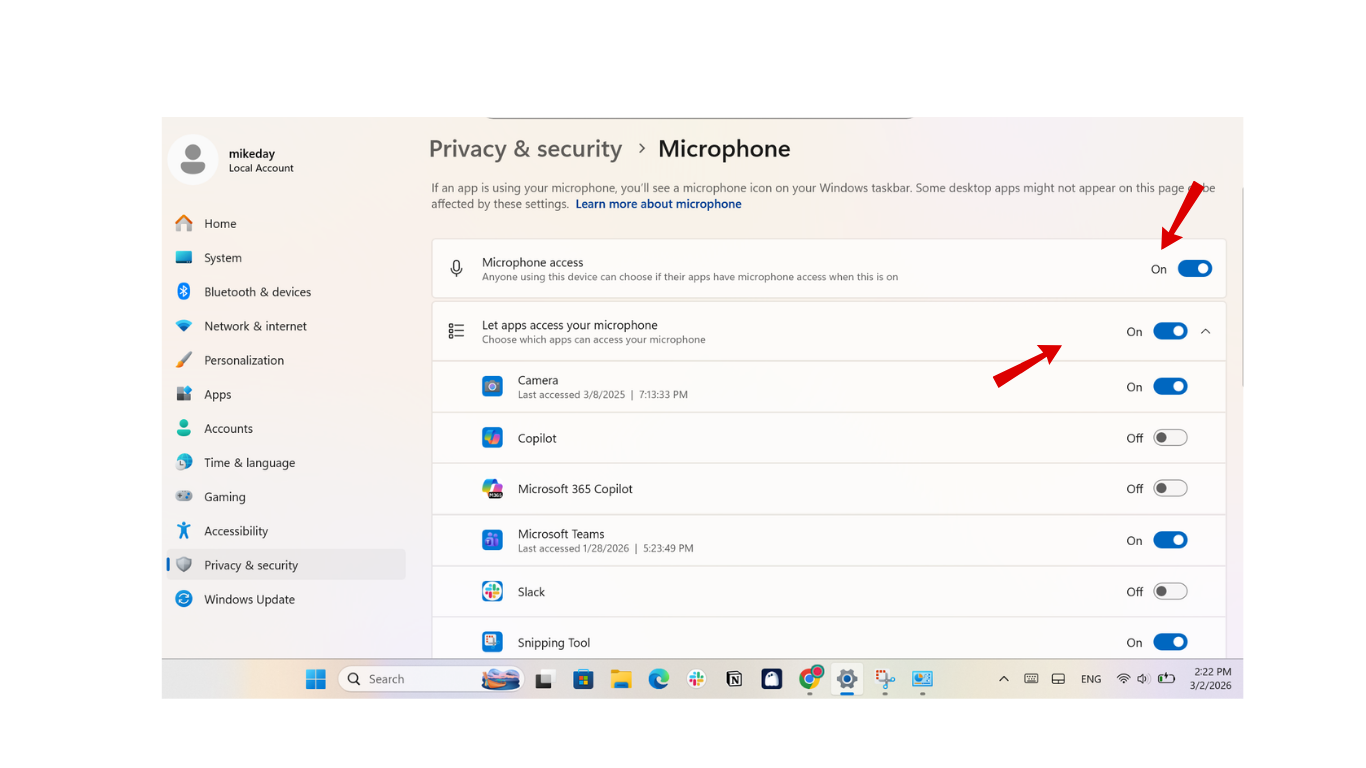
Granting full privacy permissions is a prerequisite for peripheral devices to communicate stably with the application.
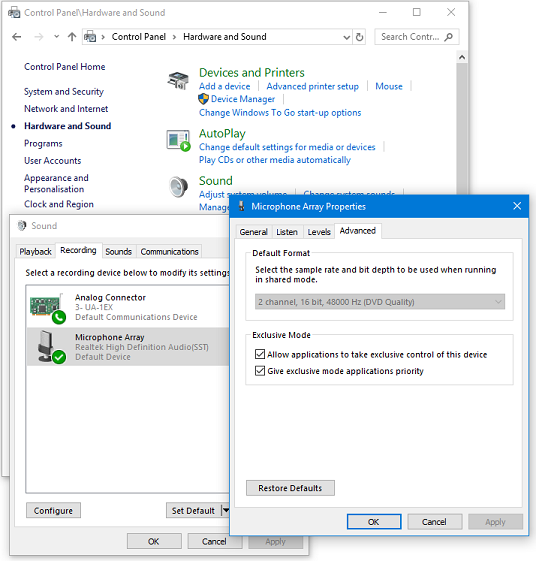
3.3. Disable Windows exclusive mode
Exclusive mode sometimes allows another application to completely take over the microphone, making Discord unable to detect the signal:
-
Perform this action: Sound Control Panel > Recording > Right-click on the microphone currently in use > Properties.
-
In the Advanced tab, uncheck the box for Allow applications to take exclusive control of this device, then click Apply to save.
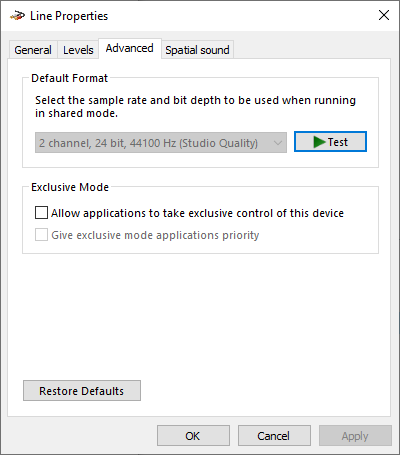
This action helps release the device from being occupied by background software, thereby helping Discord operate more stably.
3.4. Reselect the correct Input Device and Test Mic
Sometimes Discord automatically switches to a virtual recording device or an unavailable microphone, leading to discord error 3002:
- Go to: User Settings > Voice & Video > Input Device. Instead of leaving it on Default, select the exact name of the microphone you are using.
- After selecting it, click the Let’s Check button right below to see if the audio wave bar has started working again.
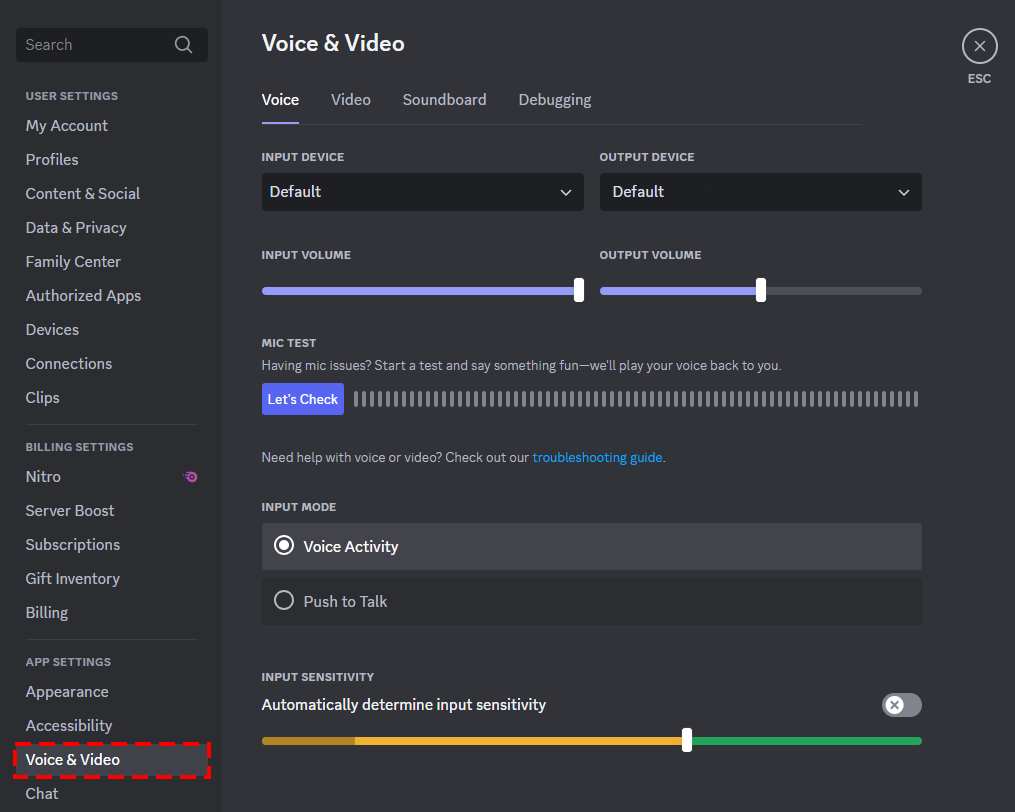
Specifically assigning the recording device will help the application focus on processing the exact signal source you want.
3.5. Reset Discord voice settings
If the settings within the application are too messy, the fastest way is to restore everything to the manufacturer's default state:
- In the Voice & Video section of Discord settings, scroll down to the bottom of the page.
- Here, you will see a red Reset Voice Settings button. This action will restore all of Discord's default audio settings.
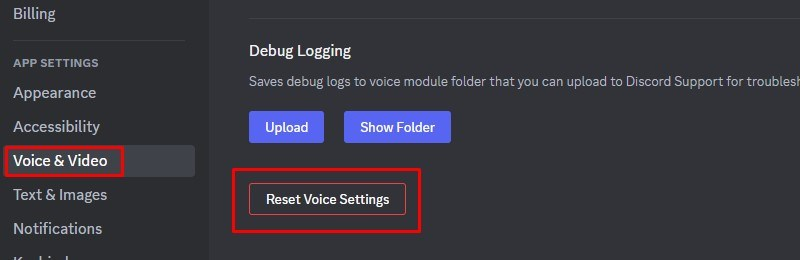
This feature is extremely useful in eliminating invisible configuration conflicts that are difficult to find manually. This is particularly important if you are using this platform to build a community or seeking opportunities for Discord monetization, where communication stability is a top priority.
3.6. Disable noise suppression and third-party audio software
Overly strong noise-filtering algorithms sometimes work inaccurately, accidentally canceling out your voice and causing audio loss:
- In User Settings > Voice & Video, scroll down to the Advanced section.
- Find the Noise Suppression item and change its status to None (or toggle the switch off).
- Completely close any third-party audio processing apps running in the background, such as VoiceMeeter or Realtek Audio Console, to avoid conflicts.
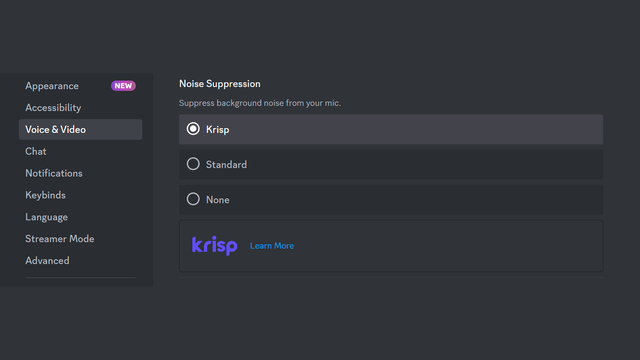
Removing these intermediate filtering layers allows the audio signal to flow straight from the microphone into Discord in its most original form.
3.7. Clear Discord's Cache folder
Corrupted or broken temporary files after a long period of use are also an agent that causes audio error codes:
-
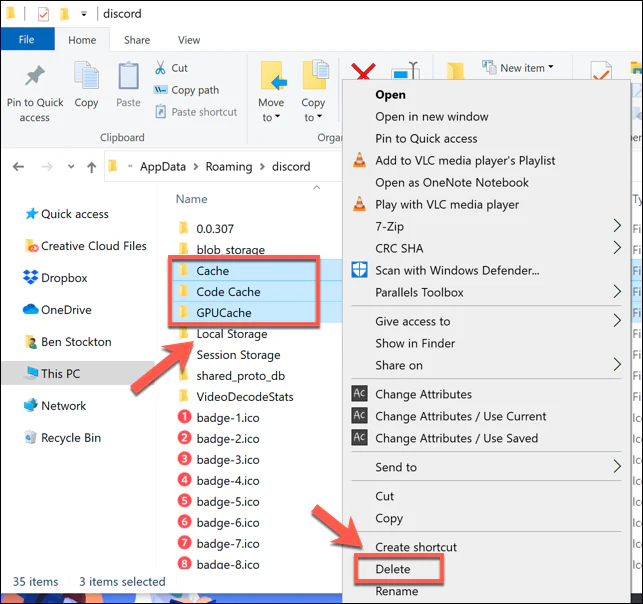
First, you need to completely close the Discord application. Then, press the Windows + R key combination, type the command line %AppData%\Discord, and press Enter.
-
Look for the folder named Cache and delete all the contents inside, then restart the application.
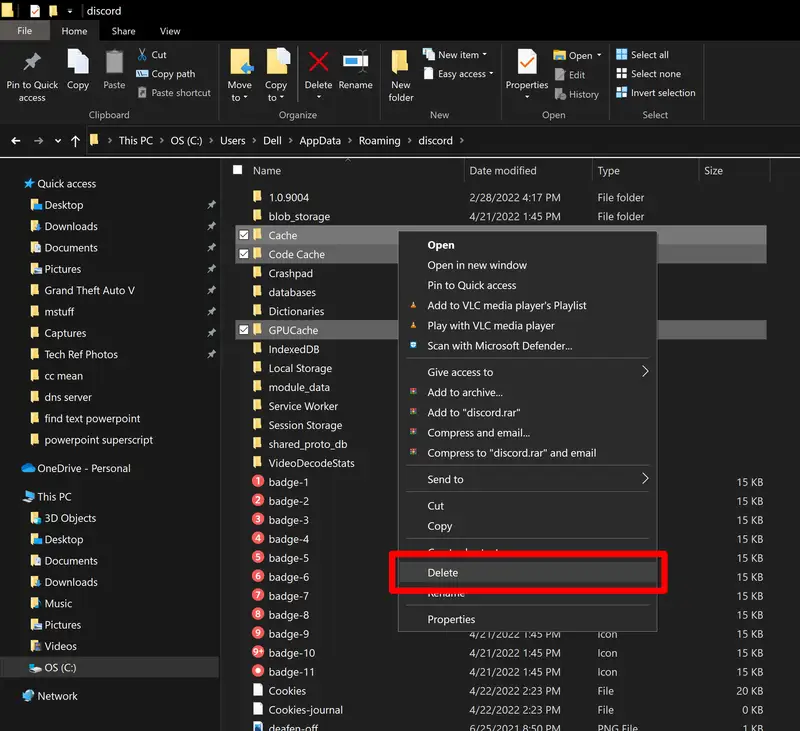
Clearing the cache not only helps fix errors but also makes the application run smoother and more responsive.
3.8. Update or reinstall Audio Drivers
When all the above solutions are ineffective, it is highly likely that your device drivers are too outdated or corrupted:
-
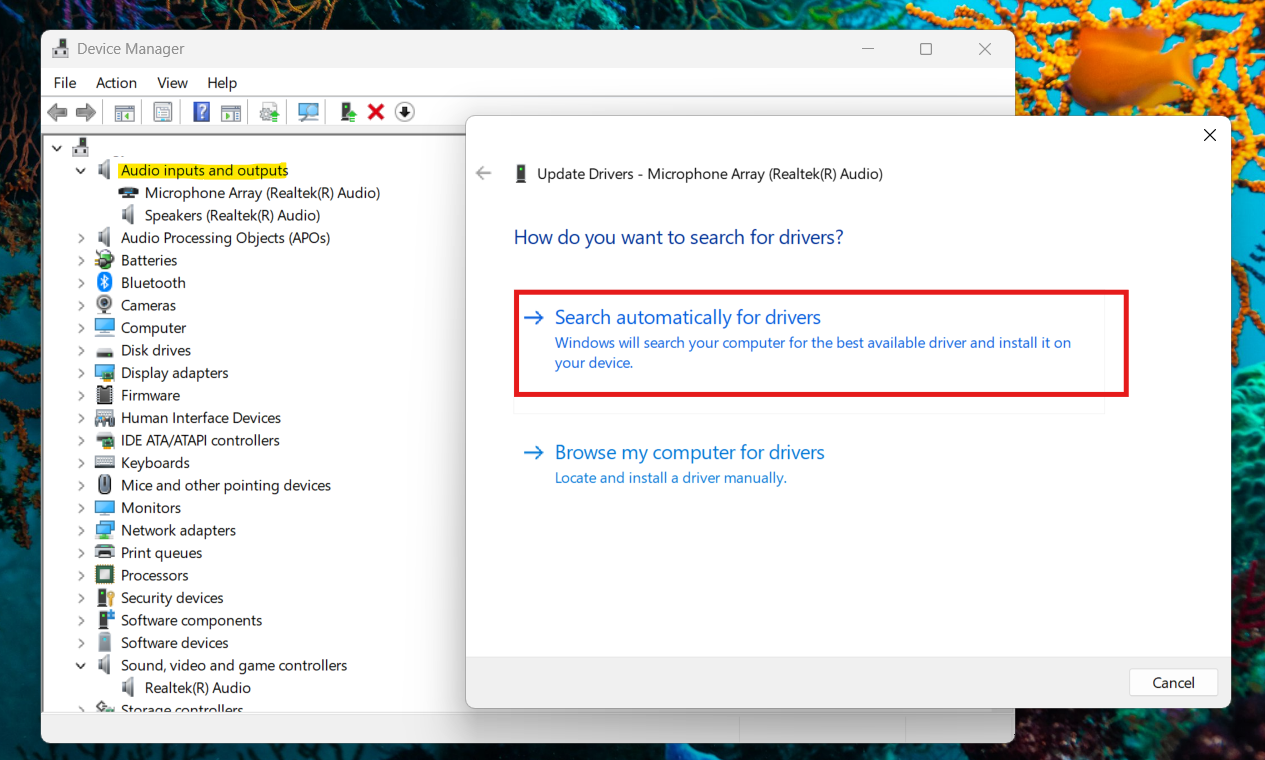
Go to Device Manager on your computer > Audio inputs and outputs > Right-click on your microphone's name > Update driver > Search automatically for drivers to let Windows automatically find and install it.
-
If it still doesn't work, you can visit the manufacturer's homepage to download the latest driver version specific to your machine model.
Additionally, for professional users who frequently use a Discord proxy to manage multiple accounts, ensure your system drivers are always updated to prevent technical conflicts from arising.
By persistently following these troubleshooting steps one by one, you will resolve the silent microphone issue and soon return to your conversations on Discord.
4. What you SHOULD NOT do when facing Discord error 3002
When your microphone suddenly has no sound, impatience can easily lead you to make wrong decisions, wasting time without fixing the problem. Here are the things you should avoid to make the process of resolving discord error 3002 smoother:
- Do not rush to uninstall the Discord app: Many users have the habit of deleting and reinstalling the app as soon as they see an error. However, since this is a local audio configuration error on the computer, reinstalling Discord usually brings no results and wastes your effort setting up personal preferences from scratch.
- Do not confuse it with account issues: Don't quickly conclude that you are banned or the Discord server is down when seeing this error code. Error 3002 is different from issues like a Discord IP ban or having your account disabled. Calmly check your audio settings before worrying about security problems.
- Do not rush to buy a new microphone: Before deciding to replace the device, try plugging the microphone into another computer or phone. If it still works normally on another device, it proves that the error lies in the software on your computer, not a hardware failure.
Staying alert and avoiding these mistakes will help you focus correctly on the technical troubleshooting steps, thereby quickly bringing your microphone back to normal operation.
5. Conclusion
In summary, discord error 3002 is not a severe issue related to hardware or server systems. In most cases, you just need to check and readjust the audio settings in Windows, and configure the correct microphone in the Discord app following the guided steps above to resolve the silent microphone situation.
We hope these instructions from Hidemyacc will help you quickly fix the error and continue using Discord stably.
You may also be interested in:
- How to safely run multiple Discord accounts without bans.
- Guide to finding Discord spam accounts quickly and safely.
- How to manage multiple social media accounts without getting banned
6. FAQ
Does error 3002 occur on the Discord web version?
Yes, this error can still appear if you use Discord on a browser. To fix it, you need to check the browser's microphone access permissions (like Chrome, Cốc Cốc, Edge) by clicking on the padlock icon or the microphone icon on the URL address bar.
Why does the microphone work in other applications but gets error 3002 in Discord?
The main reason is that the input device settings in Discord are mistakenly recognizing a virtual device instead of your real microphone. Additionally, Discord's separate noise-filtering algorithm can also be a factor causing this discrepancy.
Will deleting the Cache folder lose my messages?
Absolutely not. All message and server data are stored on Discord's servers. Deleting the cache is simply cleaning up corrupted temporary files on your computer to make the application run more stably.
Is using a Bluetooth headset more prone to error 3002?
Actually, yes. Windows often encounters conflicts when switching between the music listening mode (Stereo) and conversation mode (Hands-free) of Bluetooth headsets, causing Discord to sometimes incorrectly identify the recording configuration.
What if I have tried all the above methods but the error persists?
Try connecting the microphone to another computer. If the microphone still doesn't work, there is a high chance the device has a hardware failure. If it works fine on another machine, you should consider completely reinstalling the audio drivers or contacting Discord's support team.
Is error 3002 related to using a VPN?
No. Error 3002 is an issue related to local audio signals (recording device settings, OS microphone access permissions), not a network connection error. VPN or Fake IP software does not interfere with the microphone at all, so you don't need to waste effort turning off the VPN to fix this error.