Having trouble verifying your LinkedIn account? You're not alone. Many users experience difficulties with LinkedIn's account verification process because of email verification issues, security concerns, or IP-related problems, there are several reasons why your account may not be verified. In this article, Hidemyacc will guide you through common reasons for verification issues, provide step-by-step solutions, and explain how Hidemyacc’s services can help you manage multiple LinkedIn accounts effectively.
1. Why you might be facing trouble verifying your LinkedIn account?
LinkedIn’s verification process is a crucial step to ensure the security and authenticity of its users. However, many people encounter issues during this phase. Let’s look at some of the most common causes of verification problems:
1.1. Incorrect or incomplete profile information
One of the most common reasons LinkedIn may have trouble verifying your account is if your profile information doesn’t match what LinkedIn has on file. Ensure your name, job title, company, and other personal details are consistent and correct.
1.2. Email verification issues
LinkedIn requires you to confirm your email address to complete the verification process. Sometimes, the verification email might get lost in your spam folder or be delayed due to server issues. Additionally, if you’ve entered an incorrect email address, you will not be able to receive the verification code.
1.3. Security concerns
LinkedIn has strict security measures to protect against fraudulent activity. If you’ve had multiple failed login attempts, used a suspicious IP address, or linked your account to potentially harmful applications, LinkedIn may block the verification process for security reasons.
1.4. Geolocation and IP address problems
LinkedIn often uses geolocation to verify users’ accounts. If you’re logging in from a location that LinkedIn doesn’t recognize, or if you're using a VPN that’s flagged by LinkedIn, it may prevent successful verification. This is particularly common for users managing multiple accounts or accessing LinkedIn from different locations.
2. Step-by-step guide to fix verification problems on LinkedIn
If you're struggling to verify your LinkedIn account, don't worry. Here’s a detailed, step-by-step guide to troubleshoot and resolve the most common verification issues.
2.1. Step 1: Check your email and spam folder
The first thing you should do is check your inbox for the verification email from LinkedIn. If you don’t find it in your inbox, be sure to look in your spam or junk folder. If it’s not there either, try requesting a new verification email.
2.2. Step 2: Verify your profile information
LinkedIn relies on the accuracy of your profile details. Double-check that your name, job title, and company are entered correctly and that there are no discrepancies between what you've entered and what LinkedIn expects. If LinkedIn sees inconsistencies, they may delay or block the verification process.
2.3. Step 3: Use a reliable VPN/proxy
If you're facing IP-related issues or if LinkedIn is blocking your location, using a reliable VPN or proxy service can help. By using a proxy that matches the location and IP details LinkedIn expects, you can bypass location-based verification problems. Hidemyacc provides robust proxy solutions that can prevent verification failures caused by IP mismatches.
2.4. Step 4: Submit a new verification request
If you've tried the previous steps and are still facing issues, LinkedIn may have blocked your verification attempt. In this case, submit a new verification request via LinkedIn’s support portal. Include any error messages you received and be sure to provide clear details about your situation. LinkedIn's customer support will guide you through additional troubleshooting steps.
3. How to get verified on LinkedIn?
As of now, LinkedIn offers multiple verification methods, all free of charge—unlike other platforms that charge for this process.
For identity verification, LinkedIn uses third-party services like CLEAR or Persona (for users with NFC-enabled passports) to validate your government-issued documents against the information in your profile.
For workplace verification, LinkedIn confirms your employment at select companies using a company email, Microsoft Entra Verified ID, or a company-sponsored LinkedIn Learning license. Similarly, educational verification requires either an academic email address or an institutional LinkedIn Learning license.
To complete identity verification on LinkedIn through the desktop platform, follow these steps:
- Navigate to your LinkedIn profile and click the More button.
- From the dropdown, choose About this profile.
- Click on Get verified to start the verification process.
- Scan the QR code to be redirected to CLEAR.
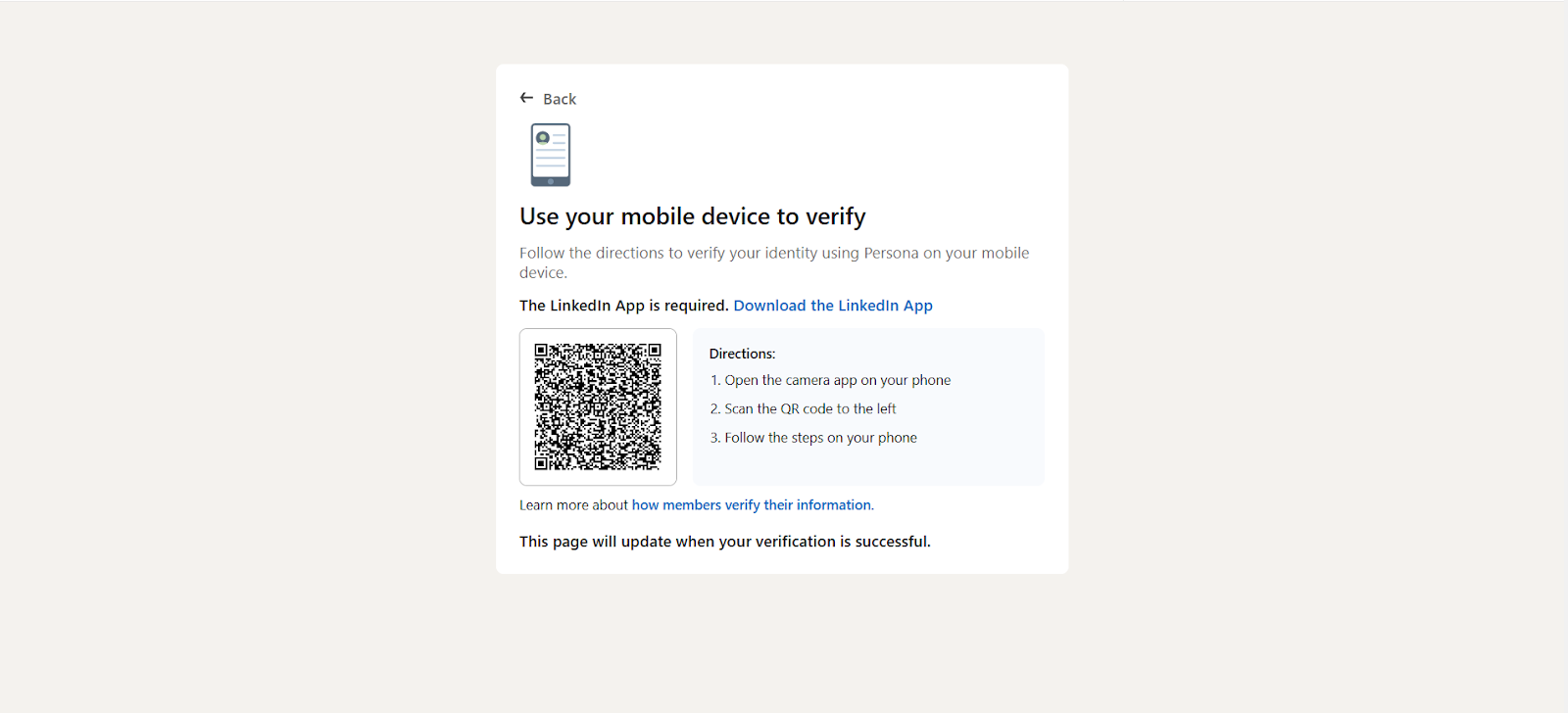
- Follow the instructions to upload a photo of yourself and a government-issued ID, then select "Yes, share" to grant LinkedIn access to your details.
Once your LinkedIn profile name matches the name on your ID, you’ll receive a verification badge, which may also display the issuing country of your ID. Verified users will have a gray badge next to their name on their profiles. You can click the badge to see more details about the verification type and method used.
>>> Topic Linkedin:
- Where to buy LinkedIn accounts? Top 15 sites to buy safely in 2025
- How much is LinkedIn premium? Unlock the full price & perks now
- Multiple LinkedIn accounts - How to create and manage them effectively?
- What to do when your LinkedIn Account is Restricted?
4. How Hidemyacc can help you manage multiple LinkedIn accounts?
For users who need to manage more than one LinkedIn account, verification and security can become even more complicated. Here's how Hidemyacc can help:
4.1. Create a distinct browser environment
Hidemyacc will create browser profiles with completely different browser fingerprint parameters (OS, browser, device memory, font, language, screen size,...). Each of these profiles works separately, when you add poxy they will have different IP addresses, similar to computers with separate network connections.
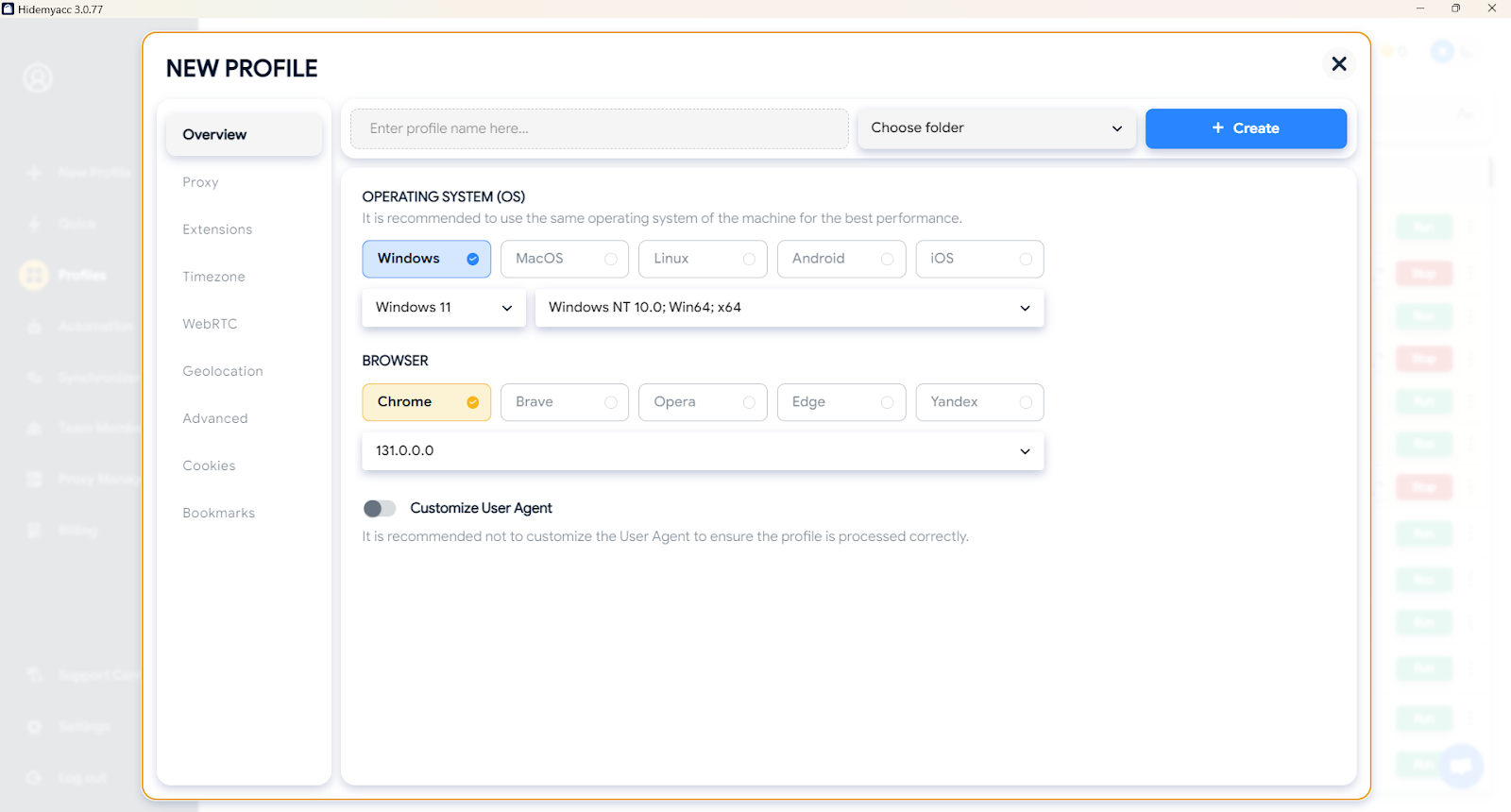
4.2. Avoid account bans with safe IP integration
When managing multiple LinkedIn accounts, it’s important to use proxies that rotate frequently. Hidemyacc allows you to integrate a proxy to each profile to seamlessly rotate IPs, making it appear as though you're accessing LinkedIn from different locations, thereby reducing the risk of bans due to suspicious activity.
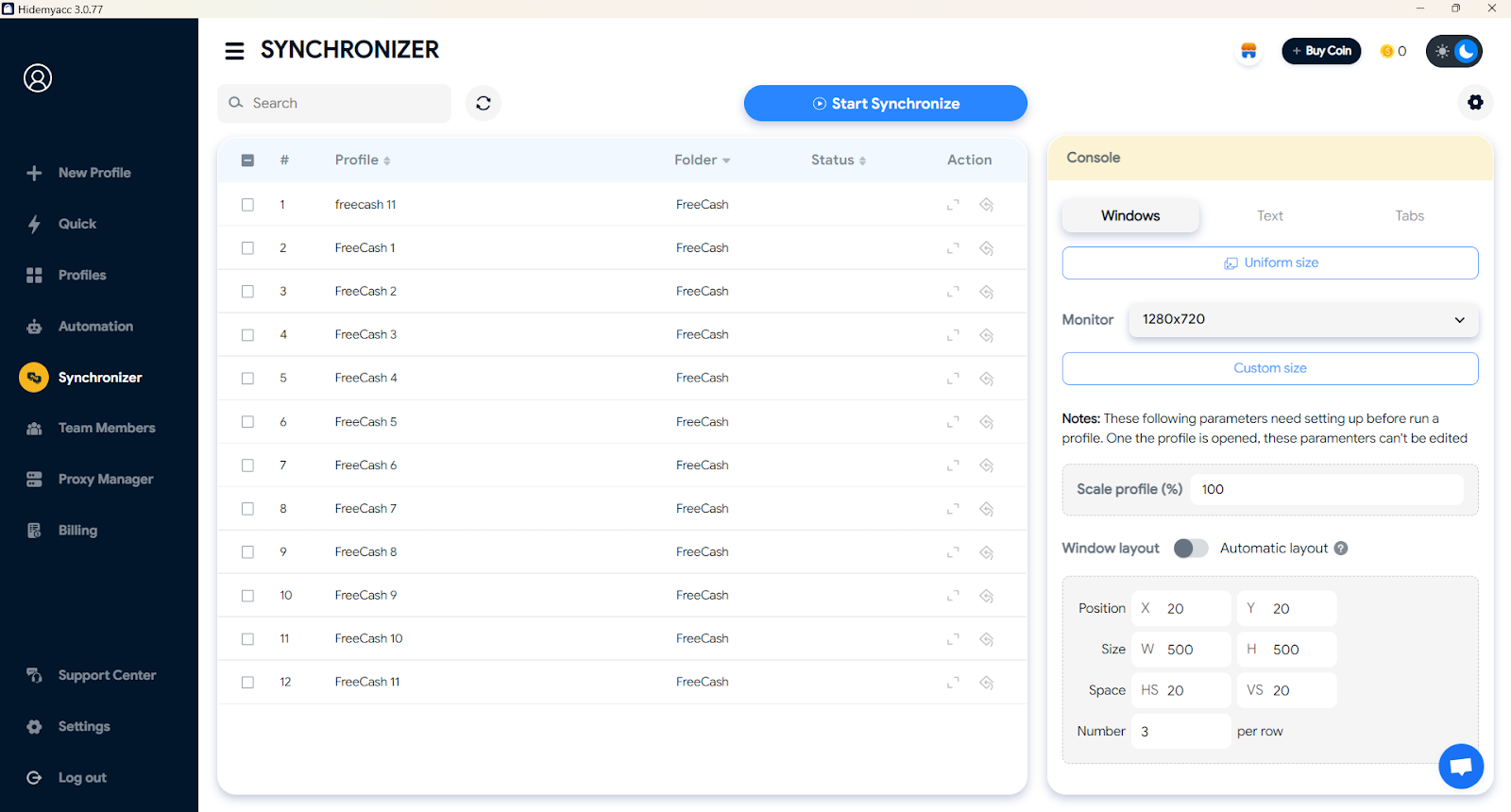
4.3. Synchronizer across profile
Managing multiple accounts often involves a lot of repetitive tasks. Hidemyacc's synchronization features allow you to manage activities across several LinkedIn accounts at the same time, saving you time and effort. You can sync actions such as sending connection requests, posting updates, or interacting with profiles across multiple accounts.
5. Conclusion
Dealing with LinkedIn account verification issues can be frustrating, but with the right tools and strategies, you can easily overcome these hurdles. By ensuring your profile details are accurate, checking your email, and using a reliable VPN or proxy service, you can solve most verification problems.
Moreover, if you're managing multiple LinkedIn accounts, Hidemyacc provides the perfect solution to streamline the process. With its advanced proxy management features, you can ensure that each account operates independently and securely, avoiding potential bans or verification issues.