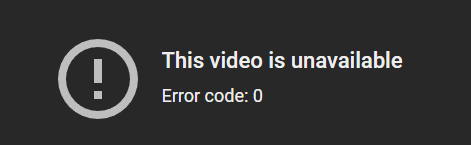
You click on a YouTube video, but instead of playing normally, the screen only shows "This YouTube video is not available. Error code: 0". Reloading doesn't work, switching to another video shows some play fine while others don't, making this error even more confusing. This is usually a fairly generic playback error, but in most cases, it can be resolved quickly. This article will explain what Error Code: 0 is, why it appears, and the fastest ways to fix it so you can get back to watching your videos.
1. What is "This YouTube video is not available. Error code: 0"?
This is an error that occurs when YouTube cannot load or play a video, but it doesn't specify the exact cause. This error can stem from your browser, the YouTube app, your network, extensions, a VPN, or the video itself.
Because this is a fairly generic error, you should check each possibility instead of assuming YouTube is completely down. In many cases, the error can be fixed quite quickly with a few basic steps.
2. Common causes of YouTube's "Error code: 0"
Before fixing it, you should know where this error usually comes from to choose the right solution.
- Weak or unstable network connection: If your network is intermittent, YouTube might not be able to load video data and will display an error instead of playing normally.
- Corrupted cache, cookies, or app data: Old or corrupted data can cause the YouTube player to send incorrect requests or load the video incompletely.
- Extensions blocking YouTube scripts: Extensions like ad blockers, privacy extensions, or script blockers can block necessary elements for the video to play.
- Outdated browser or YouTube app: An older version might no longer be fully compatible with how YouTube currently plays videos.
- VPN or proxy causing playback errors: A VPN or proxy can interrupt content loading, change your access region, or cause certain videos to be blocked.
- The video has been deleted, set to private, or is region-restricted: If only one video shows an error while others play fine, the problem likely lies with the video itself.
- YouTube is experiencing a temporary glitch: Sometimes the error is on YouTube's end, usually lasting only a short time.
Since this is a fairly generic error, you should check from the simplest possibilities first.
3. Quick fixes for the "This YouTube video is not available. Error code: 0" error
3.1. Reload the page or reopen the app
This is the most basic method, but quite effective if the error is just a temporary playback glitch.
- On a computer, close the YouTube tab and reopen it
- Click reload page
- On a phone, swipe to close the app and reopen it
- Try playing the same video again
If the video plays after this step, the error was likely just an incomplete video load.
3.2. Check your internet connection
With Error code: 0, an intermittent network is a very common cause. Before thinking of a bigger issue, you should double-check your connection.
- Open another website or another video to test the network
- Switch from Wi-Fi to mobile data or vice versa
- Restart your modem or router if you are using Wi-Fi
- Try the video again once the network is more stable
If other pages also load slowly or every video spins for a long time, the problem is likely your network, not just YouTube.
3.3. Clear YouTube cache and cookies on your browser
Sometimes the error isn't with the video but with old data saved in your browser. When cache or cookies are corrupted, YouTube might load the video incorrectly.
- Open your browser settings
- Go to privacy or browsing data
- Clear cache and cookies
- Or clear data specifically for youtube.com if your browser supports it
- Reopen YouTube and try playing the video
This method is especially worth trying if you experience the error repeatedly on the same browser.
3.4. Disable extensions, especially ad blockers
In many cases, Error code: 0 appears because an extension interferes with the video player. Ad blockers or script blockers are the first group you should check.
- Open your extension management page
- Temporarily disable all extensions
- Reload YouTube
- If the video plays, re-enable each extension one by one to find the culprit
- Prioritize checking ad blockers, privacy blockers, and script blockers
If the error disappears after disabling an extension, you've identified that the issue lies with the browser, not the video itself.
3.5. Use incognito mode or try another browser
When it's unclear if the error is due to an extension, cookies, or your current browser configuration, the fastest way is to try a cleaner environment.
- Open YouTube in an incognito window
- Try playing the video again
- If it still fails, switch to another browser like Firefox, Edge, or Chrome
- Compare if the error only happens on one browser or all of them
If the video only fails on one browser, you have narrowed down the cause significantly, and it will be easier to fix.
3.6. Update your browser or the YouTube app
Older versions sometimes no longer maintain good compatibility with how YouTube currently plays videos. This is why you shouldn't skip the update step.
- On a computer, check for browser updates
- On a phone, update the YouTube app via the App Store or Google Play
- If the app is up-to-date but still errors out, try uninstalling and reinstalling it
This step is usually more helpful when the error appears after a long period of not updating your browser or app.
3.7. Disable VPN or proxy
If you are using a VPN or proxy, you should also try disabling it. In some cases, this intermediary connection causes the video to load incorrectly or be region-restricted.
- Disconnect your VPN or proxy
- Reload the YouTube page
- Try playing the video again
- If you need to use a VPN, try switching to a different server
If the video plays after disabling the VPN, the cause is likely related to your access region or redirected connection.
3.8. Check if the video is still public
The error doesn't always come from your end. If only one single video shows an error while others can still be watched, you should check the video itself.
- Try opening another video on the same channel
- Check if the video link still exists
- See if there's a notice that the video is private, deleted, or unavailable in your region
If other videos play normally, you might not need to fix your device; simply put, that video is no longer viewable.
3.9. Check if YouTube is experiencing a widespread outage
After trying the basic steps without success, you should consider the possibility that the error is on YouTube's end. This isn't the most common scenario, but it can happen.
- Search for "YouTube down" or "YouTube error code 0"
- Check service outage reporting sites like DownDetector
- See if other users are experiencing similar errors
- Wait a while and try again
If many people report the error at the same time, it's highly likely you just need to wait for YouTube to fix their system.
4. How to fix "Error code: 0" by device
Depending on the device you are using, the priority order for troubleshooting is slightly different.
- On a computer: prioritize reloading the page, clearing cache, disabling extensions, changing browsers
- On a phone: prioritize closing and reopening the app, updating the app, clearing app cache, changing network
- On a smart TV or streaming device: prioritize exiting the YouTube app, restarting the device, checking the network, updating the app or firmware
Following the right steps for your device will save you more time than trying everything at once.
5. Cases where you cannot fix the error yourself
The error is not always on your side. There are cases where users are almost unable to resolve it themselves.
- The video has been deleted
- The video is set to private
- The video is blocked by country
- YouTube is experiencing a server-side error
- Your account or device is temporarily restricted
If other videos play normally and only one video has an error, the cause is highly likely not your device.
6. How to minimize encountering this error in the future
You cannot completely avoid Error code: 0, but you can reduce the likelihood of it recurring with a few simple habits.
- Update your browser and YouTube app regularly
- Don't use too many script-blocking extensions
- Clear cache periodically
- Only turn on VPN when absolutely necessary
- Use a stable network when watching videos
- Keep a backup browser if you frequently encounter playback errors
These small steps are usually enough to keep YouTube running more stably during daily use.
>>>> REFERENCE: Top 6 reputable, high-speed proxy services for YouTube
7. Conclusion
"This YouTube video is not available. Error code: 0" is a fairly generic error, but most cases can be quickly resolved with basic steps like reloading the page, checking the network, clearing cache, disabling extensions, or updating the app. If you've tried everything and it still doesn't work, you should consider the possibility that the video is no longer public or YouTube is experiencing a system error.
>>>> LEARN MORE:
- How to manage multiple social media accounts without getting banned?
- Guide to fixing the YouTube video is not available error - Code 4
- What is YouTube error code 15? Causes and how to fix it
8. FAQ
1. What does "This YouTube video is not available. Error code: 0" mean?
This is an error that occurs when YouTube cannot complete the request to load or play a video, but it does not specify the exact cause.
2. Why does only one video have an error while others can still be watched?
In this case, the cause might lie with the video itself, for example, the video has been deleted, set to private, or region-restricted.
3. Does disabling ad blockers help fix Error code: 0?
It can. In many cases, the error appears because an ad blocker or script-blocking extension prevents YouTube from loading the video player correctly.
4. Is Error code: 0 caused by the network?
It can be. A weak or unstable connection is one of the most common causes.
5. Which method should I try first?
You should start with the fastest steps: reloading the page or reopening the app, checking the network, and then moving on to clearing cache and disabling extensions.
6. Does using a VPN cause this error?
It can. A VPN or proxy sometimes interrupts video loading or causes content to be restricted by region.
7. How long does this error take to resolve itself if it's due to YouTube?
If the error is on YouTube's end, it is usually fixed within a few minutes to a few hours, depending on the severity of the incident.