When accessing YouTube, many users encounter situations where they cannot watch videos or experience interruptions. This error, known as YouTube Error Code 15, often occurs due to network connection issues, DNS settings, or problems related to the device and browser. In this article, Hidemyacc will help you understand exactly what YouTube Error Code 15 is, its causes, and how to quickly fix it so that videos return to normal.
1. What does YouTube error code 15 mean?
In some cases, when accessing YouTube, users may encounter error code 15, preventing videos from playing or blocking access. So what exactly does this error code mean?
1.1. What is YouTube error code 15?
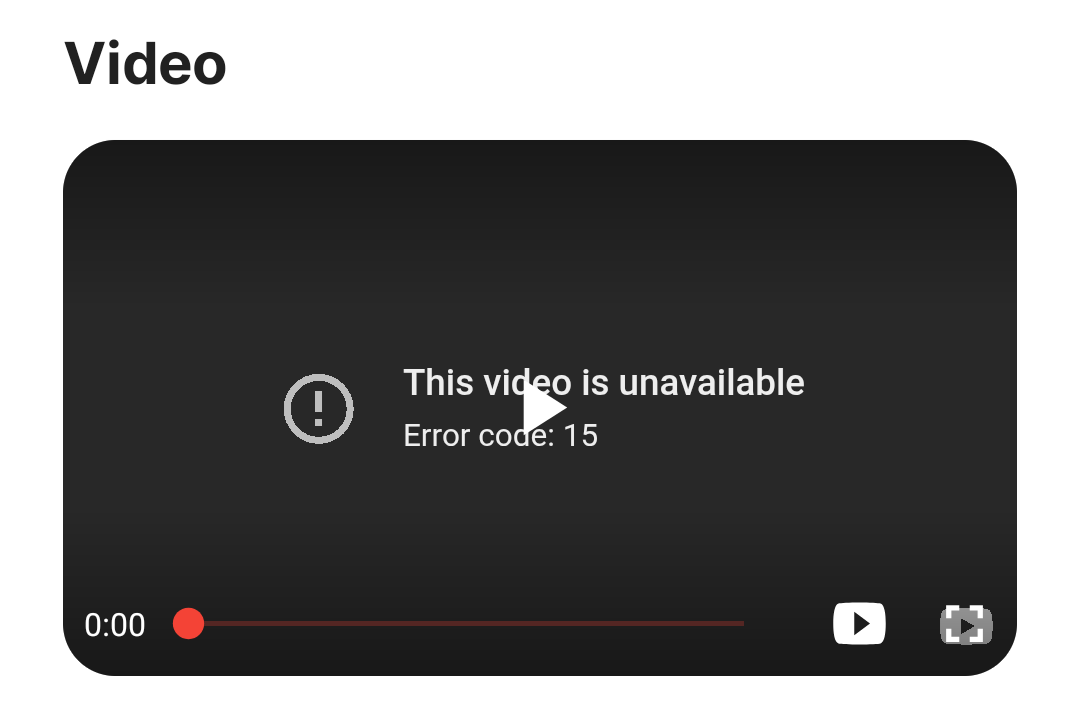
YouTube error code 15 is an error message that occurs when a user tries to access or play a video on the YouTube platform but the system does not allow the connection.
Errors often occur in several situations, such as:
- When I open a YouTube video in my browser, the video doesn't load.
- When accessing YouTube from a company, school, or supervised network.
- When the system detects unauthorized access from the network or proxy.
In general, YouTube error code 15 is usually related to network configuration or access issues, preventing users from watching videos normally.
See more:
- Can multiple YouTube channels share a single account?
- How to manage multiple social media accounts without getting banned?
1.2. Identifying signs when encountering YouTube error code 15
When encountering this error, users often notice several unusual symptoms while accessing YouTube. Common symptoms include:
- YouTube videos won't play even though the internet connection is working normally.
- An error message related to YouTube error code 15 has appeared.
- The YouTube page is loading slowly or is blocked from access.
- Some videos are not viewable while other websites are working normally.
These signs indicate that there are problems accessing YouTube and the user needs to check their connection or network settings.
1.3. The meaning of error code 15 in YouTube's security system
Error code 15 relates to the access control mechanisms in place to protect the system. YouTube uses multiple layers of security to detect and block requests that appear suspicious.
The factors that are typically checked include:
- The user's IP address.
- Frequency of sending requests to the server.
- Network source or access location.
In addition to its main server system, YouTube also uses a CDN (content delivery network) to distribute videos globally. CDNs help reduce server load but also have a mechanism to check requests before allowing access to content.
If a request is deemed risky, the system can block access directly at the CDN layer.
1.4. How is YouTube error code 15 different from other access errors?
Several other access errors can be confusing because they also prevent videos from playing. However, their causes and handling mechanisms are different.
|
Error type |
The main cause |
Characteristic |
|
403 |
The server denied access. |
This usually involves invalid access rights or requests. |
|
429 |
Too many requests |
This appears when sending requests too quickly. |
|
Region block |
Area restrictions |
Video is not available in this country. |
|
Error 15 |
The security system blocks requests. |
Usually involves IP, VPN, or network. |
The difference with error 15 is that the request is blocked right at the security control layer, before the video content is downloaded to the device.
2. What causes YouTube error code 15?
After understanding the nature of the error, the next step is to identify the cause of the system denying access. YouTube error code 15 typically appears when the server or CDN detects an untrusted request from an IP address or network configuration.
Factors related to IP address, VPN, DNS, or browser can all cause requests to be flagged as unusual.
2.1. The IP address is blocked by YouTube or the CDN.
IP addresses are a crucial element in YouTube's access control system. Every request sent to the server is checked for its IP source to determine the trustworthiness of the connection.
If the system detects an unusual IP address, the request may be rejected at the CDN layer before the video content is loaded.
Some common reasons why IP addresses get blocked include:
- Blacklisted IPs: Some IP addresses have been used for spam, bot traffic, or sending too many requests. These IPs may be added to a restricted access list.
- Datacenter IP ranges: Many proxies and automated tools use datacenter IPs instead of residential IPs. These IP ranges are generally more risky and easier to flag.
- An IP address is being used excessively in a short period: When an IP address sends a large number of requests in a short time, the system may consider this to be automated behavior or unusual access.
In these cases, YouTube's CDN will block the request to protect the system. The browser may then display YouTube error code 15 instead of loading the video content.
2.2. Using an unstable VPN or proxy.
VPNs and proxies are common causes of YouTube error code 15. When using these tools, traffic doesn't go directly from the user's device but is routed through an intermediary server, making it difficult for YouTube to identify the actual traffic source and potentially flagging the request as risky.
Some common situations include:
- VPN IP addresses are being used by too many people: Many VPN services share the same IP address with hundreds or thousands of users. When the number of requests becomes too high, that IP address may be restricted by the system.
- IP proxies that have been flagged as spam or bot traffic: Some proxies, especially cheap datacenter proxies, are often used for automation activities. If an IP address has been abused, YouTube may add it to a restricted list.
- Unstable VPN server: When the VPN connection constantly changes network routes or IP addresses, requests sent to the YouTube server may be considered abnormal.
In these cases, YouTube's CDN may block the request to protect its system. As a result, the YouTube page displays the YouTube error code 15 instead of loading the video.
2.3. Invalid DNS or network configuration
DNS plays a crucial role in converting YouTube's domain name into a server address that browsers can use to send requests. If DNS resolution fails, connections to the content server may be interrupted or denied.
In some cases, the CDN system may receive requests from an invalid network connection. In such cases, the request may be blocked and an access error code may be displayed.
Some common causes include:
- Your internet service provider's DNS is unreliable: The default DNS provided by your internet service provider sometimes responds slowly or routes to the wrong server. This can cause requests to YouTube to not be processed correctly.
- Incorrect DNS configuration on the device: Users may enter the wrong DNS address or use a DNS that is no longer working. In this case, the browser cannot correctly identify the server to access.
- DNS blocked by firewall or network filter: In some network environments, security systems may filter or redirect DNS queries. This can cause requests to YouTube to be altered or blocked.
When DNS or network configurations are invalid, requests sent to the content delivery system may be flagged as abnormal. As a result, YouTube denies access and displays an error.
2.4. Access from a company network, school network, or restricted network.
In many organizations, network administrators typically implement internet access control systems. These policies aim to restrict the use of entertainment platforms during work or study hours.
YouTube is one of the services that is often restricted in local network environments. When users try to access it from these networks, the request may be blocked before reaching the YouTube server.
Some common control mechanisms include:
- Internal network firewall; the firewall can directly block YouTube's domain or IP range. This prevents the browser from establishing a connection to the server.
- Web content filters: Some content filtering systems categorize websites by purpose. Video or entertainment sites may be automatically restricted from access.
- Organizational access control policies: Businesses and schools often establish access policies to control network bandwidth. Data-intensive services like video streaming are often included in the list of restricted services.
In these cases, requests to YouTube may be blocked at the network level before reaching the CDN system. This causes the browser to display YouTube error code 15.
2.5. Browser or extension conflicts
Besides network and IP address issues, the browser can also be a cause of YouTube error code 15. Certain extensions or outdated stored data can alter how the browser sends requests to the server.
When a request contains invalid data or is modified by an extension, the security system may consider it an unauthorized access.
Some common cases include:
- Ad or content blocking extensions: Some ad blockers alter requests or block scripts necessary to load videos. This can cause YouTube to malfunction.
- Security or privacy extensions: Privacy protection tools often block cookies, headers, or tracking scripts. If configured too strictly, requests may be rejected by the system.
- Faulty cookies or browser cache: Browsers store a lot of data to speed up access. However, if this data is corrupted or outdated, requests sent to the server may be invalid.
When these factors occur, YouTube may not be able to process the request normally. As a result, the page displays YouTube error code 15 instead of loading the video content.
3. The quickest way to fix YouTube error code 15
After identifying the cause of the error, the next step is to apply appropriate troubleshooting methods. In most cases, YouTube error code 15 appears due to IP address, VPN, or browser configuration. Therefore, users can try the solutions below to restore access.
3.1. Check and change the IP address
The IP address is the first thing YouTube checks when a user submits an access request. If the current IP address is on a restricted list or flagged as risky, the server may refuse to process the request. In this case, changing the IP address is usually the quickest way to restore access.
Some simple methods include:
- Restart your modem or router: Many internet service providers use dynamic IP addresses. Restarting your modem may allow the device to receive a new IP address from the network.
- Disconnect and reconnect to the network: Turning the internet connection off and on again can sometimes help the system assign a new IP address to the device.
- Switch to a different network: Users can try accessing YouTube using a different Wi-Fi network or mobile data plan. If the video loads normally, the problem is most likely with the previous network's IP address.
Checking and changing your IP address can quickly determine if YouTube error code 15 is related to your IP address.
3.2. Turn off your VPN/proxy or change VPN servers.
VPNs/proxies can change your IP address and connection route when accessing the internet. In some cases, YouTube's security system may flag VPN/proxy IPs as a risky access source. When this happens, requests sent to the server may be rejected and display YouTube error code 15.
To check the cause, users can follow these steps:
- Turn off your VPN/proxy and access YouTube again: Turning off the VPN causes your internet connection to revert to your ISP's original IP address. If videos load normally, the problem might be with your VPN IP address.
- Switch to a different VPN server; some VPN servers may have been flagged by the system. Switching servers allows you to use a different IP address with fewer restrictions.
- Choose a VPN with a stable IP address: Some VPN services share IP addresses with too many users. This increases the frequency of requests from the same IP address and makes it easier for the system to block them.
If the error no longer occurs after changing or disabling the VPN, users should use a more stable connection to avoid being blocked from accessing the site.
3.3. Clear browser cache and cookies
Cache and cookies help browsers save browsing data to speed up page loading. However, if this data is corrupted or outdated, requests sent to the YouTube server may contain invalid information. In that case, the security system may reject the request and display YouTube error code 15.
Deleting browsing data allows the browser to create a new session and send a clean request to the server.
The steps involved typically include:
- Open your browser's Settings.
- Find the Privacy section.
- Select Clear browsing data.
- Clear cache and cookies.
- After completion, users should restart their browser and access YouTube again.
In many cases, this operation can resolve access errors arising from outdated session data or invalid browser configurations.

3.4. Change DNS to a public DNS
DNS is responsible for resolving YouTube's domain name into a server address so that the browser can send requests. If your internet provider's DNS is unstable, requests may be misrouted or blocked.
In some cases, switching to a public DNS server can improve resolution and restore access.
Two popular DNS services commonly used include:
|
Supplier |
Primary DNS |
Secondary DNS |
|
Google DNS |
8.8.8.8 |
8.8.4.4 |
|
Cloudflare DNS |
1.1.1.1 |
1.0.0.1 |
To change the DNS, users can access the network configuration on their computer or router. Then, they can enter the new DNS address and save the settings.
After completion, you should restart your internet connection so that the system uses the new DNS. This method helps ensure requests are routed more accurately and may resolve YouTube error code 15 in some cases related to DNS.
3.5. Disable conflicting extensions.
Some extensions can change how browsers send requests to the server. When an extension blocks a script or modifies the request header, the YouTube system may consider the access to be unusual.
This sometimes causes the page to fail to load video content and display YouTube error code 15. Commonly conflicting extensions include:
- Ad blockers block ads and video download scripts.
- Privacy extension ngăn cookie hoặc tracking script.
- Security utilities modify the request structure.
To check, users can follow these steps:
- Disable all extensions in your browser.
- Reload the YouTube page to check.
- Re-enable each extension to identify the one causing the error.
If a conflicting extension is detected, users should disable it or replace it with another tool. This helps the browser send requests normally and reduces the risk of the error recurring.
Additionally, you can find more articles on the same topic here:
- Instructions to fix the "This YouTube video is unavailable" error - Code 4
- Instructions on using the automatic commenting tool on YouTube.
- Troubleshooting YouTube Premium payments was unsuccessful.
- How to use AI commands to create viral YouTube videos in 2026
- A compilation of 6 reputable and high-speed YouTube proxy services.
4. How to access YouTube when your internet is blocked.
In some network environments, such as offices or schools, YouTube blocking is configured directly at the system level. In this case, requests from user devices may be intercepted by firewalls or content filters before reaching the server.
In these cases, changing browser configurations is often not enough to fix the error. Users need to try alternative methods to establish a different connection to YouTube.
4.1. Using public DNS
Some systems block websites based on your internet service provider's DNS or your local DNS. In that case, switching to a public DNS can help bypass this control.
Some popular DNS servers commonly used include Google DNS, Cloudflare DNS, etc. Public DNS servers generally offer faster resolution speeds and are less likely to have content filters applied. This allows devices to access YouTube servers directly.
4.2. Use a stable VPN
A VPN encrypts the connection and routes all internet traffic through an intermediary server. When using a VPN, requests no longer go through the internal network's control system.
Thanks to this, users can access YouTube even when the network is implementing a blocking policy.
However, it's important to choose a stable VPN service to avoid recurring access errors due to IP address restrictions.
4.3. Access via mobile network
If your Wi-Fi network is implementing a content blocking policy, switching to a cellular network is often the quickest solution.
Mobile networks use their own routing and DNS systems. Therefore, blocking policies from the internal network will no longer be effective.
Users can try:
- Turn on mobile data on your phone.
- Share your computer's hotspot.
- Access YouTube using the new connection.
This allows users to quickly check and determine whether YouTube's error code 15 originates from their current Wi-Fi network.
4.4. Check the internal network policy.
In some cases, YouTube is blocked due to the organization's official policies. In such situations, technical measures may not completely resolve the issue.
Users should check with their network administrator for the following:
- Which websites have restricted access?
- The organization's internet usage policy.
- Is it possible to grant temporary access?
Understanding network policies helps pinpoint the exact cause and avoid unnecessary configuration changes.
5. How to prevent YouTube error code 15 in the future.
After resolving the error, users should adjust their access configuration to avoid recurring blocking issues. YouTube error code 15 is often related to IP address, network configuration, or unusual access behavior.
Maintaining a stable connection and avoiding frequent configuration changes will help reduce the risk of the system marking the request as risky.
5.1. Use a clean and stable IP address.
IP addresses with a stable browsing history are less likely to be flagged by monitoring systems. When using a clean IP address, requests sent to the YouTube server are more reliable.
Users should prioritize:
- Connect to the internet from a reputable service provider.
- Residential IP addresses instead of datacenter IP addresses.
- VPN services offer IP addresses that are less likely to be shared.
This helps reduce the likelihood of an IP address being on the restricted list.
5.2. Limit frequent IP address changes.
Changing your IP address too frequently can cause the system to detect unusual access behavior. This is especially likely to happen when using a VPN or proxy.
To avoid risks, you should:
- Use a stable internet connection.
- Avoid switching VPN servers frequently.
- Avoid changing network configurations too frequently in a short period of time.
A stable connection helps the system identify a more reliable access source.
5.3. Avoid sending too many requests in a short period of time.
An IP address sending a large number of requests in a short period of time may be flagged as bot traffic by the system. This causes the CDN or server to temporarily block access.
Situations that are likely to cause problems include:
- Reload the video multiple times in a row.
- Use automation tools.
- Too many YouTube tabs open at the same time.
Maintaining a normal access frequency helps avoid triggering security mechanisms.
5.4. Check your browser's security settings.
Some security extensions can change how browsers send requests to servers. If configured too tightly, requests may be marked as invalid.
Users should:
- Check the extensions that are being installed.
- Avoid using too many content-blocking extensions.
- Update your browser regularly.
Maintaining a stable browser configuration helps reduce the risk of future access errors.
6. Conclusion
YouTube error code 15 can prevent users from watching videos and disrupt their entertainment or learning experience on the platform. The error often stems from various causes such as network configuration, firewall filters, DNS settings, or issues with the browser and application. However, in most cases, you can quickly resolve the issue by checking your internet connection, clearing your browser cache, changing your DNS, or updating the YouTube app.
Hopefully, the information in this article has helped you understand YouTube error code 15 and how to handle it. If the error persists after following the steps above, you should check your network configuration or contact your system administrator for assistance.
7. FAQ
1. What does YouTube error code 15 mean?
This is a security error that occurs when YouTube's system or CDN network rejects access requests from a user's device. The cause is often related to an unusually flagged IP address, VPN, DNS, or network configuration.
2. Why am I still getting YouTube error 15 even though I'm not using a VPN?
Even without using a VPN, errors can still occur if your ISP's IP address has previously been flagged as risky or is used by many people. Additionally, DNS errors, browser caching, or a blocked internal network can also cause problems.
3. Will restarting the modem help fix YouTube error 15?
In many cases, restarting the modem helps the device receive a new IP address. If the old IP is on a restricted list, changing the IP may help restore normal access to YouTube.
4. Is using a public DNS safe?
Public DNS servers like Google DNS or Cloudflare DNS are widely used due to their speed and stability. Changing your DNS is generally safe and can help improve domain name resolution when accessing YouTube.
5. Is YouTube error code 15 related to a Google account?
This error is usually not related to the Google account. The system rejects the request before the user logs in or downloads content, so the main cause lies in the IP address or network configuration.
6. How can I access YouTube when my company network is blocking it?
If your local network is blocking YouTube, you can try switching to a public DNS, using a stable VPN, or accessing it via your mobile network. These methods help establish an alternative connection to the YouTube servers.