Many creators, when preparing to livestream on TikTok, often encounter a frustrating situation: their internet is working perfectly for browsing the web or watching videos, yet the system displays a "Network Error" the moment they hit "Go Live". In reality, a TikTok Live Studio network error is a very common issue that users frequently face when streaming from a computer. In this article, Hidemyacc will help you identify the root causes, provide a step-by-step guide on how to fix it quickly, and share important tips to permanently resolve this error for future sessions.
1. Quick fixes for tiktok live studio network errors
These quick troubleshooting steps can resolve a network error on TikTok Live Studio in just a few minutes before you need to dive deeper into system settings. Following them in order will save you time and prevent unnecessary steps.
1.1. Restart and open tiktok live studio
In many cases, a TikTok Live Studio network error occurs simply because the application didn't launch correctly.
Follow these steps:
- Completely exit TikTok Live Studio.
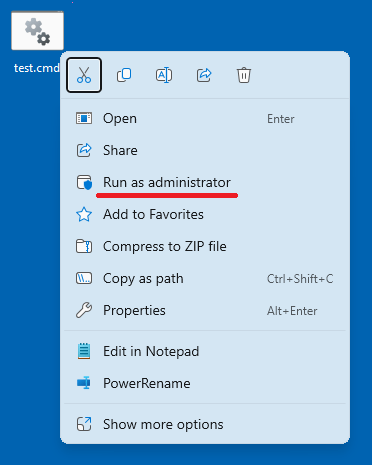
- Reopen the app using Run as Administrator.
- Wait for the application to load completely before clicking "Go Live".
This ensures that Live Studio has the necessary permissions to access your network and system resources.
1.2. Reconnect your tiktok account
Sometimes your login session expires or encounters an authentication bug, preventing Live Studio from connecting to the server.
Here is how to handle it:
- Log out of your TikTok account within Live Studio.
- Close the application.
- Reopen and log back in from scratch.
Many users find that this step alone is enough to fix the TikTok Live Studio network error.
1.3. Disable vpns, proxies, and background network tools
TikTok is very sensitive to intermediary IPs. If it detects an unstable connection or a masked IP, the system may block your stream.
You should check and disable:
- Desktop VPNs.
- Browser-based VPN extensions.
- Background VPN apps.
- Configured Proxies in your OS settings.
Ensure all background VPN or proxy processes are completely terminated.
1.4. Switch to a different internet connection
Some ISPs or modems experience temporary routing issues. Switching your network helps determine if the problem lies with your specific internet line.
You can try:
- Switching from Wi-Fi to an Ethernet (wired) connection.
- Using a 4G/5G hotspot from your phone.
- Connecting to a different network in your area.
If you can go live immediately after switching, the issue is with your original internet provider, not TikTok.
1.5. Restart your router or modem
Routers running for long periods can develop NAT issues or network cache errors, directly affecting livestream stability.
If you have access to the hardware:
- Turn off the router/modem.
- Wait 30-60 seconds.
- Turn it back on and wait for the connection to stabilize.
- Restart TikTok Live Studio and try to Go Live again.
1.6. Fix windows date and time settings
Inaccurate system time can cause SSL authentication errors. This causes TikTok Live Studio to report a network error even when your internet is functioning normally.
Follow these steps:
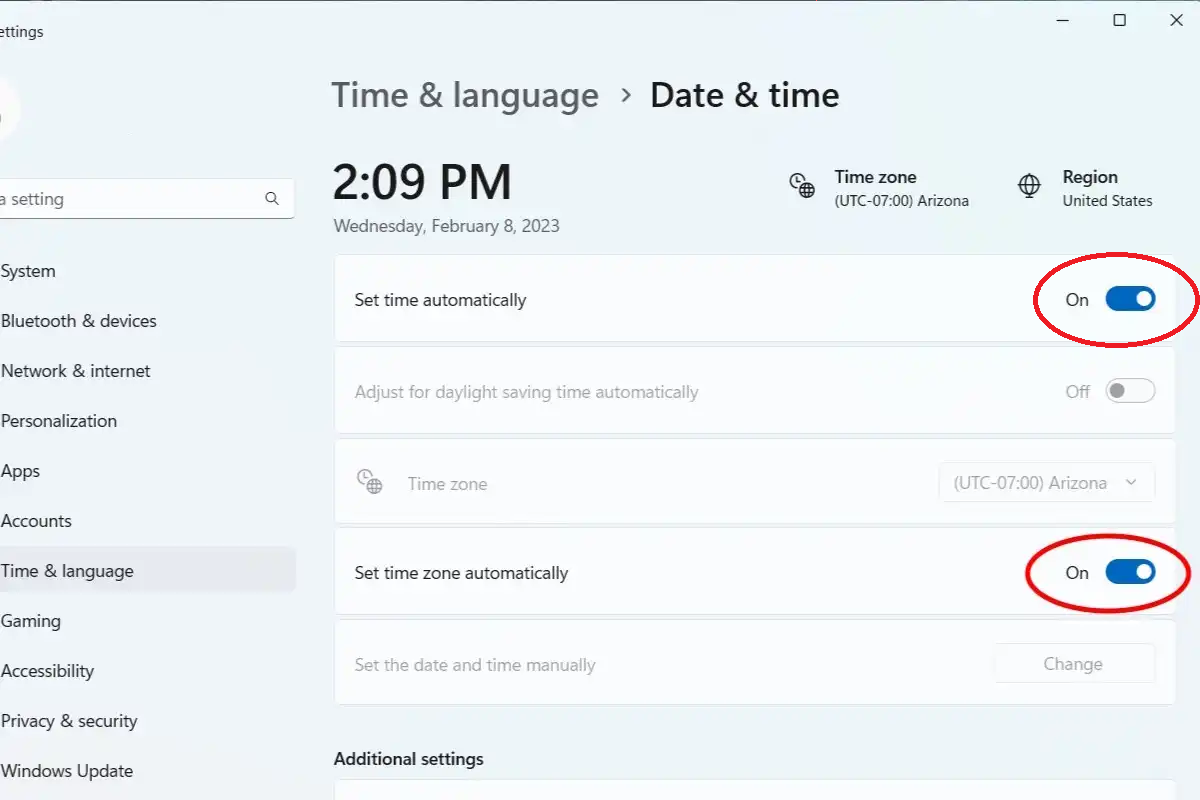
- Open Date & Time Settings.
- Toggle on Set time automatically.
- Toggle on Set time zone automatically.
- Click Sync now.
Once synchronized, restart Live Studio.
1.7. Stop bandwidth-heavy applications
Livestreaming requires a consistent upload speed. Even one background app hogging your bandwidth can destabilize your stream.
Check and close:
- Google Drive or Dropbox (while syncing/uploading).
- Torrent clients.
- Cloud backup software.
- OBS or other streaming apps running in the background.
If you have followed all these steps and still see the error, the cause may be deeper within your system. At this point, you should move on to the advanced fixes to permanently resolve the TikTok Live Studio network error.
2. What is a network error in tiktok live studio?
Many people waste time on ineffective fixes because they misunderstand the nature of the problem. To save time and effort, you need to understand exactly what a network error entails.
2.1. Network error does not mean a total internet outage
This is the most common misconception. A TikTok Live Studio network error does not mean your internet is down. You may still be able to browse the web, watch videos, or use the TikTok mobile app normally.
The issue lies in the fact that TikTok Live Studio requires a completely different type of connection protocol compared to the mobile app.
2.2. What does tiktok live studio need to run smoothly?
To livestream successfully, Live Studio requires three simultaneous elements. If even one fails, the system will trigger a network error.
Live Studio requirements:
- A continuous, stable connection without interruptions.
- A successful "handshake" with TikTok’s servers.
- Real-time data upload capability with low latency.
If your upload speed fluctuates, the handshake fails, or your IP address is unstable, the live stream will be blocked immediately.
2.3. Common network error messages in live studio
TikTok doesn't use just one single alert. Depending on the specific situation, you may encounter various versions of the error.
Commonly seen notifications:
- “Network error”
- “No internet connection”
- “Unable to connect”
Regardless of the phrasing, the core issue remains the same: Live Studio cannot maintain a streaming connection with the server.
>>> Related Articles:
- Is your TikTok account locked? How to appeal and recover it quickly
- TikTok Shadowban: Signs and how to handle it
- Why can't I add product links on TikTok?
3. Why is tiktok live studio more sensitive than the tiktok app?
To understand why a TikTok Live Studio network error occurs so frequently, you need to look at the core differences between the Live Studio software and the TikTok mobile app. Here is a technical explanation presented in an easy-to-understand way.
3.1. The tiktok app operates on a content-loading mechanism
The TikTok app primarily uses a download-based mechanism. Content is downloaded in small segments and temporarily cached on your device.
Characteristics of the TikTok app:
- Primarily focuses on downloading data.
- Requires very little upload bandwidth.
- Can tolerate brief network instability.
- Uses buffering to hide latency.
Because of this, the app continues to function normally even if your network is fluctuating.
3.2. Tiktok live studio requires strict livestream connectivity
In contrast, TikTok Live Studio uses a real-time streaming mechanism. Every bit of video and audio data must be sent to the server continuously.
Live Studio requirements:
- Continuous, uninterrupted upload.
- Low latency with second-by-second stability.
- A direct, persistent connection to TikTok’s livestreaming servers.
Even a minor bottleneck will cause the system to immediately trigger a network error.
3.3. Factors that affect live studio but not the tiktok app
There are many system components that the TikTok app virtually ignores, whereas Live Studio depends heavily on them. These factors are often the hidden culprits behind a TikTok Live Studio network error.
Common factors causing errors:
- Firewalls or Antivirus: Blocking the streaming connection.
- Outdated Network Drivers: Causing hardware conflicts.
- Unstable DNS: Slow or inconsistent server responses.
- Residual Proxy Configurations: Leftover settings in the OS.
While these factors usually don't interfere with watching videos, they become major barriers for livestreaming.
The bottom line isn't whether your network can "access the internet", it's that the connection standards required by TikTok Live Studio are significantly higher. Live Studio functions as a two-way direct broadcast channel; if even one intermediary component interferes, the connection is rejected. This explains why network errors are much more prevalent on Live Studio than on the mobile app. To fix it for good, you must check the specific technical factors that livestreaming relies on.
4. Common causes of tiktok live studio network errors
If quick fixes haven't worked, the issue likely stems from a deeper technical root. This section helps you identify the exact cause so you can avoid wasting time on the wrong solutions.
4.1. DNS errors and router-related issues
DNS translates TikTok's domain into an IP address. When DNS fails, Live Studio cannot connect to the correct server.
Common issues include:
- DNS incorrectly resolving TikTok domains.
- Slow or unstable DNS response times.
- Router storing outdated DNS cache that hasn't been refreshed.
These errors often don't impact regular web browsing, but they frequently trigger a TikTok Live Studio network error during a stream.
4.2. Firewall or antivirus blocking tiktok live studio
Security systems may flag Live Studio as an unrecognized application, especially after a fresh install or an update.
Common triggers:
- Windows Defender Firewall blocking outbound connections.
- Antivirus software interfering with real-time streaming apps.
- Insufficient network permissions granted to Live Studio.
When blocked, Live Studio will report a network error immediately.
4.3. VPNs, proxies, or content-filtering dns services
Intermediary tools often disrupt the connection flow. TikTok Live Studio is particularly sensitive to non-direct routing.
Frequent scenarios:
- VPNs creating circular routing, which increases latency.
- Incorrectly configured or "ghost" proxies.
- DNS filters or Adblock DNS blocking TikTok domains.
Even if a VPN works for other apps, it can still cause a TikTok Live Studio network error.
4.4. Outdated software or corrupted installation files
Old versions may no longer be compatible with new server protocols. Additionally, corrupted installation files can break connectivity.
Common signs:
- The error occurs the exact moment you click "Go Live".
- Switching networks doesn't help.
- The application behaves unstably overall.
In these cases, a clean reinstall of the application is essential.
4.5. Windows update conflicts or network driver issues
Certain Windows updates change the network stack. Similarly, outdated or corrupted network drivers have a direct negative impact.
Common causes:
- Windows Update altering network configurations.
- Incompatible network drivers.
- Conflicts between drivers and streaming software.
These issues typically only affect livestreaming, leaving regular web surfing untouched.
4.6. TikTok account eligibility restrictions
Not every account is permitted to use Live Studio. TikTok has specific requirements and limitations for livestreaming.
Potential cases:
- The account hasn't met the criteria to go Live.
- The Live Studio feature is restricted for that specific user.
- The account is under a temporary shadowban or restriction.
In these instances, the "network error" is just a surface symptom, not the actual cause.
4.7. TikTok server outages or maintenance
Sometimes the problem isn't on your end. TikTok's servers can experience local outages or scheduled maintenance.
How to tell:
- Many users report the same error at the same time.
- The error persists across different networks and devices.
- Errors appear globally or regionally at once.
If this is the case, the only solution is to wait for TikTok to fix it.
5. Advanced troubleshooting steps to resolve most pc errors
If quick fixes prove ineffective, it is highly likely that the Windows system or network configuration has encountered a significant error. These advanced steps are designed to resolve the TikTok Live Studio network error more thoroughly by focusing on system configurations and network protocols.
5.1. Flush DNS on windows
Flushing the DNS clears the outdated DNS cache on your computer. When this cache is corrupted or stores the wrong IP address, Live Studio cannot connect to the correct server.
You should flush DNS when:
- The error appears suddenly despite previous successful streams.
- You have switched networks but the error persists.
- You suspect the DNS is misresolving TikTok’s domains.
Once the DNS is flushed, Windows will request fresh, updated DNS information.
5.2. Reset windows network Stack (Winsock / TCP-IP)
The network stack is the foundation for all network connections on Windows. If this stack becomes corrupted, streaming applications are usually the first to suffer.
Performing a reset will:
- Refresh the Winsock catalog.
- Reset TCP/IP configurations to default.
- Remove lingering network conflicts.
Note: You must restart your computer after performing a reset for the changes to take effect.
5.3. Switch to Google DNS or Cloudflare DNS
Default ISP DNS servers can sometimes be slow or unstable, which directly impacts TikTok livestream connectivity.
Benefits of changing DNS:
- Faster resolution of TikTok domains.
- Reduced timeout errors during the "handshake" process.
- More stable connections for real-time uploads.
Recommended DNS addresses:
- Google DNS: 8.8.8.8 - 8.8.4.4
- Cloudflare DNS: 1.1.1.1 - 1.0.0.1
After changing these settings, it is recommended to restart your network or computer.
5.4. Allow TikTok live studio through windows firewall
Windows Firewall may silently block new applications. If Live Studio is blocked, it will be physically unable to connect to the server.
What to check:
- The list of blocked applications in Firewall settings.
- Network access permissions for both Private and Public networks.
- Inbound and outbound rules related to Live Studio.
Ensure that TikTok Live Studio is granted full network permissions.
5.5. Check antivirus or security software settings
Some antivirus programs flag streaming apps as security risks, interfering with the connection without the user realizing it.
How to handle this:
- Temporarily disable your antivirus to test the connection.
- If the stream works, add Live Studio to the Whitelist/Exclusions.
- Avoid real-time antivirus scanning while livestreaming.
5.6. Reinstall TikTok live studio
Sometimes, simply deleting the app isn't enough; leftover configuration files can continue to trigger errors.
The correct reinstallation process:
- Uninstall TikTok Live Studio.
- Delete leftover folders in AppData and ProgramData.
- Restart your computer.
- Download and install the latest version from the official source.
This method is highly effective for errors caused by corrupted application files.
5.7. Update windows and network drivers
Outdated or faulty network drivers can sabotage a livestream, especially following a major Windows update.
You should:
- Check for the latest Windows Updates.
- Update your Wi-Fi or Ethernet drivers.
- Prioritize official drivers from the manufacturer's website.
5.8. Try logging in with a different TikTok account
This step helps isolate the root cause: is it the system or the account?
How to test:
- Log out of your current account.
- Log in with a different TikTok account.
- Attempt to "Go Live" using the same PC and network.
If the second account works, the issue lies with your specific TikTok account eligibility, not your computer. Following these steps will resolve the vast majority of TikTok Live Studio network error cases on PC.
6. TikTok live studio configuration requirements to double-check
In many cases, a TikTok Live Studio network error isn't caused by incorrect settings. Instead, it stems from failing to meet the minimum system or account requirements. Crucially, these issues often display a generic "network error" message, leading to significant confusion.
6.1. Minimum computer hardware requirements
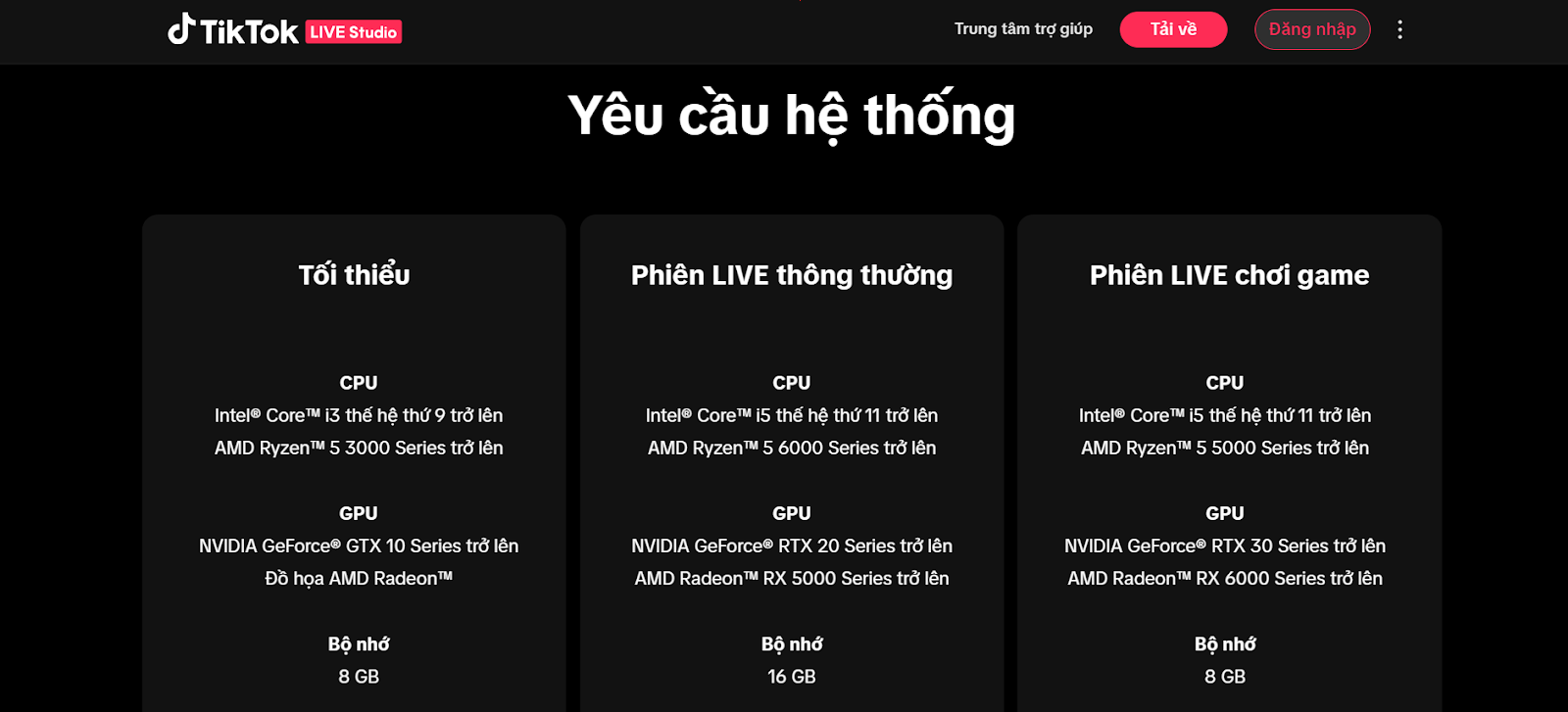
The performance of TikTok Live Studio depends heavily on your computer's hardware. If your device falls below the following minimum specifications, lag or connection errors are almost inevitable.
Minimum configuration for livestreaming:
- CPU: Intel Core i3 9th Gen / Ryzen 5 3000 Series or higher.
- GPU: GTX 10 Series / AMD Radeon or higher.
- RAM: 8GB or more.
- OS: Windows 10 or higher.
If your machine does not meet these specs, the app might open, but it will likely fail to go live.
6.2. Internet requirements for a stable stream
Livestreaming doesn't just require high speeds; it requires constant stability. This is the most common external factor behind a TikTok Live Studio network error.
Recommended requirements:
- Upload Speed: At least 5 Mbps or higher.
- Latency: Low, stable ping.
- Packet Loss: Zero packet loss during long upload durations.
High ping or inconsistent upload speeds will cause Live Studio to lose its connection to the server, even if you can still browse websites normally.
6.3. TikTok account requirements
Not all accounts are eligible to use Live Studio. TikTok applies specific conditions and restrictions for PC-based streaming.
Ensure the following:
- The account has been granted LIVE access.
- Livestreaming features are not restricted or disabled.
- The account is not currently under warning or temporary suspension.
If the account is ineligible, Live Studio may still trigger a generic network error message. In this scenario, the problem lies with the account status rather than the network or computer. Checking these requirements beforehand helps prevent you from troubleshooting in the wrong direction.
7. Is the error caused by TikTok’s Servers or your configuration?
Distinguishing the root cause will save you from wasting hours on unnecessary troubleshooting. Many creators reinstall the app multiple times only to realize the issue wasn't on their end. This section helps you quickly determine if the fault lies with TikTok or your personal system.
7.1. Signs that tiktok’s servers are experiencing issues
A TikTok Live Studio network error isn't always your fault. When TikTok's servers struggle, the software responds with a message that looks exactly like a local network issue.
Common signs of server-side trouble:
- Multiple creators report the same error at the exact same time.
- You can log into Live Studio normally, but the connection fails only when hitting "Go Live."
- The error persists even after switching to a different network or a different computer.
In these cases, tweaking your system configuration will not yield any results.
7.2. How to quickly test if the fault is with the server or your device
You can pinpoint the source of the problem in just a few minutes without needing to reset or reinstall anything immediately.
Effective testing methods:
- Log into the same account on a different device.
- Attempt to livestream using a completely different network (e.g., a mobile hotspot).
- Check community forums, Discord groups, or TikTok user groups.
If many users are experiencing identical issues, it is almost certainly a server-side problem.
7.3. What to do when the error is caused by tiktok’s servers?
Once you’ve confirmed the error isn't on your end, stop adjusting your system settings. Making too many changes can actually create new, real technical conflicts.
The correct approach:
- Wait for TikTok to resolve the issue.
- Try again after a short interval.
- Avoid constant uninstalls or repeated network resets.
When the server is down, patience is the only real solution.
>>> Learn about other social media errors:
- IP Banned on Discord? Causes and the most effective ways to unblock.
- “We had a server error” on Reddit: A guide on how to fix it.
- Unable to verify your LinkedIn account? Detailed step-by-step fix.
8. Conclusion
A TikTok Live Studio network error is often less complicated than it seems. However, troubleshooting in the wrong direction can waste a significant amount of time without actually fixing the problem. When you encounter this issue, prioritize the quick fixes and double-check your hardware configuration and account status. If the problem persists, move on to advanced solutions or verify the stability of TikTok's servers.
We hope the instructions in this article help you accurately identify the cause and fix your TikTok Live Studio network error faster, ensuring your livestreams run without further interruption.
9. FAQ
1. Why does TikTok keep reporting a network error?
This error occurs when TikTok Live Studio cannot maintain a stable livestream connection with the server, even if your general internet is still working.
2. Why does TikTok Live Studio say there is no internet connection?
This notification appears when the app's upload process is blocked or when the "handshake" process with the server fails.
3. Why does TikTok say there is no internet even though my Wi-Fi is on?
While your Wi-Fi may work for browsing, the specific upload stream required for live video may be unstable or interfered with by DNS, firewalls, or VPNs.
4. How do I fix a TikTok Live Studio error?
Start by restarting Live Studio, disabling any VPNs or Proxies, checking your internet connection, and re-logging into your TikTok account.
5. What are the minimum requirements to use TikTok Live Studio?
We recommend Windows 10 or higher, an Intel i3 9th Gen CPU or higher, at least 8GB of RAM, and a stable internet connection with high upload speeds.
6. Does updating TikTok help fix connection errors?
Yes, updates frequently resolve compatibility bugs and improve the stability of the connection to TikTok's servers.
7. Is it safe to clear the TikTok cache?
Yes, clearing the cache is perfectly safe and will not affect your account or any essential data.
8. How do I clear the TikTok Live Studio cache on a PC?
The most effective way is to uninstall the app, delete any remaining folders in the AppData directory, and then perform a clean installation of the latest version.