Learn about how to download VPN is one of the effective solutions to protect privacy and access blocked content. VPN not only helps you hide your IP address but also encrypts data, ensuring safety when surfing the web. In this article, Hidemyacc will guide you in detail how to download and install VPN quickly. Let's follow along!
1. How to download VPN 1.1 1.1 on computer and on phone
Before you begin the VPN installation process, it's important to choose a VPN app that suits your security and privacy needs. Below are detailed instructions how to download VPN 1.1.1.1 Warp Cloudflare on both computers and phones, helping you easily protect personal data when accessing the Internet.
1.1. How to download VPN for your phone
Way Install iPhone VPN, Android will be implemented as follows:
Step 1: Visit the app store to start downloading app 1.1.1.1.
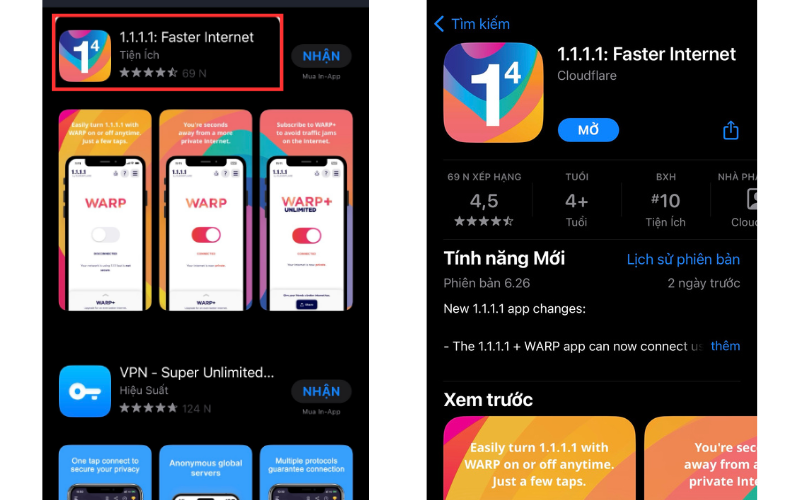
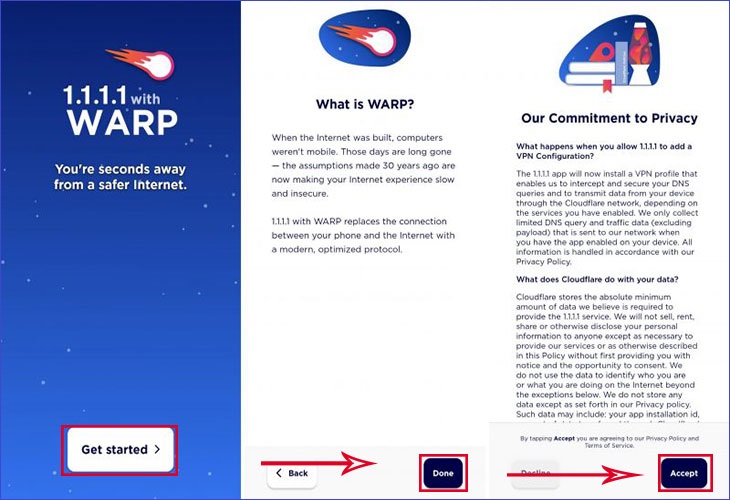
Step 2: After downloading, open the application > Tap Get started > Select Done > Press Accept to complete.
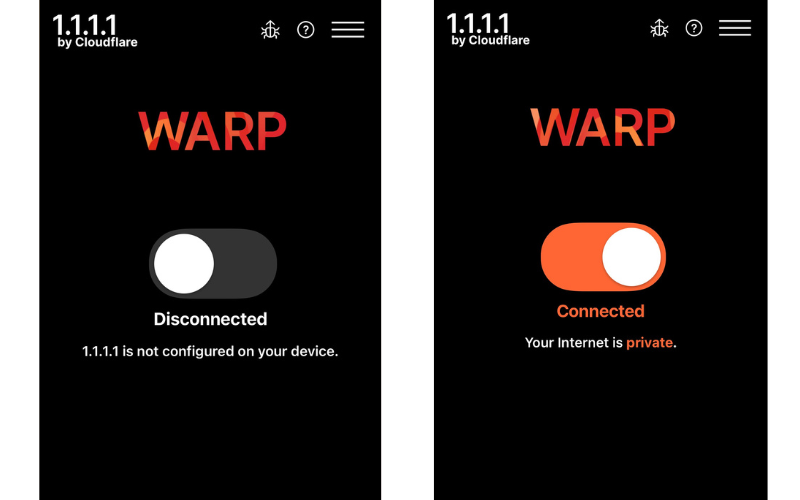
Step 3: On the main interface of the application, you just need to flip the switch to the right to activate VPN.
Note: When used for the first time, the application will ask for permissions "Add VPN configuration". This request will not appear again in the future. You just need to press Install VPN Profile and choose OK to confirm. Thus, the process How to download VPN for Android and iPhone is complete.
>>>Read More:
- VPN 101: How It Works and Why It’s Essential for Safe Browsing
- Rent VPN Server in 2026: 7 Tips to choose the best cheap VPN
1.2. How to download VPN 1.1 1.1 for computer
How to download VPN 1.1 1.1 on computer will include the following simple steps:
Step 1: Visit the 1.1.1.1 website and download the version compatible with your computer's operating system.
In addition to the above method, you can also download VPN apps to use such as NordVPN, Proton VPN,... Just open the application, connect to the location, it will automatically change the IP of the entire system.
Download software that is compatible with your device
Step 2: Install the program on the computer.
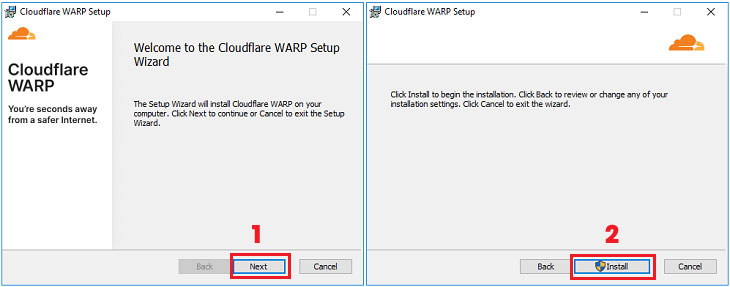
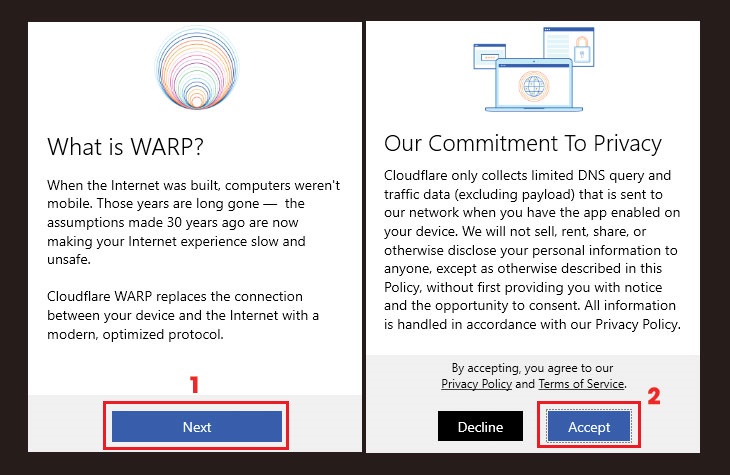
Step 3: After the installation is complete, the program will automatically launch. You just need to press Next and choose Accept to continue. Come here, how to download VPN completed.
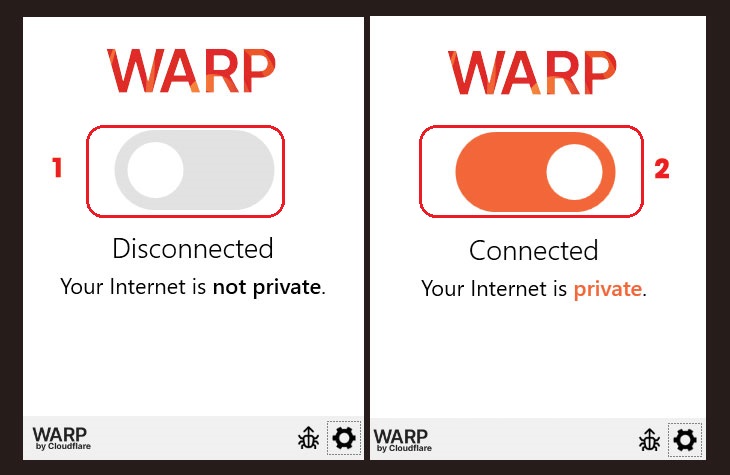
Step 4: To speed up Internet access, you just need to activate it WARP by flipping the switch. Icon WARP will automatically minimize on the toolbar Taskbar, allowing you to easily access it at any time.
2. How to download VPN on Windows 11 computer
How to download VPN on computer Windows 11 is extremely simple and fast. The important thing is that you just need to follow the instructions below correctly:
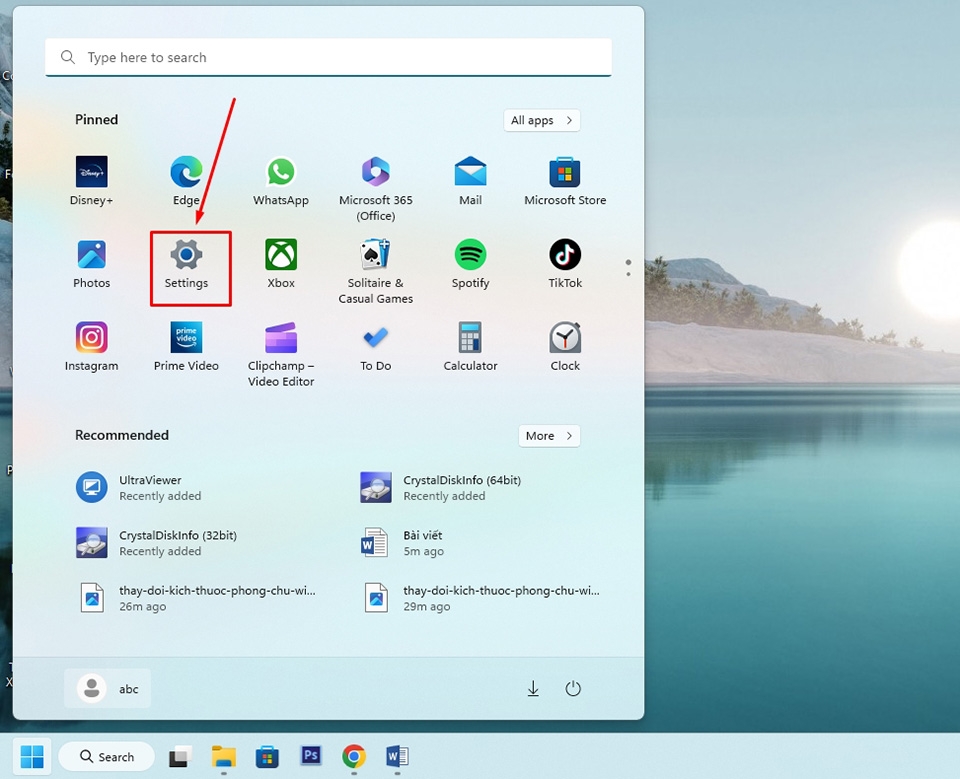
Step 1: Open the application Settings on Windows 11 by accessing the pinned apps list in the menu Start (press the Windows key on the keyboard). You can also use keyboard shortcuts Windows + I to quickly open this application.
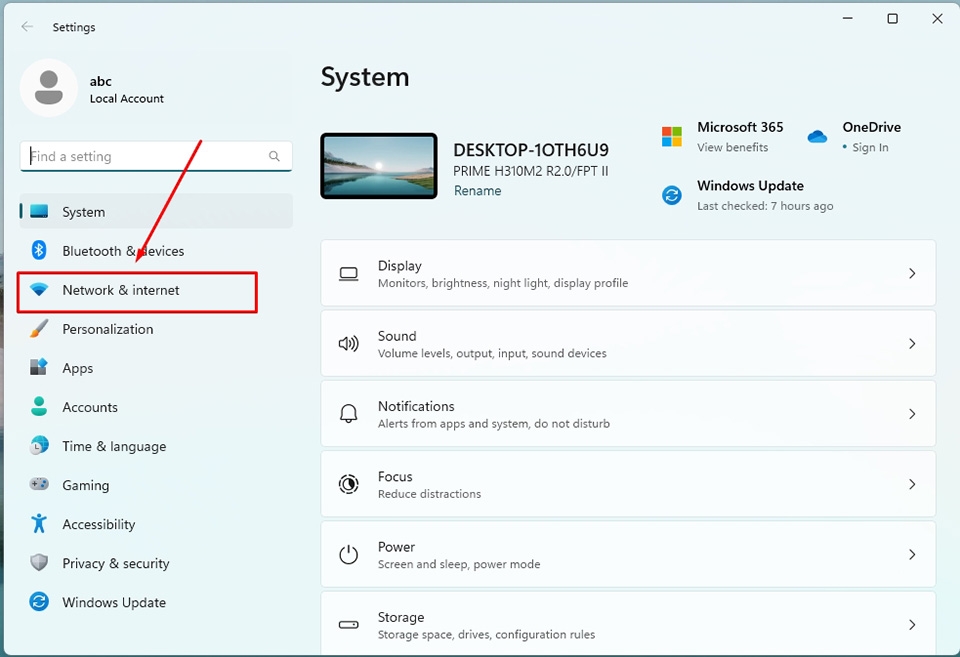
Step 2: In the left pane of the window Settings, please choose Network & Internet.
Step 3: In the right pane of the Settings window, click Options VPN.
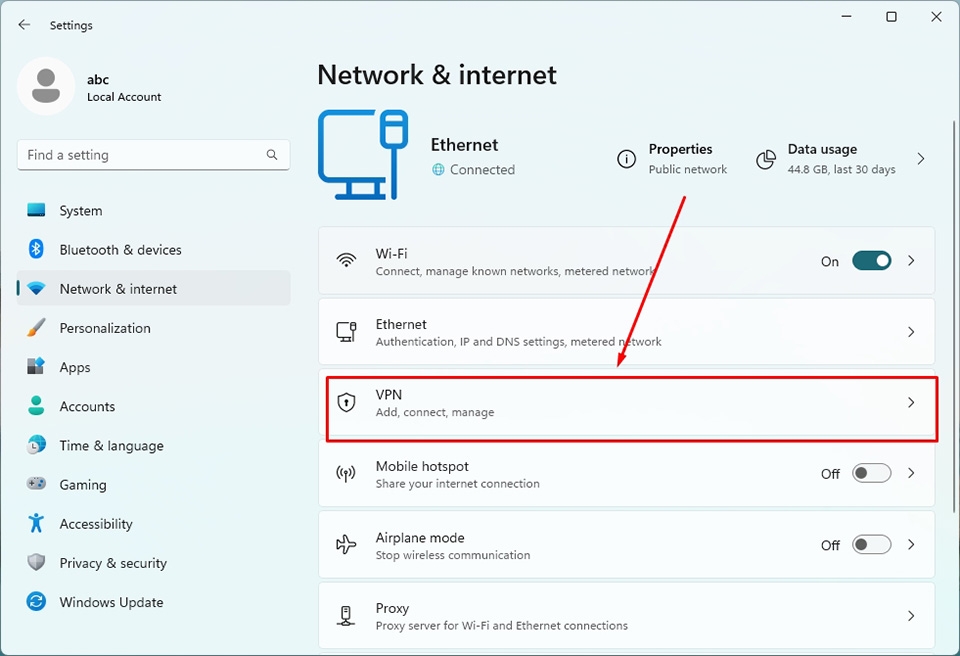
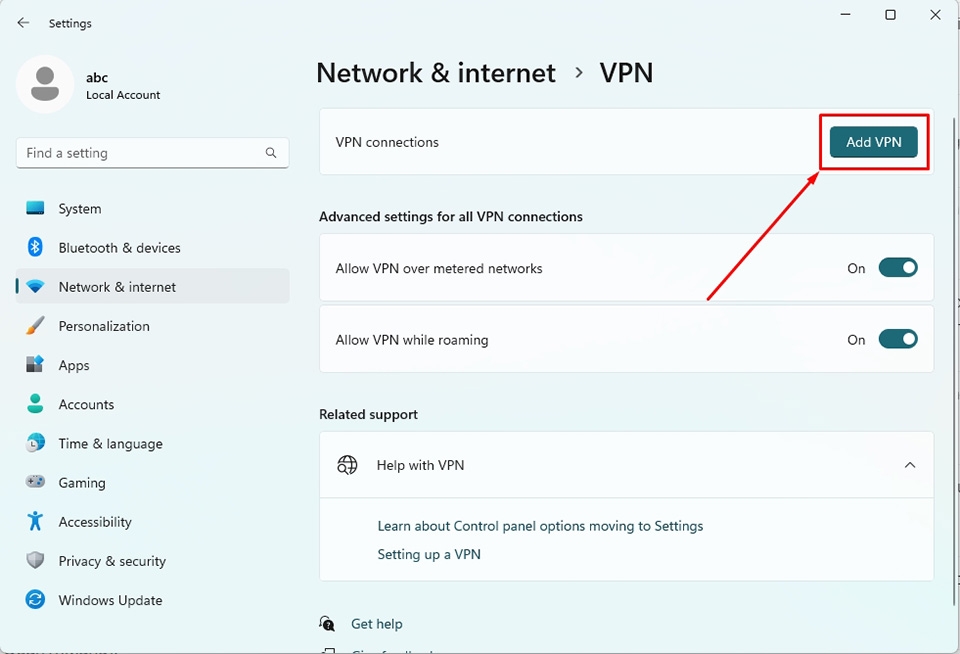
Step 4: Next, you will be taken to the Windows 11 VPN settings page. Here, tap the button Add VPN in the upper right corner of the window.
Step 5: When the window Add a VPN connection appears, select Windows (built-in) in section VPN Provider. Next, name the VPN in the section Connection name and enter the server name or IP address of the VPN in the section Server name or address.
If your VPN doesn't require a specific protocol type, choose it Automatic in section VPN type. You can also enter the protocol type provided by your company or school. If your company requires authentication information, enter your account and password in the field Type of sign-in info.
Step 6: Once completed how to download VPN for Windows 11 computers, press the button Save to save the changes.
3. How to use VPN on the computer
After researching How to download VPN for computer, Hidemyacc will continue to show you how to use VPN on Windows 11. Do the following:
Step 1: On the bar Taskbar, tap the network icon in the far right corner of the screen. Windows 11 will display the menu Quick Settings, then find and tap the option VPN.
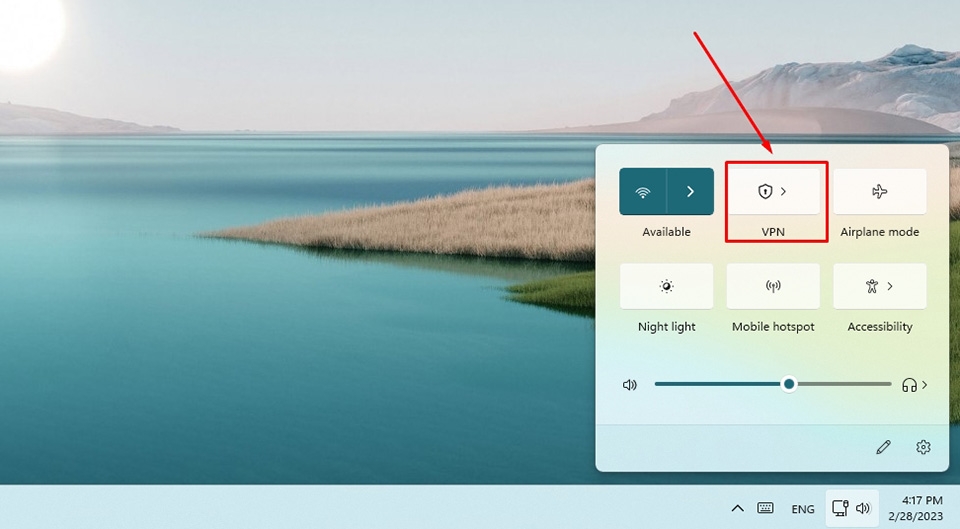
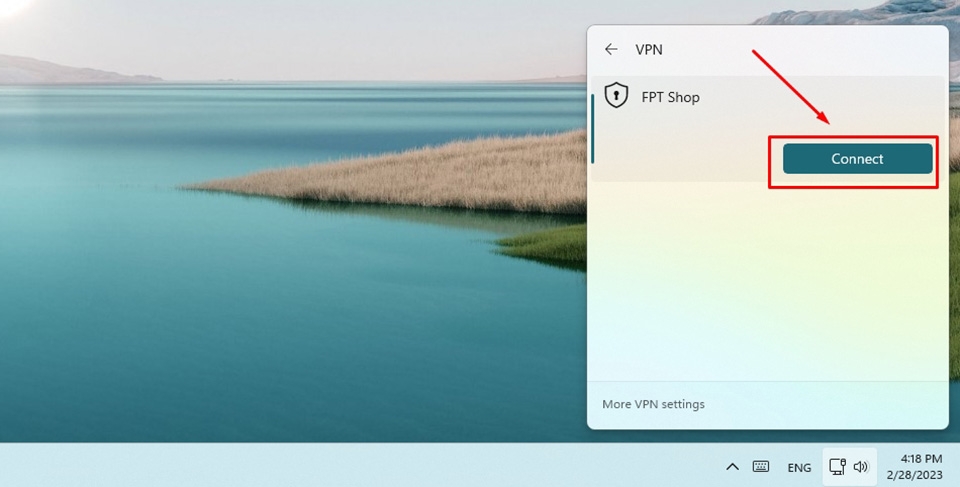
Step 2: In the VPN settings, you will see the name of the virtual network. Please click the button Connect below to start connecting to the VPN.
Additionally, you can access the application Settings > Network & Internet > VPN, then press the button Connect right next to the VPN you set up earlier.
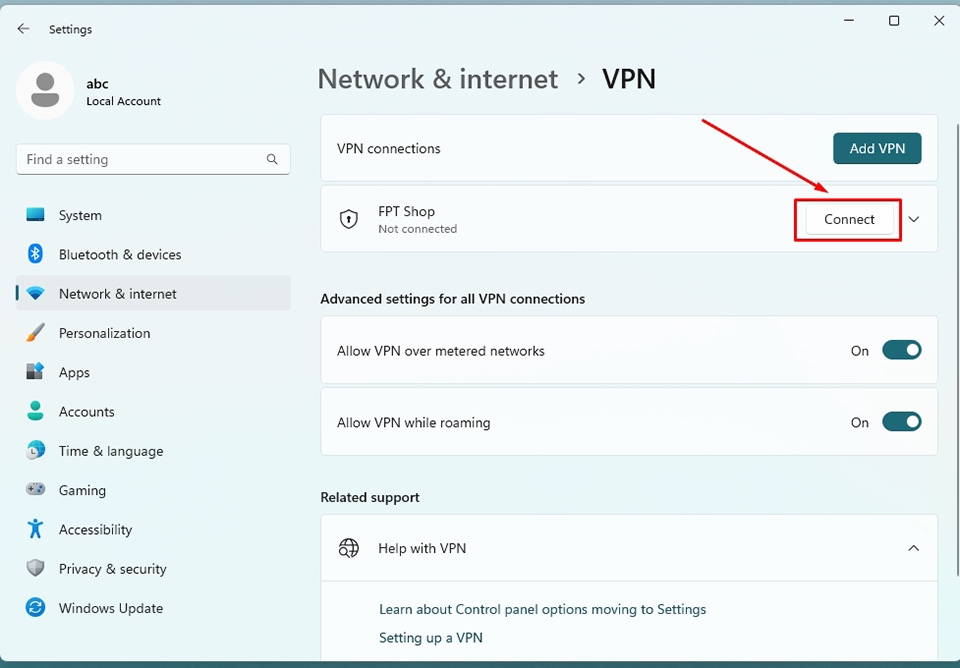
After getting it how to download VPN and usage for Windows 11, you can completely browse the web and perform all online activities safely with a virtual IP address.
In addition to the above method, you can also download VPN apps to use such as NordVPN, Proton VPN,... Just open the application, connect to the location, it will automatically change the IP of the entire system.
4. How to disconnect and delete VPN on PC
If you don't want to use a VPN or want to remove a server from the list after Download VPN on computer successfully, you can disconnect or completely delete that server. Below are detailed instructions on how to completely remove VPN from the system:
Step 1: Right click on the button Start and choose Settings.
Step 2: Click Network & Internet and choose VPN.
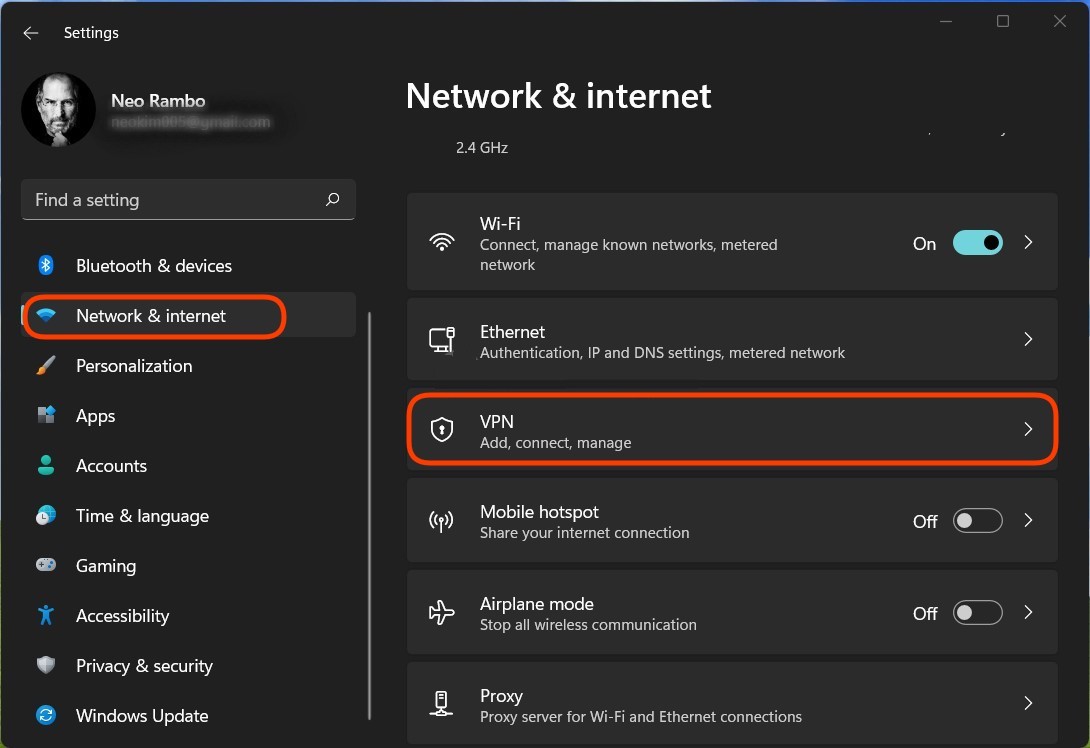
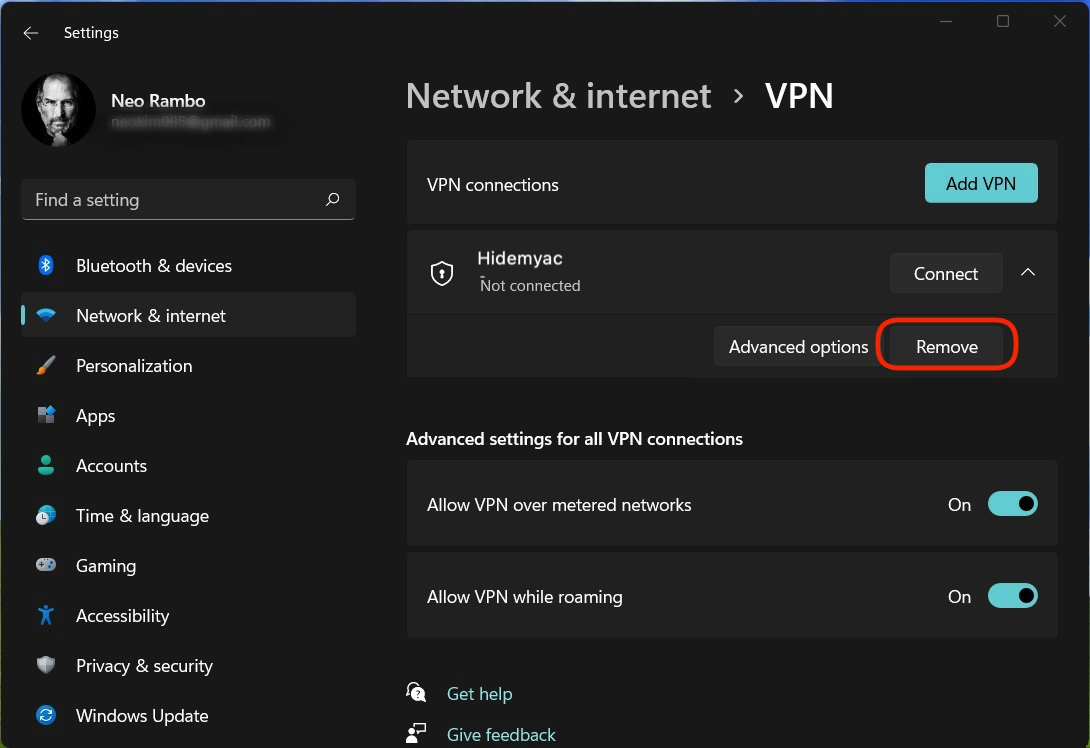
Step 3: Select the VPN connection you want to disconnect or delete, then tap Disconnect to disconnect. If you want to delete, select it Remove and press Remove again to confirm.
Although VPN is an effective solution for securing personal information, it is not the most ideal method for MMOs when there is a need for comprehensive multi-account management. Because VPN changes the IP for the entire system, all browsers and applications on the device will have the same IP address, limiting running multiple profiles with different IPs at the same time. If you want to change different IPs between profiles, you must turn off VPN and connect to a new location.
You can refer to the article How to protect yourself with a VPN here: https://hidemyacc.com/protect-yourself-with-vpn
Before this limitation, you can use a proxy because it changes separate IPs for each app, each browser and runs each profile with an IP simultaneously. However, if you only change the IP, your account can still be detected by the website through browser fingerprints. Therefore, the most perfect solution to replace VPN is to use Proxy combined with Antidetect Browser Hidemyacc.
With Hidemyacc, you can hide Browser Fingerprint parameters perfectly, while creating a unique identity for each account. Thanks to that, you can comfortably browse the web freely and safely without worrying about suspicious websites, including big websites like Facebook, Google, Amazon, eBay or Etsy. With such great features, why not download it? Hidemyacc and experience a 7-day free trial today!
Overall, how to download VPN It's not too difficult if you follow the instructions correctly Hidemyacc shared above. If you have any questions about how to download VPN for your laptop or phone or need more information about Antidetect Browser, please contact us immediately for support!