Surely while working, you have encountered a situation where the browser reports a connection error at least once, even though you have set up the Proxy very carefully. A proxy error is quite an annoying barrier, causing all work to stall. In fact, this trouble can come from incorrect computer configuration, a crashed intermediary server, or the website you want to visit actively blocking access.
In this article, let's explore the quick 5-step diagnostic process, criteria for choosing a reputable provider, and the secret to stable proxy operation through the antidetect browser Hidemyacc.
1. Concept of proxy error
A proxy error is a situation where the browser or application software on the device cannot complete the internet connection process through an intermediary server. This incident causes the access request to be blocked halfway, making the target website unable to receive the command and completely unable to load data onto the screen.
Basically, you can imagine our data flow moving in a very orderly straight line. Information will start from your personal device, travel through the intermediary server, and then reach the target website's server system. This is also how internet infrastructure processes and routes data in many daily access situations.
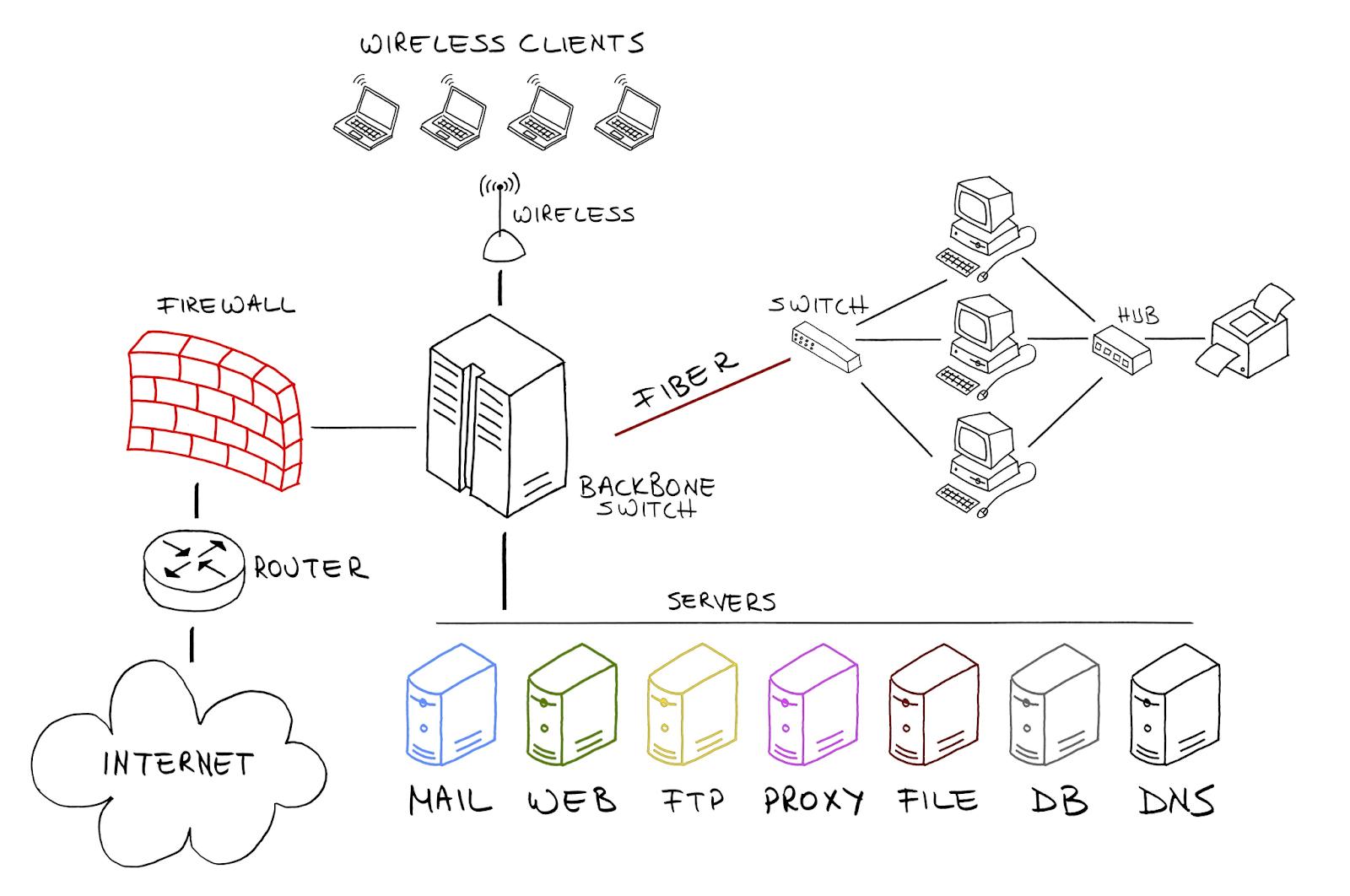
This network is a tightly linked chain. Any interruption, incorrect parameter setting, or access denial command occurring at one of the three links above will break the entire communication process. The inevitable consequence is that the data flow is congested, leading to the screen immediately displaying system error messages.
If you do not clearly understand what a proxy is and how it works during data transmission, read more before diving into common errors.
2. Main causes of proxy errors
There are many reasons why the network connection is interrupted. To fix it quickly, we need to accurately identify where the problem lies. Below are the four most common groups of causes that give you trouble with your connection.
2.1. Device or browser errors
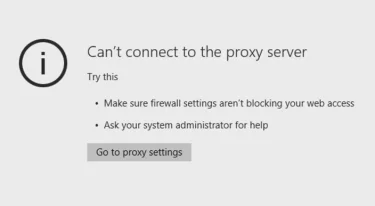
The most recognizable sign is that your computer completely cannot access the network or the system reports an error directly on the browser.
The core cause usually revolves around the system having the intermediary network enabled but leaving the data blank, or configuring the wrong network address and connection port. Additionally, conflicts between the proxy and VPN, ad blockers, fingerprint blockers, or old network configurations on the operating system can also cause connection failures even if the proxy parameters are correct. Just by having the wrong IP address or connection port, the proxy system can stop working right from the first step.
2.2. Proxy server errors
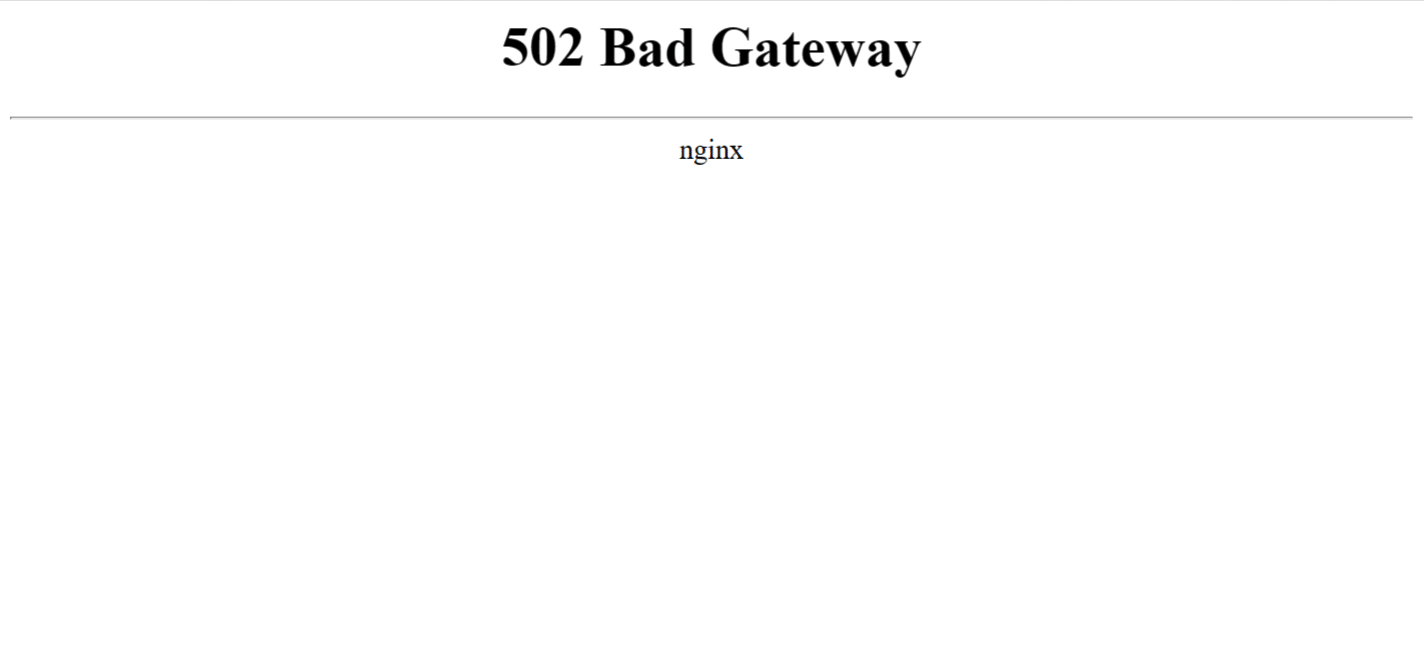
The most recognizable sign is that the proxy is still configured correctly but the connection frequently times out, access is intermittent, or it returns error codes like 502, 503, 504.
The core cause usually comes from the proxy server being overloaded, a dead IP, the connection port no longer working, or the provider experiencing infrastructure incidents. In some cases, the proxy still responds but the speed is very slow due to limited bandwidth or the server location being too far from the access area.
2.3. Target website errors
The clearest recognizable sign is that the system only blocks local access on certain pages, or constantly requires you to verify security images.
The cause usually stems from the website's defense system. When detecting automated traffic or abnormal signs, these websites will actively block the IP address you are using to protect their data system.
2.4. Network and firewall errors
The basic sign is that the computer receives a connection refused message right from the start or cannot resolve the website's domain name.
This incident is mainly due to the computer's security firewall system or the internal network blocking communication ports. In addition, a network connection with limited bandwidth or instability are also main reasons why you cannot successfully access it.
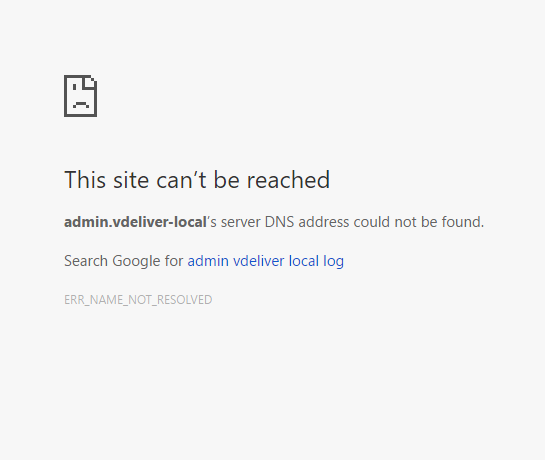
3. Detailed classification of proxy error codes by group
When an incident occurs, the screen usually displays specific codes. Instead of being confused by these strange numbers, you just need to compare them with the summary table below to know where the problem lies. Understanding the meaning of each proxy error group will help you save a lot of time finding the cause and the solution.
|
Error Code Group |
Common Codes |
Nature and Root Cause |
|
3xx Redirect/ cache |
301, 302, 304, 307 |
The website has moved to a new address or the browser is using old data, preventing you from seeing the latest content. |
|
4xx Client error |
400, 401, 404, 407 |
You entered the wrong web address, incorrect login info, or haven't added your network address to the allowed access list. |
|
4xx Blocked/ limited |
403, 429 |
The website actively blocks access due to suspected abnormal network addresses or because you sent requests too quickly in a short time. |
|
5xx Server error |
500, 502, 503, 504 |
The issue comes from the proxy provider's server or the target website itself is overloaded or undergoing maintenance. |
|
Other network errors |
DNS Error, Refused |
The network connection is interrupted or the device has a connection problem causing the system to be unable to find the website address. |
Just by accurately comparing the displayed code with this summary table, you can immediately visualize which stage the access flow bottleneck is in.
4. How to quickly check and isolate proxy errors
To avoid wasting time guessing, you can completely self-diagnose the proxy error following a process of gradual elimination. Following the steps below will help you isolate and find the cause of the incident most accurately.
Step 1: Turn off proxy for cross-checking
The first thing and also the simplest operation you should do is completely turn off the proxy connection on the device, then try to re-enter the website that is experiencing the error.
If the website loads normally at this time, we can affirm that the incident lies in the proxy system. Conversely, if the website still refuses to display, the cause is very likely that your internet connection is weak or the website itself is temporarily down.
You can refer to how to turn off proxy to perform this checking operation accurately.
Step 2: Check independent proxy operation status
Next, use tools to check the IP, connection port, or send requests directly through the proxy. This operation will help you determine the actual active status of the proxy. If the system does not return any results or reports a timeout error, it means the proxy server has completely stopped working.
Step 3: Try accessing other target websites
At this point, you need to keep the proxy connection you are using and try accessing a few other random websites for comparison. If you notice that only one website reports an error while other pages load smoothly, it is highly likely that the website's defense system has actively blocked the network IP address you are using.
Step 4: Review account authentication info
Checking the absolute accuracy of the configured username and password is a mandatory operation that cannot be ignored. At the same time, you also need to carefully verify whether the proxy provider requires you to whitelist your current device IP address, as this is a shortcoming that very often causes network loss incidents.
Step 5: In-depth diagnosis using system command codes
If you are a bit technical, you can use independent network testing commands right on the command prompt to send access requests straight to the server. If this test command reports a refusal error, the incident definitely originates from the computer network system or from the proxy server itself.
However, if the test command returns good results but your browser still constantly reports a proxy error, the problem now lies in the web browsing software or because background extensions are conflicting with each other.
5. Measures to completely fix proxy errors
After applying the checking steps and isolating the cause in the above section, the next thing is to apply the right solution. Below are specific handling methods for each case to help you restore the connection as quickly as possible.
5.1. Troubleshoot on personal device
When encountering a malfunction, the first place you need to check is the computer and browser you are using with the following basic steps.
- Reconfigure network parameters: Access your computer's or browser's network settings to double-check all information. Ensuring the IP address and connection port match the provider's data completely will help you significantly reduce the risk of proxy errors.
- Clean the browser: You should actively clear all cached memory and stored website data. This operation helps remove old corrupted files, thereby thoroughly resolving conflict situations when the system tries to create a new connection.
- Check network blocking software: Try temporarily disabling unfamiliar extensions or antivirus software with access control features on your computer to see if they are the agents silently blocking the connection.
With just a few cleanup operations and resetting this personal system, most minor connection incidents will be quickly resolved.
5.2. Fix issues from the proxy provider
If the error is not on your device, it is very likely that the cause originates from the network service system you are renting. At this time, perform the following comparison operations.
- Check authentication info: You need to ensure the username and password you are using are absolutely correct. If you use an authentication mechanism through a safe network address list, remember to immediately update the device's current IP address on the provider's management system.
- Change connection type: Depending on the purpose of use, you can consider switching between residential proxies and datacenter proxies to achieve the best reliability for the account. Residential proxies usually have higher reliability and are less likely to be flagged as abnormal compared to datacenter proxies.
- Contact technical support: If the server crashes or has communication port malfunctions, the most effective way is to send a direct support request so the provider can check and fix their network infrastructure system errors.
Working closely and proactively updating information with the service provider will help you maintain the connection in the most stable state.
5.3. Overcome barriers from the target website
For cases where the system returns error codes 403 or 429 due to the target website actively blocking, you need to immediately apply the in-depth techniques below to reduce the risk of being blocked.
- Use automatic address changing mechanism: You should set up a system that automatically rotates IP addresses after each visit. This solution helps the target website not evaluate the traffic as abnormal or repetitive behavior from a single source.
- Edit browser info: Configure browser fingerprint parameters to closely resemble real users and prioritize using network addresses from various geographical areas to increase credibility.
- Adjust access frequency: You need to add a random waiting time between sending requests. This helps reduce the load on the target server and does not trigger the website's anti-spam system.
By optimizing parameters and accurately simulating the behavior of real users through the above steps, you will easily meet strict security standards and maintain a successful connection.
5.4. Solve network and firewall troubles
Sometimes, the internal network protection system itself is the agent preventing your data flow from going out to the internet. To fix this, follow these setup instructions.
- Grant priority on the firewall: You should proceed to check proxy and firewall settings to ensure that the service or software you are using has been added to the safe list in the settings. This operation allows the data flow to pass easily without being blocked.
- Readjust network routing system: You can switch to using stable and popular domain name addresses from Google or Cloudflare. This will make the domain name resolution process faster, thereby fixing the proxy error and making the connection smoother. If the error comes from the domain name server, apply the steps to fix dns server not responding to make the data flow run more smoothly.
Once the correct connection port is opened on the firewall and a good routing path is chosen, your data flow will circulate smoothly and there will be no more connection refused phenomena.
6. How to effectively prevent proxy errors
To maintain long-term stability and not have to constantly look for troubleshooting methods, you need to build a standard operating procedure right from the start. Below are practical experiences to help your system always run as smoothly and seamlessly as possible.
6.1. Check proxy status before use
Preparation always plays a decisive role. Before starting work, take some time to recheck the system with the following two basic operations.
- Use testing tools: You should use online tools or specialized scripts to check whether the IP address is still working stably and in the desired geographical location before putting it into the official configuration.
- Verify whitelist: If you use a security mechanism via IP address, make sure the device's real network address has been updated accurately on the service provider's dashboard.
Although this reviewing habit is small, it is the first shield helping you proactively prevent proxy errors right from the starting line.
6.2. Smart IP address strategy
Skillfully allocating network flows directly determines the successful connection rate of the entire system. Below are three safe strategies you can refer to:
- Apply rotational address changing mechanism: Instead of using a single fixed IP address, you should use rotating proxies and set up the system to automatically change IPs after every request or after a certain period of time. This helps reduce the load on each IP and avoids being blacklisted and blocked by the target website.
- Choose suitable proxy type: For important tasks or when accessing websites with high security systems, prioritize using residential networks instead of datacenter networks to increase reliability and authenticity.
- Choose robust connection protocol: For heavy tasks like account farming or automated data scraping, you should also consider HTTP vs SOCKS proxy to choose a more stable protocol. This protocol's high security capabilities and flexible data handling will help minimize proxy errors related to being denied access.
Depending on the nature of the work, flexibly combining these strategies will keep your data flow always smooth and absolutely safe.
6.3. Optimize access behavior (Human-like Behavior)
Modern websites have very sophisticated user behavior analysis capabilities. To avoid being recognized as an automated tool, optimize your actions according to the instructions below.
- Space out request sending times: You should set a random delay time between sending access commands. This very naturally simulates the slow web surfing behavior of real users, helping you avoid triggering the website's anti-overload protection system.
- Configure browser info: Use common browser fingerprint parameter sets and remember to update them regularly, making the access configuration more consistent and natural.
The more natural and human-like your web surfing behavior is, the lower the rate of being scanned and blocked by security systems will be.
6.4. Professional management solution with Hidemyacc
If you are managing hundreds of accounts simultaneously, manually setting up step by step will surely consume a lot of time and easily lead to mistakes. At this point, switching to a dedicated management platform like Hidemyacc is the most perfect choice.
- Manage browser hardware parameters: The software allows you to create thousands of profiles with independent system parameters. This makes it impossible for the website's security system to detect anomalies, thereby eliminating root proxy errors causing work interruptions.
- Integrate automatic IP checker and changer: This tool assists you in checking the active network status right on the intuitive interface, while automating the entire IP rotation process for each separate browser profile.
- Absolutely isolated working environment: Each of your accounts will operate in a clean environment. Thanks to that, you can centrally manage a series of connection configurations without ever having to worry about data duplication issues or being limited in access frequency by the website.
For those who frequently work with proxies, a centralized management tool will help save time and significantly reduce repetitive configuration errors.
7. Conclusion
Proxy errors do not always come from the proxy itself. In many cases, the cause could be the device, DNS, firewall, target website, or browser configuration method.
Once you grasp the checking process in the correct order, you will significantly shorten troubleshooting time and limit work interruptions. If you regularly work with multiple accounts or different network configurations, using an appropriate management tool will also help the system be more stable in the long run.
8. FAQ
1. Why is the proxy still working but the access speed is very slow?
Due to the intermediary server being overloaded or the physical distance being too far. Also, an unstable original network connection directly affects overall speed.
2. Does using multiple proxies at the same time help reduce errors?
Yes, the rotation mechanism helps reduce the rate of being blocked by websites. However, precise configuration is needed to avoid software conflicts or mass authentication errors.
3. How to know if a network address has been blacklisted?
The sign is continuously receiving a 403 error code or dense Captcha requests. Users can use IP Score checking sites to confirm.
4. Why is the login info correct but still reports a 407 authentication error?
Usually because the personal IP has not been added to the Whitelist or the intermediary server is experiencing temporary authentication data issues.
5. Which type is less prone to errors: residential proxies or datacenter proxies?
Residential proxies are less prone to errors because they have the same reliability as real users. Datacenter proxies are high speed but easily detected and blocked by a website's defense system.
6. Why am I still blocked by the website after using a residential proxy?
Because websites not only check IPs but also scan browser fingerprints. If parameters like WebGL and Canvas do not match the IP, the system will report a 403 error.
7. Does the SOCKS5 protocol help reduce connection errors more than HTTP?
Yes, SOCKS5 handles data more flexibly and securely, especially effective for heavy tasks. Using SOCKS5 combined with an antidetect browser will help maintain a stable connection and be less suspected by websites.