The err_tunnel_connection_failed error often appears when you browse the web using Chrome or other browsers. This error disrupts website access, causing frustration for users. The main causes are usually related to proxies, VPNs, or network settings. Fortunately, you can fix this error yourself in just a few minutes without needing an expert.
In this article, Hidemyacc will clearly explain what the err_tunnel_connection_failed error is, why it occurs, and the most effective ways to fix it. Read on to quickly resolve the issue and return to normal browsing.
1. What is Err_Tunnel_Connection_Failed?
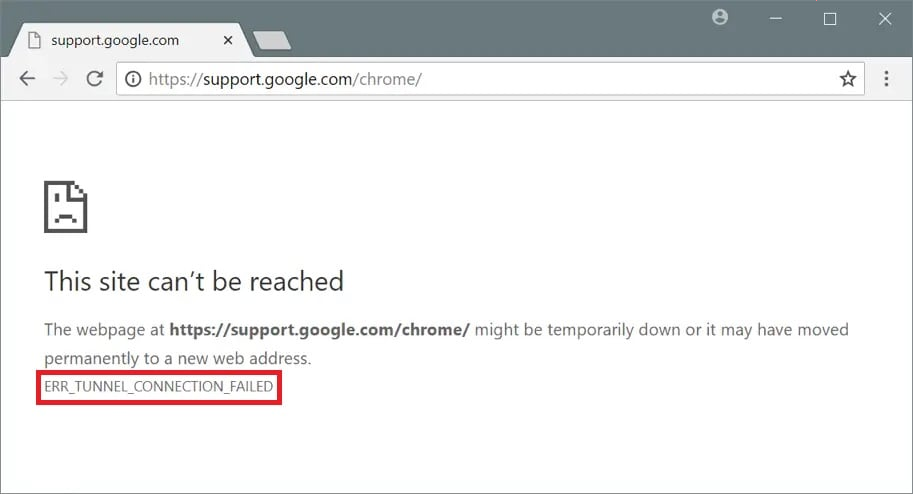
The err_tunnel_connection_failed error is a browser error message when it cannot establish a secure tunnel connection to the website server.
A tunnel is an encrypted and protected data transmission path. When the tunnel fails, you cannot access the website even if the internet connection is still normal.
This error usually appears on Google Chrome but can also occur on Microsoft Edge and some other browsers.
2. Causes of the Err_Tunnel_Connection_Failed Error
To effectively fix the err_tunnel_connection_failed error, you need to clearly understand the causes. Correctly understanding the cause will help you choose the appropriate fix and avoid wasting time trying unnecessary methods. If you have additional knowledge about internet infrastructure, it will be easier to find the cause of the error and fix it quickly.
2.1. Incorrect Proxy Settings or Unnecessarily Enabled
A proxy is an intermediary server that helps computers connect to websites. When a proxy is enabled with the wrong configuration or used unnecessarily, the browser cannot establish a secure tunnel.
This is the most common cause of the err_tunnel_connection_failed error. Many users unintentionally leave proxy auto-detection on or have old proxy configurations still active.
As a result, the browser reports an error even when the internet connection is normal. Checking and disabling the proxy usually resolves the error quickly.
2.2. VPN Usage Causing Conflicts
VPNs change the data transmission path by redirecting traffic through their servers. When a VPN operates unstably or conflicts with browser settings, a connection tunnel cannot be established.
The err_tunnel_connection_failed error often appears right when the user turns on a VPN. In many cases, simply disabling the VPN temporarily makes the error disappear. If you use a VPN frequently, check the configuration or try another provider to avoid recurring conflicts.
2.3. DNS Issues and Network Cache
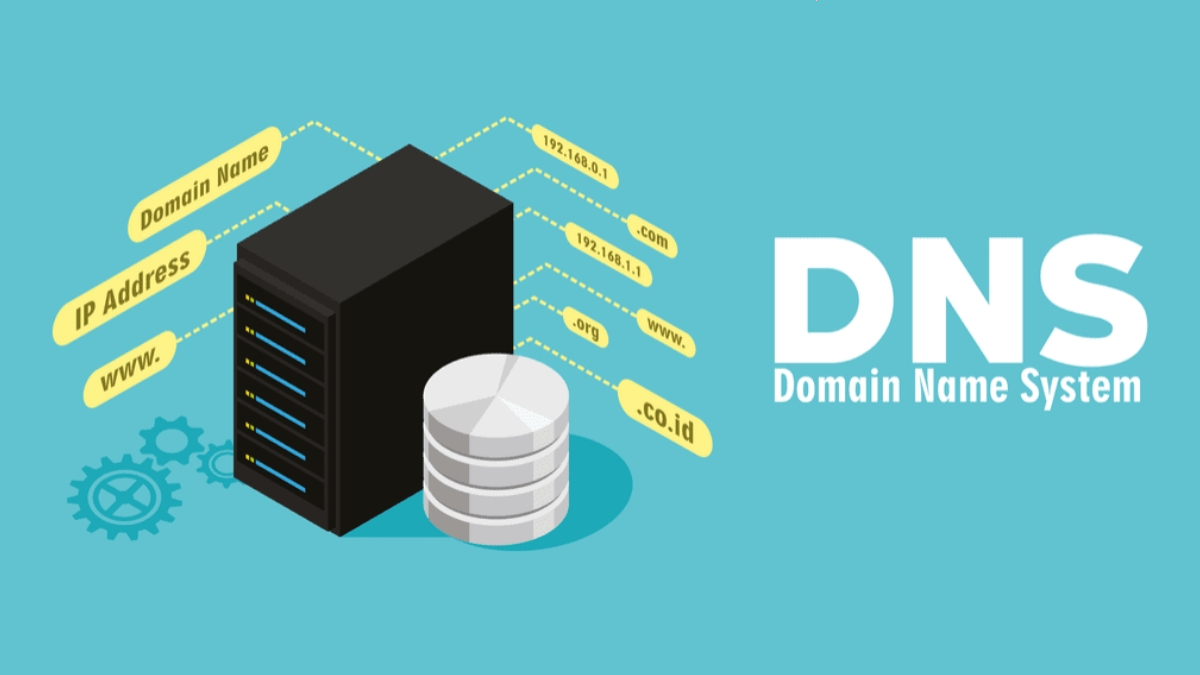
DNS plays the role of translating domain names into IP addresses so the browser can connect to the server. When DNS is faulty or the DNS cache is outdated, the browser cannot find the correct path to the website.
Additionally, browser cache accumulated over a long time also hinders the creation of a secure tunnel. As a result, the err_tunnel_connection_failed error appears even if the network is fine. Cleaning the cache and resetting DNS are often highly effective in fixing this error.
2.4. Network Settings or Security Software Interference
Firewalls, antivirus, and system network settings sometimes block or disrupt the tunnel creation process. This software is designed to protect the computer, but it can misunderstand and block valid connections.
Furthermore, outdated or corrupted browser data also contributes to the err_tunnel_connection_failed error. If you are running multiple layers of security at once, the risk of conflict increases. Checking and adjusting their settings often helps fix the error quickly.
3. Effective Ways to Fix the Err_Tunnel_Connection_Failed Error
After clearly understanding the cause of the error, you can apply the following troubleshooting steps in order from easiest to hardest. Most users only need to perform the first 1-2 steps to resolve the issue.
3.1. Disable Proxy on the Computer
A proxy is an intermediary server that often causes conflicts with the connection tunnel. Disabling the proxy helps the browser connect directly and eliminates the most common cause of the err_tunnel_connection_failed error.
-
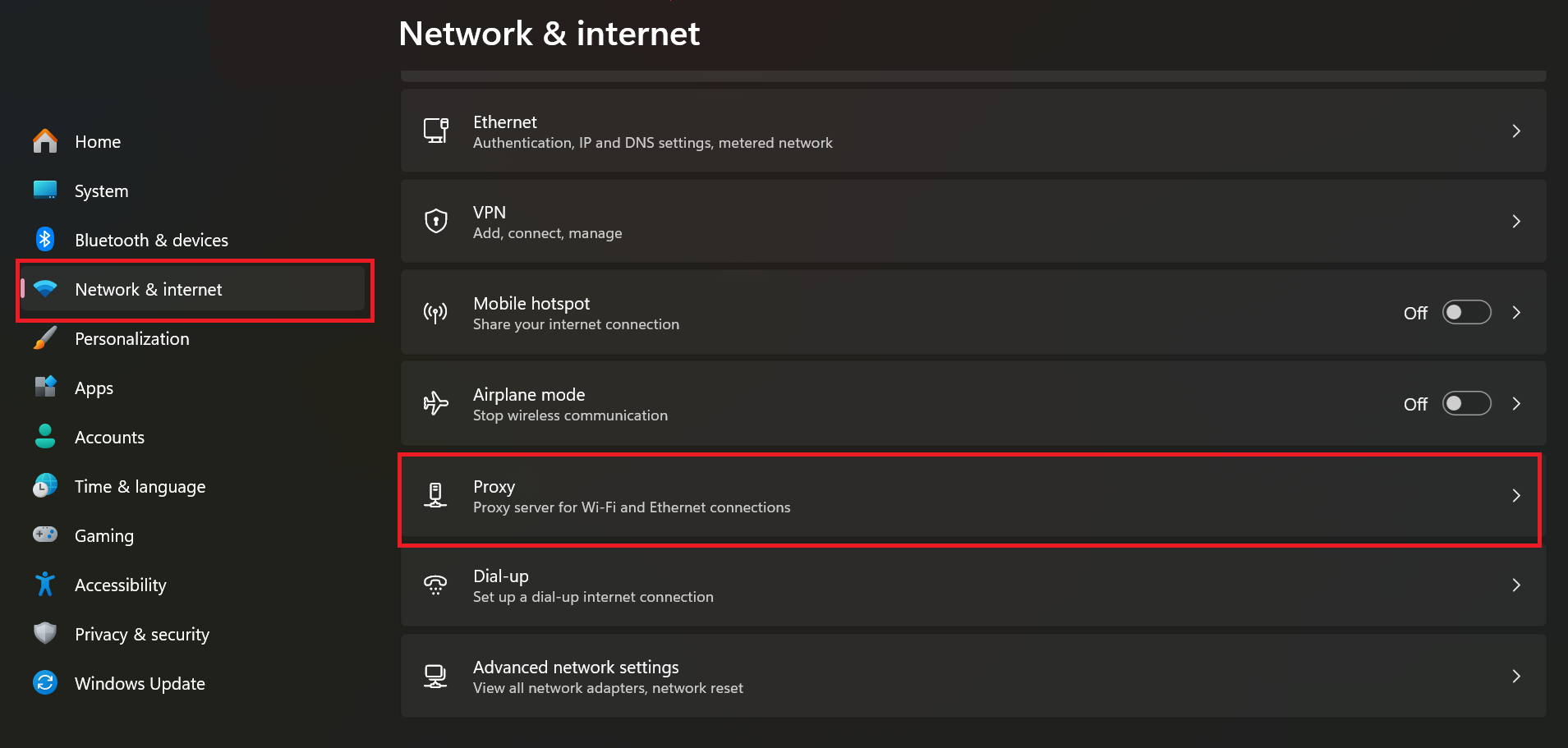
Open Settings → Network & Internet → Proxy.
-
Completely turn off two options: “Use a proxy server” and “Automatically detect settings”.
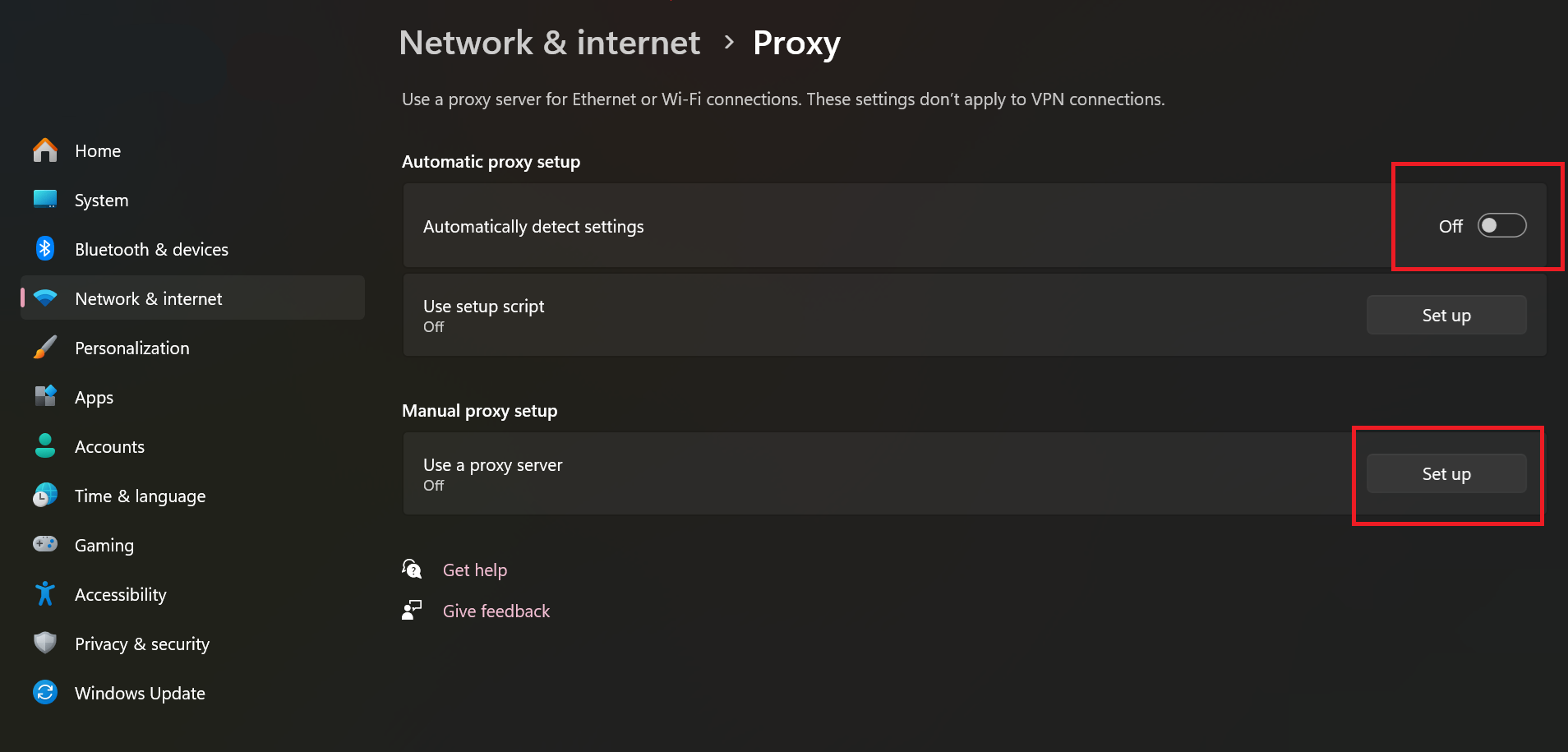
Afterward, restart Google Chrome and try to access the website.
3.2. Temporarily Disable VPN
VPNs often change data transmission paths and easily cause conflicts with the browser's tunnel. Many people only encounter the err_tunnel_connection_failed error when a VPN is turned on.
Turn off the VPN application completely. Try opening the website again immediately afterward.
If the error disappears, you should check your VPN configuration or switch to another provider to prevent recurrence.
3.3. Clear Cache and Reset Network Settings
Network cache and old DNS often hinder the establishment of a secure tunnel. Resetting network settings will clean up hidden conflicts and help the browser reconnect from scratch.
Open Command Prompt with Administrator privileges (right-click and select Run as administrator).
Run the following commands one by one, pressing Enter after each:
- ipconfig /flushdns
- netsh winsock reset
- netsh int ip reset
After running all commands, restart your computer. Open Chrome and check if the err_tunnel_connection_failed error is gone. This step is usually highly effective when previous methods have not fixed the error.
3.4. Change DNS Server
Old or faulty DNS often prevents the browser from establishing a connection tunnel. Replacing it with Google DNS will help quickly fix the err_tunnel_connection_failed error on Windows 11.
How to do it on Windows 11 is as follows:
-
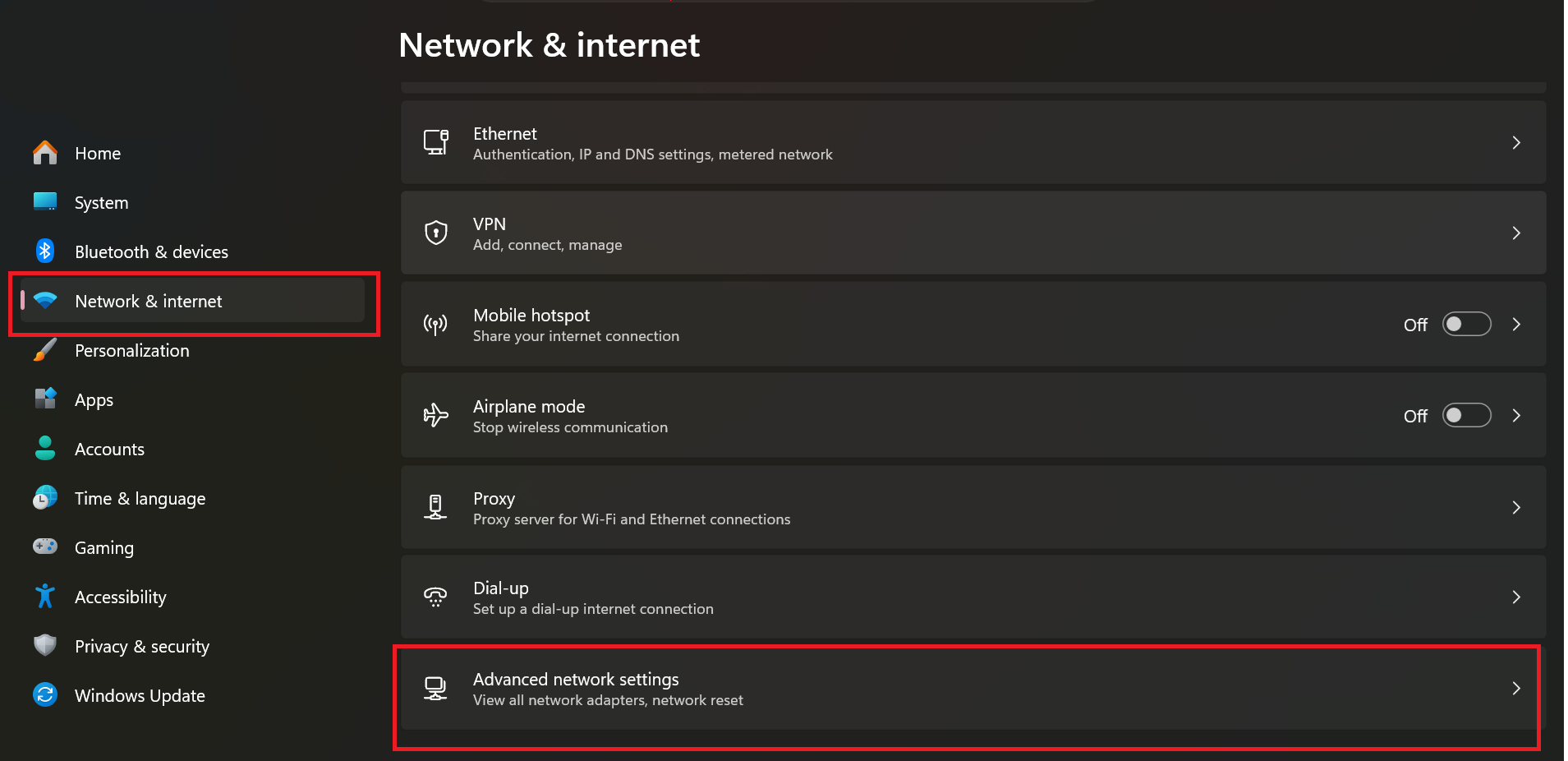
Go to Settings → select Network & internet → select Advanced network settings
-
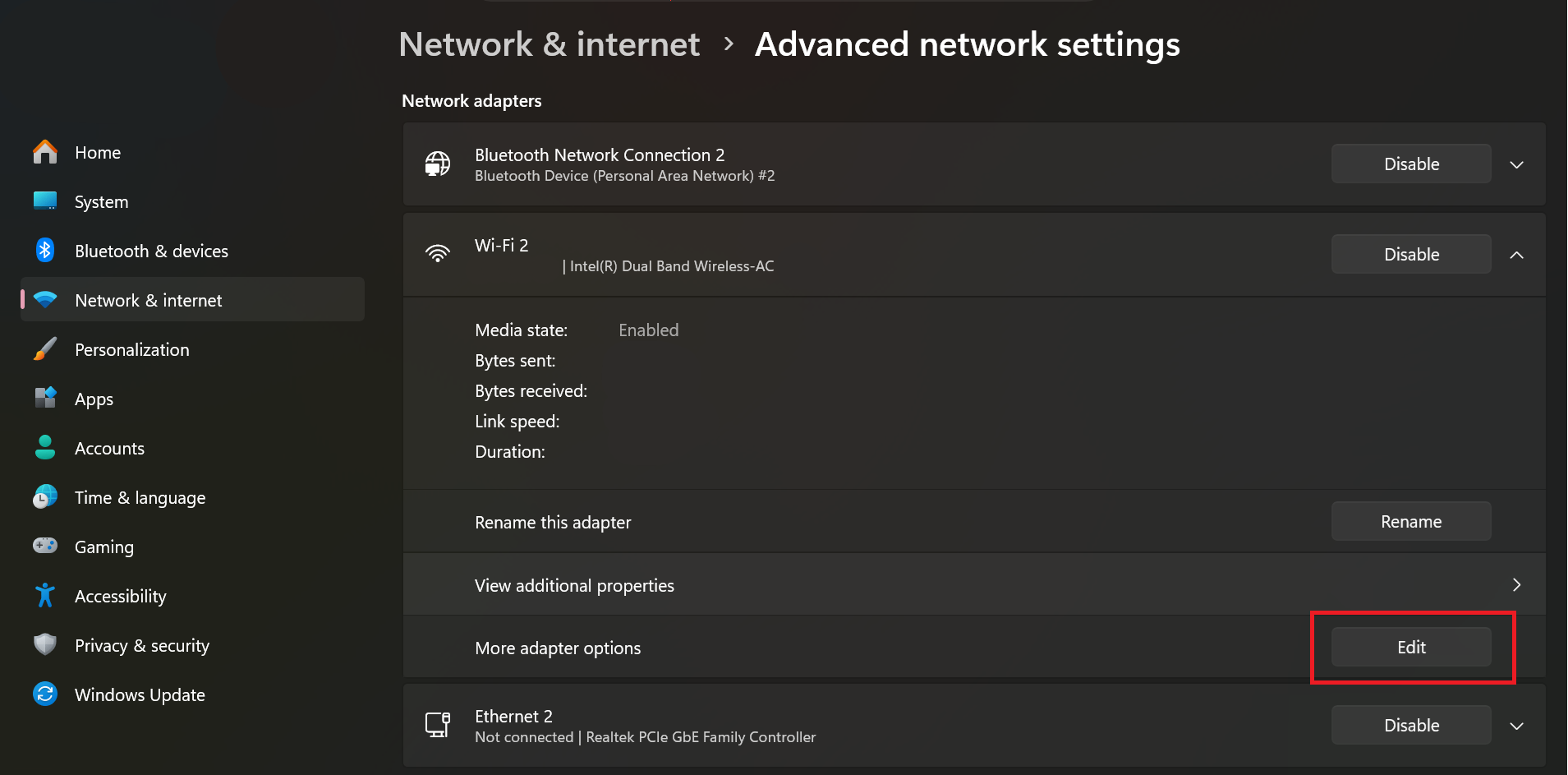
Click on the network connection you are using (Wi-Fi or Ethernet) > in the More adapter options box, select Edit.
-
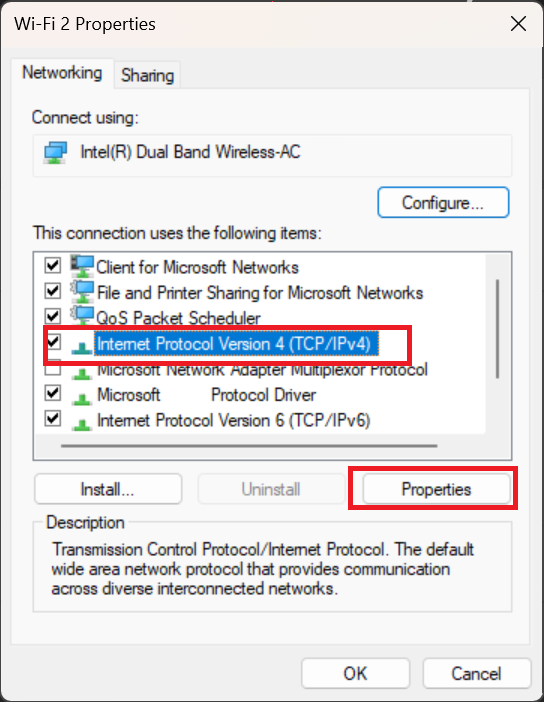
Select Internet Protocol Version 4 (TCP/IPv4) > click Properties.
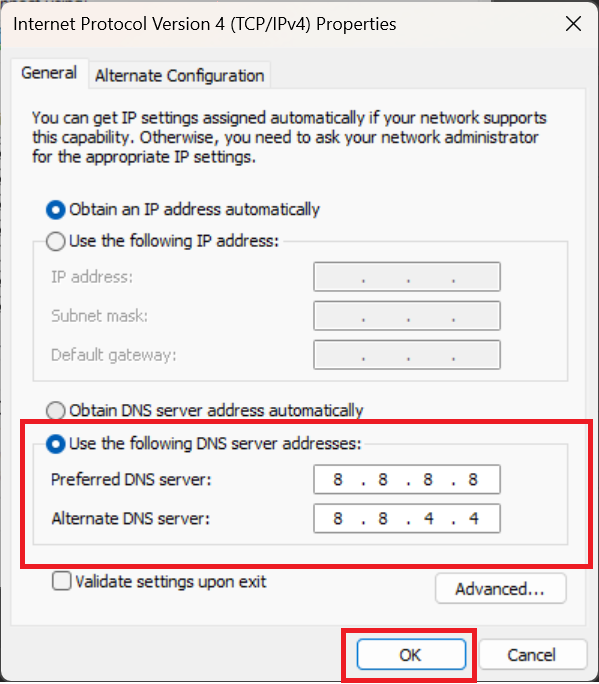
- Check the box “Use the following DNS server addresses”.
- Enter the information: Preferred DNS server: 8.8.8.8; Alternate DNS server: 8.8.4.4
- Click OK to save changes.
-
Reopen Google Chrome and try to access the website.
DNS 8.8.8.8 is Google's free public DNS. It is fast, stable, and trusted by millions of users to fix connection errors. This step usually completely resolves the DNS problem causing the err_tunnel_connection_failed error.
Note: If you use public Wi-Fi, changing DNS only applies temporarily to the current connection.
3.5. Clear Browsing Data and Reset Chrome
Cache data, cookies, and old settings in Chrome often accumulate and hinder the connection tunnel. Clearing data and resetting the browser will help Chrome operate cleanly again.
How to do it on Google Chrome:
-
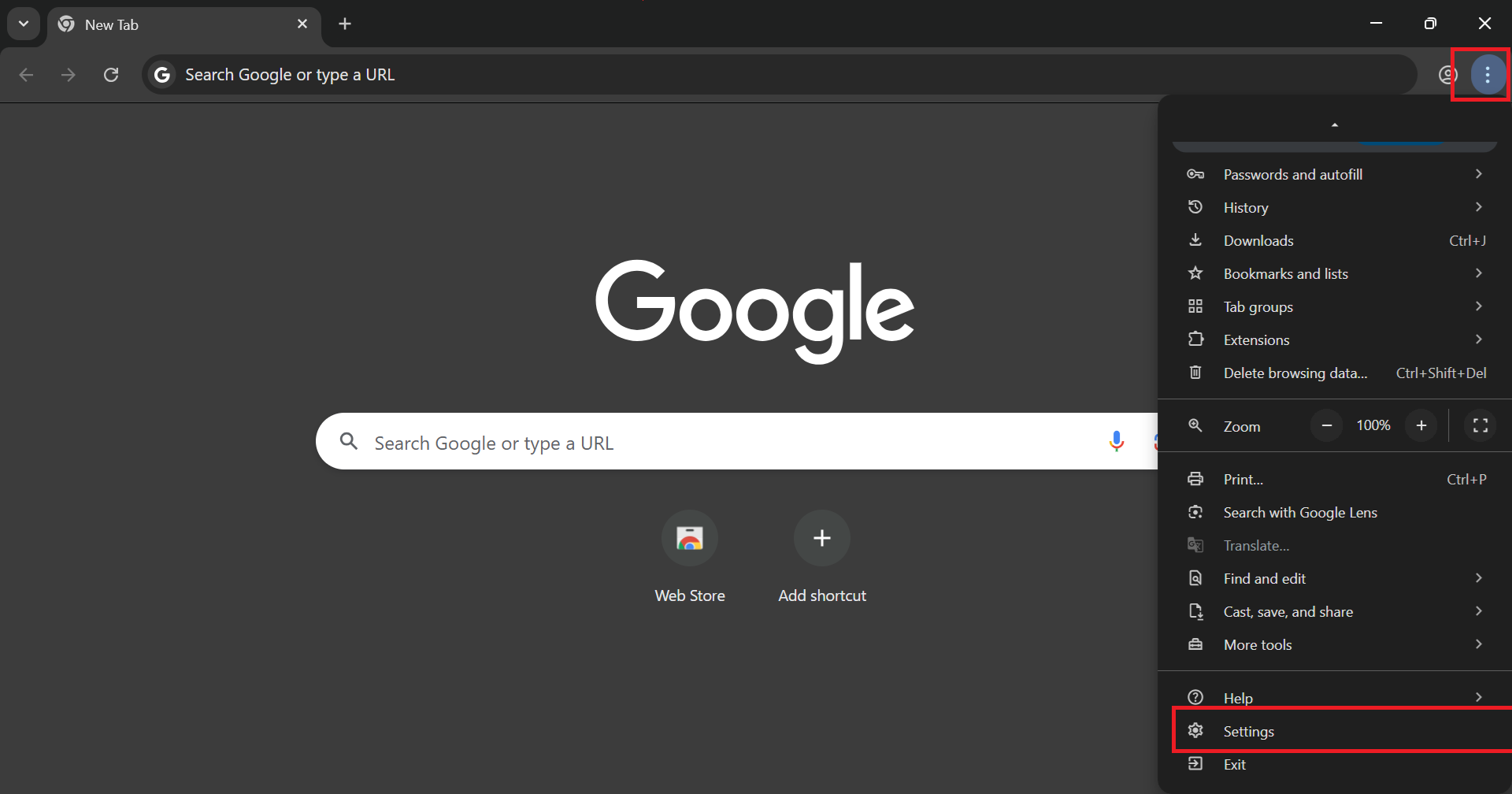
Open Chrome, click the three dots in the top right corner → select Settings.
-
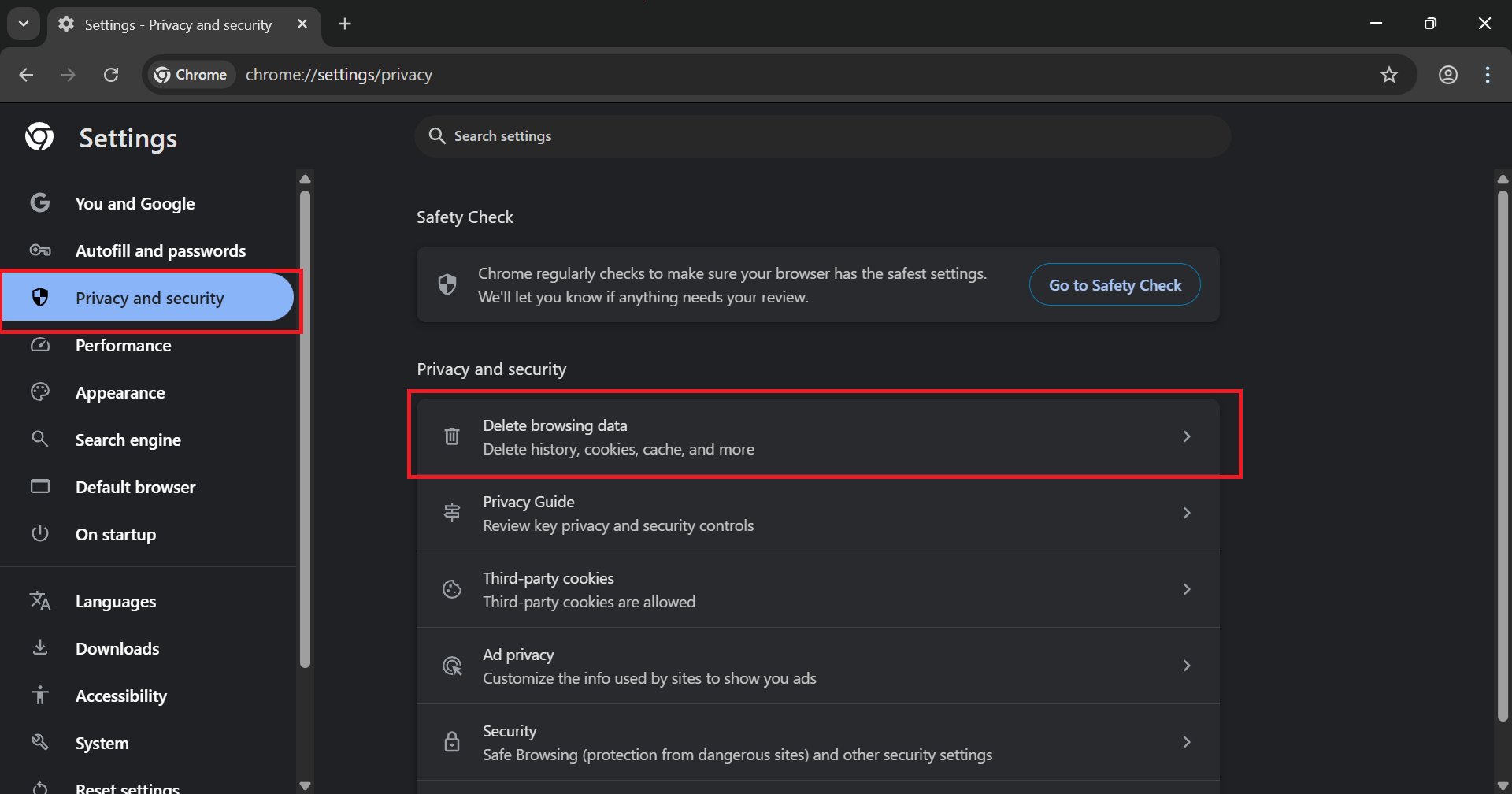
Select Privacy and security → Clear browsing data.
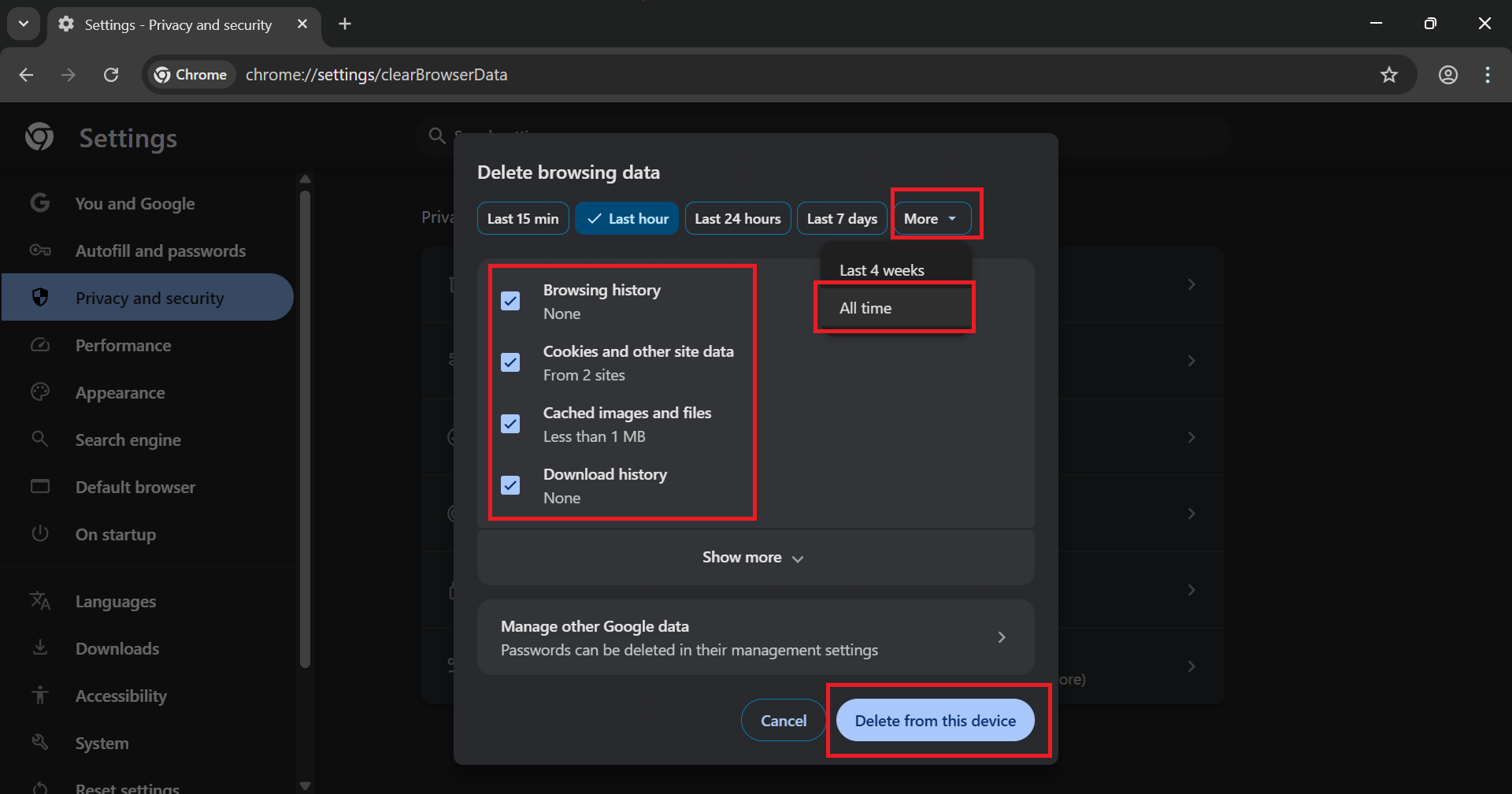
- In the Basic tab, check Cached images and files and Cookies and other site data.
- Select Time range: All time → click Clear data.
If the err_tunnel_connection_failed error persists, continue to reset Chrome:
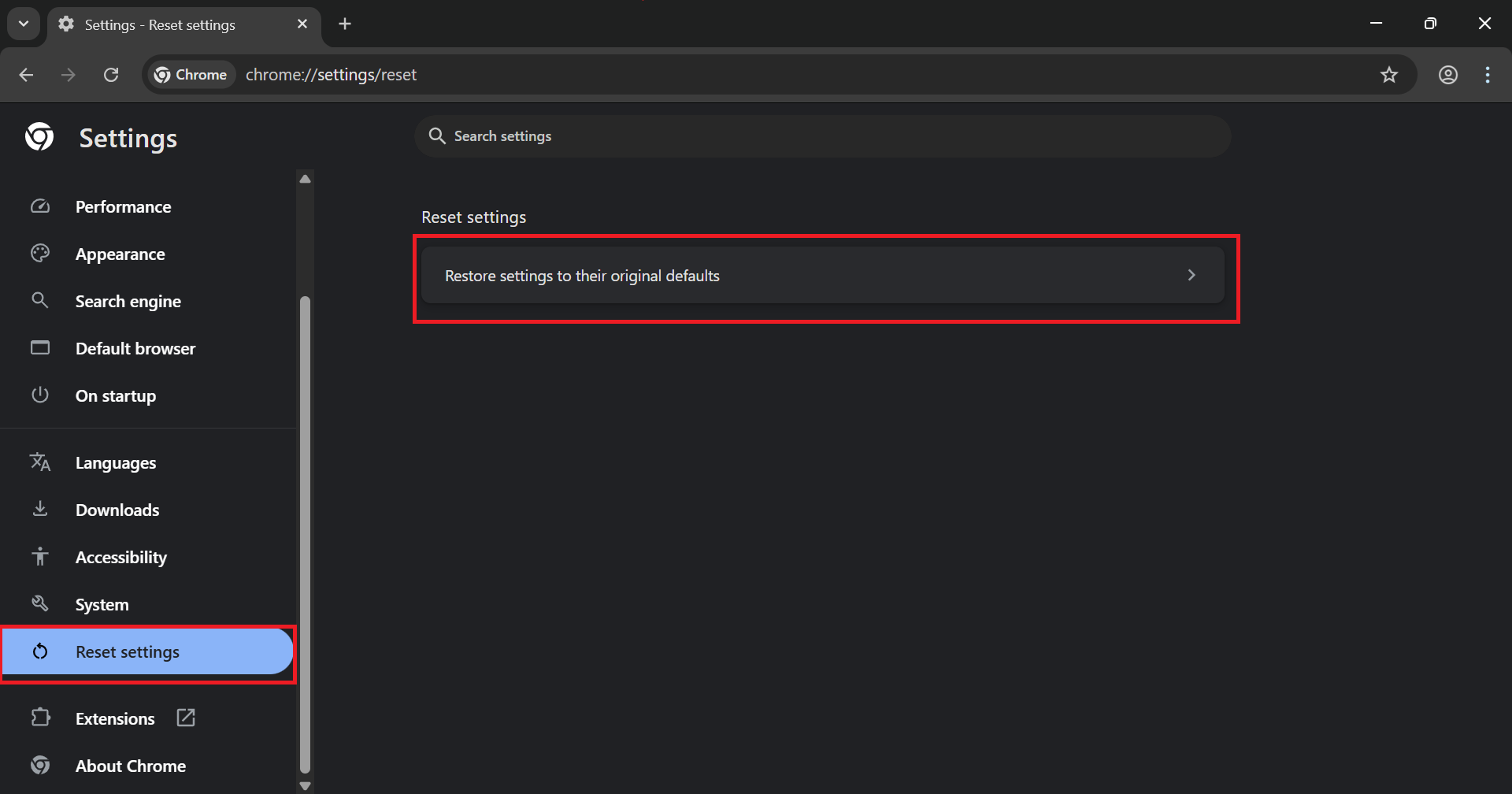
- Go to Settings → Reset settings.
- Select Restore settings to their original defaults → click Reset settings.
-
Once complete, restart Chrome and try to access the website.
This step is often effective when cache and browser data are the main causes of the error.
3.6. Update Chrome and Check Security Software
Old versions of Chrome or overly strict security software often cause conflicts with the connection tunnel. Updating Chrome and adjusting security will help fix the err_tunnel_connection_failed error thoroughly.
How to do it:
- Open Google Chrome, click the three dots in the top right corner → select Help → About Google Chrome.
- Chrome will automatically check for and download the latest update.
- Once updated, click Relaunch to restart the browser.
Next, check security software:
- Temporarily disable antivirus (Windows Defender or third-party software).
- Open the website to check for the error.
- If the error is gone, go to the antivirus Settings → add Google Chrome to the exclusions list or whitelist.
- Check Windows Firewall and also add Chrome to the allowed list if necessary.
This step is particularly effective if the err_tunnel_connection_failed error remains after previous fixes.
Note: Only disable antivirus temporarily for testing. It should not be disabled long-term to ensure computer safety.
4. How to Prevent the Err_Tunnel_Connection_Failed Error in the Future
Fixing the error only solves the problem temporarily. To avoid the err_tunnel_connection_failed error returning multiple times, you need to build proper habits and settings from the start.
4.1. Use Proxy and VPN Correctly
Using proxies and VPNs incorrectly is one of the common reasons why the err_tunnel_connection_failed error recurs. Controlling usage habits will help avoid tunnel conflicts effectively:
- Only turn on proxy or VPN when truly necessary for work or accessing blocked content.
- Choose reputable VPN providers with stable speeds and regular update support.
- Update the VPN application to the latest version to fix compatibility bugs.
- Avoid running multiple proxies or VPNs simultaneously on the same computer.
Proper application will help the connection tunnel operate smoothly and minimize the risk of encountering the err_tunnel_connection_failed error in the future.
4.2. Keep DNS and Network Cache Clean
Outdated DNS or accumulated cache is the reason why the err_tunnel_connection_failed error easily recurs. Keeping DNS and cache clean helps the connection tunnel remain stable.
Set Google DNS as default by going to Network and internet settings > Advanced network settings > DNS server assignment > Edit and enter 8.8.8.8 and 8.8.4.4.
Periodically clear browser cache in Chrome via Settings > Privacy and security > Clear browsing data.
Run network reset commands 1-2 times per month using Command Prompt with Admin rights.
Manually check and clear DNS cache when you notice slow connections or when a tunnel error appears.
Performing these steps regularly will help maintain a clean network connection and significantly reduce the likelihood of encountering the err_tunnel_connection_failed error again.
4.3. Update Browser and System Regularly
Old versions of Chrome or unupdated Windows 11 often contain compatibility bugs that cause err_tunnel_connection_failed. Regular updates help fix vulnerabilities and improve the ability to create a stable tunnel:
- Always check for Chrome updates by going to the three dots → Help → About Google Chrome.
- Turn on auto-update for Chrome to receive the latest version as soon as it's available.
- Update Windows 11 via Settings → Windows Update → Check for updates.
- Simultaneously update network drivers in Device Manager to avoid hardware conflicts.
Regular updates will keep the system and browser running smoothly, minimizing the risk of the err_tunnel_connection_failed error returning.
4.4. Configure Security Software Reasonably
Antivirus software, Windows Defender, and firewalls sometimes interfere excessively with the tunnel creation process, causing the err_tunnel_connection_failed error. Reasonable configuration will help balance network security and web browsing performance on Windows 11:
- Add Google Chrome to the exclusion list (Exclusions/Whitelist) of antivirus and Windows Security.
- Allow Chrome through Windows Firewall.
- Avoid installing too many overlapping security programs on the same Windows 11 computer.
- Keep antivirus and firewalls updated to the latest versions.
Configuring security software scientifically will significantly reduce the risk of conflict and help you avoid encountering the err_tunnel_connection_failed error in the future.
After fixing the error, you should equip yourself with knowledge about other errors so that if they happen in the future, you can fix them more quickly:
- How to fix proxy authentication error 2606 quickly
- What is HTTP error code 429 Too Many Requests and how to bypass it
- What is a Proxy error? Causes and effective fixes
- How to fix dns_probe_finished_nxdomain error on phone
5. Conclusion
The err_tunnel_connection_failed error is a common problem but can be completely fixed quickly. By clearly understanding the causes from proxies, VPNs, DNS, and security software, you have grasped the most effective troubleshooting steps.
Applying the fixes in the correct order and maintaining prevention habits will help the connection tunnel stay stable. Take action today for smoother browsing without worrying about the err_tunnel_connection_failed error.
6. FAQ
1. Is the err_tunnel_connection_failed error dangerous?
The err_tunnel_connection_failed error is completely harmless. It only interrupts the tunnel connection and does not affect computer data or viruses.
2. Does the err_tunnel_connection_failed error only occur on Chrome?
The err_tunnel_connection_failed error is most common on Chrome but can also appear on Edge or Firefox. The main causes are still proxy, VPN, or DNS.
3. Does disabling proxy slow down internet speed?
Disabling proxy usually does not slow down speed. On the contrary, direct connection is often faster because it eliminates unnecessary intermediate layers.
4. Is changing to Google DNS safe and free?
Google DNS is completely safe, free, and used by millions of people. You can change it at any time without worrying about data loss.
5. What if I try all steps and the err_tunnel_connection_failed error remains?
If the error persists, try resetting the router or contacting your network provider. In rare cases, reinstalling Chrome or Windows will resolve it completely.
6. Is the err_tunnel_connection_failed error caused by a virus?
In most cases, it is not caused by a virus. However, overly strict antivirus or firewalls are the common causes of the tunnel error.
7. What is the most effective way to prevent the err_tunnel_connection_failed error?
The most effective way is to update Chrome and Windows frequently, use VPNs correctly, and keep Google DNS as default. Doing this regularly will almost completely reduce the risk of encountering the err_tunnel_connection_failed error.