Changing your VPN is an effective method to protect your identity, access blocked websites, and improve online privacy. In this guide, you will learn how to change your VPN on both computers and mobile phones step by step to fake your IP address easily and securely, helping you surf the web more safely.
1. Why you may need to change your VPN
There are many practical reasons why users need to change their VPN connection:
- Your current VPN server is slow or unstable
- A website or service blocks your existing IP address
- You need to access content or services from another country
- Your VPN provider’s server is overloaded
- You want better privacy or a more secure connection
Understanding these reasons helps you decide how to change your VPN at the right time and avoid unnecessary connection issues.
>>> Discover:
- What is a VPN? How it can protect you from online threats
- Proxy vs VPN: Key Differences You Should Know
2. How to change your VPN on PC
Changing a VPN on a computer can be done using browser extensions, VPN software, or built-in system settings.
2.1 Change VPN using a browser extension
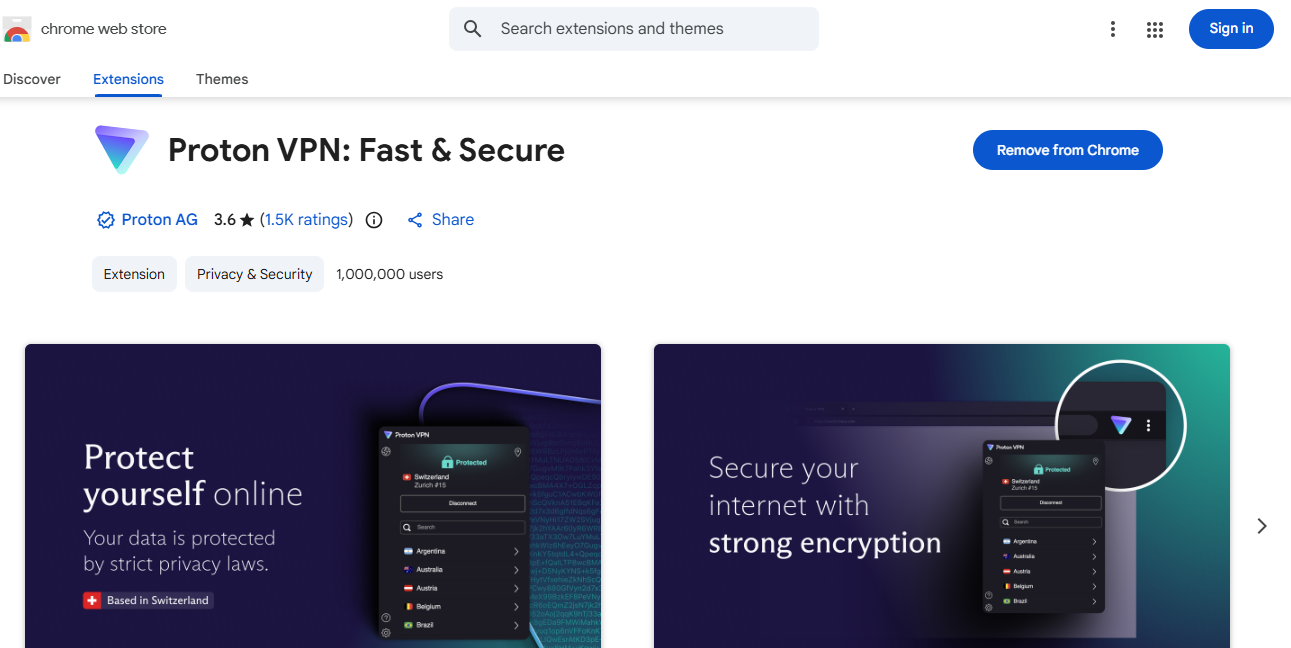
Step 1, Install a trusted VPN extension for your browser.
Step 2, Click the VPN icon in the browser toolbar.
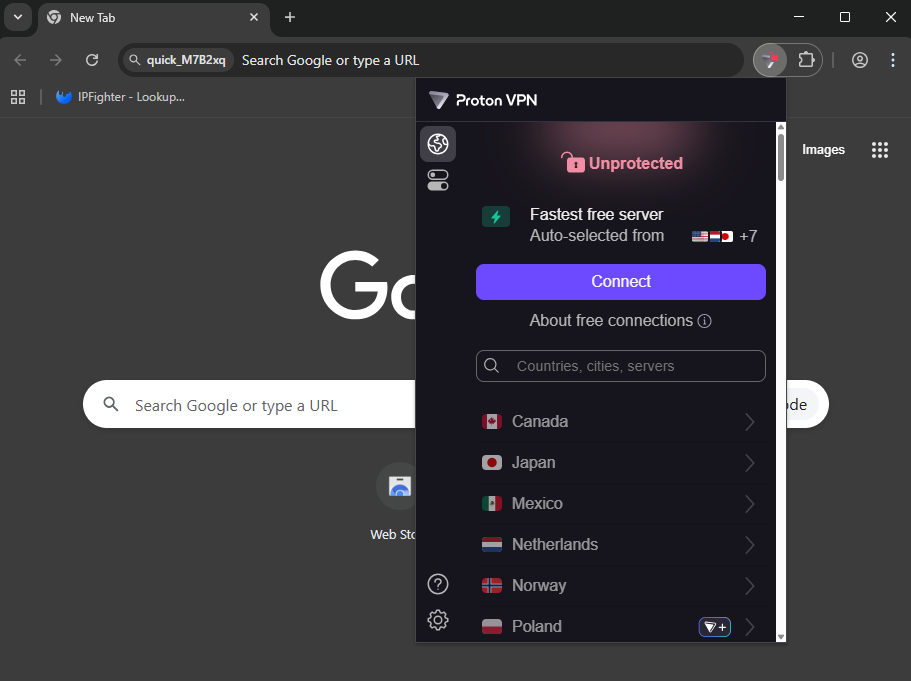
Step 3, Select a country or server from the list.
Step4, Click Connect to change your VPN instantly.
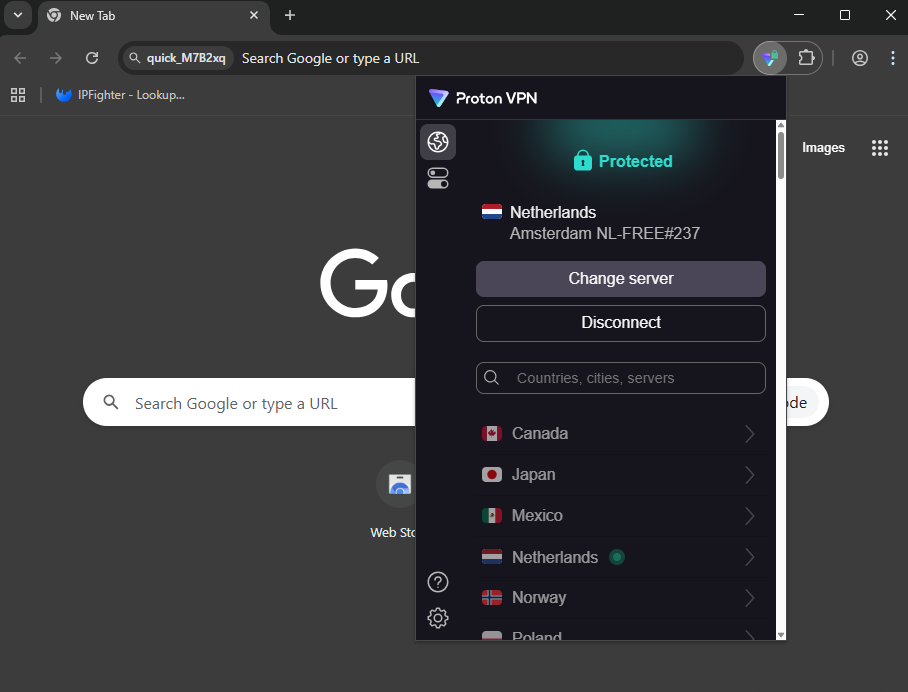
Step 5, Disconnect or switch servers anytime with one click.
This method is quick and suitable if you only need to change your VPN for browser activities.
2.2 Change VPN using built-in Windows settings
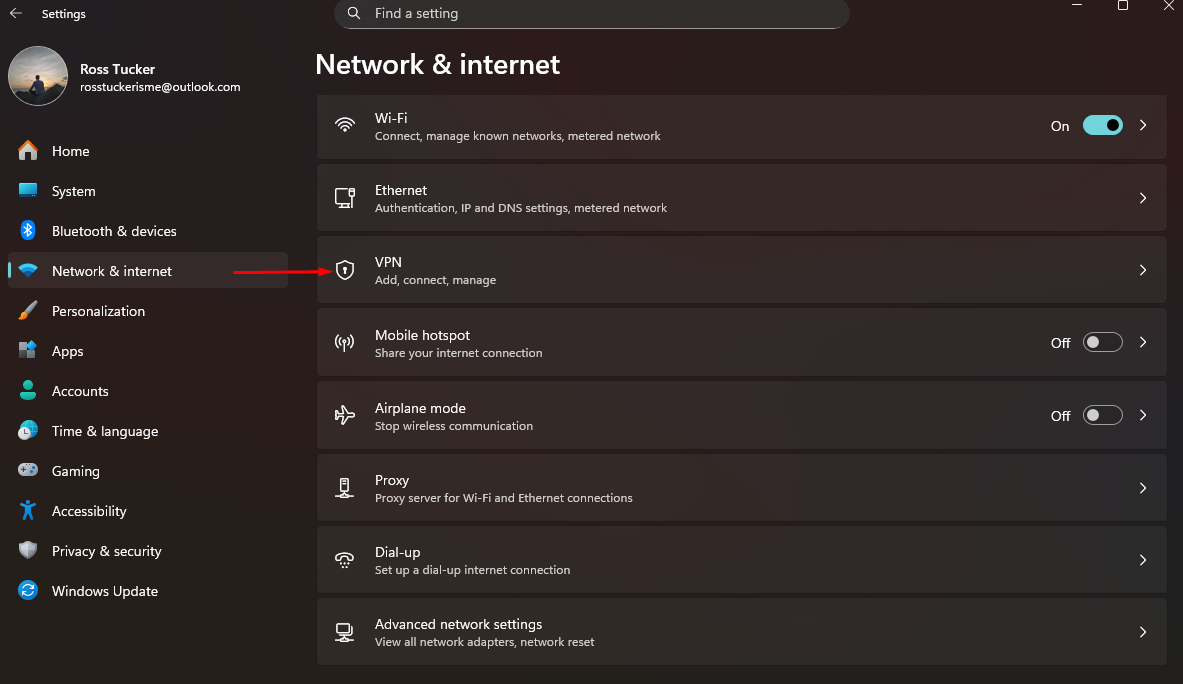
Step 1, Open Settings → Network & Internet → VPN.
Step 2, Add a new VPN connection using your provider’s details.
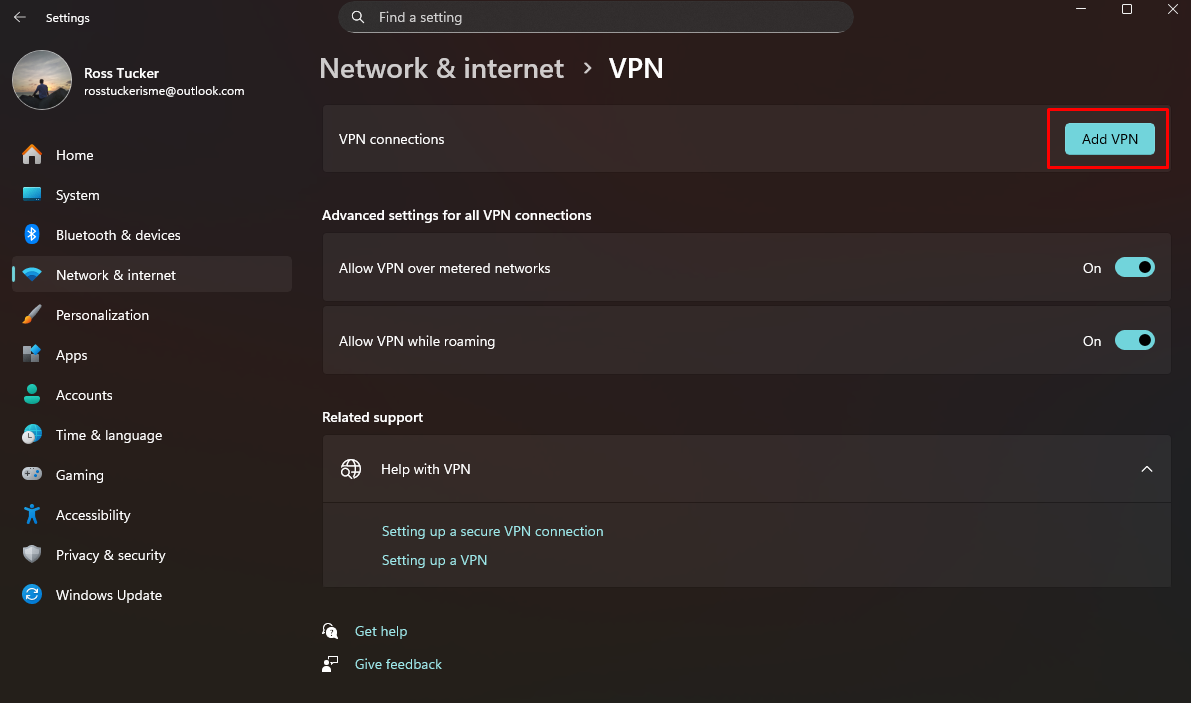
Step 3, Save the configuration and click Connect.
This approach is useful if you want system-wide protection and full control over how to change your VPN on a PC. Also, read about 15 Best free VPN software for PC
3. How to change your VPN on Phone
You can change your VPN on mobile devices using built-in settings or VPN apps.
3.1 How to Change Your VPN on iPhone
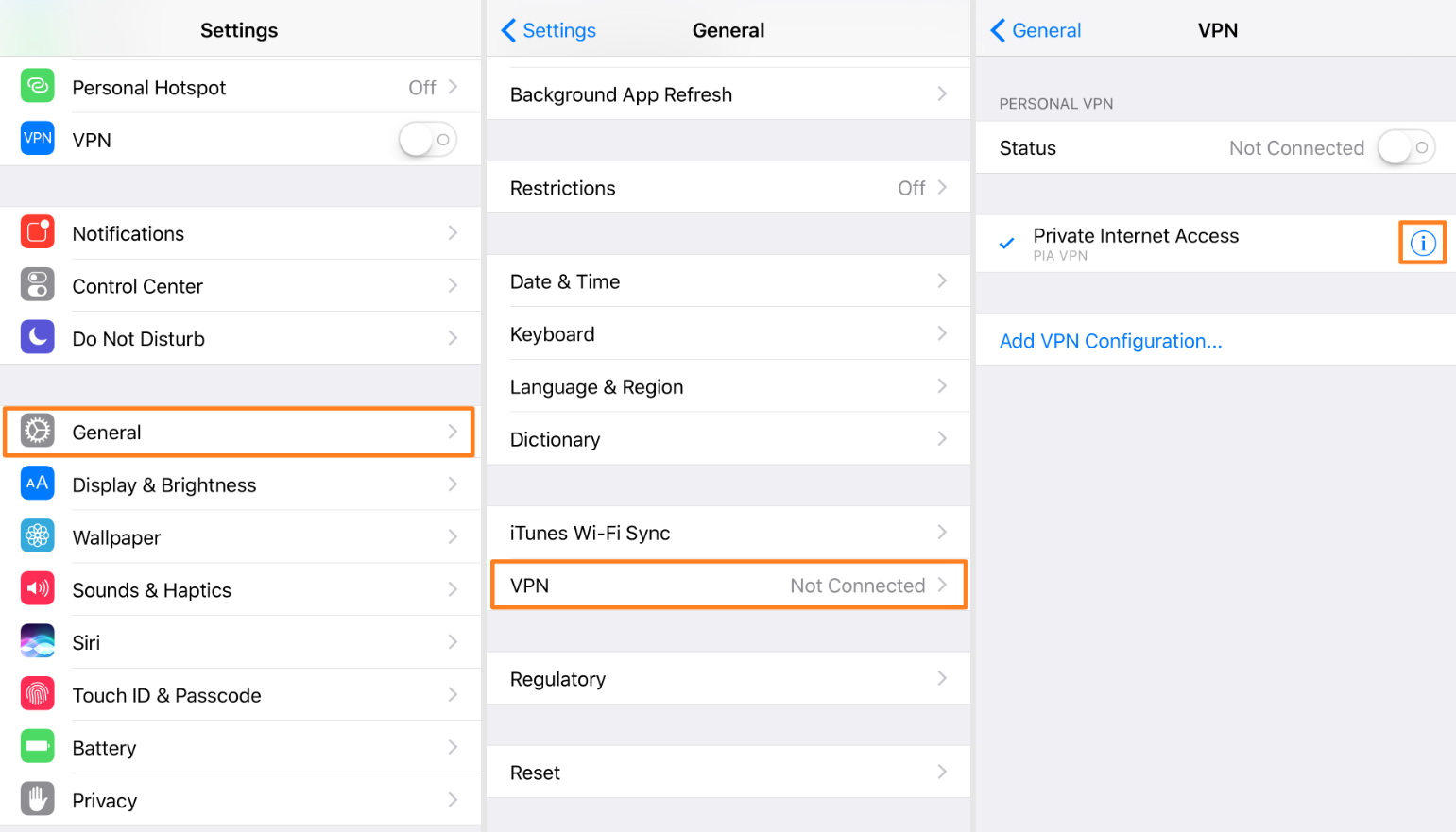
Step 1: Access the Settings app on your iPhone, then select General and find VPN & Device Management .
Step 2: Click on the VPN section to see a list of VPN servers where you can change your IP address. The list will display the following information:
- VPN configuration name.
- VPN type – IKEv2, L2TP/IPsec, or OpenVPN.
- Connection status – Active or Inactive.
Step 3: Select Add VPN Configuration . If you have already entered your VPN server information, simply press the activate button or select the VPN type (IKEv2, L2TP/IPsec, OpenVPN) to continue.
Step 4: Provide the necessary information for the type of VPN you want to change to, including the server address, username, password, and other required information. After completing this, press Done to save and then press the activate button. The process of changing your VPN on your phone is now complete.
Besides changing your VPN as described above, you can also access the App Store and download VPN apps like NordVPN, ExpressVPN, detail in 7 Best free VPN for iOS. Open the app and select Location to connect to the VPN.
3.2 How to Change Your VPN on Android
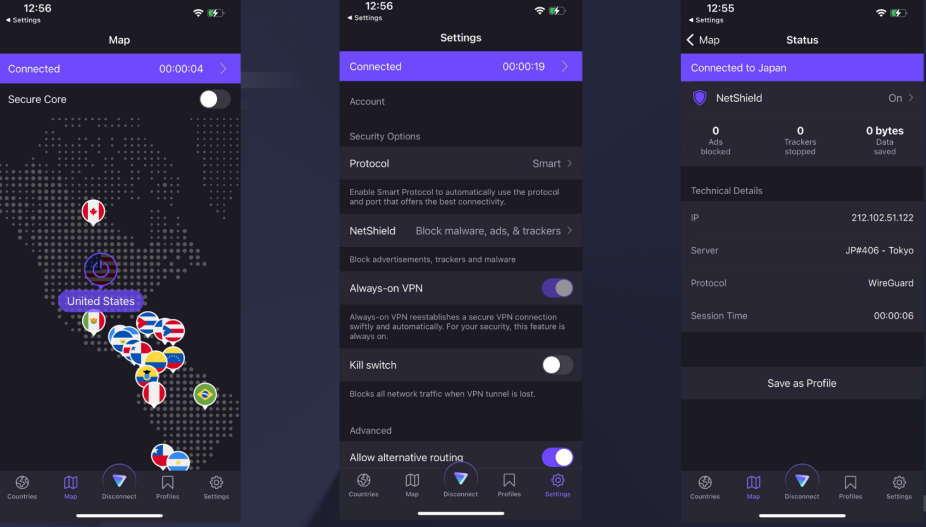
First, choose a reputable and reliable VPN app from the Google Play Store such as NordVPN, ExpressVPN, ProtonVPN, or Snap VPN. Below, Hidemyacc will guide you on how to use Snap VPN to change VPNs on Android:
- Install a reputable VPN app from Google Play.
- Open the app and grant required permissions.
- Choose a server or country.
- Tap Connect to change your VPN.
This is the most common and flexible way to manage VPN connections on Android.
>>> For more
- How to set VPN on Android: A Step-by-Step guide for easy setup
- Best free VPN for Android: Top 9 services to try in 2025
4. When should you change your VPN
4.1. Website access denials
Streaming platforms (like Netflix) and financial institutions often "blacklist" known VPN IP addresses.
- The Sign: You see "Access Denied" errors or constant CAPTCHAs.
- The Action: Switch to a different server in the same country or use a dedicated IP to bypass these blocks.
4.2. Significant speed drops
Internet speed can lag if a server is overcrowded or too far from your physical location.
- The Sign: Buffering during video calls or slow downloads.
- The Action: Change to a nearby server or switch to a faster protocol like WireGuard to reduce latency.
4.3. Task-specific switching
Your VPN needs change depending on what you are doing online.
- Work: Switch to a server in your company’s home country to access internal tools.
- Testing: Developers should rotate through various global IPs to verify localized content or ads.
- Personal: Use a local server for the best speeds while browsing social media.
4.4. Privacy and security risks
If your current connection isn't "leak-proof," your data is at risk.
- The Sign: A DNS or IP leak test reveals your actual location.
- The Action: Immediately disconnect and switch to a server with Double VPN (multi-hop) or Onion-over-VPN features for extra anonymity.
4.5. Server downtime
Servers occasionally go offline for maintenance or experience technical failures.
- The Sign: Frequent "Reconnecting" messages or total connection failure.
- The Action: Use the "Quick Connect" feature to jump to the nearest healthy server or manually select a different city.
5. How to check if your VPN has changed successfully
5.1. Check your IP sddress
The most direct way to confirm a change is to compare your IP address before and after connecting.
- How-to: Search "IPFighter" on Google or use sites like ipfighter.com
- Success: Your IP address should be completely different from your original one.
5.2. Verify country and ISP information
A VPN doesn't just change your numbers; it changes your digital identity.
- What to look for: After switching, the detected City and Country should match the VPN server you selected.
- ISP Check: The "Internet Service Provider" (ISP) should no longer show your local provider (e.g., Viettel, VNPT, Comcast); it should show the name of the VPN's data center or hosting provider.
5.3. Test for DNS and WebRTC leaks
Sometimes your IP changes, but your browser still "leaks" your true identity through background requests.
- DNS Leak: If you are connected to a US server but your DNS test shows servers in Vietnam, your privacy is compromised.
- WebRTC Leak: Browsers can sometimes bypass VPNs to reveal your local IP.
- Action: Use a tool like dnsleaktest.com or ipfighter.com to ensure only the VPN's servers are visible.
5.4. Confirm access to restricted content
The ultimate "real-world" test is checking if the VPN is actually bypassing geoblocks.
- How-to: Try accessing a site or service that was previously blocked or offered different content (e.g., checking the Netflix library for a specific region).
- Success: If the "Not available in your country" message disappears, your VPN change is fully functional.
6. Common mistakes when changing your VPN
6.1. Failing to disconnect the previous session
Running a new VPN connection while the old one is still "active" or "hanging" can cause software conflicts.
- The Risk: It can lead to a "routing loop" where your internet stops working entirely or your traffic defaults back to an unencrypted connection.
- The Fix: Always click Disconnect and wait for the status to turn off before selecting a new location or provider.
6.2. Overlapping multiple VPNs or Proxies
Using two different VPN apps or a browser proxy alongside a system-wide VPN can create significant instability.
- The Risk: This often causes "IP address conflicts" or extreme speed drops as your data is encrypted multiple times unnecessarily.
- The Fix: Stick to one trusted VPN client at a time for the most reliable performance.
6.3. Relying on Free VPN Services
While tempting, free VPNs often have overcrowded servers and limited infrastructure.
- The Risk: Most free versions lack the "Obfuscation" technology needed to bypass modern blocks, meaning your "new" IP might already be blacklisted.
- The Fix: Invest in a reputable paid service if you require consistent access to streaming or high-security tasks.
6.4. Ignoring IP and DNS leaks
Simply seeing a "Connected" status doesn't always mean you are hidden.
- The Risk: A "DNS Leak" occurs when your traffic goes through the VPN, but your requests for websites are still sent through your local ISP.
- The Fix: Always perform a quick check at
browserleaks.comordnsleaktest.comafter changing servers to ensure no data is "slipping through the cracks."
6.5. Changing locations too frequently
Rapidly jumping from a server in New York to London and then to Tokyo within minutes can trigger security alarms.
- The Risk: Banks and social media accounts (like Facebook or LinkedIn) may flag your account for "suspicious activity" and lock you out, suspecting a hack.
- The Fix: Stay on one server for the duration of your task. If you must switch, wait a few minutes between connections.
>>> Related article:
- How to turn off VPN on multiple devices super quickly and easily
- Rent VPN Server: 7 Tips to choose the best cheap VPN
- How to Easily Enable a VPN on iPhone, Android, and Computer
7. FAQ
Is it safe to change your VPN frequently?
Yes, but changing too often may cause temporary blocks on some platforms.
Does changing a VPN affect Internet speed?
It can improve or reduce speed depending on server quality and distance.
Can changing VPN get accounts banned?
Frequent IP changes may trigger security checks on some services.
Is it better to change VPN servers or providers?
Switch servers first; change providers only if performance remains poor.
Do I need to restart my device after changing VPN?
Usually no, but restarting can help if connection issues occur.