Turning off a VPN is not as complicated as many people think. Just follow the detailed instructions and you’ll be able to do it successfully. In this article, Antidetect Browser Hidemyacc will share with you simple steps to turn off VPN on various devices, helping you easily control your network connection in just a few taps.
1. How to turn off VPN on iPhone
How to turn off VPN on iPhone is surely a common question for many iOS users. To make the process of disconnecting the VPN smoother, you can refer to the two methods below:
Method 1:
Step 1: Unlock your iPhone and open the Settings app.
Step 2: Scroll down and select VPN from the settings list.
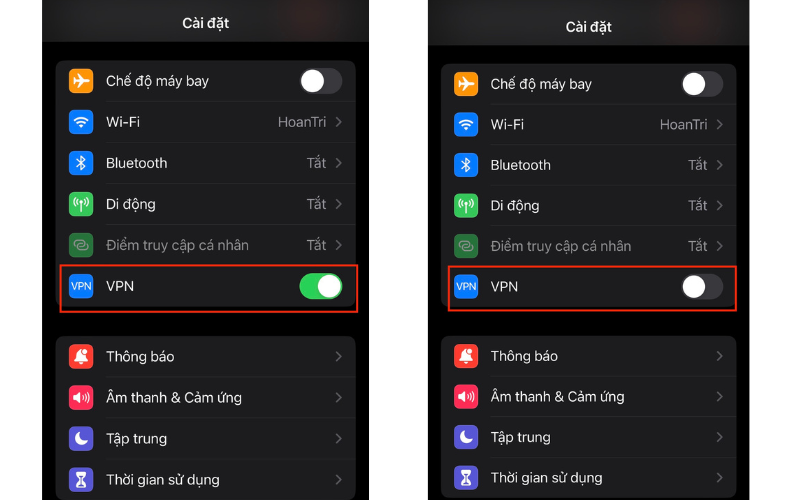
Step 3: Here, you just need to toggle the switch to the left to turn off the VPN.
Method 2:
Step 1: Open the Settings app on your iPhone.
Step 2: Scroll down and select General.
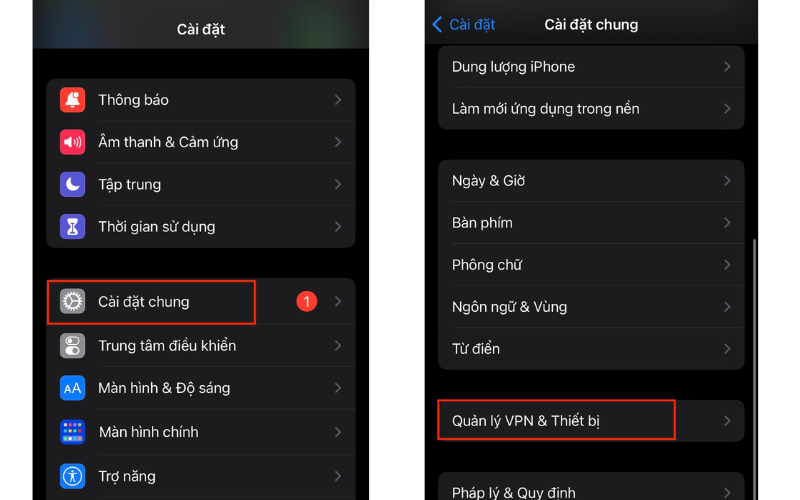
Step 3: In the General menu, tap VPN & Device Management. Then, tap on VPN.
Step 4: Find and select the active VPN connection you want to disconnect.
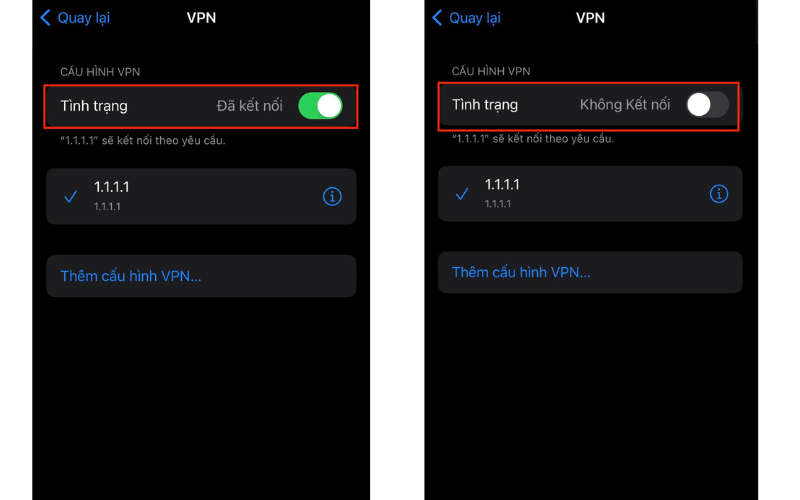
Step 5: In the VPN CONFIGURATION section, change the VPN status from Connected to Disconnected. Thus, the process of turning off VPN on iPhone is complete.
In addition, you can also download VPN apps such as NordVPN, Proton VPN,... Then, turn off VPN directly through these apps by clicking on Turn off. Not only on iPhone, the way to turn off VPN through these apps can also be applied to iPhone phones or Windows and MacOS computers.
>>> SEE MORE: Simple ways to turn on VPN on iPhone, Android, and computers
2. How to turn off VPN on Android phones
If you’re wondering how to turn off VPN on Samsung or other Android devices, check out the detailed guide below to do it easily and quickly:
Step 1: Unlock your phone and go to Settings, then select Connections & sharing.
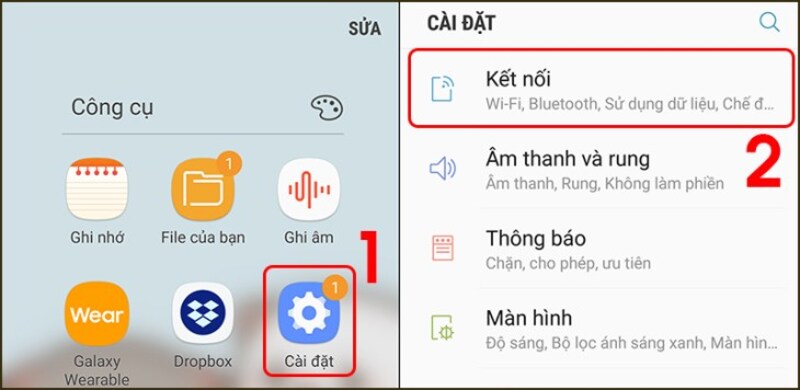
Step 2: Scroll down and select VPN.
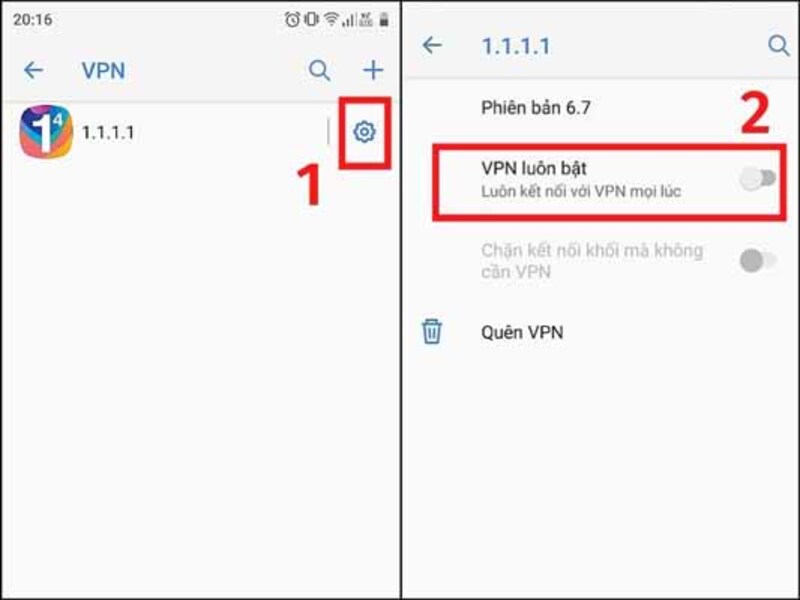
Step 3: Press and hold the VPN connection you want to turn off, then select Disconnect. At this point, the process of turning off VPN on your phone is complete.
3. How to turn off VPN on Windows computers
On Windows computers, a VPN is an important tool to protect your personal information and help you browse the Internet safely. Therefore, to help you easily manage your connection, the following instructions will show you how to turn off VPN in just a few simple steps:
Step 1: Look at the bottom-right corner of the screen, you’ll see the network icon in the form of a computer or Wi-Fi signal.
Step 2: Right-click on it and select Open Network & Internet settings.
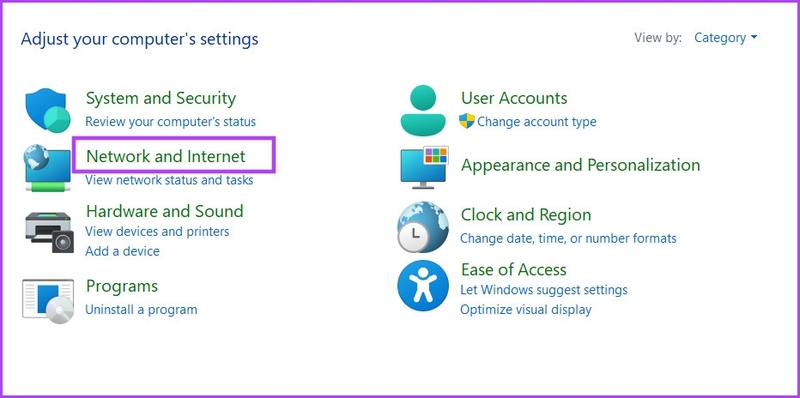
Step 3: In the Settings window, find and select VPN from the menu on the left.
Step 4: A list of VPN connections will appear. Find the VPN connection you want to turn off and click on it.
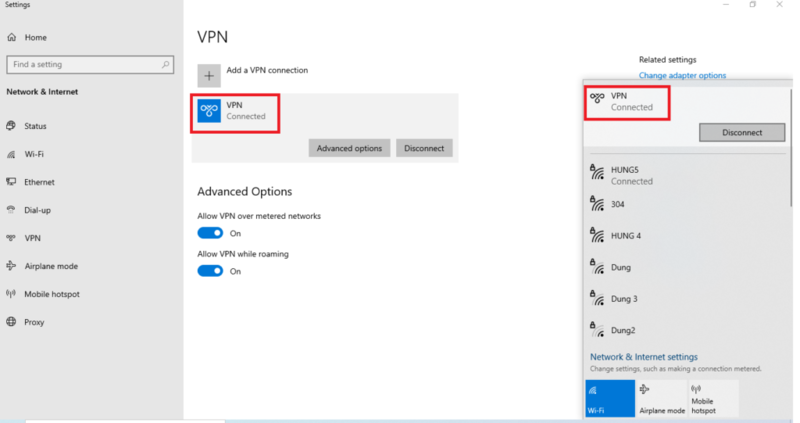
Step 5: Click the Disconnect button to complete turning off the VPN on your computer.
4. How to turn off VPN on macOS
For Apple computers, the process of turning off VPN is usually done as follows:
Step 1: Click the Apple icon in the top-left corner of the screen and select System Preferences.

Step 2: In the System Preferences window, find and click the Network icon (globe symbol).
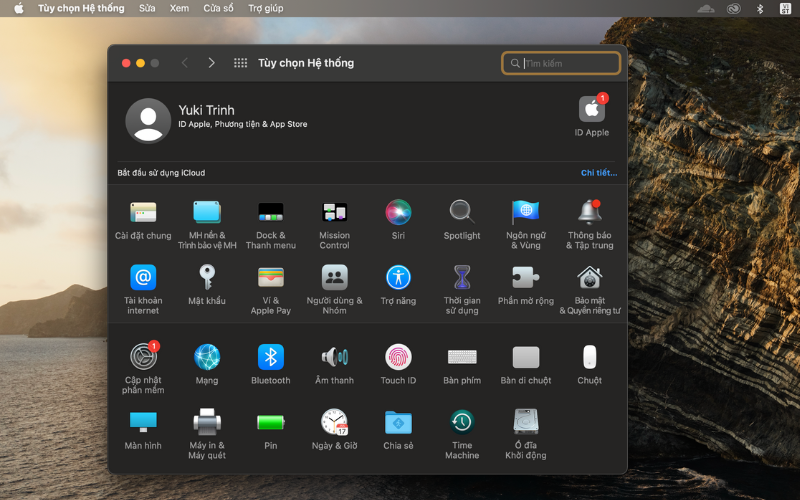
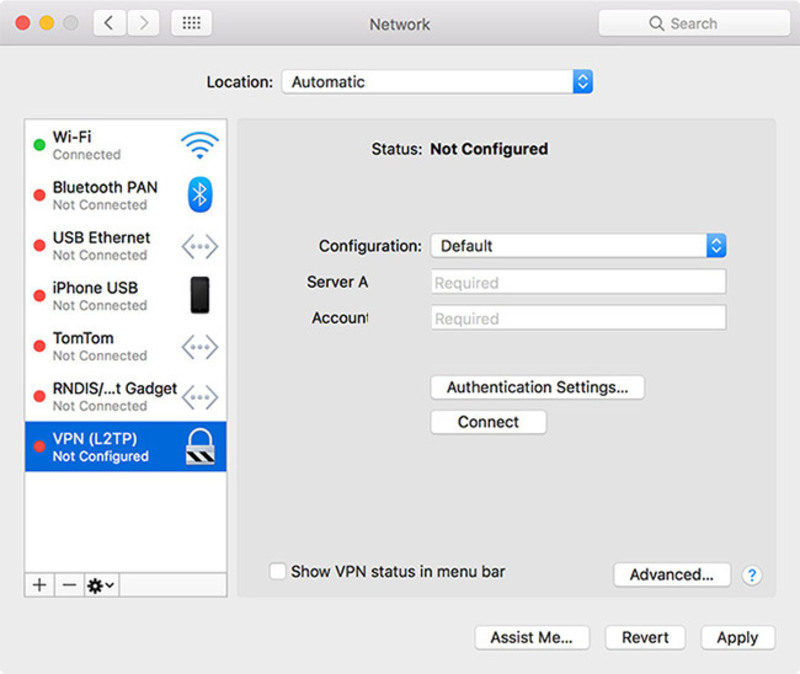
Step 3: In the left column, a list of connections will appear. Find and select VPN.
Step 4: Click the Disconnect button to finish turning off the VPN on your laptop.
5. Benefits of turning off VPN
Although using a VPN offers many security and privacy benefits, turning it off can also bring several advantages for users, such as:
- Faster internet speed: A VPN encrypts your data and routes traffic through an intermediary server, which can sometimes slow down your connection. When you turn off the VPN, you can access the internet with smoother, faster speeds.
- More stable connection: VPNs may cause interruptions or connectivity issues, affecting your online experience. Disconnecting the VPN can help keep your network more stable.
- Less lag when gaming: VPNs can increase latency when playing online games. Turning off the VPN will help you enjoy faster, smoother gameplay.
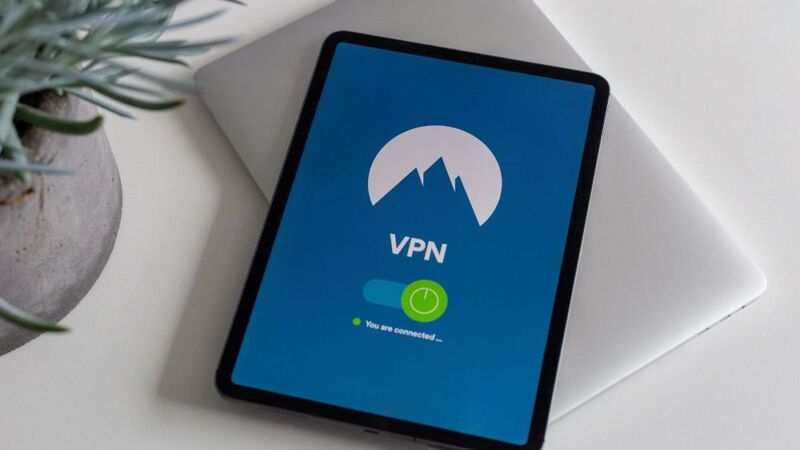
6. When should you turn off VPN?
You don’t always need to keep your VPN on. In some specific cases, turning it off can actually give you a better connection experience. Let’s find out when you should turn off your VPN to get the best performance:
- When your connection is slow: If you notice your Internet speed drops significantly while using a VPN, try turning it off to see if the speed improves. Sometimes, routing traffic through a VPN server can slow down your connection.
- When accessing blocked services: Some online services, especially streaming platforms or banking apps, often block VPNs to enhance security. In these cases, you’ll need to turn off the VPN on your iPhone, Android, or computer.
- When you’re at home using a private Wi-Fi network: If you’re using your personal Wi-Fi at home, turning off the VPN is generally acceptable. Compared to public Wi-Fi, your home network, which you set up yourself, is usually much more secure.
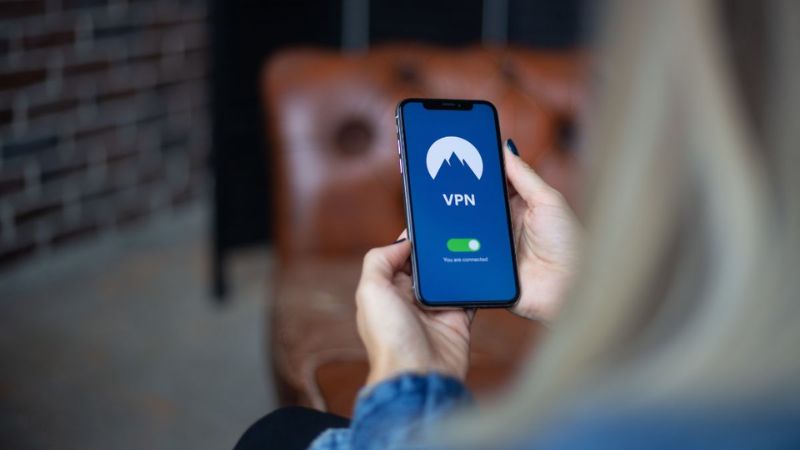
Although VPNs are a popular choice for online security, if you work in MMO (Make Money Online), you’ll need a more optimal solution to manage multiple accounts at an affordable cost. Therefore, instead of a VPN, you should use the integrated Proxy feature in the Hidemyacc antidetect browser.
Antidetect Browser Hidemyacc offers superior anonymity by masking your browser fingerprint parameters, allowing you to manage multiple profiles safely and effectively. Discover Hidemyacc now by downloading the software and enjoying a 7-day free trial!
The above is the complete step-by-step guide on how to turn off VPN on various devices that Hidemyacc wants to share with you. Hopefully, this information will help you easily disconnect the VPN on your device. If you want to learn more about the Antidetect Browser, feel free to contact Hidemyacc for further consultation!
>>> RELATED ARTICLES: