Whether at school, work or in a country where YouTube is restricted, it can be frustrating not to access your favorite videos. You can unblock YouTube on Chrome in several ways, and in this blog post, Hidemyacc will guide you through the best and most effective methods to do so.
1. What is a YouTube block?
When trying to access YouTube, you may encounter a message like “Access Denied” or “This content is unavailable in your region.” This is commonly referred to as a "YouTube block," and it can happen for a variety of reasons such as geo-blocking, organization restrictions, ISP restrictions, or browser-related issues.
2. Method 1 to unblock YouTube: Using VPN/Proxy
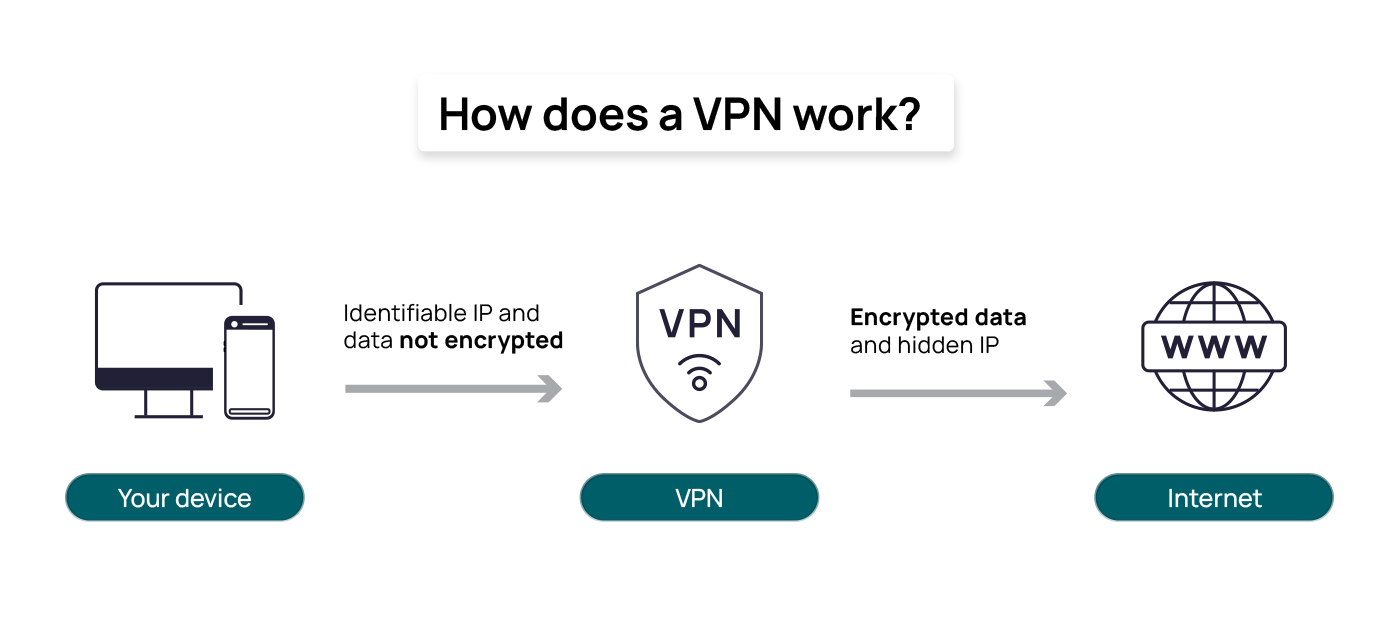
One of the most common reasons YouTube is blocked is due to geographical restrictions. YouTube uses your IP address to determine your location, and if you are in a restricted country, access to the site will be blocked. In these cases, you need a tool that can mask your real location. We have a separate article on bypassing Youtube proxies, you can read more here
A VPN (Virtual Private Network) or a proxy server allows you to change your IP address, making it appear as though you are browsing from a different location. By connecting to a server in a country where YouTube is accessible, you can easily bypass regional blocks. VPNs also encrypt your internet connection, making it more secure and private.
3. Method 2 to unblock YouTube: Change DNS
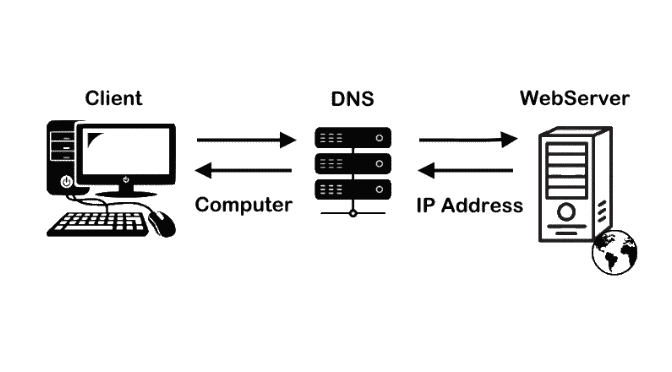
Another effective method to unblock YouTube on Chrome is by changing your DNS settings. DNS (Domain Name System) is what translates website names like "youtube.com" into IP addresses. Sometimes, using a different DNS server can help bypass network-level blocks.
How to change DNS settings?
Changing your DNS to a public server like Google DNS or OpenDNS can improve your connection speed and help you bypass restrictions. Here’s how to change your DNS on Chrome:
- Go to Network Settings: Open your device’s network settings and select the network connection you're using.
- Change DNS Server: Find the DNS settings and replace them with the following:
- Google DNS:
- Primary DNS: 8.8.8.8
- Secondary DNS: 8.8.4.4
- OpenDNS:
- Primary DNS: 208.67.222.222
- Secondary DNS: 208.67.220.220
- Restart Your Browser: After changing the DNS, restart Chrome and try accessing YouTube again.
This simple change can bypass network restrictions and unblock YouTube, especially in areas where traditional methods fail.
4. Method 3 to unblock YouTube: Use URL shortener
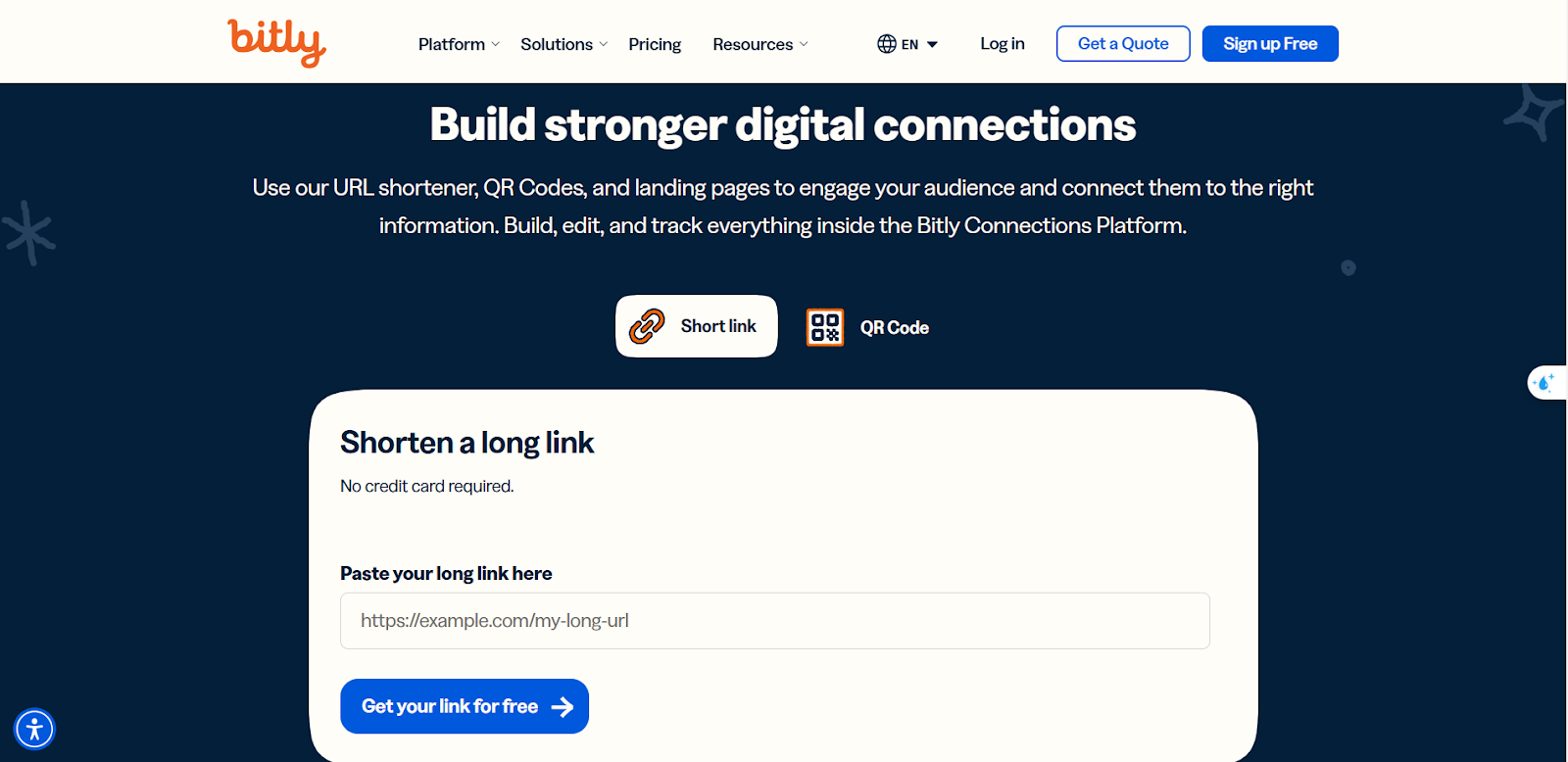
In some cases, YouTube URLs themselves might be blocked, especially if the full link is recognized by the network as restricted. A URL shortener can help you bypass this issue by shortening the YouTube URL and providing a new link that might not be recognized as blocked.
How to use URL shorteners?
Here’s how you can use a URL shortener to unblock YouTube:
- Choose a URL Shortener: Use services like Bitly, TinyURL, etc.
- Shorten the YouTube URL: Copy the YouTube URL you want to access and paste it into the URL shortener.
- Visit the Shortened Link: Once you’ve shortened the link, try accessing the shortened URL in Chrome. You should be able to access YouTube without any issues.
This method is particularly useful if you are in an environment where only specific URLs are blocked.
5. Method 4: Use the browser extension
There are several Chrome extensions available that can help you unblock YouTube. Extensions like YouTube Unblocked and Unblocker for YouTube can act as proxies and provide quick access to restricted sites.
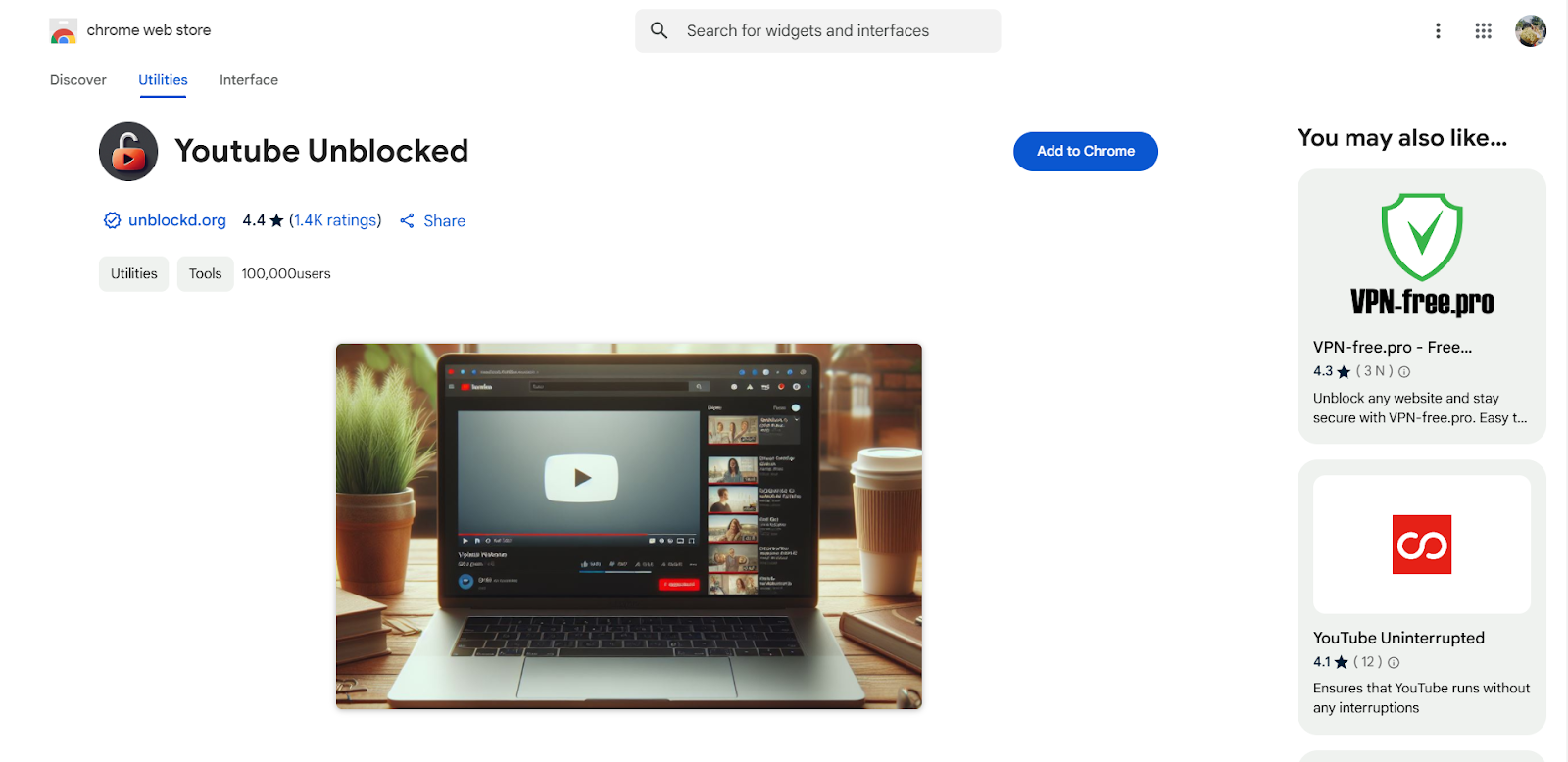
How to use the browser extension to unblock YouTube?
Here’s how to use browser extensions for unblocking YouTube:
- Install the Extension: Go to the Chrome Web Store and search for a YouTube-unblocking extension like Unblocker for YouTube.
- Activate the Extension: After installing, click on the extension’s icon in the toolbar to activate it.
- Access YouTube: Refresh Chrome, and you should be able to access YouTube without restrictions.
Using browser extensions is an easy and quick way to bypass restrictions and start watching YouTube again.
6. Method 5: Use Smart DNS service
Advanced network services like Smart DNS and other cutting-edge tools are designed to bypass regional blocks and restrictions without changing your IP address.
How does Smart DNS help?
Smart DNS works by rerouting your traffic through specific DNS servers, allowing you to bypass regional restrictions while keeping your original IP address. These services are usually faster than VPNs and don’t require as much configuration. Here’s how to use Smart DNS:
- Sign Up for a Smart DNS Service: Choose a reputable Smart DNS provider.
- Configure Your Device: Follow the provider’s instructions to configure your device and browser settings.
- Access YouTube: Once set up, you can visit YouTube directly, and it will be unblocked.
Smart DNS is a great option for those looking for a fast, efficient solution to access YouTube on Chrome.
7. Method 6: Clear browser cache and cookies
Sometimes, your browser’s cache and cookies can cause issues when trying to access certain websites, including YouTube. If your cache is corrupted, you may experience problems with loading or accessing YouTube.
How to clear browser cache and cookies
Here’s how to clear your cache and cookies in Chrome:
- Open Chrome Settings: Click on the three dots in the top-right corner of Chrome and select “Settings.”
- Go to Privacy and Security: Scroll down to find the "Privacy and security" section.
- Clear Browsing Data: Click on "Clear browsing data" and select the time range (preferably “All time”).
- Select Cache and Cookies: Ensure that both "Cookies and other site data" and "Cached images and files" are checked.
- Clear Data: Click “Clear data” to remove the cache and cookies.
After clearing the cache and cookies, restart Chrome and try accessing YouTube again.
8. Method 7: Check for network or firewall issues
If none of the above methods work, there may be a network or firewall issue preventing access to YouTube. You can troubleshoot this by checking your firewall and network settings.
How to check for network and firewall issues
-
Check Firewall Settings: Ensure that your firewall isn’t blocking YouTube. Temporarily disable it to see if that resolves the issue.
-
Inspect Network Settings: Look for any DNS or proxy settings that may be causing problems and make adjustments as needed.
-
Contact Your ISP: If you’re still having issues, contact your ISP to inquire if they are blocking YouTube access.
By resolving network or firewall issues, you can restore access to YouTube on Chrome.
>>> How to get 1,000 views on YouTube for free without ads or bots
>>> How to increase views on YouTube? Tips, tricks & free method
>>> Multiple YouTube channels one account: Allowed or risky?
9. Conclusion
In this post, we’ve covered multiple ways to unblock YouTube on Chrome. Whether you're using a VPN, changing your DNS, or even using a URL shortener, these methods provide a reliable way to access YouTube and enjoy your favorite content. If you're looking for a secure and seamless experience, combining Hidemyacc with a proxy or using Smart DNS can ensure smooth, unrestricted access to YouTube.
10. FAQ
Question 1: Is it legal to unblock YouTube?
In most countries, it’s legal to use tools like VPNs or proxies to unblock YouTube. However, some countries have strict regulations on internet usage, so always check local laws before using these methods.
Question 2: What if YouTube is still blocked after trying a VPN?
If YouTube is still blocked, it might be due to network restrictions or a particular firewall setup. Try clearing your cache, using a different VPN server, or checking for firewall issues.
Question 3: Can these methods slow down my internet speed?
Using VPNs and proxies can sometimes reduce internet speed due to encryption or routing. However, Smart DNS services tend to be faster and have less of an impact on speed.
Question 4: Which is the most reliable way to unblock YouTube?
Using a VPN or Smart DNS service like Hidemyacc is generally the most reliable and secure method for unblocking YouTube.