Hidemyacc introduces several changes in November 2026, from a wider choice of browsers to free proxy data for users. The software also updates its password security rules with a new expiry period and new requirements. Let’s go through each change in detail so you know what the new features are, how much proxy data you get and what to keep in mind when managing your Hidemyacc account.
Article overview
The November 2026 Hidemyacc update comes with the message Fingerprints like real devices. Now with Firefox, and focuses on two standout improvements: an upgraded fingerprint mechanism that simulates real devices more closely, and the addition of the Firefox browser. The update also provides Free Residential Proxy across plans, adds Team Member management with Permission & Limits, updates the password policy and launches a product tour that guides you through creating your first profile.
If you use the Hidemyacc antidetect browser to manage multiple profiles, you can learn about these changes to make better use of the new features. In particular, pay attention to the password change deadline shown in the app to avoid losing access. With Firefox and Free Residential Proxy, you should also check the browser version, the data allowance and the usage limits before you start. If you manage a team, you can set permissions and limits for each member in the folders they are assigned to manage. New users can also use the product tour to get familiar with the basic operations.
The main changes include:
New fingerprint mechanism: Aims to simulate real device environments better, making fingerprint parameters more consistent.
Firefox browser: Supports two versions, 158.0 and 159.0, on the supported operating systems.
Free Residential Proxy: Provides free data for each plan, from 10 GB on the Mini plan to 500 GB on the Business plan.
Team Member management: Adds Permission & Limits, allowing team owners to configure permission to delete profiles, manage proxies and limit the number of profiles members can create in the folders they are assigned to manage. Profiles created by members count toward the total profile limit of the parent plan.
Account security: Requires updating your password under the new rules and changing it every 90 days.
Product tour: Guides new users through creating, setting up, running and stopping their first profile.
1. Firefox browser
1.1. Hidemyacc supports Firefox 158.0 and 159.0 on all operating systems
Hidemyacc has added Firefox to the list of browsers you can choose when creating a profile. In the Overview tab of the New Profile screen, select the operating system, then select Firefox under Browser and choose the version you want to use. Currently, the platform supports two Firefox versions: 158.0 and 159.0.
Firefox can be selected on all five operating systems: Windows, macOS, Linux, Android and iOS. This gives you more browser options when setting up the working environment for your profiles.
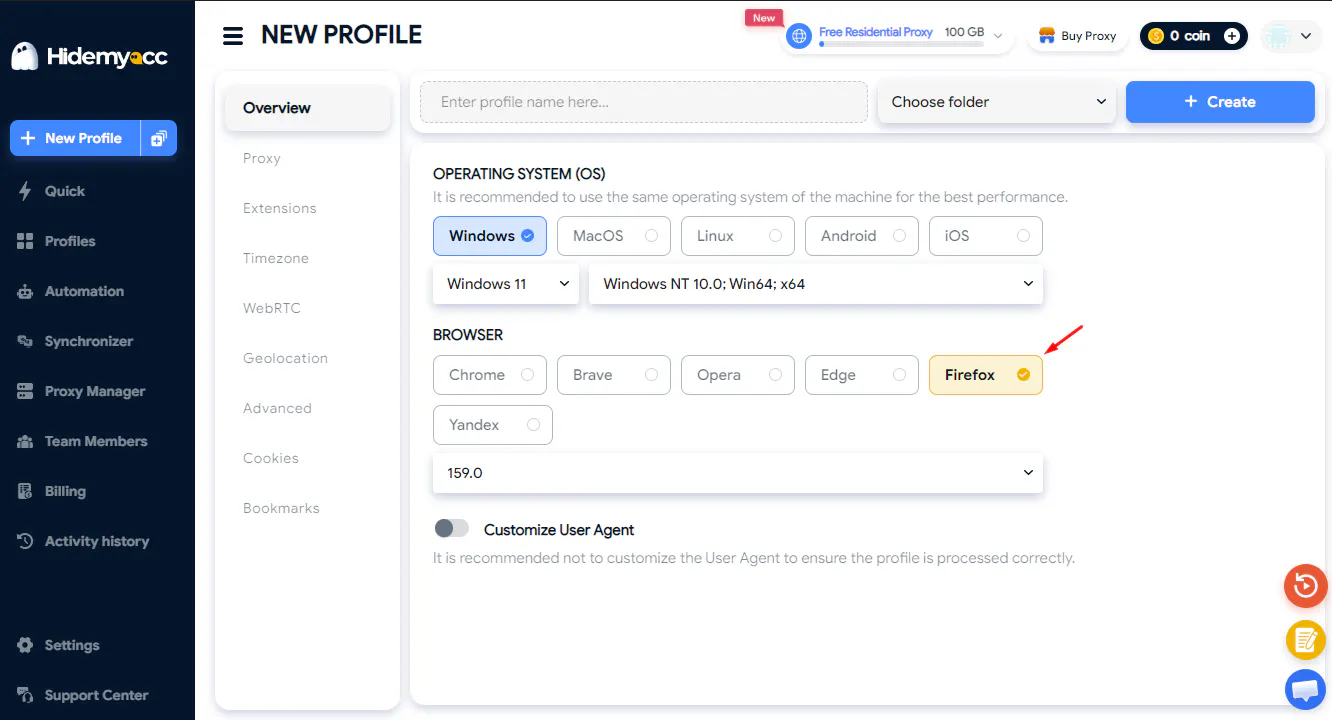
Selecting the Firefox browser in the Hidemyacc New Profile screen
Information | Details |
Firefox versions | 158.0 and 159.0 |
Operating systems | Windows, macOS, Linux, Android, iOS |
Installing extensions | Through the Hidemyacc app |
Changing the browser of an existing profile | Not supported |
1.2. Extensions on Firefox can only be installed through the Hidemyacc app
With Firefox profiles on Hidemyacc, you cannot install extensions directly from the Firefox Add-ons website. Instead, installation must be done through the Hidemyacc app.
So if you rely on extensions for your work, check whether they can be installed before switching to Firefox. This helps you avoid interruptions when a profile needs certain extensions.
1.3. Existing profiles cannot be switched to another browser
A profile on Hidemyacc only supports updating the version within the same browser type, not switching between different browsers.
For example, if you create a profile with Chrome 144, you can update it to Chrome 150 but you cannot switch that profile to Firefox or Opera. If you want to use Firefox, you need to create a new profile and select Firefox from the very first setup step.
1.4. How does a Firefox profile on Hidemyacc appear on checking tools?
To evaluate how the Firefox fingerprint on Hidemyacc is displayed, a profile using Firefox 159.0 on Windows, combined with a residential proxy in Australia, was tested on November 18, 2026.
The results from the tools show the browser and environment information being detected as follows:
IPFighter: Shows Firefox 159 browser, Windows operating system, Australia/Melbourne time zone and Residential connection type.
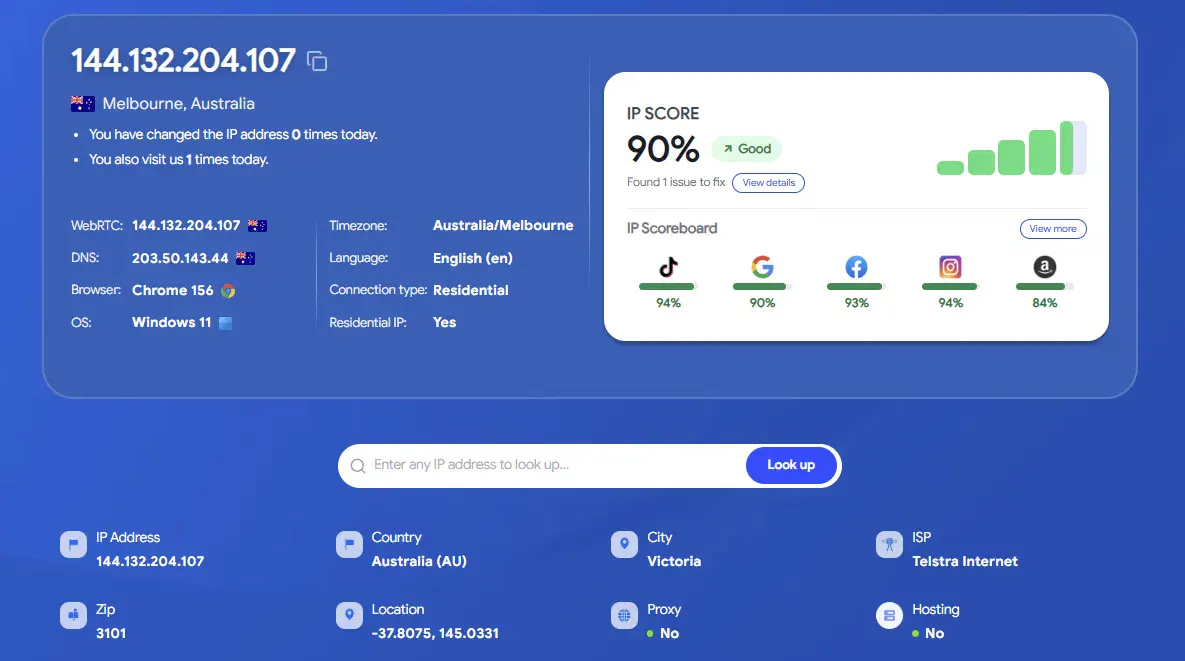
Test results of a Hidemyacc Firefox profile on IPFighter
Pixelscan: Detects Firefox 159.0 browser on Windows, with a Melbourne location. The tool rates the fingerprint as consistent and detects no automation behavior.
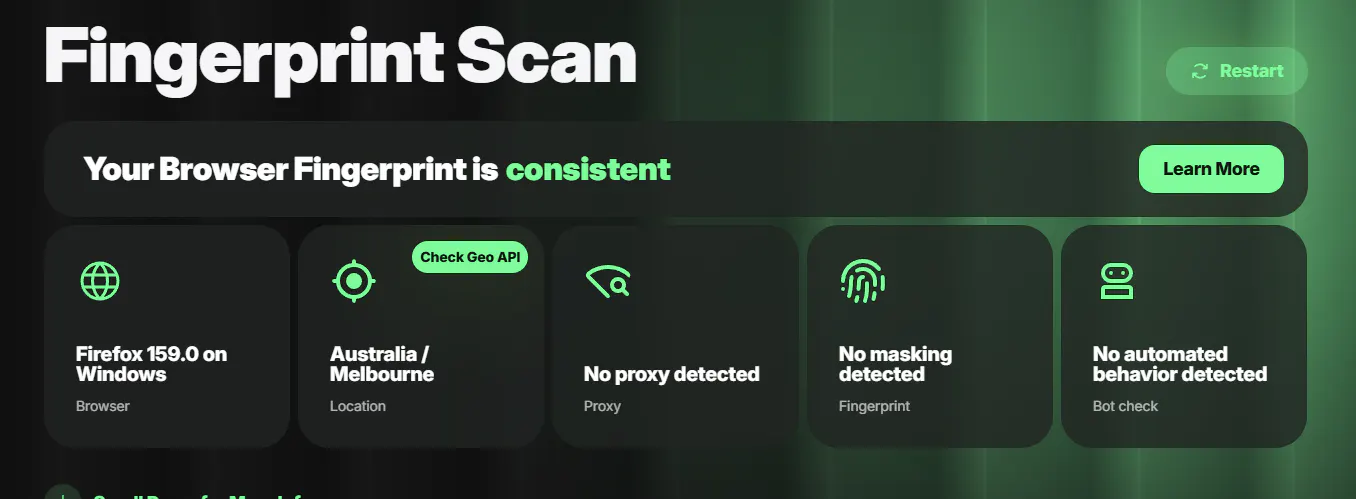
Test results of a Hidemyacc Firefox profile on Pixelscan
CreepJS: Records a Firefox 159 user agent on Windows, Australia/Melbourne time zone and an NVIDIA GeForce GTX 1650 graphics card. The profile achieves a trust score of 93/100 and shows no signs of automation.
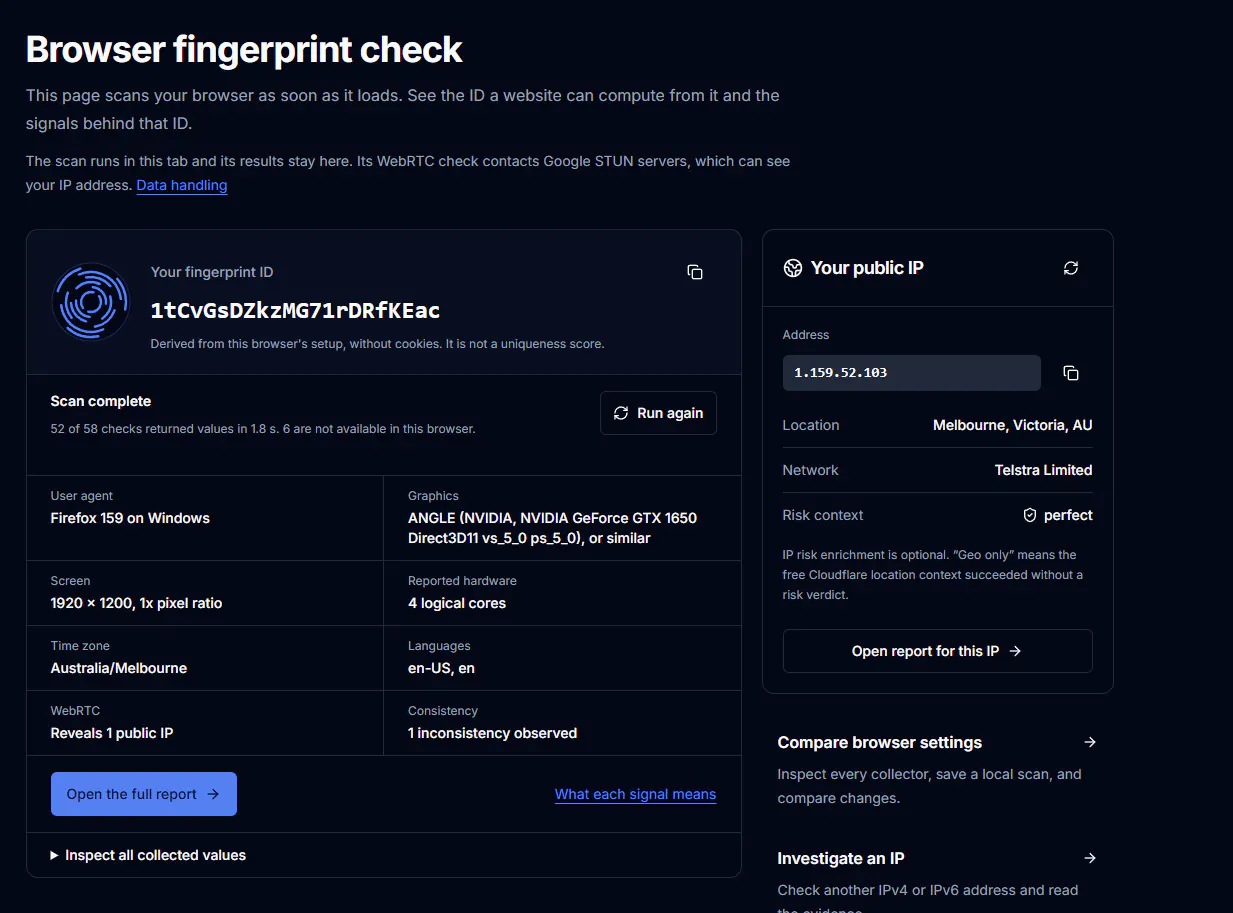
Test results of a Hidemyacc Firefox profile on CreepJS
2. New fingerprint mechanism
2.1. How has Hidemyacc improved its fingerprint mechanism?
Hidemyacc upgrades the way it handles the browser fingerprint, so a profile’s technical parameters are adjusted more consistently and in sync with the device environment you set up. As a result, a profile can present browser, operating system and device characteristics that better match the configuration you chose, reducing cases where fingerprint parameters contradict each other.
To check the results, a Chrome 156 profile on Windows 11 with an Australian residential proxy was tested on November 19, 2026. IPFighter identifies the browser as Chrome 156 on Windows 11, with the Australia/Melbourne time zone and Residential connection type. On BrowserLeaks, the JavaScript page shows a Chrome 156 user agent on Windows (Win64; x64), the Australia/Melbourne time zone and a screen resolution of 1600×900. The WebRTC page records no IP leak, and the public WebRTC IP matches the connection IP.
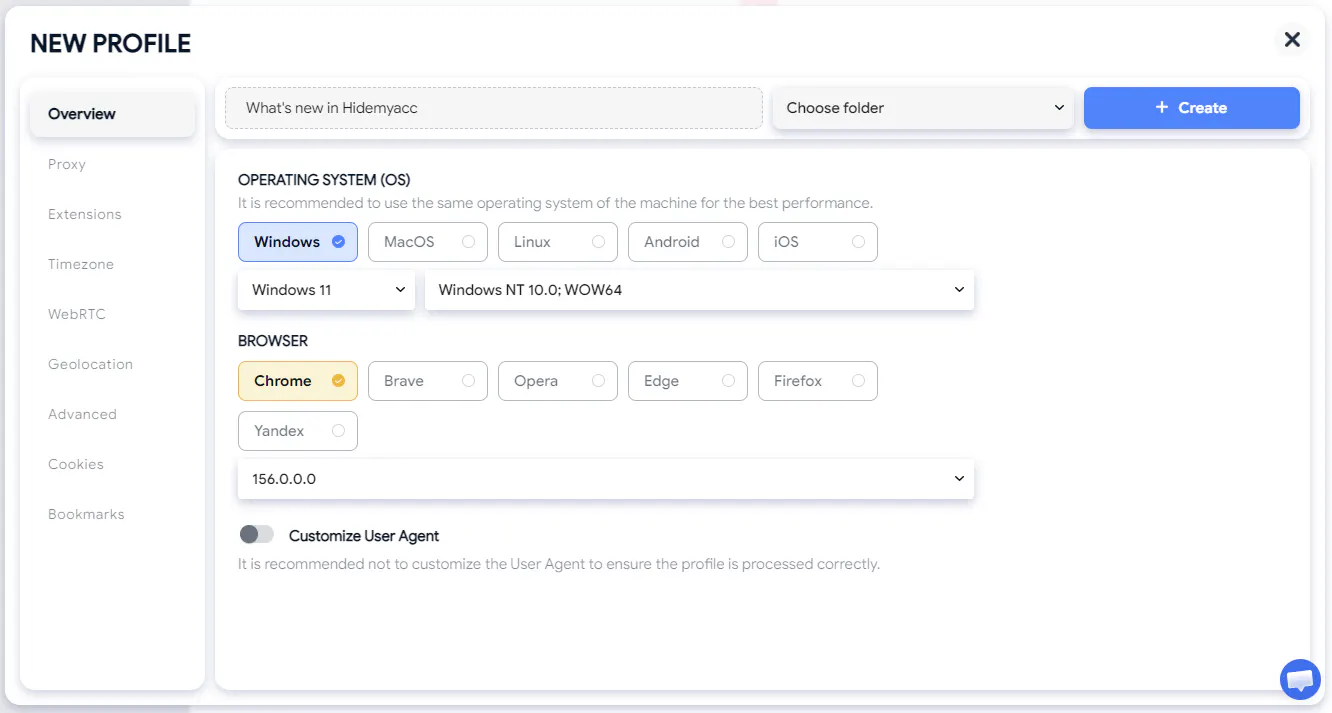
Setting up a Chrome 156 profile on Windows 11 in Hidemyacc
Test results of a Hidemyacc Chrome profile on IPFighter
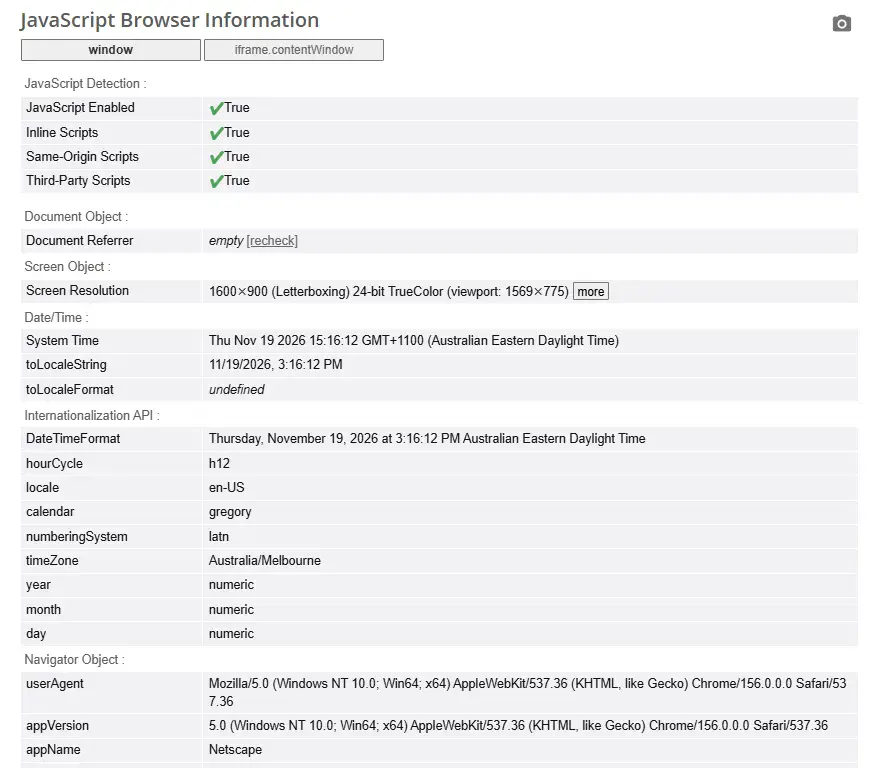
Browser information of a Hidemyacc profile on BrowserLeaks
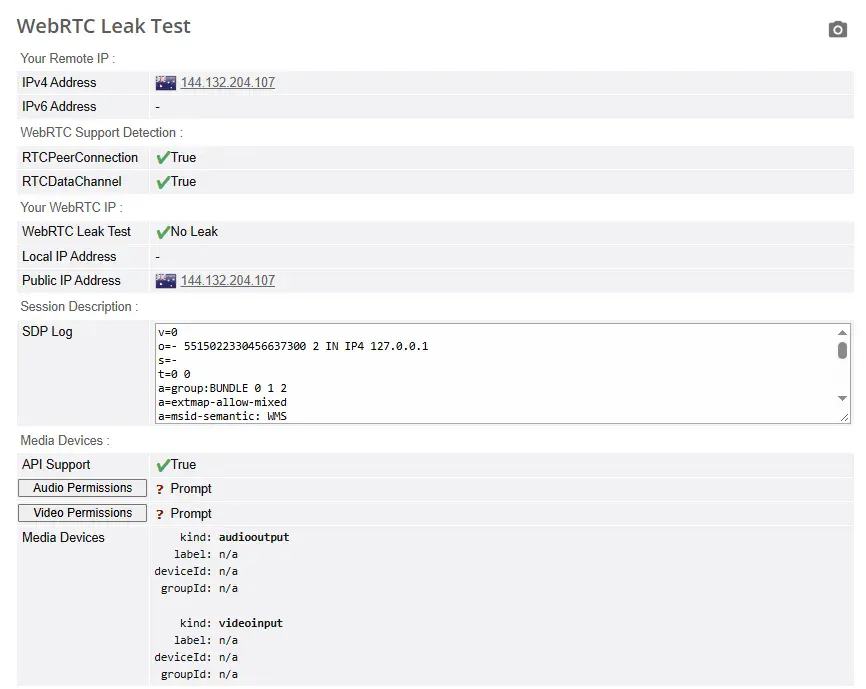
WebRTC test results of a Hidemyacc profile on BrowserLeaks
2.2. Which operating system should you choose when creating a profile?
When creating a profile, you should choose the operating system that matches the device you are using. For example, if your computer runs Windows, choose Windows for the profile. If your actual device uses Windows but the profile is set to macOS, the difference between the two environments can make some fingerprint parameters inconsistent and more likely to attract websites’ attention.
Hidemyacc also displays a recommendation to use the same operating system as your device right on the profile creation interface to help you choose more accurately.
3. Free Residential Proxy
3.1. Every Hidemyacc plan comes with Free Residential Proxy
Hidemyacc gives Free Residential Proxy to users from the trial plan upward, with the data allowance increasing by plan, from 10 GB on the Mini plan to 500 GB on the Business plan. This is a shared proxy, suitable for testing and getting familiar with the service before using a private proxy.
This way, you can create a profile and attach a proxy right away without buying extra data at the start. The data allowance and profile count for each plan are as follows:
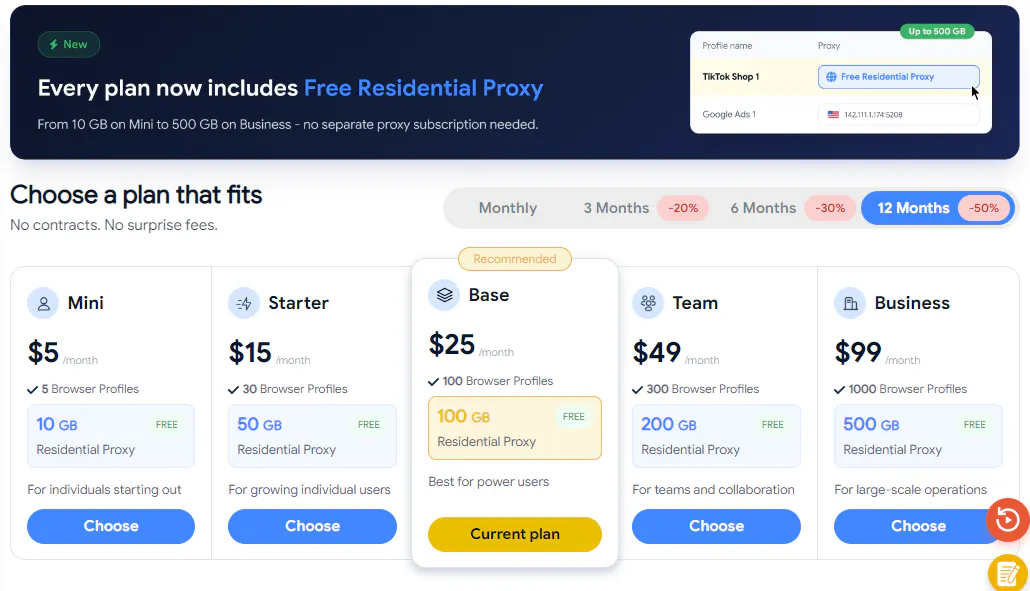
Free Residential Proxy data allowance for each Hidemyacc plan
3.2. How to choose Free Residential Proxy when creating a profile
To use Free Residential Proxy, select Free Proxy in the Proxy tab when creating a profile, choose the Free Residential type, then select the country you want to use. After opening the profile, you can check the IP on tools such as IPFighter to see information about the proxy in use.
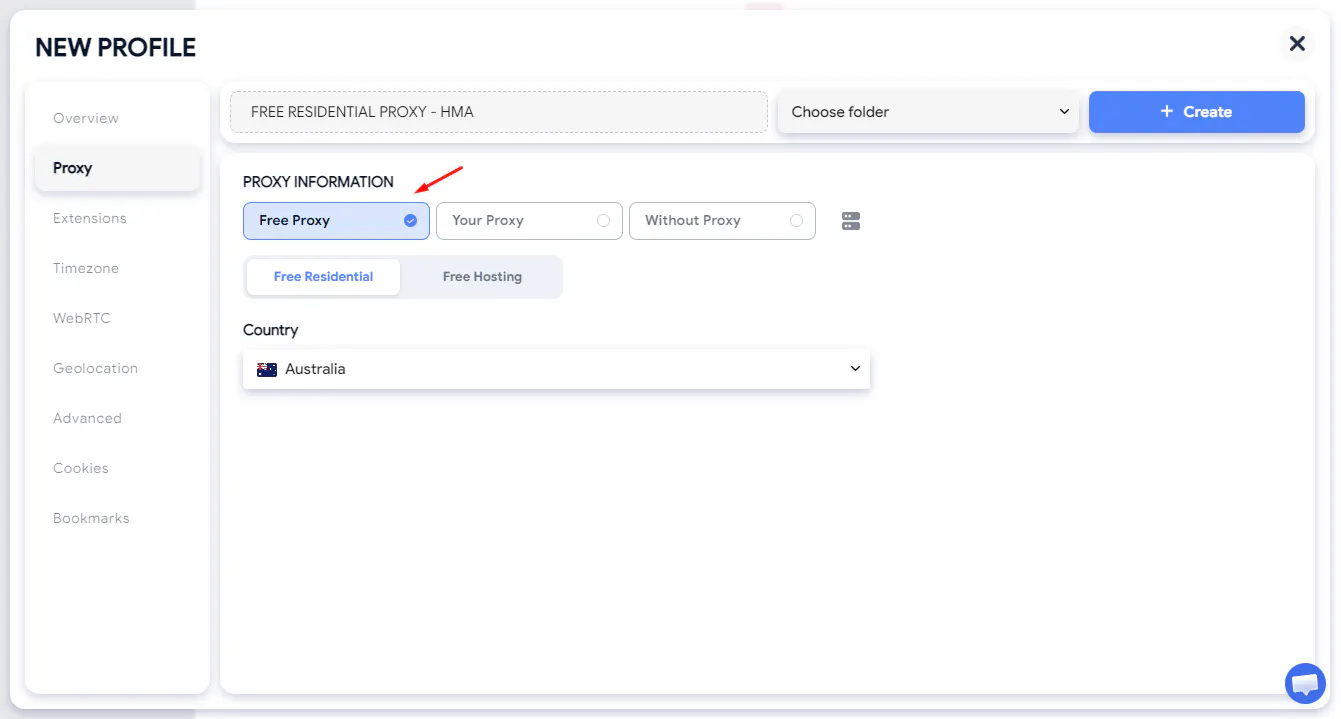
Selecting Free Residential proxy when creating a profile in Hidemyacc
Checked on November 19, 2026, the proxy IP was 220.244.96.66. IPFighter shows the IP located in Sydney, Australia, with the carrier AAPT Limited, the connection type Residential and the Residential IP field showing Yes. IPIN.IO classifies this IP as Residential ISP. TrustMyIP classifies the connection as Consumer or business broadband and states that the network name does not match any hosting or VPN provider that the tool recognizes. A residential IP is an IP address assigned by an internet service provider to a household, unlike the datacenter IP of a server. The results reflect the IP assigned at the time of testing.
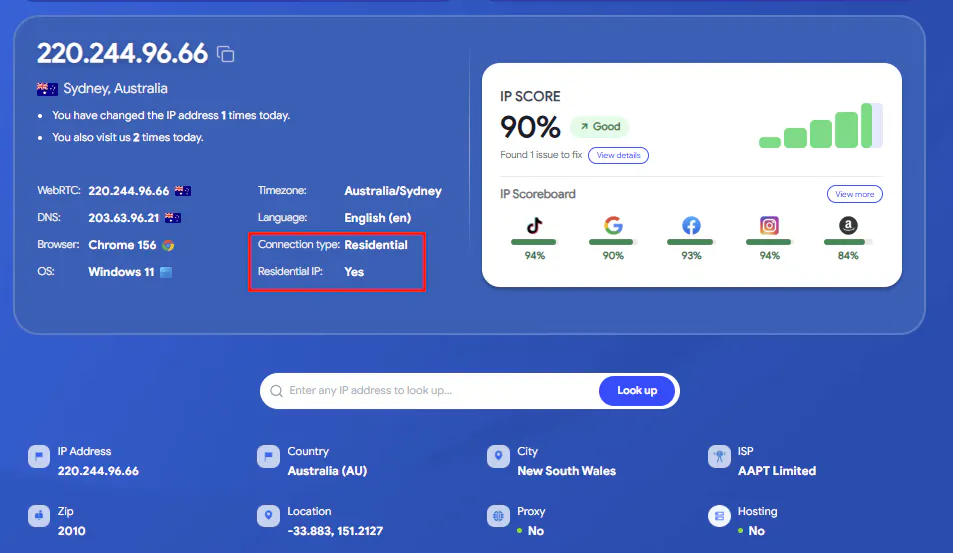
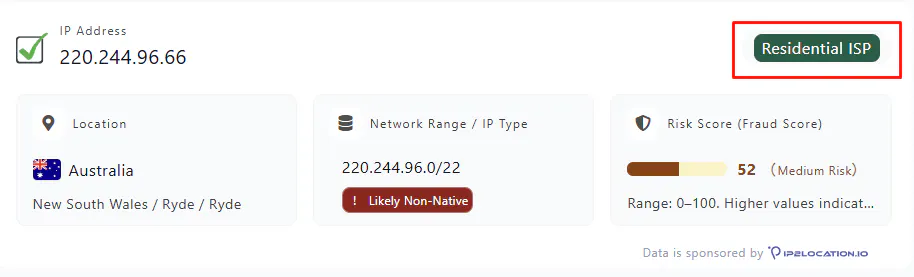
Checking Hidemyacc Free Residential Proxy on IPIN.IO
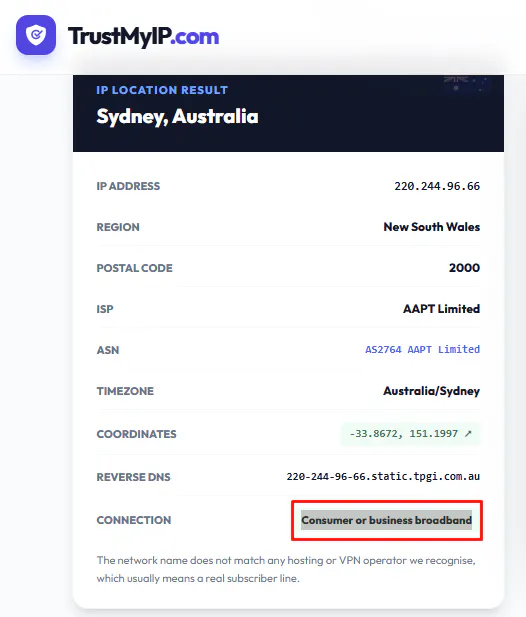
Checking Hidemyacc Free Residential Proxy on TrustMyIP
3.3. How do the proxy allowances differ between the trial plan and paid plans?
The Hidemyacc trial plan lasts 7 days and comes with 500 MB of Free Residential Proxy. Once you use up this allowance, you will not be given more during the trial period.
For paid accounts, the proxy data allowance is refreshed monthly according to the plan in use. Any unused data in a month does not roll over to the following month.
4. Permission & Limits: Updated permissions and limits for team members
Hidemyacc adds Permission & Limits so team owners can control member permissions and activity limits in more detail. Only the team owner can configure these permissions for members, including permission to delete profiles, manage proxies and limit the number of profiles that can be created. The settings apply to the folders that members are assigned to manage.
4.1. How can team owners control members’ permission to delete profiles?
In the folders they are assigned to manage, team owners can set permission to delete profiles for each member. For a Sub account to be able to delete profiles, both of the following conditions must be met:
The account is granted Admin permission in Share permission.
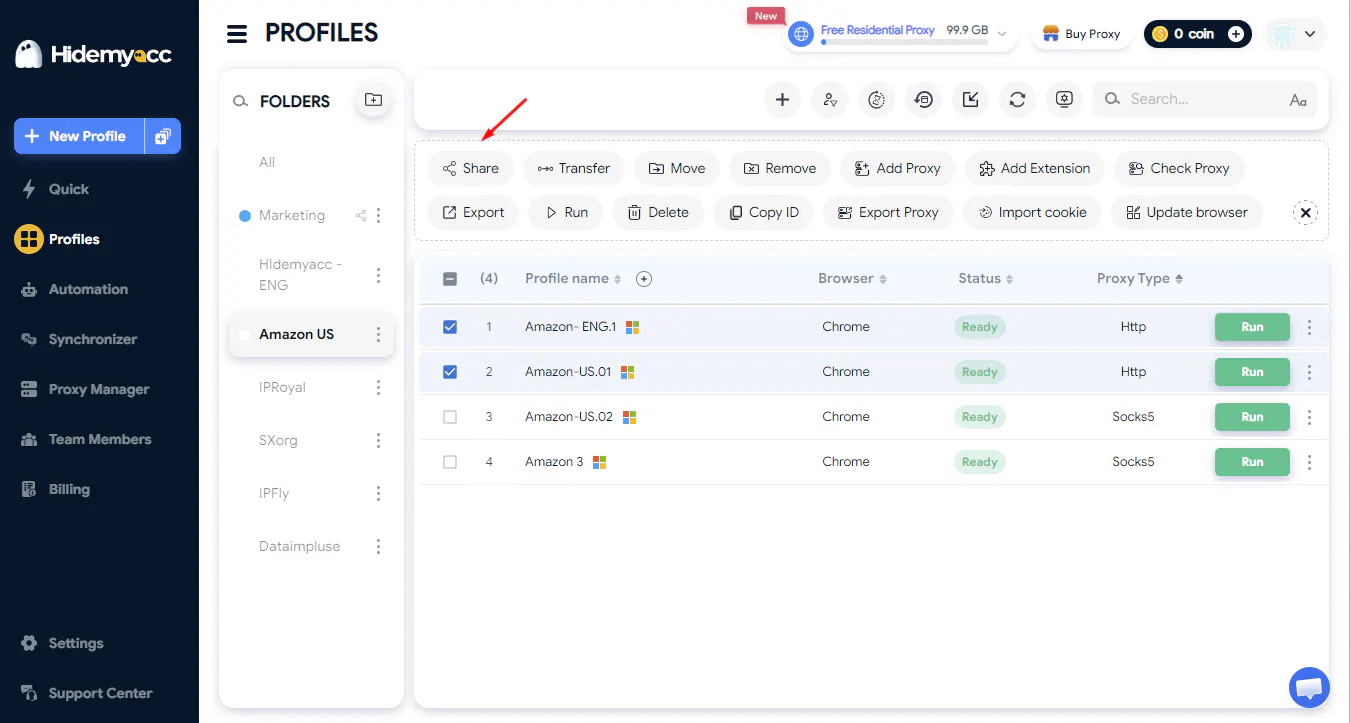
Location of the Share button in the Hidemyacc profile management interface
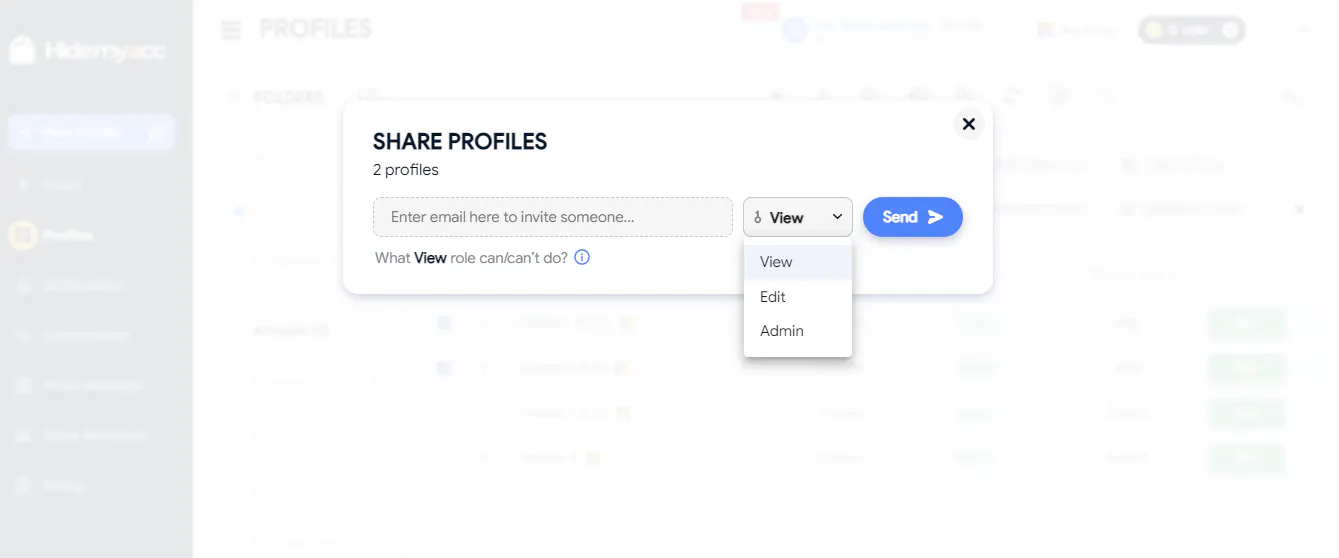 The View, Edit and Admin permission levels when sharing profiles in Hidemyacc.
The Delete option is enabled in Permission & Limits.
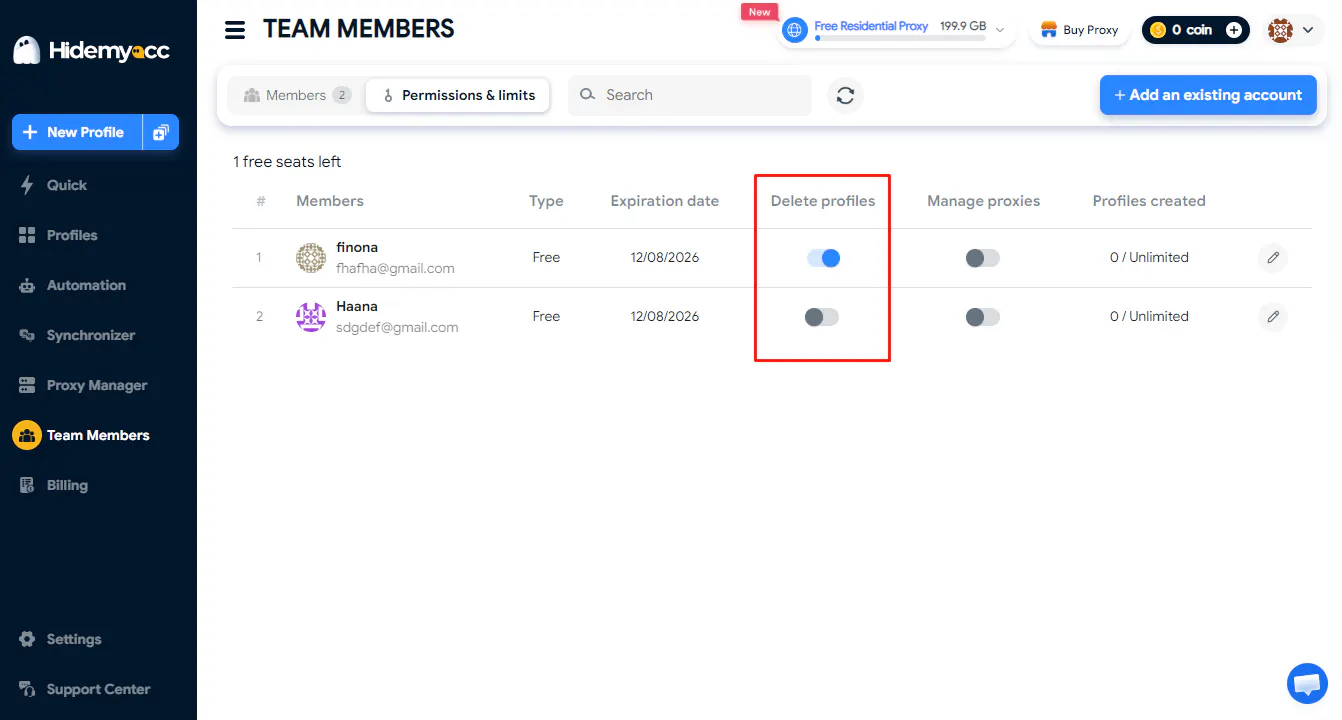
If a member is only granted View or Edit permission in Share permission, they will not be able to delete profiles, even if they have access to the corresponding folder.
When a Sub member deletes a profile, the action is recorded in Activity History, helping the team owner keep track of member activity.
4.2. What has changed with the Manager proxy permission?
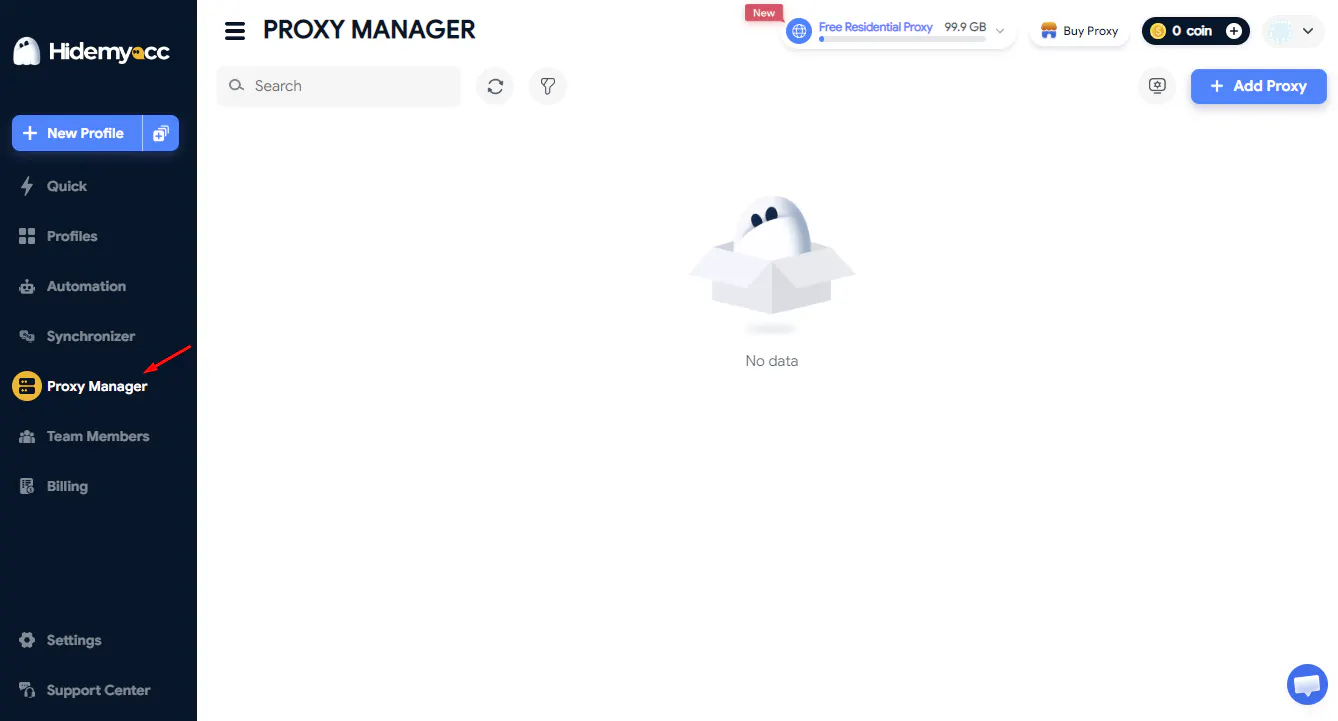
Hidemyacc replaces the Share proxy permission with Manager proxy. Team owners can grant this permission so members can manage the entire proxy list, instead of using the previous Share proxy mechanism.
When granted the Manager proxy permission, members can edit and delete proxies in the list. However, proxy management actions are not currently recorded in Activity History. The ability to track proxy change history will be added in upcoming updates.
One thing to note is that the proxy list does not update immediately after the team owner grants the Manager proxy permission. For the new permission to appear, the member needs to click the Avatar to reload the account information, then reload the proxy list. Hidemyacc plans to fix this refresh issue in the next version.
4.3. Can team owners limit the number of profiles members can create?
With the Profile Created option, team owners can set a limit on the number of profiles a Sub account is allowed to create in the folders they are assigned to manage. These profiles still count toward the total profile limit of the parent plan; they are not a separate allowance for the Sub account.
For example, if the parent plan has a limit of 1,000 profiles and has not created any, the Sub account can be allowed to create up to 1,000 profiles. If the parent plan has already used part of this limit, the number of profiles the Sub account can create depends on how many profiles remain in the plan.
4.4. Can a Share account be converted into a Sub account?
Hidemyacc adds the Add an existing account option, allowing team owners to add an existing Share account to the team as a Sub. This feature only supports converting Share accounts into Sub accounts; it does not apply to accounts using other plans.
During the conversion, a verification code is sent to the email of the account being added. If the account uses a temporary email or cannot receive the verification code, you need to contact Hidemyacc support for guidance.
4.5. Where has Activity History been moved to?
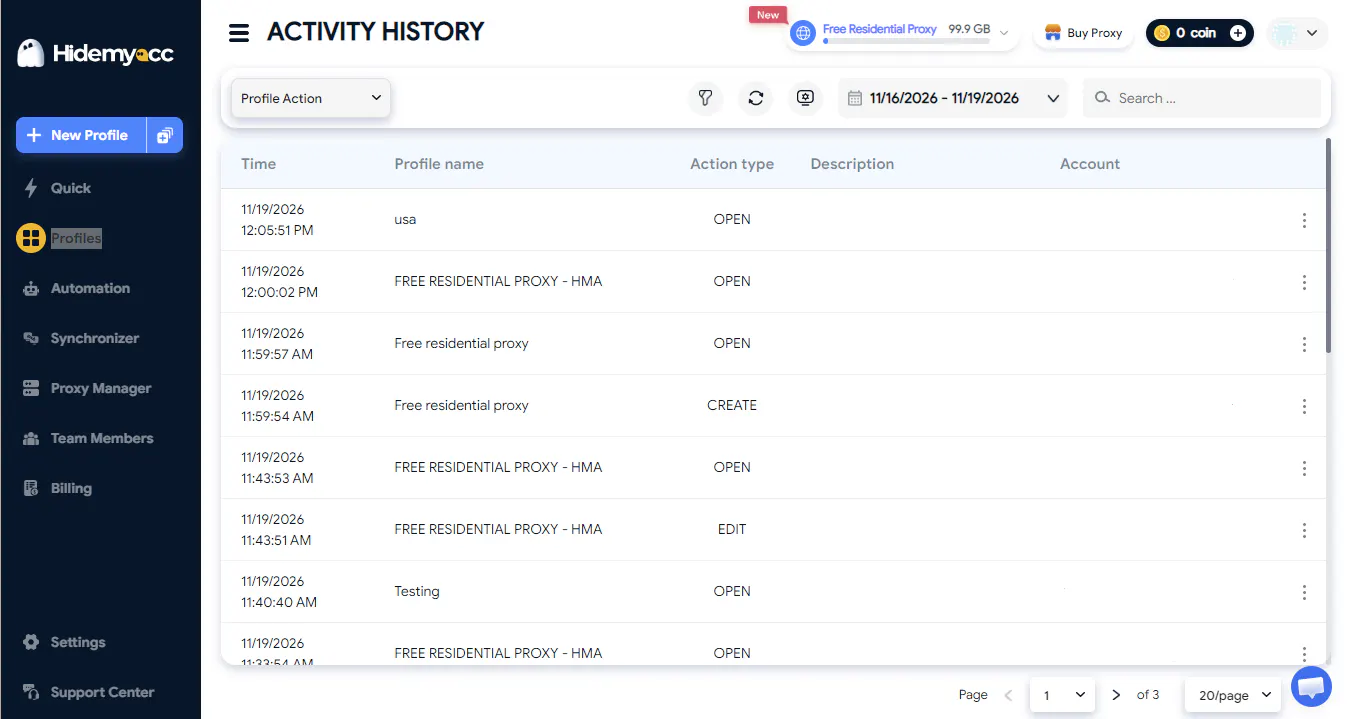
Hidemyacc moves Activity History back to its original location in the Profile section. This change makes the activity history easier to find and access when you need to review actions on the account.
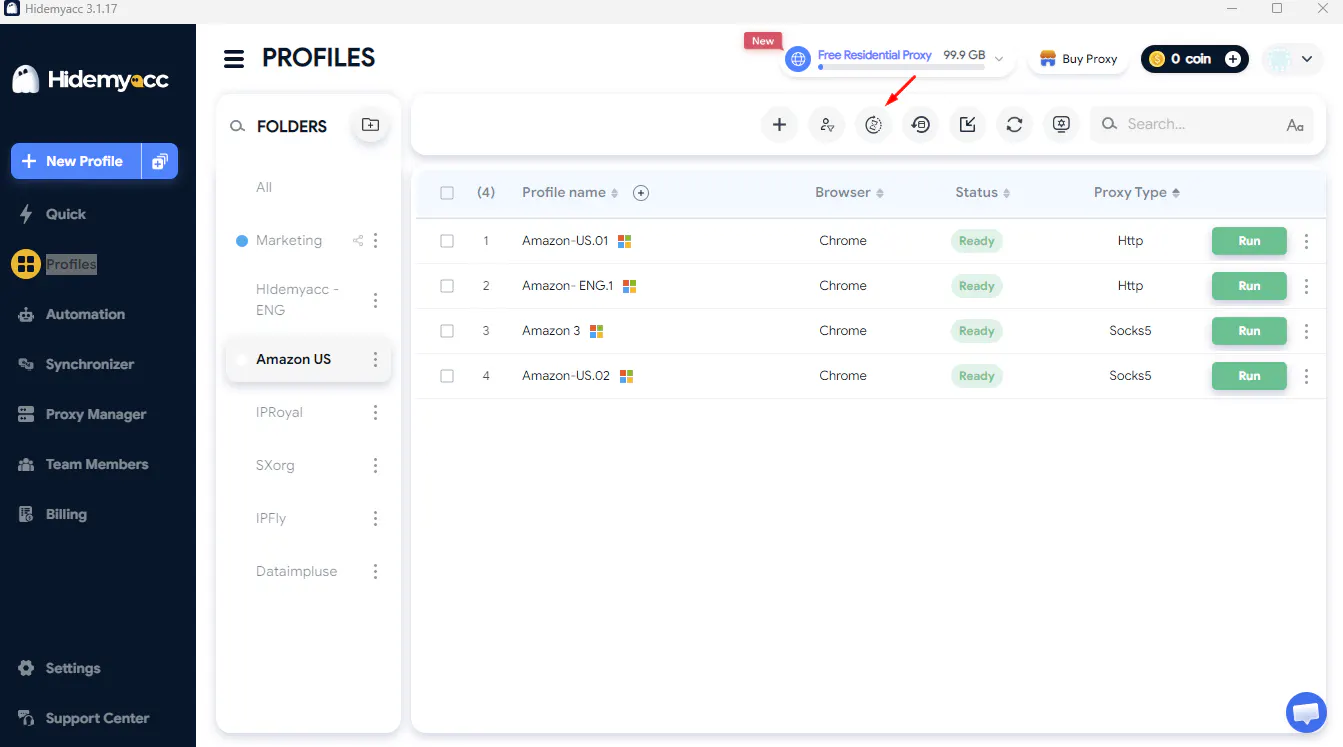
Location of the Activity History button in Hidemyacc
5. Account security policy
5.1. Hidemyacc requires a password change every 90 days
To strengthen account security and reduce the risk of a password being exposed or used for a long time, Hidemyacc applies a 90-day password change cycle. Accordingly, you need to set a new password every 90 days from your most recent change.
For accounts created before the new policy takes effect, Hidemyacc requires users to update their password under the new set of rules within the deadline shown in the popup. During this period, the dialog appears once a day. You can click the X to close it if you do not want to change your password right away. However, once the deadline passes, you must update to a new password to keep using your account. If you do not complete it, you will no longer be able to access your account.
For new accounts, the password rules apply from the registration step. You need to meet these requirements when setting your password for the first time.
In the password change dialog, you need to enter your current password, your new password and confirm the new password. If you do not remember your current password, select Forgot password right in the dialog to start the recovery process.
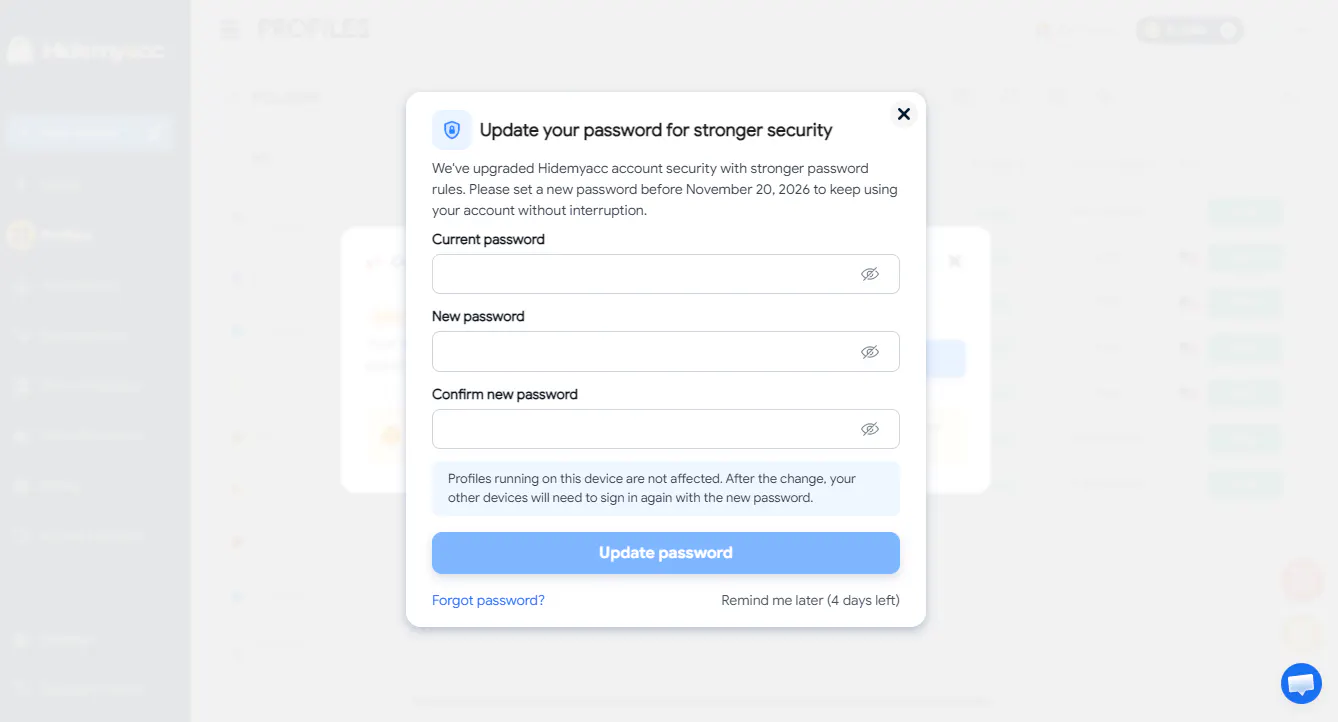
Password update request dialog in Hidemyacc
After every 90 days from your most recent password change, Hidemyacc will remind you to update to a new password. If you have not done so, the password reminder dialog will appear every time you open the app or sign in and will keep showing until you complete the change.
5.2. Does changing your password affect running profiles?
Changing your password does not affect profiles that are running on the current device. However, if you sign in to your Hidemyacc account on another device, you need to use the new password to access it again.
5.3. Rules for setting a new password on Hidemyacc
In addition to the expiry period, Hidemyacc also applies specific requirements to new passwords. A password must be between 10 and 128 characters long and meet requirements for composition and security.
These rules apply to both new and existing accounts when registering, changing a password or using the forgot password function.
Rule | Requirement |
Length | 10 to 128 characters |
Composition | Includes uppercase letters, lowercase letters, numbers and special characters. Colons are not allowed |
Spaces | Must not contain spaces |
Personal information | Must not contain the user’s email or full name |
Password | Must not be the same as the immediately previous password |
Easy-to-guess passwords | Do not use repeated characters or easily guessed sequences of consecutive characters |
Even if you are using an older account, you still need to meet all of the above conditions when setting a new password. You can use a password manager to generate and store long, hard-to-guess passwords. You should also avoid reusing passwords from other services to reduce the risk if one account’s login details are exposed.
6. New product tour for creating your first profile
Hidemyacc adds a product tour to guide new users through creating a profile right in the app interface. This feature only applies to trial (Trial) accounts. After you register and sign in for the first time, the product tour appears automatically without any extra action from you.
If you want to view the guide again, click Replay in the bottom right corner of the Profiles screen. This button only appears on accounts that are offered the product tour.
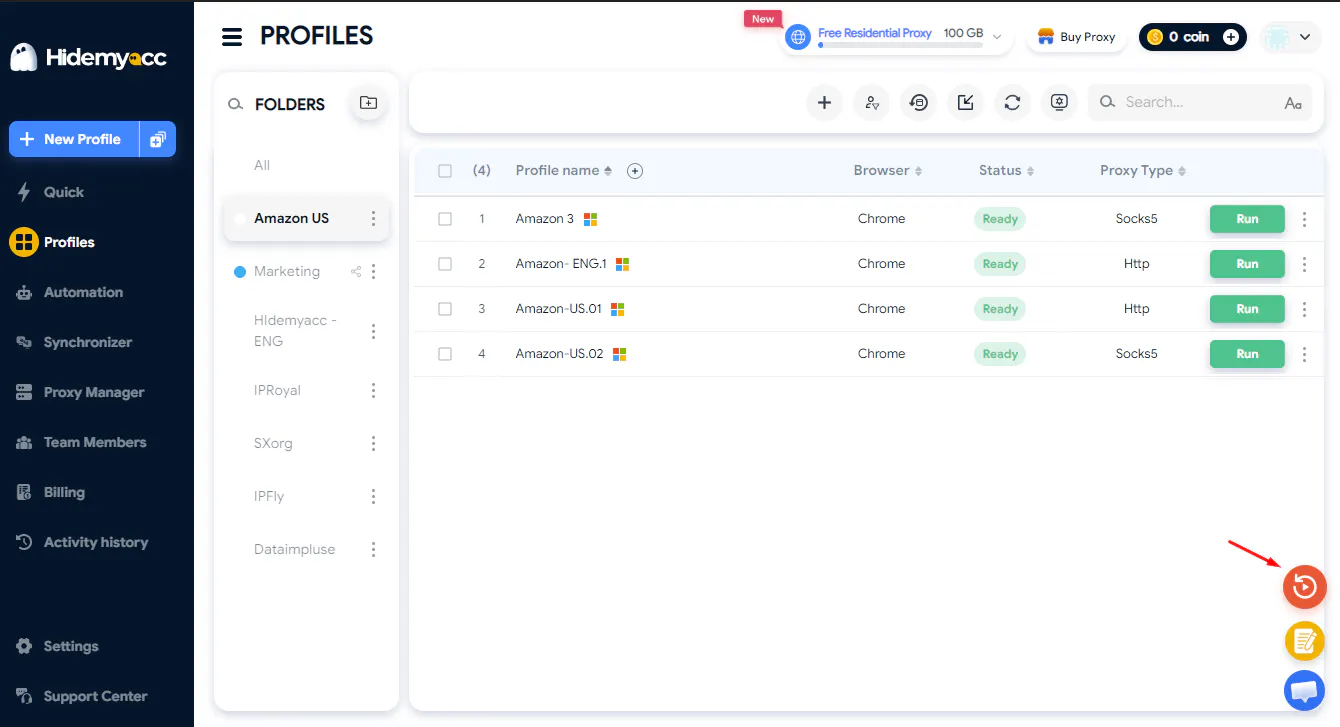
Replay button to rewatch the product tour in Hidemyacc
The product tour has 8 steps that walk you through each operation, from creating a profile and setting up a proxy to running and stopping the profile. If you are already familiar with the app, you can select I already know how to use the app to skip the guide and avoid going through the steps below one by one.
Step 1: Start creating a profile. Click New Profile to open the new profile setup interface.
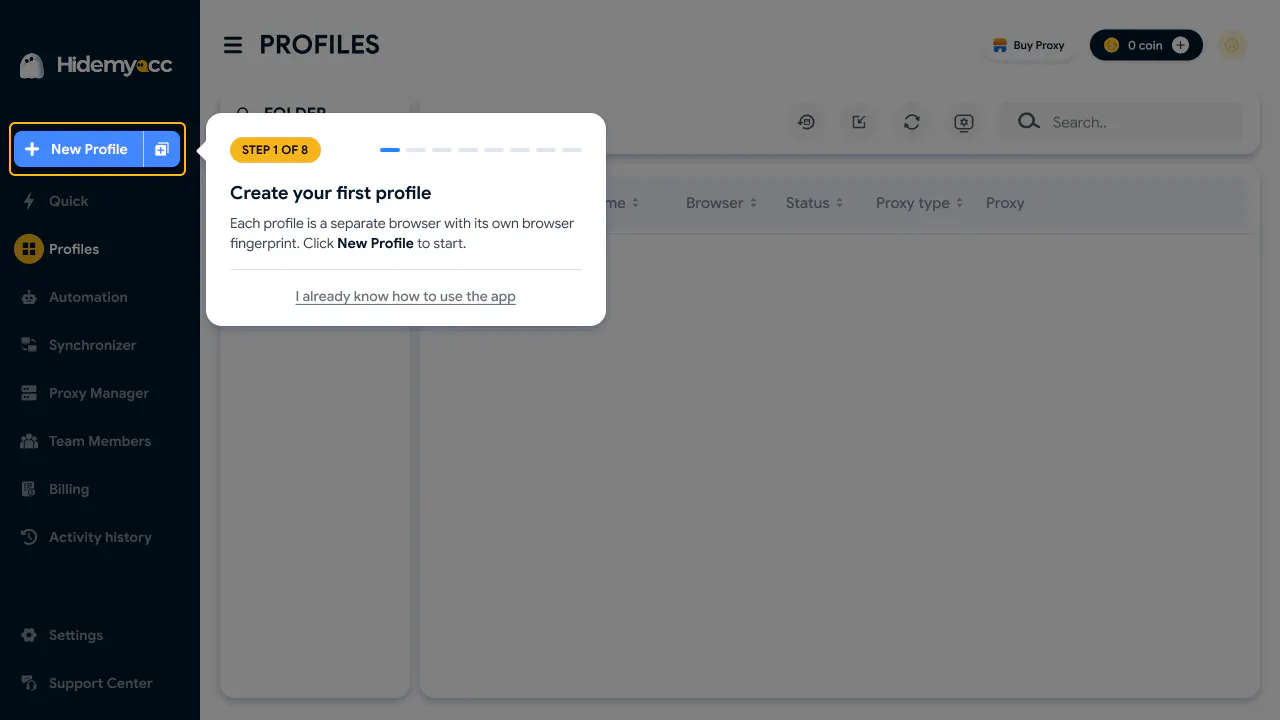
Start creating a new profile with the New Profile button.
Step 2: Name the profile. Enter an easy-to-recognize name to make management easier.
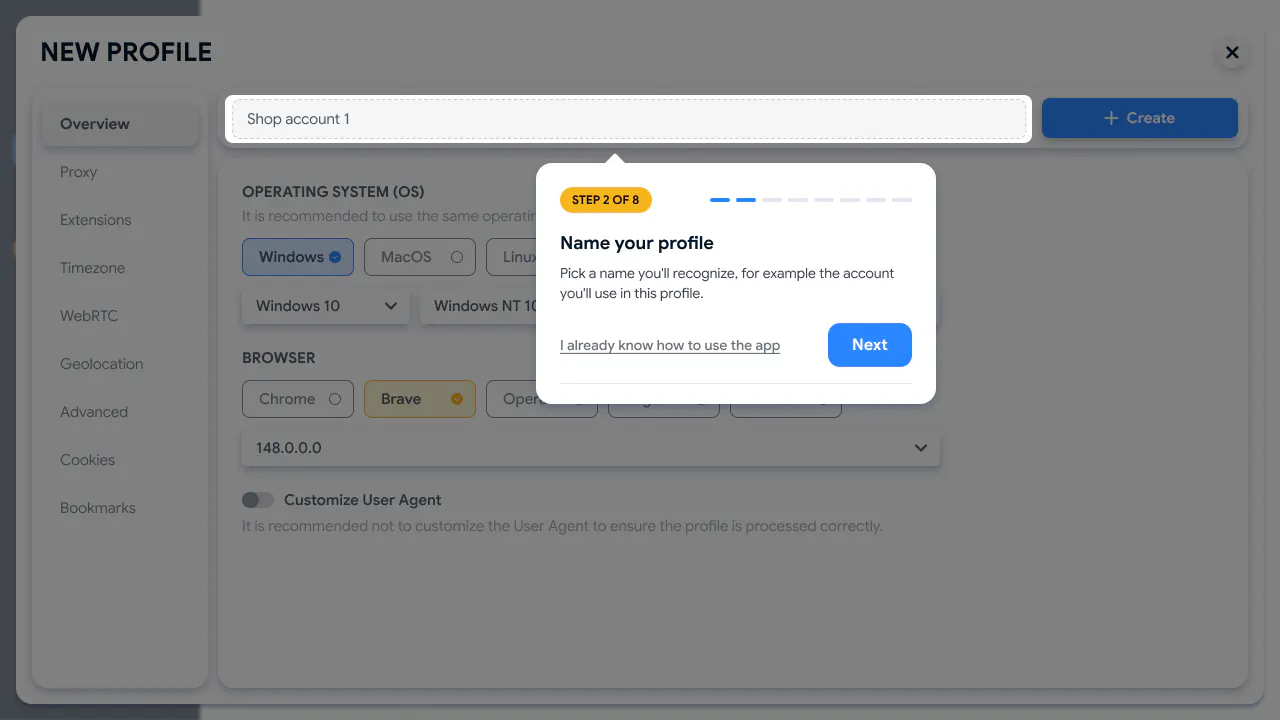
Name the profile to make it easier to manage.
Step 3: Open the Proxy section. Go to the Proxy tab in the profile settings.
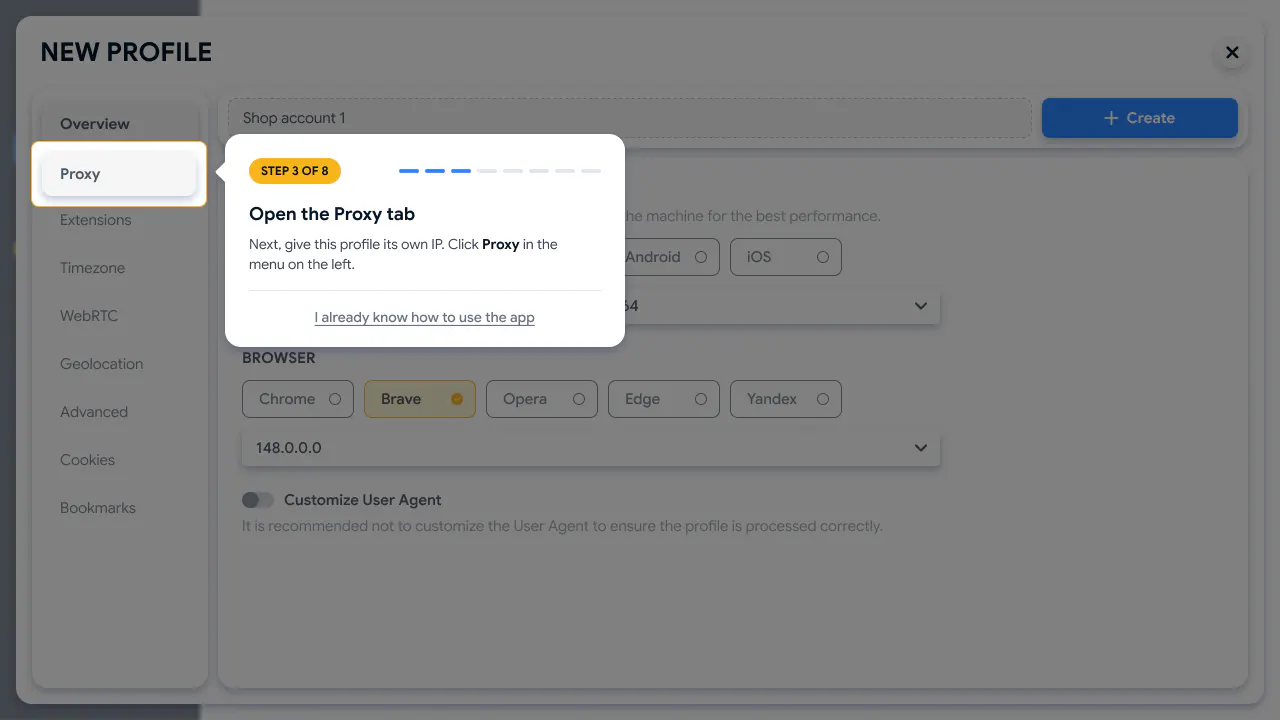
Go to the Proxy tab in the profile setup.
Step 4: Choose a proxy. You can use Free Proxy, enter your own proxy or select Without Proxy.
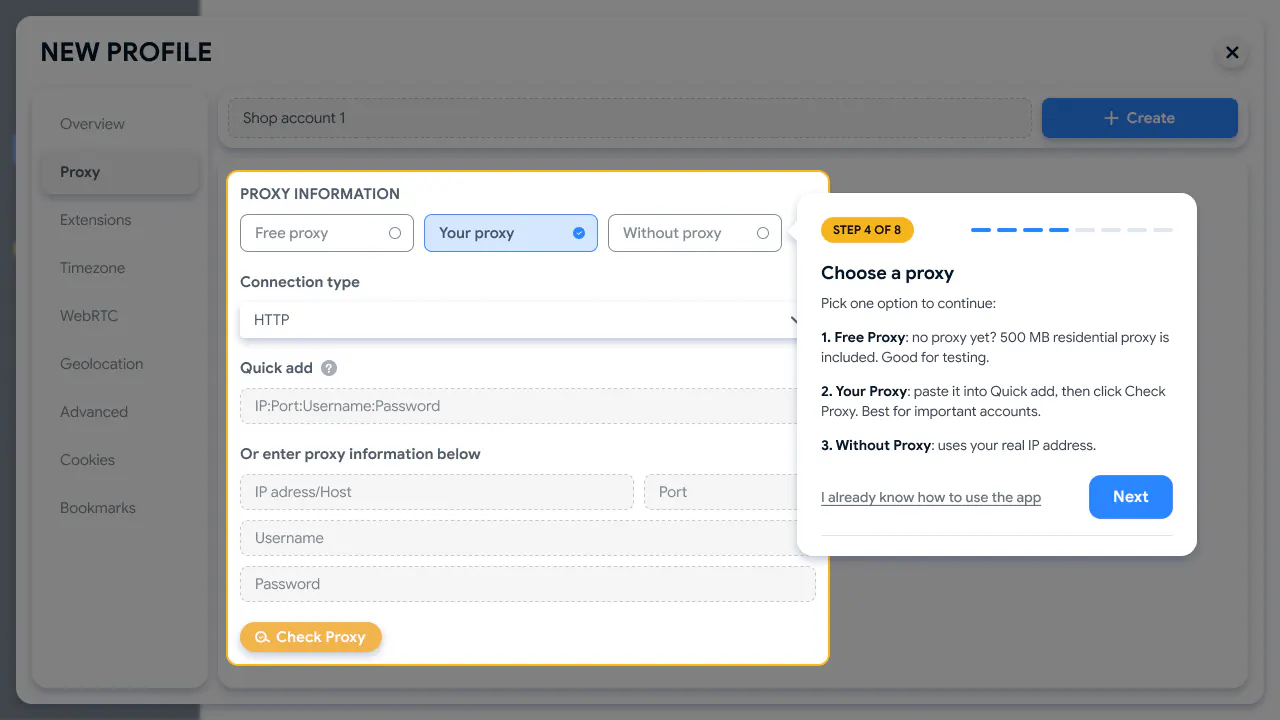
Choose a proxy for the profile.
Read more: How to use a proxy in Hidemyacc
Step 5: Create the profile. Click Create to save the profile you just set up.
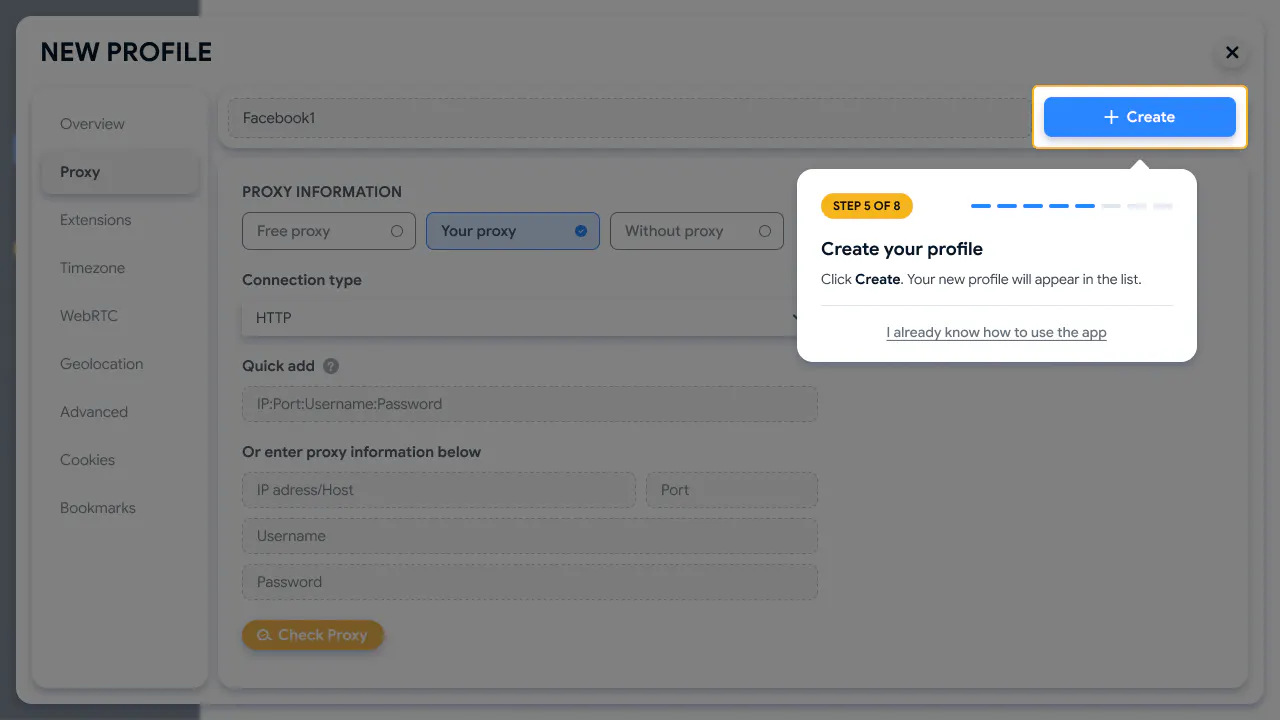
Finish the setup and create the profile.
Step 6: Run the profile. Click Run to open the profile’s browser.
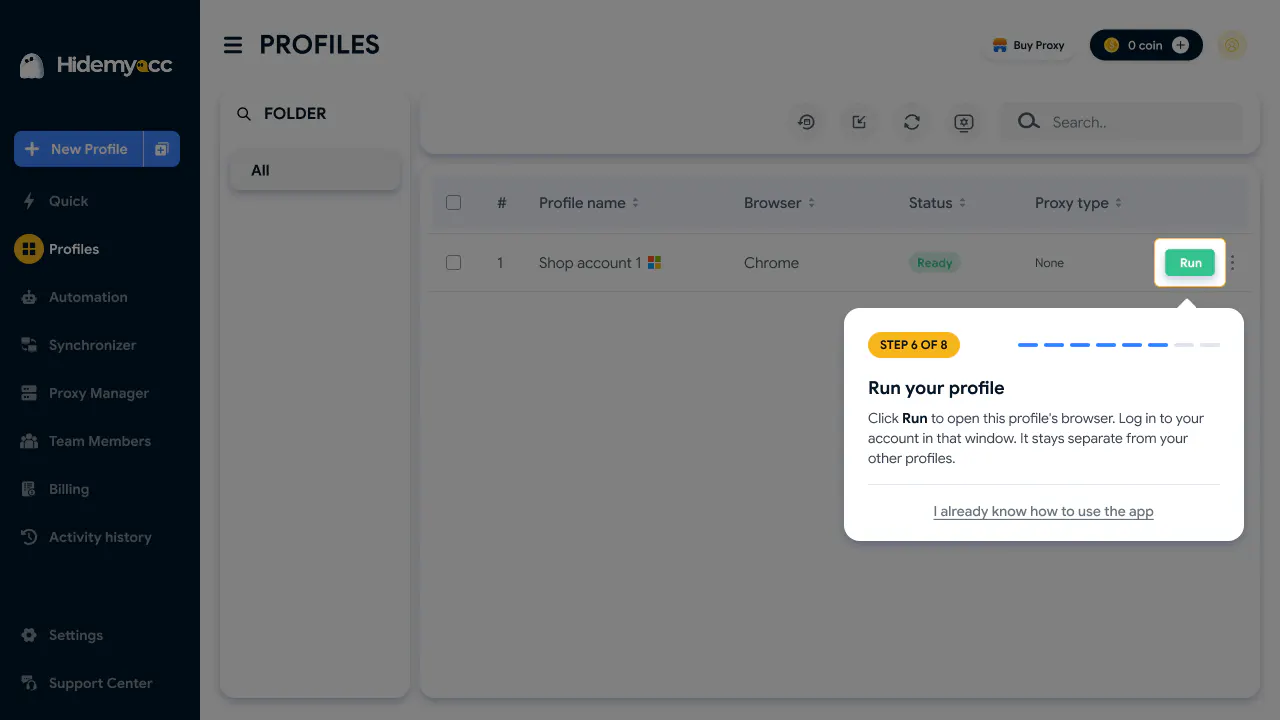
Launch the profile you just created.
Step 7: Wait for the profile to be ready. Hidemyacc loads and prepares the profile data before opening the browser.
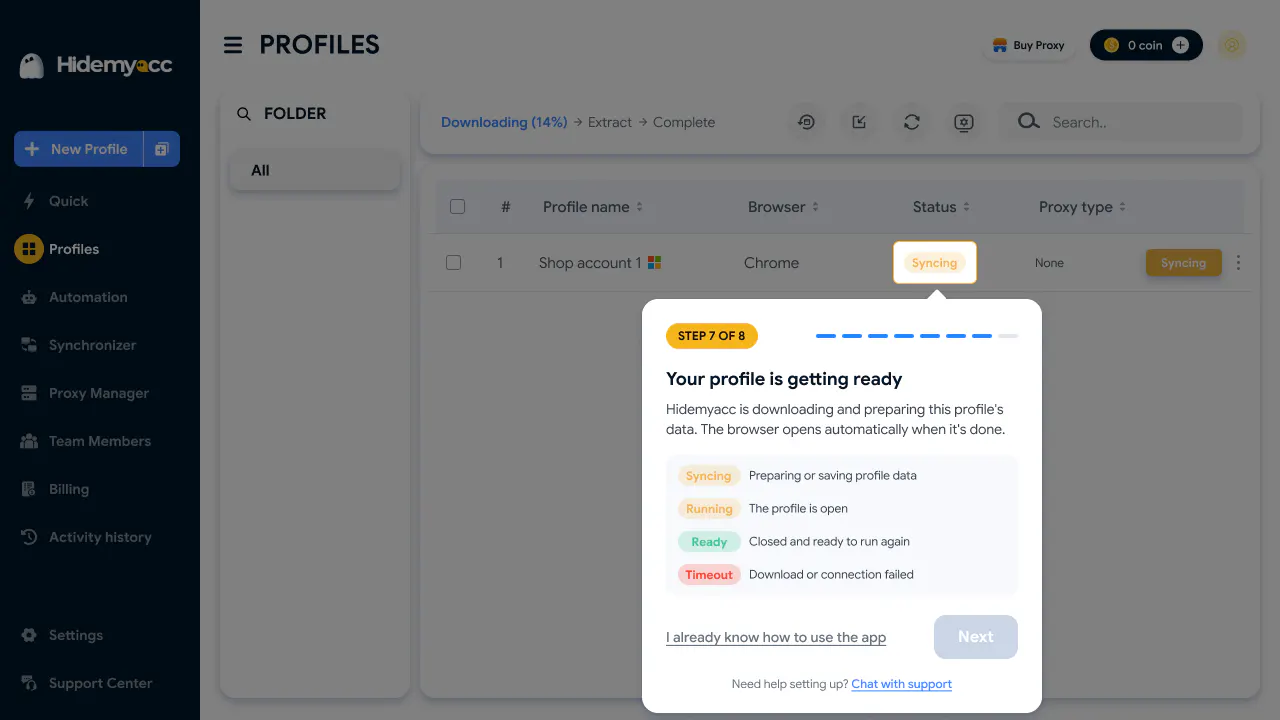 The statuses shown while a profile is launching.
Step 8: Stop the profile. The guide shows you how to stop the profile when you have finished using it.
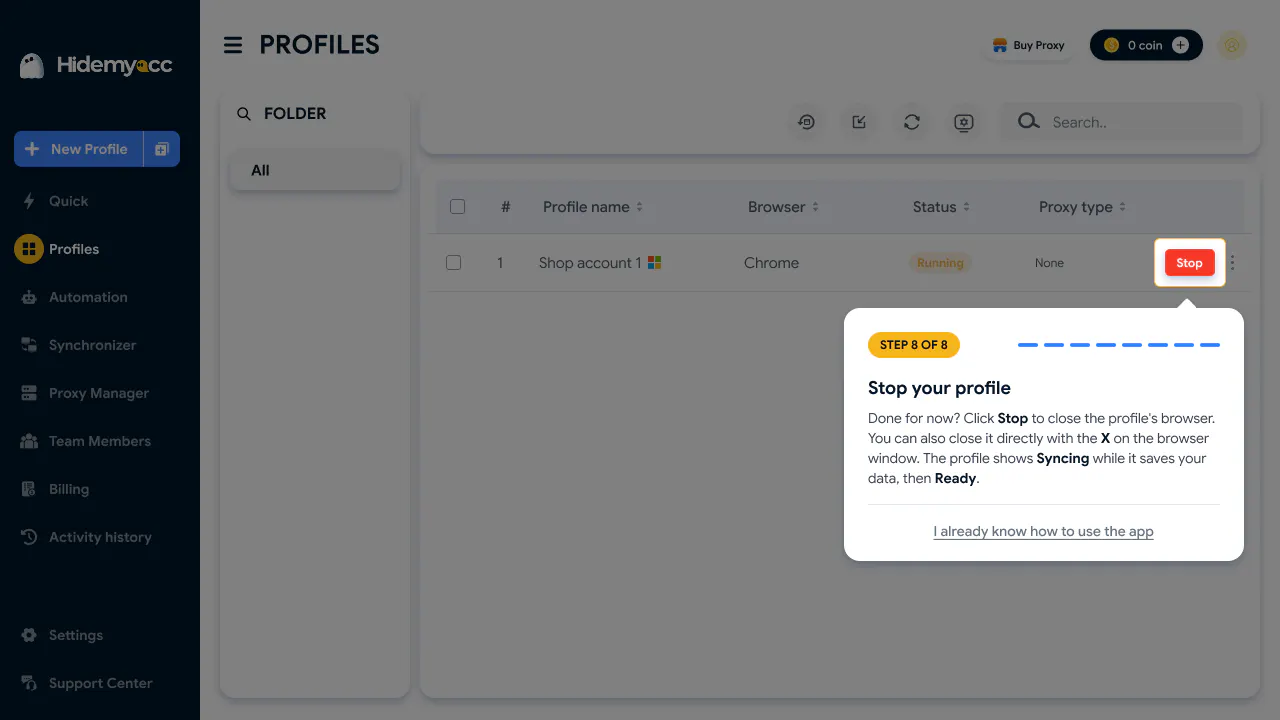
Guide to stopping a profile after use.
7. Conclusion
With the message Fingerprints like real devices. Now with Firefox, the November 2026 update brings many notable changes to Hidemyacc. The standouts are a new fingerprint mechanism that aims to sync profile parameters with the real device environment, and the addition of Firefox 158.0 and 159.0 to widen your browser options. Users also get Free Residential Proxy with each plan, new Team Member management with Permission & Limits, a new password policy, and a product tour to get familiar with the app.
To make the most of the new features, choose the right operating system when creating a profile, check your proxy data allowance and keep in mind the conditions for installing extensions on Firefox. If you manage a team, team owners can set permissions and profile limits for each member in the folders they are assigned to manage. Don’t forget to update your password on time to keep access to your account. If you are new to Hidemyacc, you can start with the product tour to get familiar with the profile setup and management process.