If you have ever replaced a proxy only to see your account flagged immediately, the issue might not lie with the IP address. Browsers silently share extensive telemetry with web servers, and Browserscan is a diagnostic tool that reveals precisely what data is exposed. This review breaks down how Browserscan works, its core features, the accuracy of its Authenticity Score, and its practical pros and cons. You will learn when to deploy this tool and how to pair it with Hidemyacc for safer profile management.
1. What is Browserscan?
Many assume that changing an IP or toggling a proxy is sufficient to stay anonymous while managing multiple accounts. In practice, modern platforms like Facebook, TikTok, and Google inspect dozens of device parameters beyond network location, including GPU hardware, Canvas rendering, WebGL, timezones, language preferences, and underlying browser configurations.
Browserscan is a web-based browser fingerprint testing tool. It requires no software installation or user registration: simply opening the website triggers an automated diagnostic scan that maps out all telemetry data exposed by your browser.
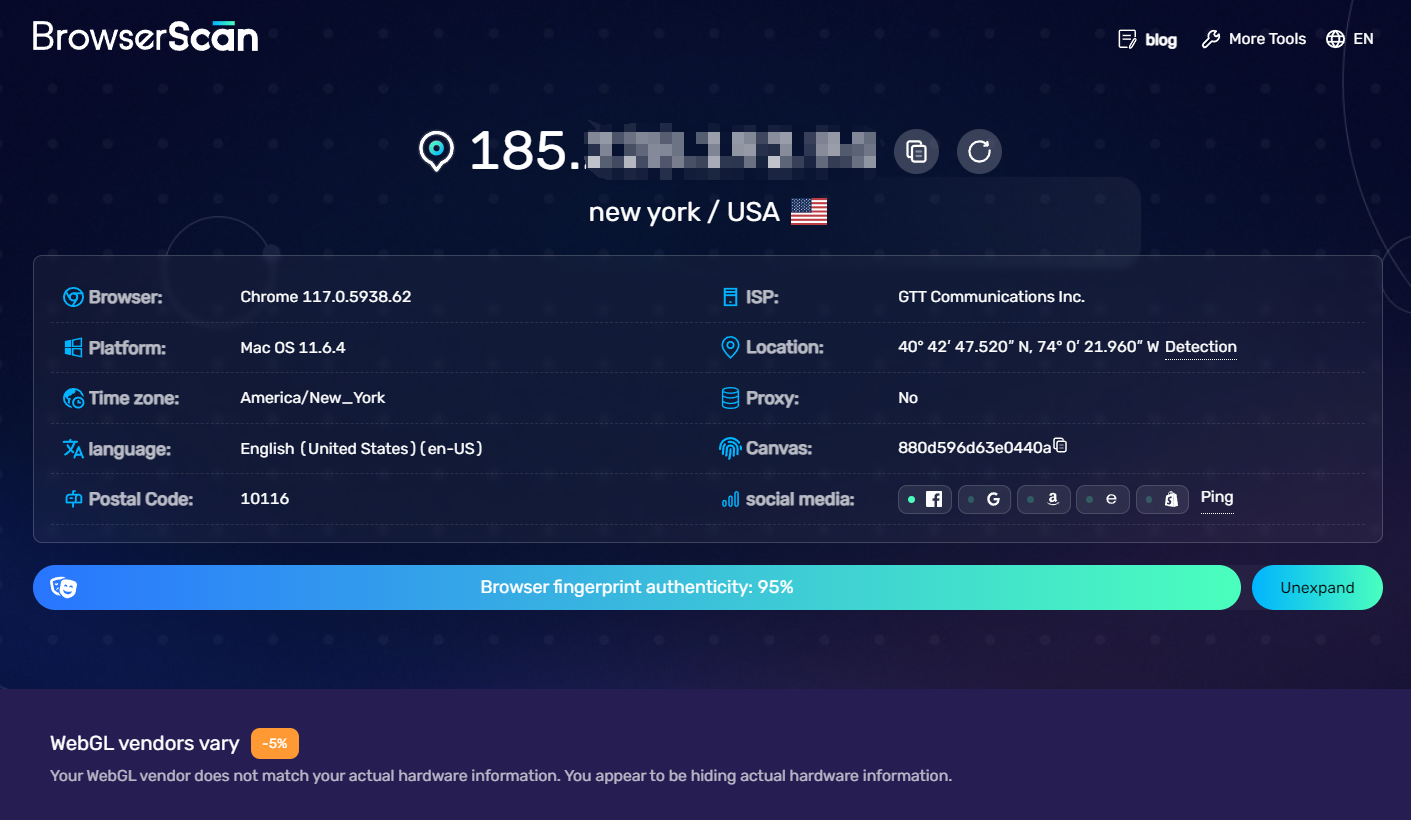
The centerpiece of the platform is the Authenticity Score, a benchmark that reflects fingerprint consistency during the current session. A low score indicates conflicting signals or technical anomalies, which dramatically increases the likelihood that anti-fraud systems will link your profiles together.
However, keep in mind that the Authenticity Score is not an official metric endorsed by Facebook, Google, or any commercial platform. It is Browserscan's internal algorithm designed to flag inconsistencies across browser parameters.
Compared to Whoer, BrowserLeaks, or CreepJS, Browserscan prioritizes a streamlined, all-in-one diagnostic overview rather than isolated low-level API inspection.
2. What does Browserscan test?
Browserscan excels at consolidating disparate telemetry vectors into a unified dashboard. The diagnostic report categorizes findings into Overview, Hardware, Software, WebRTC, and specialized utility tools, allowing you to identify conflicting environmental signals immediately.
2.1 Overview
The Overview block is the primary summary generated upon opening the page. It consolidates fundamental baseline metrics, including your client environment, public IP address, geographic location, ISP/ASN, system timezone, and DNS status. Presenting these on a single dashboard allows you to confirm whether your proxy and browser settings align before drilling into individual modules.
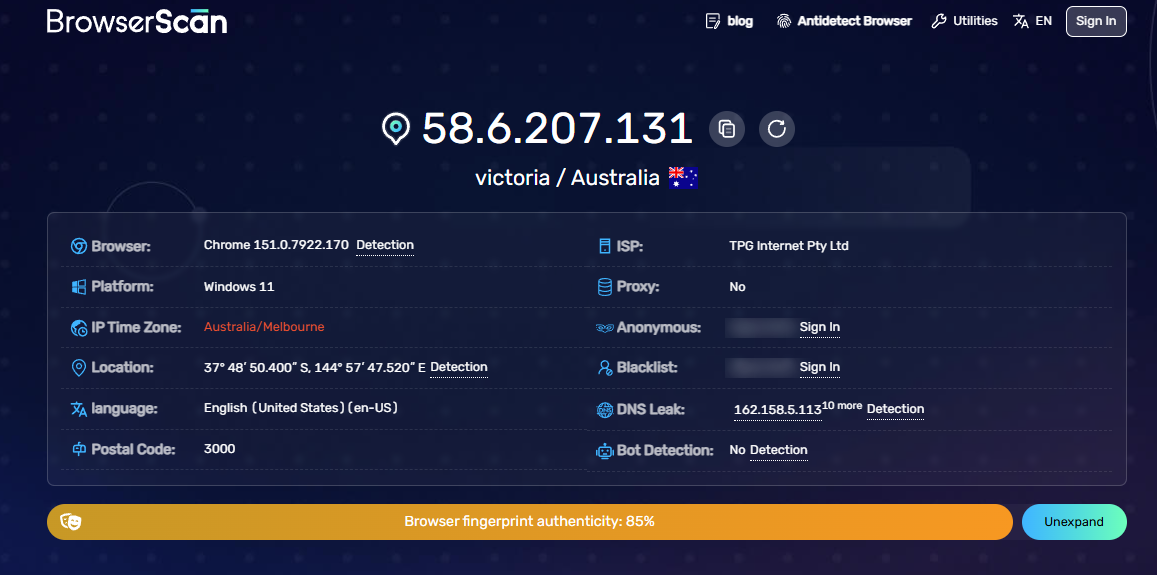
The most prominent metric in this section is the Authenticity Score, which measures browser fingerprint consistency. It weighs data across IP geolocation, Canvas, WebGL, timezone offsets, and client properties to detect synthetic or conflicting profiles.
Since this score is an internal calculation rather than an official industry standard, treat it as a diagnostic reference point rather than absolute proof of profile security.
2.2 Hardware
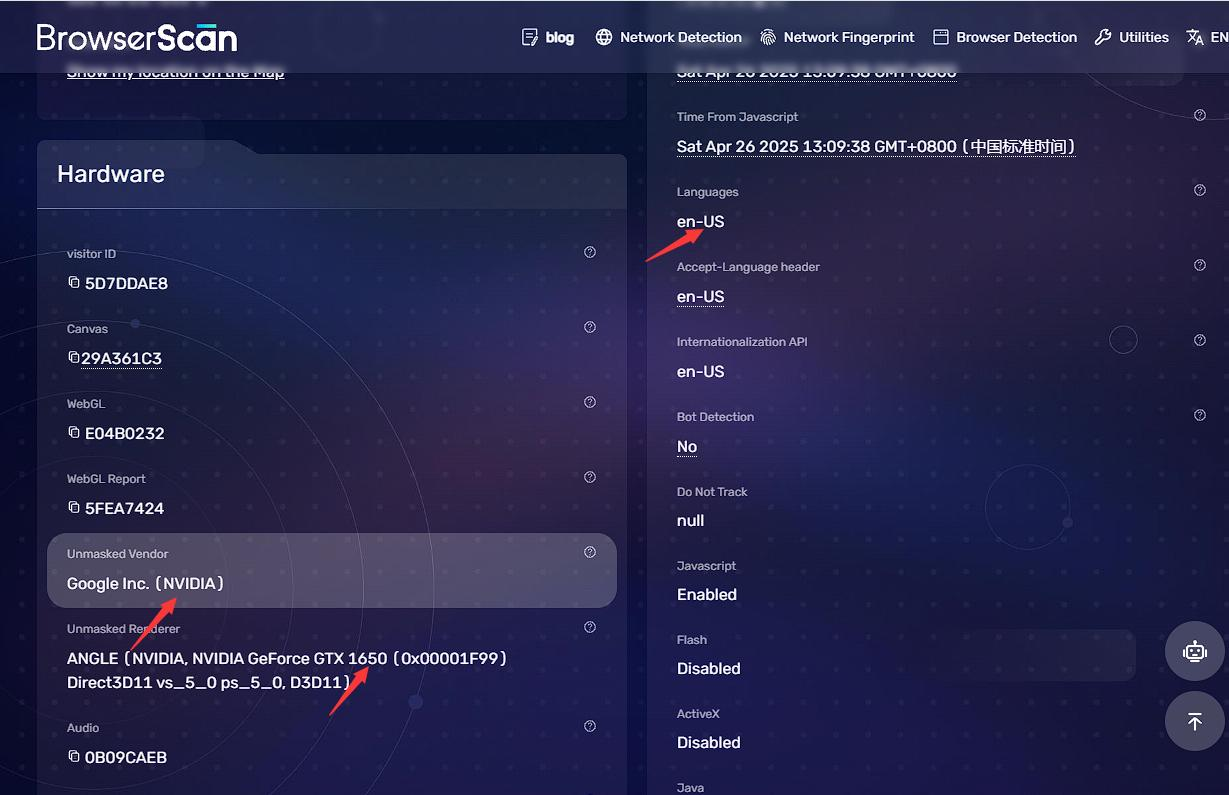
Following the Overview, Browserscan details the hardware specifications reported by the browser. This section represents the core of a browser fingerprint because physical hardware characteristics are tethered to the underlying machine and cannot be modified simply by switching a proxy or altering a User-Agent.
Canvas, WebGL, and Hash Signatures
Rather than dumping raw cryptographic matrices, Browserscan parses complex rendering outputs into concise hash strings, such as Visitor ID, Canvas, WebGL, Audio, Client Rects, and WebGPU reports.
Each hash represents the mathematical output produced when your browser renders specific 2D/3D graphics or audio signals. If two separate profiles share identical Canvas or Audio hashes while claiming distinct hardware profiles, anti-fraud algorithms will immediately recognize that they share an underlying device.
Experienced multi-account operators cross-reference these hash values across profiles to ensure each workspace maintains a unique hardware footprint.
Unmasked Vendor and Unmasked Renderer
These two lines represent the most critical parameters within the entire Hardware section.
- Unmasked Vendor identifies the underlying GPU manufacturer reported by the browser.
- Unmasked Renderer details the exact graphics card model and the WebGL rendering engine active on the device.
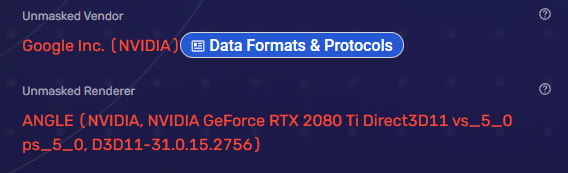
Extracted directly from GPU drivers via WebGL, these values carry immense identifying weight. If a profile declares a standard Windows machine but exposes a virtual machine renderer (such as SwiftShader or VMware), the inconsistency will trigger anti-fraud alerts.
Screen Resolution, Available Size, and Color Depth
Browserscan validates display parameters using three correlated metrics:
- Screen Resolution: The raw physical resolution of the display.
- Available Screen Size: The usable viewport remaining after subtracting system dock or taskbar dimensions.
- Color Depth: Pixel bit depth, standardly 24-bit on modern computer displays.
These three metrics must correlate naturally. For instance, a 1920 × 1200 resolution should yield an Available Screen Size that accounts for the taskbar rather than matching physical dimensions identically.
Device Memory and Hardware Concurrency
Browserscan benchmarks system processing limits via CPU and RAM parameters.
- Device Memory reports available system RAM in gigabytes.
- Hardware Concurrency indicates the logical thread count of the processor.
- Touch Support indicates whether the display interface accepts touch inputs.
These values should mirror realistic hardware configurations. A profile reporting 4 GB of RAM paired with 32 CPU threads appears synthetic and raises immediate suspicion.
Media Devices
The final hardware check monitors connected audio and video inputs (webcams and microphones).
Browserscan cannot query media device enumerations without explicit browser permissions. Unless permission is granted, this field remains unpopulated and does not require attention during routine checks.
2.3 Software
While Hardware reflects physical machinery, Software details how the browser presents itself to web servers. Granular settings like timezone offsets, language headers, and local font libraries form a massive portion of your operational fingerprint.
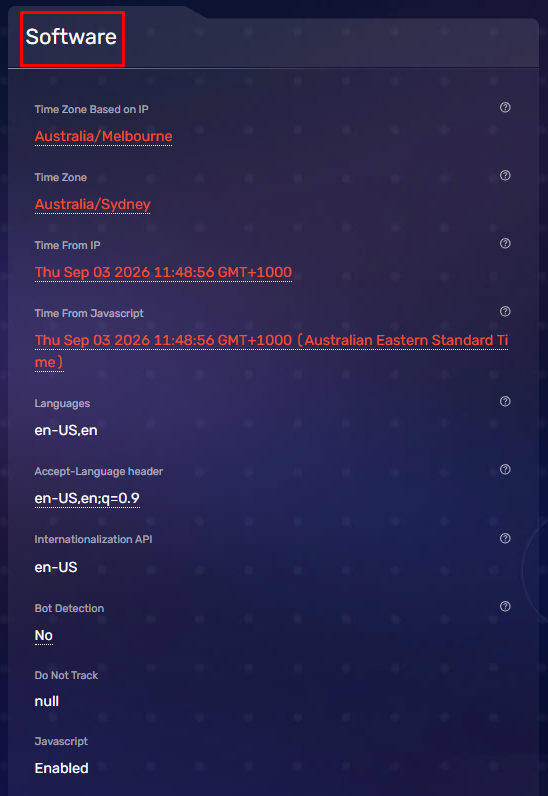
Timezone
Browserscan reads the client timezone via JavaScript APIs and checks it against the geographical location of your IP.
If you route through a Japanese proxy while the browser returns Asia/Ho_Chi_Minh, destination servers encounter two contradictory signals. This is a frequent issue when users rotate proxies without updating browser system time.
Accept Language
Accept Language specifies the preferred language headers sent by the browser with every HTTP request.
A US-based IP naturally aligns with en-US, whereas a Japanese IP pairs best with ja-JP. Operating on a Japanese proxy while serving Vietnamese language headers degrades fingerprint authenticity.
Fonts
The collection of fonts installed on an operating system constitutes another major fingerprinting vector.
Every operating system ships with signature typefaces: Windows features Segoe UI, macOS relies on San Francisco, and Linux distributions maintain distinct open-source font packages. If a browser declares Windows while exposing macOS system fonts, Browserscan flags the mismatch.
Why the Software Category Matters
Many focus solely on IPs and User-Agents, but modern anti-fraud engines evaluate entire telemetry profiles holistically. A reliable fingerprint is not about flawless individual metrics, but about total alignment across IP geolocation, timezone, language, fonts, and hardware specifications.
After auditing hardware, always review the Software section to confirm that all layers model the same geographic location and operating system.
2.4 WebRTC and DNS Leak Tests
These two leak vectors must be audited before authenticating into any account.
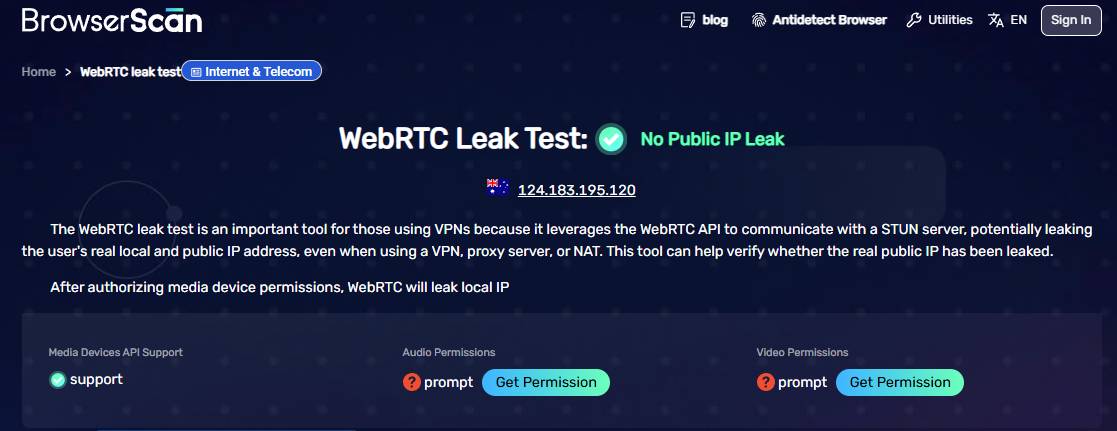
The WebRTC Leak test detects whether browser real-time communication protocols expose your real IP address. Even when running a proxy or VPN, WebRTC can route local and public IP requests directly to destination servers if not secured properly.
For example, if you run a US proxy for advertising while WebRTC exposes your real local network IP, platforms immediately detect the contradiction.
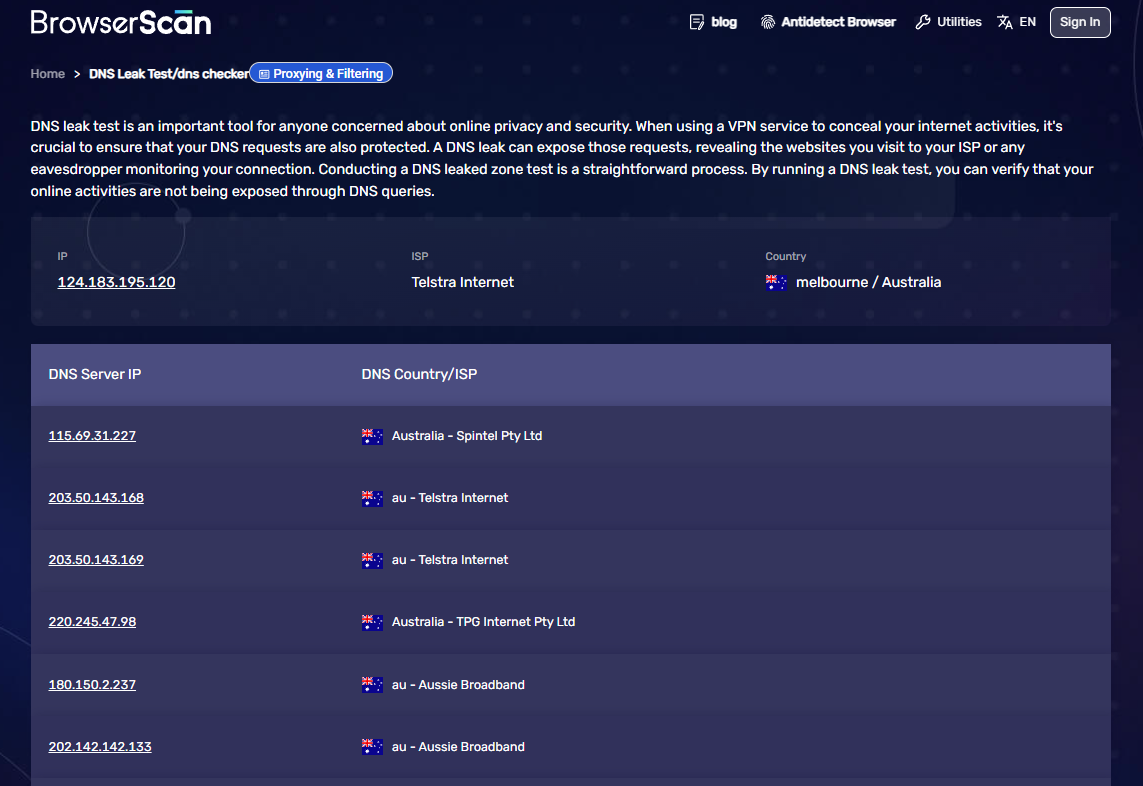
The DNS Leak test monitors the resolution path of domain queries. In a secure setup, DNS requests must resolve through the proxy or VPN gateway. If queries route back through your local ISP, a DNS leak is present and must be resolved before proceeding.
2.5 More Tools Suite
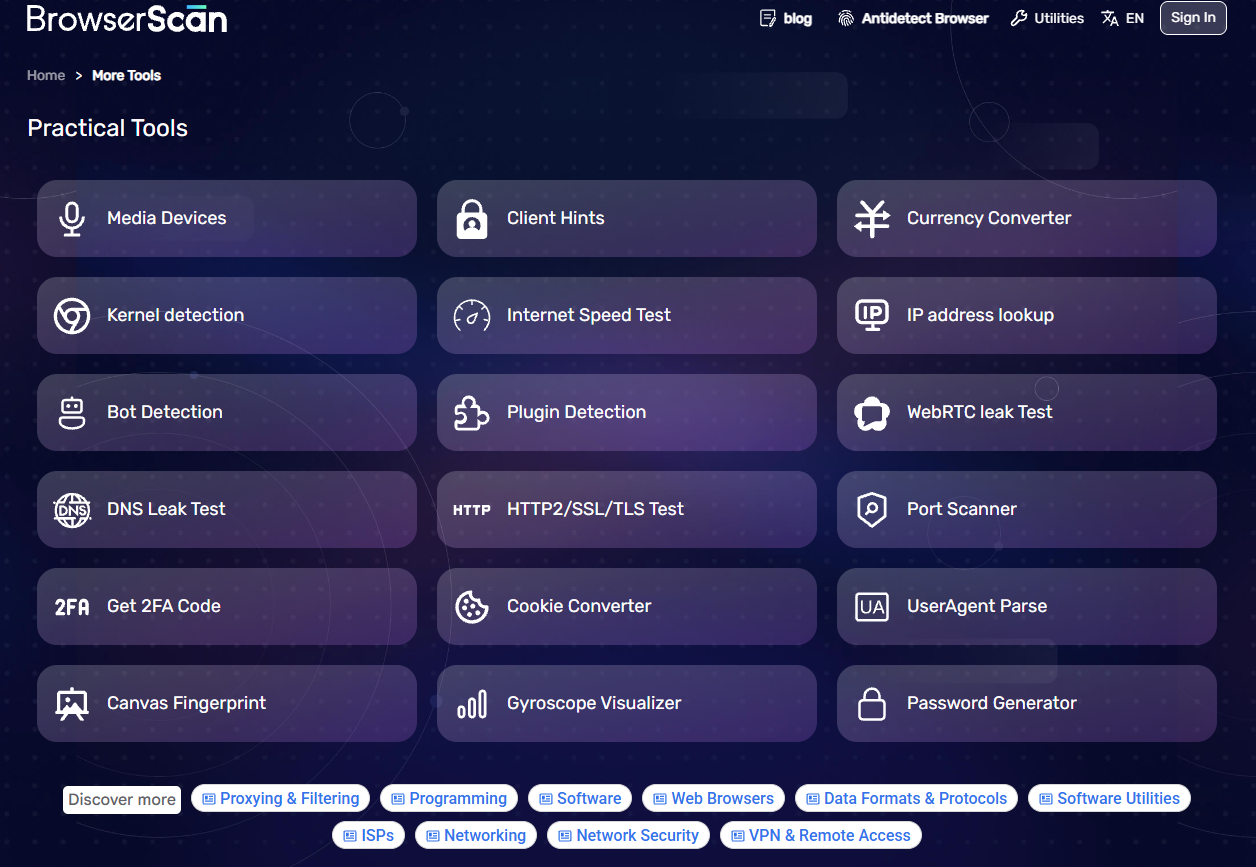
Beyond browser fingerprinting, Browserscan incorporates integrated utilities for quick network and browser data diagnostics.
| Tool | Function |
|---|---|
| Port Scanner | Scans for exposed or vulnerable open network ports |
| IP Address Lookup | Retrieves comprehensive ASN, ISP, and geographic data for an IP |
| 2FA Authenticator | Generates and verifies time-based one-time passwords (TOTP) |
| Cookie Converter | Converts and validates JSON and Netscape cookie syntax |
| Internet Speed Test | Benchmarks upload, download, and latency speeds |
| UserAgent Parse | Breaks down User-Agent strings into human-readable components |
While these tools do not replace dedicated standalone software, they provide convenient sanity checks without navigating across multiple platforms.
Overall Verdict
Browserscan consolidates diverse diagnostic checks into a single interface. Loading one page maps out IP, WebRTC, DNS, Canvas, WebGL, GPU properties, language headers, and client parameters.
However, the Authenticity Score remains a diagnostic guide. It does not replicate proprietary machine-learning algorithms used by commercial platforms, and a high score does not guarantee immunity from bans. What matters is true consistency across IP telemetry, hardware fingerprints, and user behavior.
3. Pros and Cons of Browserscan
Browserscan serves as a diagnostic audit tool for browser configurations. It identifies WebRTC leaks, DNS leaks, and fingerprint discrepancies, but it does not modify or generate fingerprints directly.
| Pros | Cons |
|---|---|
| Free to use with no account required | Does not save historical test logs |
| All core tests consolidated into one UI | Cannot generate or spoof fingerprints |
| Instant WebRTC and DNS leak audits | No integrated profile management features |
| Clean, user-friendly layout | Technical parameters require background knowledge |
The primary advantage of Browserscan is speed. Rather than navigating across separate diagnostic checkers, you can review essential parameters on a single page.
Remember that Browserscan is an audit tool, not a fingerprint protection tool. If your goal is to build isolated environments or run multiple accounts long term, you must pair it with a dedicated profile management solution.
4. Who should use Browserscan?
Browserscan provides value to anyone operating multi-account infrastructure or verifying client-side consistency. Recommended user groups include:
- Social Media Account Managers: Operators running Facebook or TikTok profiles who need to verify environments prior to login to catch WebRTC leaks, DNS leaks, or exposed host GPUs.
- Affiliate Marketers and E-Commerce Sellers: Teams running multi-account ad campaigns who must ensure IP addresses, timezones, and browser profiles match target regions.
- Developers and QA Engineers: Technical professionals auditing bot detection rules, testing User-Agent variations, and validating front-end environment flags.
- Privacy-Conscious Users: Individuals seeking an accessible way to observe what browser telemetry websites can extract without installing software.
Browserscan is not suited for generating new fingerprints or managing profile databases. It is strictly an inspection and diagnostics utility.
5. Using Browserscan with the antidetect browser Hidemyacc
Auditing a fingerprint reveals where an environment lacks consistency. However, keeping every account inside an isolated profile requires a specialized environment manager. Hidemyacc provides this workspace separation.
5.1 What is Hidemyacc?
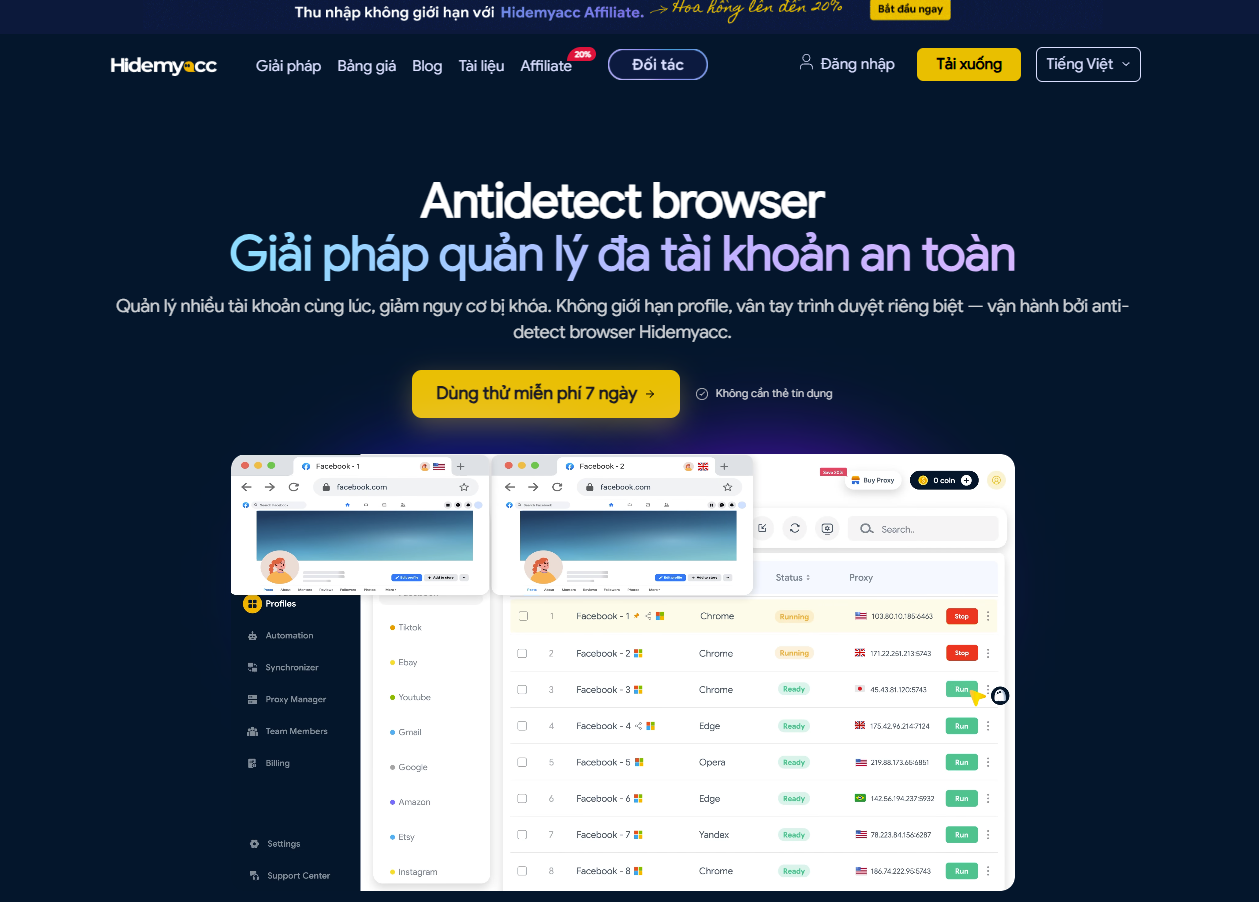
Antidetect browser Hidemyacc is software designed to create and manage multiple isolated browser profiles on a single machine.
Every profile inside Hidemyacc maintains an independent sandbox containing unique browser fingerprints, cookies, local storage, browsing histories, languages, and timezones. This prevents accounts from sharing a mutual device identity.
Parameters like Canvas, WebGL, WebRTC, User-Agent, and screen resolution are balanced from the start. When a proxy is connected, the profile automatically synchronizes timezone and language to the IP's geographic location.
This setup allows operators to manage extensive account fleets with each profile behaving as an authentic, distinct device.
5.2 How to audit a Hidemyacc profile using Browserscan
A profile is operational only when its Browserscan metrics align with your target configuration. Follow this verification sequence:
Step 1: Create a profile in Hidemyacc
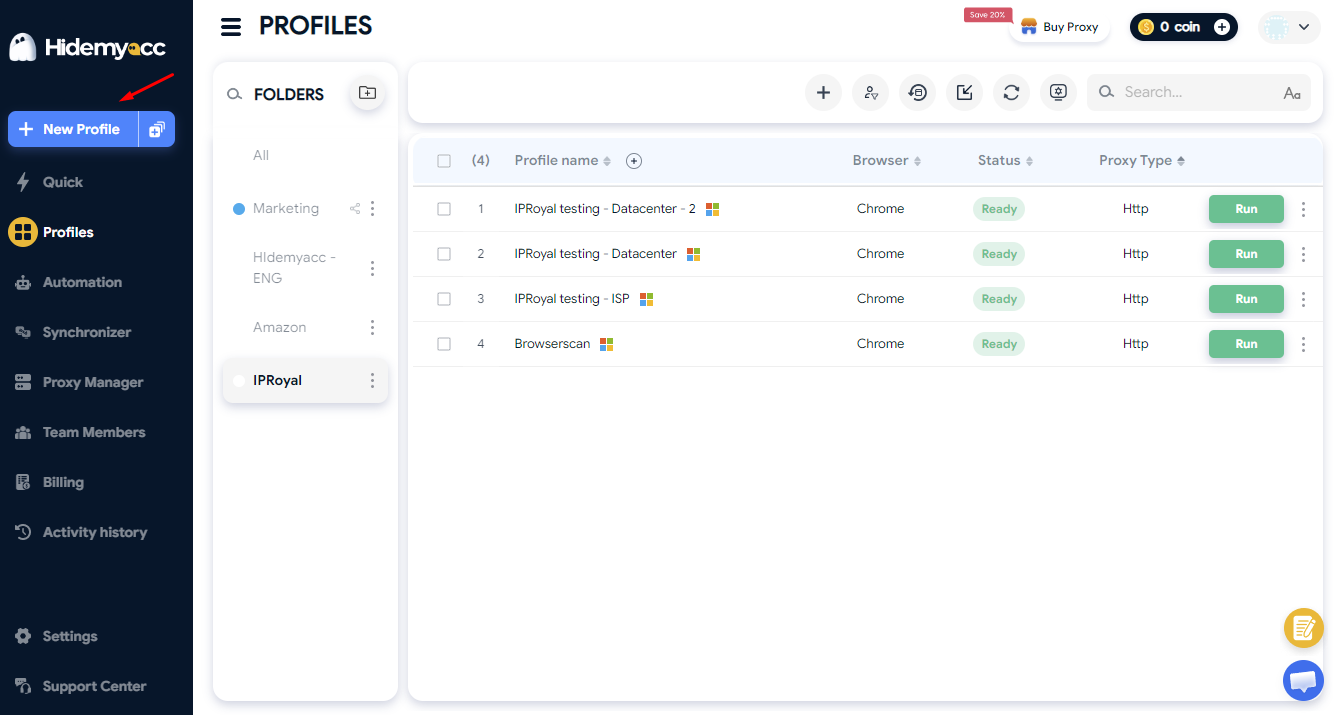
Launch Hidemyacc and sign in. On the main interface, click New Profile. For standard workflows, the default configuration is pre-optimized and requires minimal adjustment.
Step 2: Assign a proxy to the profile
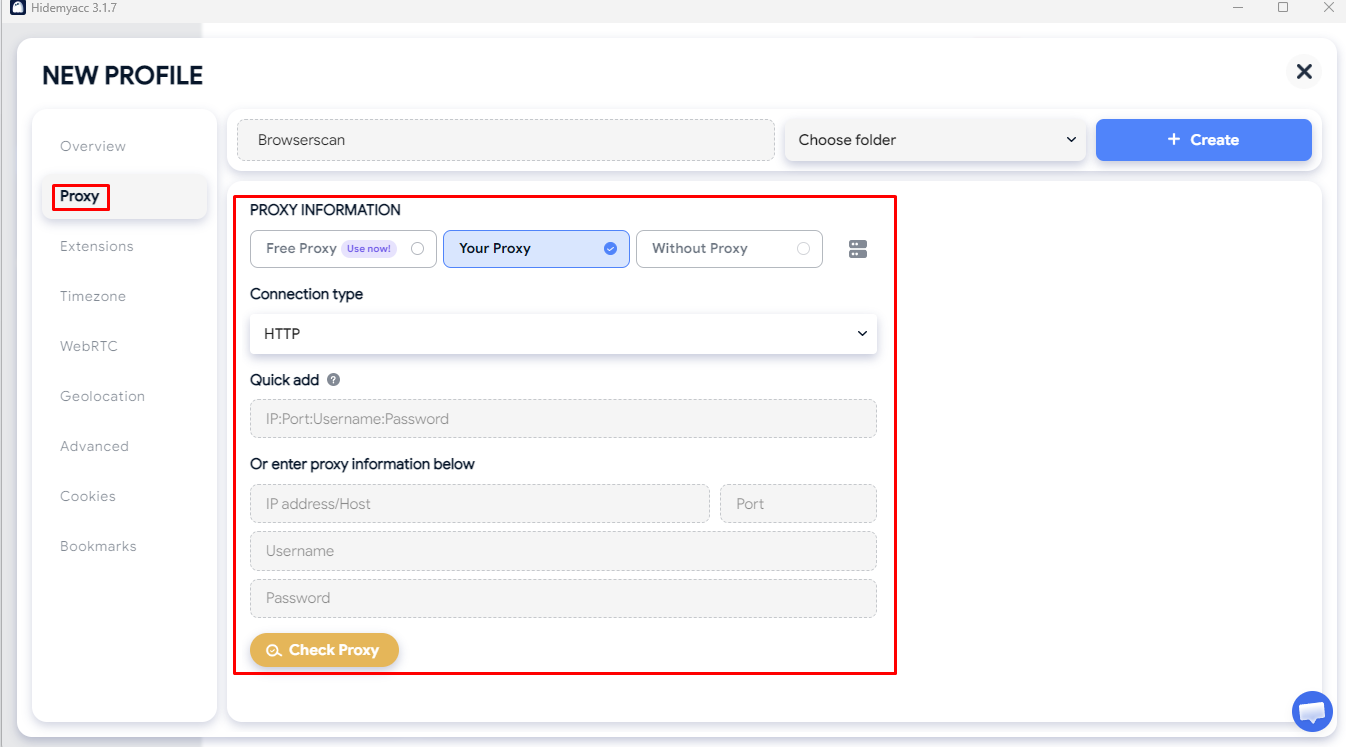
Navigate to the Proxy section, enter your connection details, and click Check Proxy. Once verified, save the profile. Timezone, language, and geolocation parameters will automatically align with the proxy's location.
Learn more: How to configure proxies in Hidemyacc
Step 3: Launch Browserscan
Return to the profile list and click Run to launch the browser profile. Navigate to Browserscan, where the tool will automatically scan your active configuration.
Step 4: Cross-reference findings with initial settings
Verify that your visible IP, timezone, GPU properties, and fingerprint hashes match your assigned profile parameters. If a WebRTC leak appears or parameters conflict, adjust your proxy or profile configuration before authenticating into real accounts.
Taking a minute to audit via Browserscan prevents deploying profiles with anomalous telemetry.
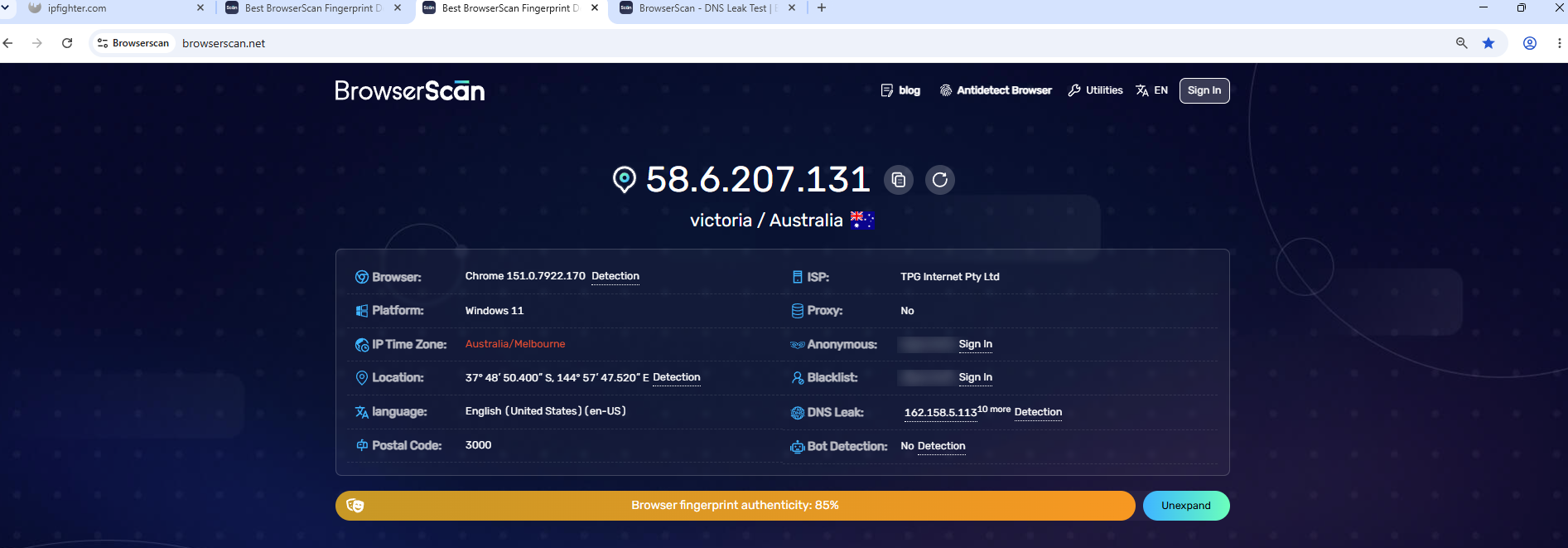
Creating a Hidemyacc profile and verifying telemetry via Browserscan after launch
6. Best practices for using Browserscan
To maximize accuracy, audit configurations systematically rather than checking only the IP address. Follow these best practices:
- Verify proxies before launching profiles: Test proxy connectivity before opening browser instances so that IP, DNS, and timezone metrics register consistently from the start.
- Audit systematically from Overview to Hardware and Software: Confirm your IP and geolocation in Overview, verify that WebRTC and DNS passes cleanly, then review GPU, Canvas, Accept Language, and Fonts to ensure parameters align.
- Re-audit after modifying parameters: Whenever you change a proxy, User-Agent, or fingerprint setting, rerun Browserscan to confirm updates and check for configuration conflicts.
- Do not rely solely on the Authenticity Score: Treat the score as a reference. Confirm that IP, timezone, language, WebRTC, and hardware metrics align naturally.
- Perform periodic checks across profiles: If you manage multiple accounts, review profiles periodically after browser updates or proxy rotations to ensure environmental stability.
Following this process gives you confidence in your profile environments and catches fingerprint discrepancies before they affect live accounts.
7. Conclusion
A secure browser environment relies on consistency across all telemetry layers, not just a changed IP address. Browserscan provides a fast, accessible way to audit essential parameters before logging into critical accounts.
For standalone diagnostics, Browserscan handles the job well. For managing multiple independent profiles long term, pairing it with an antidetect browser ensures stable, reliable operational security.
Learn more:
- Whoer.net Review: A closer look at its features and testing capabilities
- BrowserLeaks Review: How to audit browser environments effectively
- Leaf Browser Review: Is it still worth using in 2026?
8. FAQ
1. Is Browserscan free to use?
Yes. Browserscan provides free access to all core diagnostics, including browser fingerprinting, IP checks, WebRTC and DNS leak detection, Canvas, and WebGL tests. No software installation or user registration is required.
2. Can Browserscan detect VPN usage?
Yes, though it does not simply display a label stating a VPN is active. The tool analyzes IP, ISP, ASN, DNS, and WebRTC routes for anomalies. If a VPN or proxy leaks your real IP or DNS queries, Browserscan flags the discrepancy.
3. Does Browserscan generate new browser fingerprints?
No. Browserscan is strictly an audit tool that analyzes and displays your current browser environment. It cannot edit, spoof, or generate new browser fingerprints.
4. Should I use Browserscan alongside an antidetect browser?
Yes. An antidetect browser creates and manages isolated profiles with unique fingerprints, while Browserscan verifies that WebRTC, DNS, Canvas, WebGL, and timezone parameters are synchronized before you log into accounts.
5. How does Browserscan differ from other fingerprint checkers?
Browserscan consolidates diverse diagnostic checks into a single interface, covering fingerprints, WebRTC, DNS leaks, bot detection, and hardware properties. While other platforms may focus on granular API inspection or uniqueness metrics, Browserscan is optimized for quick, end-to-end environment reviews.