The Domain Name System (DNS) plays a central role in converting familiar domain names into IP addresses to establish Internet connections. Understanding what DNS is, how it works, and the common types of DNS services not only helps optimize access speed but is also fundamental to cybersecurity.
In addition to connectivity features, this article will guide you on how to prevent DNS leaks and implement advanced security settings. This is a detailed roadmap to help you master your DNS system to ensure privacy and the most stable connection performance.
1. What is DNS? What is the role of DNS in internet connectivity?
Billions of access requests are sent globally every second, but how does the Internet know exactly where the website you need is located among billions of servers? Understanding DNS not only helps you grasp the principles of how the Internet works but is also key to optimizing performance and securing your personal network.
1.1 What is DNS?
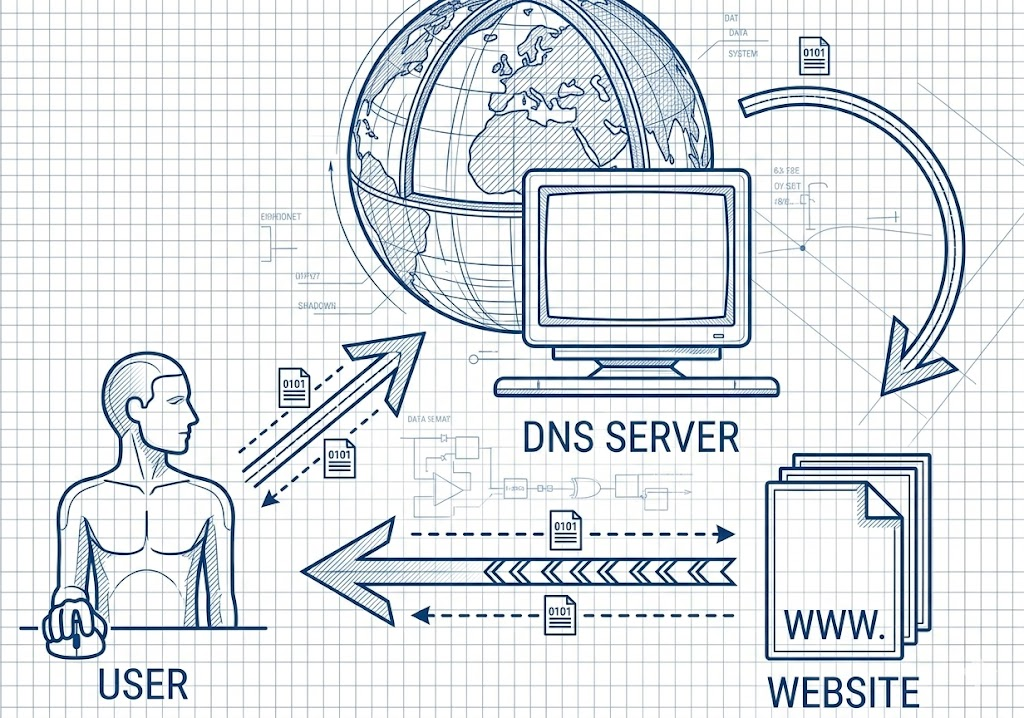
DNS, short for Domain Name System, is a system that manages and resolves domain names, helping to identify the IP addresses associated with websites or resources on the Internet. When you enter a URL into your browser, DNS is used to find the IP address of the server hosting that website, allowing the browser to connect correctly.
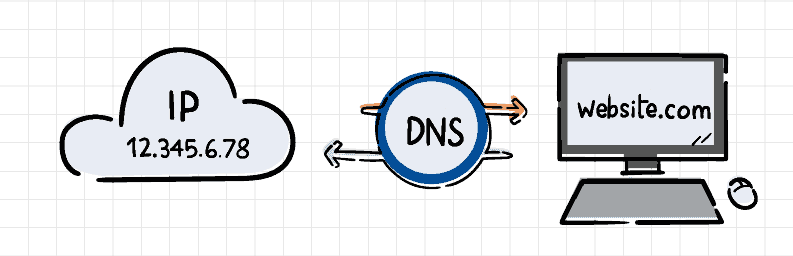
In addition to resolving domain names for websites, DNS also supports other services such as email addresses, FTP servers, and many other network services. Some DNS services also support optional security features such as digital signatures (DNSSEC) and encrypted transport, though these aren't part of traditional DNS by default.
In addition to DNS, you can find more information about internet infrastructure here:
- Internet infrastructure : What is it and why is it important?
- What does your IP address reveal , and how can you check it?
1.2 The role of DNS in internet connectivity
Besides understanding what DNS is, many people also wonder what role DNS plays in internet connectivity. Essentially, DNS servers play a crucial role in converting domain names into IP addresses, allowing browsers to access and connect to websites or resources on the internet. Specifically, DNS servers have the following functions:
- Domain name resolution: DNS servers convert a website's domain name into the IP address of the server hosting that website. When a user enters a domain name into their browser, the system sends a request to the DNS server to find the corresponding IP address.
- DNS information storage: DNS servers store data related to domain names and IP addresses. When a search request is made, the system queries its database to determine the IP address associated with that domain name.
- Updating DNS information: DNS servers can be configured to automatically or manually update domain name and IP address information. Network administrators or DNS management tools will perform this task.
- Increased access speed: DNS servers improve access speed by caching DNS information. This shortens response times for queries by retrieving data from the cache instead of querying another server.
- DNS data security: DNS servers can be configured to protect the security of DNS data through measures such as encryption, digital signatures, and user authentication. These features help ensure that DNS information is transmitted securely and prevents theft.
2. Classification of DNS servers
DNS can be categorized in various ways depending on how it works, where it's used, and its level of security. Understanding these categories will help you understand what's happening behind the scenes each time you access a website.
2.1 Based on roles in the query process
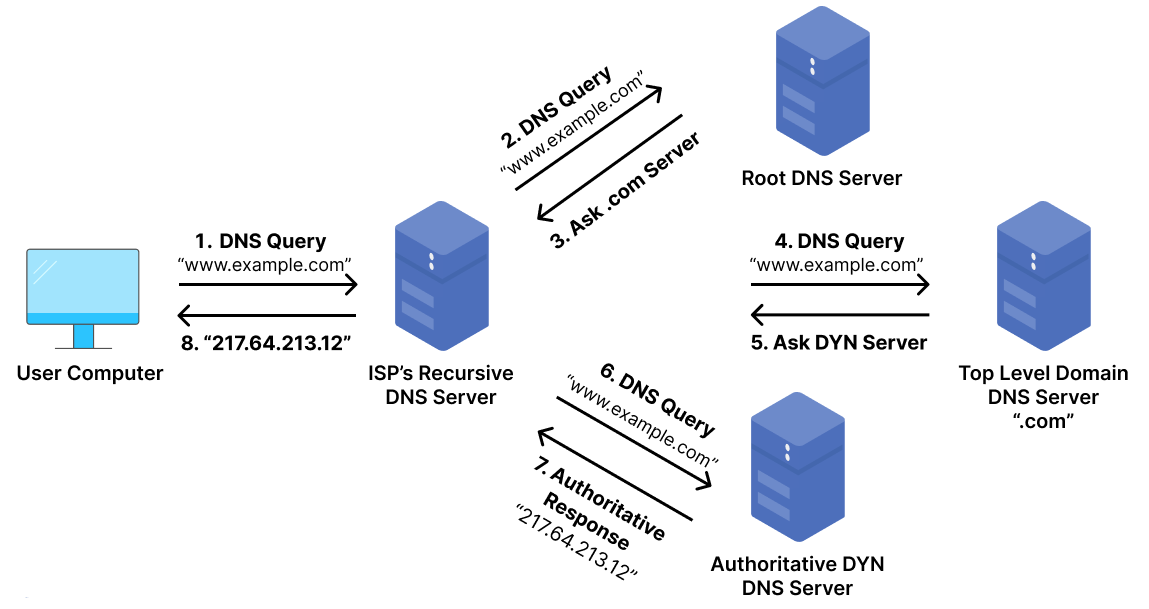
When you type in a domain name like google.com, your device doesn't connect directly to that website. Instead, it sends a request to a recursive DNS server (also known as a resolver server). This server, usually provided by your Internet Service Provider (ISP) or a public service like Google DNS or Cloudflare DNS, acts as a helper – it finds the correct IP address for you.
If the resolver doesn't yet know the answer, it will follow this path:
- First, it will check the Root DNS server, which indicates where to find the Top-Level Domain (TLD) server, for example, .com as .org.
- The resolver then contacts the TLD DNS server, which points to the authoritative DNS server—the server that stores the actual record of the domain name.
After the authorized server responds, your browser will receive the correct IP address and load the webpage.
In short: Recursive DNS will ask and the authoritative DNS will answer, that's how your device finds its way online.
According to the Cloudflare Learning Center , this process takes place within milliseconds and involves multiple DNS servers working together in a single query chain.
2.2 Based on scope of use
DNS servers can also be grouped by location and usage.
-
Public DNS :
- Open to everyone on the internet, easy to configure, and often faster than your ISP's default DNS.
- Common examples include Google DNS (8.8.8.8), Cloudflare DNS (1.1.1.1), and Quad9 DNS (9.9.9.9).
- These are great options if you want higher speed, reliability, or privacy.
-
Private (or local) DNS :
- Used within a company or home network to manage internal domain names—such as server.local or intranet.company.
- This type helps improve internal speed and control which devices can access specific resources.
According to Google Developers , public resolvers like Google DNS aim to improve both performance and security compared to ISP's default DNS.
2.3. Based on security level
Traditional DNS uses plain text communication (UDP port 53). This means that anyone monitoring the network, including your ISP or an attacker, can see your DNS requests and the websites you visit.
To improve privacy, modern DNS services now support encrypted protocols such as:
- DNS over HTTPS (DoH) - sends DNS requests over HTTPS, encrypting your activity just like a secure web connection.
- DNS over TLS (DoT) - similar to DoH, but uses the TLS protocol for encryption, commonly used by routers or mobile systems.
These encryption options make it more difficult for third parties to track your browsing history.
According to the Mozilla Developer Network , DNS over HTTPS helps protect users by encrypting requests and preventing eavesdropping or spoofing.
Quick comparison table of DNS server types
|
Classification group |
Server type |
Key Roles and Characteristics |
Example / Protocol |
|
1. According to the query role |
Recursive DNS |
Receive requests from users and act as a "helper," finding IP addresses for you. |
ISP DNS, Google DNS (8.8.8.8) |
|
DNS (Root Server) |
The first stop is to guide you on where to find Top-Level Domain (TLD) servers such as .com, .org. |
13 global origin server clusters |
|
|
DNS TLD |
Manage specific domain name extensions and point them to authorized servers. |
Servers that manage .com and .net domain extensions. |
|
|
Authoritative DNS |
The final stop: The location where the actual record (IP address) of the domain name is stored. |
Cloudflare, GoDaddy Nameservers |
|
|
2. According to the scope of use |
Public DNS |
Open to everyone, it prioritizes speed, privacy, and ease of configuration over ISP DNS. |
Cloudflare (1.1.1.1), Quad9 (9.9.9.9) |
|
Private (Local) DNS |
Use internally within a company/family to manage internal domain names and control resource access. |
server.local, intranet.company |
|
|
3. According to the level of security |
Traditional DNS |
Using plain text (UDP 53 port) makes it vulnerable to eavesdropping or tampering by third parties. |
ISP's default DNS |
|
DNS qua HTTPS (DoH) |
DNS requests are encrypted as HTTPS web traffic, preventing ISPs from tracking the history. |
Security protocols on Chrome/Firefox |
|
|
DNS qua TLS (DoT) |
Uses the TLS protocol for encryption, commonly used in mobile systems or routers. |
DNS security on Android/iOS |
3. How DNS works
When you enter a website address like hidemyacc.com into your browser, your computer doesn't actually understand the name – it only understands the IP address (Let's say the IP address of hidemyacc.com is 104.26.9.233).
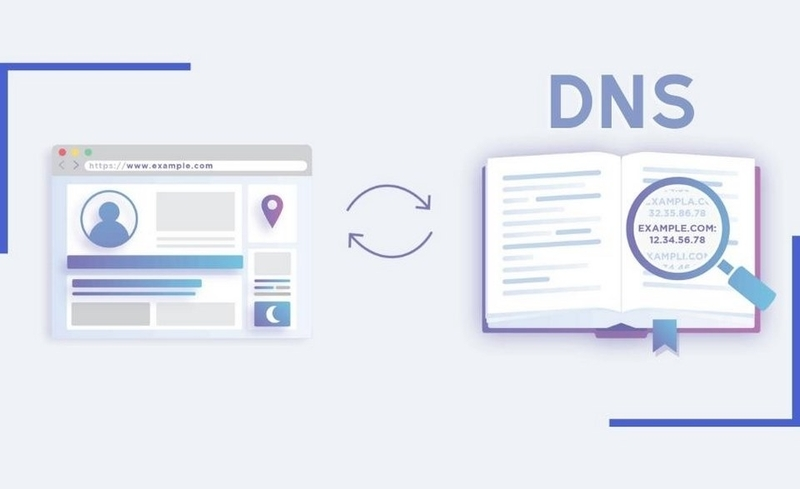
DNS (Domain Name System) works like a phone book on the Internet, translating domain names into IP addresses so your browser knows where to go.
3.1. Your device requires DNS Resolver.
Your computer or browser will first send a query to the DNS resolver (usually from your Internet service provider or a public provider such as Google DNS 8.8.8.8 or Cloudflare 1.1.1.1):
"What is the IP address of hidemyacc.com?"
If the resolver already knows the answer (it's cached), it will respond immediately. Otherwise, it will start searching.
3.2. The Resolver Asks the Root Server
The root server is the highest level of the DNS system. It doesn't know the exact IP address, but it knows which server handles .com, .org, .net, etc. So it says: "Ask the .com server."
3.3. Resolver requires a TLD server (.com, .org, .vn, ...).
The TLD (Top-Level Domain) server tells .com which DNS server is responsible for hidemyacc.com. It responds: "You can find hidemyacc.com at this specific DNS server."
3.4. Authoritative DNS Server Request Resolution Unit
Finally, the resolver will contact the authoritative DNS server – the "official" server for that domain name. This server contains the actual DNS records and provides the final answer: hidemyacc.com → 104.26.9.233
The resolver will save this result (for faster use next time) and send it back to your browser.
3.5. The browser connects to the website.
Now your browser uses that IP address to connect to the actual web server and load the webpage for you.
Summary of how DNS works:
Browser → DNS Resolver → Origin Server → TLD Server → Authoritative Server → Returns IP Address → Loads Web Page
To gain a deeper understanding of DNS and related terminology, please read more here:
- What is a VPN? Why should you use a VPN to protect your personal information ?
- What is a MAC address ? Examination, classification, and practical applications.
- What is a Port ? Its function and accurate classification.
4. Top DNS servers
When you change your default DNS, public resolvers are often the first choice. They are fast, reliable, and free—but each service has its own advantages. The table below provides a quick comparison of the most popular DNS servers:
|
DNS provider |
Address |
Main focus |
Privacy Policy |
Best for |
|
Google's DNS |
8.8.8.8 / 8.8.4.4 |
Global speed and reliability |
Storing temporary logs to prevent performance issues and abuse ( Google Developers ) |
Users want stability and fast performance. |
|
DNS Cloudflare |
1.1.1.1 / 1.0.0.1 |
Privacy and encryption |
No IP logging; data will be deleted within 24 hours ( Cloudflare ). |
Users value privacy and security. |
|
Quad9 DNS |
9.9.9.9 |
Security and threat prevention |
Non-profit, does not track users, blocks malicious domains ( Quad9 ) |
Users want to be protected from malware and scams. |
|
OpenDNS |
208.67.222.222 / 208.67.220.220 |
Content control and filtering |
Anonymized logs can be stored for analysis ( Cisco OpenDNS ). |
Families or small businesses need to filter content. |
In summary, Google DNS is the ideal choice if you prioritize performance, Cloudflare DNS is suitable for privacy-conscious users, Quad9 focuses on security, and OpenDNS is excellent for managing a secure browsing environment. You can even combine them depending on your needs, for example, using Cloudflare on your personal device while keeping OpenDNS for your home network.
>>> Regarding public DNS
- Why should you use DNS 8.8.8.8 ? Improve your web browsing experience with Google's public DNS.
- 1.1.1.1 DNS : What is it and how can it improve your internet speed and privacy?
- Google's public DNS servers : What they are and how to configure them for faster internet.
5. DNS lookup and usage process
After understanding DNS and its operating mechanism, we will delve into how this system actually works in the internet environment. This section will guide you in detail through the process by which a domain name is translated into an IP address, as well as how devices use that information to connect to the website you requested.
5.1 DNS Lookup Process
The DNS lookup process consists of 8 steps, as follows:
Step 1 : The user enters 'example.com' into their web browser; this query goes into the Internet and is received by a DNS recursive resolver.
Step 2 : The resolver then queries a DNS root nameserver (denoted by a dot .).
Step 3 : The root server responds to the address resolver of a Top-Level Domain (TLD, such as .com or .net) DNS server, which stores information for the domain names it manages. When searching for example.com, our request will be directed to the .com TLD.
Step 4 : The resolver then makes a request to the TLD.com.
Step 5 : The TLD server responds with the IP address of the nameserver for that domain name (in this case, example.com).
Step 6 : Finally, the recursive resolver sends a query to the website's domain name server.
Step 7 : The IP address of example.com is then returned to the resolver by the domain name server.
Step 8 : The DNS resolver responds to the web browser with the IP address of the initially requested domain name.
5.2 Simple and quick ways to use DNS
Choosing the right DNS server can improve your internet access speed. Here's a quick guide to changing your DNS server on your computer:
Step 1 : Open Control Panel: Click the Start menu and search for "Control Panel."
Step 2 : Access network status: Go to "View network status and tasks" to see your network information.
Step 3 : Select your current network: Choose the internet connection you are currently using.
Step 4 : Open Properties: Click the "Properties" button to change network settings.
- Select Internet Protocol Version 4: Find and select "Internet Protocol Version 4" from the list.
- Update DNS: Select "Use the following DNS server addresses" and enter your new DNS addresses.
Step 5 : Click "OK" to save the changes. You have now completed changing the DNS Server and can check your network speed.
6. Prevent DNS leaks when using a VPN or proxy.
6.1 How to check for DNS leaks
DNS leaks occur when your device sends DNS queries outside of an encrypted VPN tunnel. In that case, even if your IP address is masked, your ISP or the websites you visited can still see where you're accessing. This usually happens when the operating system continues to use your default DNS (typically from your ISP) instead of the DNS provided by the VPN.
You can check your connection using tools like ipfighter.com/dns-leak-check , dnsleaktest.com , or ipleak.net . If the results show your ISP's DNS server instead of your VPN's, it means your DNS requests are leaking. To fix this, enable "DNS Leak Protection" in your VPN app or manually set your system's DNS to Cloudflare, Google, or Quad9.
Some browsers, including Chrome and Firefox, also support DNS over HTTPS, adding an extra layer of encryption alongside your VPN. According to Google Developers , many DNS leaks occur when VPN configuration and system DNS settings are out of sync. Clearing the DNS cache after connecting to a VPN or manually overwriting the system's DNS can often completely resolve this issue.
6.2 How to Prevent DNS Leaks
The simplest way is to use a VPN with built-in DNS leak protection. Most modern VPNs automatically route all DNS requests through their own encrypted servers, ensuring no queries escape the secure tunnel. Always check your VPN settings. If there's an option for "Prevent DNS leaks" or "Custom DNS," make sure it's enabled.
If you prefer a manual approach, you can set up your own DNS server at the system level. Services like Cloudflare (1.1.1.1) or Quad9 (9.9.9.9) are good options because they respect privacy and don't log user activity. This way, even if the VPN disconnects, your device won't revert to your ISP's DNS.
Another smart move is to enable DNS encryption directly in your browser. Chrome, Firefox, and Edge now support DNS over HTTPS (DoH) – a feature that hides DNS queries inside encrypted HTTPS traffic. When enabled, even your public Wi-Fi provider or network administrator won't be able to tell which websites you're accessing. According to Mozilla, DoH significantly reduces the risk of DNS data being intercepted or logged.
You should also clear your DNS cache after connecting to a VPN or changing your network configuration. This will clear any leftover entries before a secure connection, preventing the system from accidentally resolving domain names through the wrong server. On Windows, you can do this by opening Command Prompt and typing the command ipconfig /flushdns.
To better understand the terminology in internet infrastructure, please read more here:
- What is WebRTC? How does it work and what are its benefits?
- VPS Hosting – A Basic Guide to Hosting Services
- What is a PAN network ? Advantages and disadvantages of PAN networks.
- What is a proxy ? Benefits, features, and how to set it up quickly.
7. Conclusion
Understanding DNS and its importance in internet connectivity is fundamental to optimizing your connection and eliminating the risk of being tracked or attacked through DNS leaks. Therefore, choosing a reputable DNS provider and ensuring leak prevention measures are essential to minimize risks and enhance security. Furthermore, optimizing DNS is the simplest and most effective way to improve access speed and build a secure browsing environment.
8. FAQ
8.1 How to troubleshoot DNS server issues?
You can reset your DNS settings or switch to a trusted public DNS resolver like Cloudflare or Google DNS. On Windows, run ipconfig /flushdns to clear cached records before reconnecting.
8.2 Does DNS improve the Internet?
Yes. A fast and stable DNS will improve website loading speed and the browser's efficiency in resolving domain names.
8.3 What happens if DNS is turned off?
Without DNS, browsers cannot translate domain names into IP addresses. You would need to manually enter the numerical IP address of each website – which is impractical.
8.4 What are the disadvantages of DNS?
Traditional DNS is not encrypted and can be intercepted or recorded by ISPs. Additionally, if the DNS server goes down, websites may display "offline" even if they are still operational.
8.5 Can changing DNS bypass all geographical restrictions?
No. DNS can bypass minor restrictions, but most zone keys use IP-based discovery. You will need a VPN or proxy for full access.
8.6 Will DNS over HTTPS slow down queries?
It's negligible. It only adds a little extra to the coding cost, but on most modern browsers, the difference is almost unnoticeable.
8.7 Does DNSSEC protect against all spoofing attacks?
It protects against DNS spoofing, but not against network-level hijacking or man-in-the-middle attacks. This is an important layer, but not a complete shield.
8.8 Does a VPN hide DNS queries? (And when does a DNS leak occur?)
A VPN should encrypt DNS queries within its tunnel, but leaks can occur if your system continues to use your ISP's DNS outside the VPN. Always check your connection after enabling the VPN.
8.9 Which solution should I choose for speed, privacy, or security?
For speed: Google DNS. For privacy: Cloudflare DNS. For security: Quad9 DNS (blocks malicious domains).
8.10 How does TTL affect DNS transmission when changing IP addresses or deploying a website?
TTL (Time to Live) determines how long a DNS record is cached. A lower TTL value means changes are propagated faster, which is useful when migrating servers or updating records.