Why does a Windows 11 computer still show Windows NT 10.0 in its User-Agent string, while an Android phone reports Android 10 with model K? This may be the result of User-Agent Reduction, the process by which Chrome trims the information exposed by default to improve privacy. This article will help you understand what User Agent Client Hints are, how Chrome has changed the way it provides information, how to check UA-CH, and how it relates to your browser fingerprint.
1. What are User Agent Client Hints?
User Agent Client Hints (UA-CH) are a mechanism that allows websites to retrieve information about the browser, operating system, and device through HTTP headers or a JavaScript API. Instead of providing a lot of information all at once, the browser sends some basic data by default and can add more detailed information when a website requests it.
To better understand UA-CH, you need to know how it differs from the traditional User-Agent and how well each browser supports it.
1.1. How are User Agent Client Hints different from User-Agent?
The main difference lies in how information is delivered. Instead of packing many parameters into a single text string like User-Agent, UA-CH splits the data into separate properties that websites can retrieve as needed.
The table below shows the differences between the two mechanisms:
Criteria | User-Agent | User Agent Client Hints |
Format | Text string | Structured data |
HTTP header | User-Agent | Sec-CH-UA-* |
JavaScript API | navigator.userAgent | navigator.userAgentData |
Delivery method | By default | By default and on request |
Level of detail | May be reduced | Can provide additional data |
Connection context | HTTP and HTTPS | Secure context |
Secure context | HTTP and HTTPS | Secure context |
Compatibility | Broad | Depends on the browser |
User-Agent and User Agent Client Hints still exist side by side. UA-CH adds another way to retrieve browser information without removing the traditional User-Agent.
Read more: What is a User Agent? How to change your UA on 4 popular browsers
1.2. Which browsers support User Agent Client Hints?
User Agent Client Hints are supported on many Chromium-based browsers, such as Google Chrome, Microsoft Edge, Opera, and Samsung Internet. However, the level of support for each property can vary depending on the version and platform.
According to MDN Web Docs, Firefox and Safari do not yet support the navigator.userAgentData property. Therefore, not finding this property on these two browsers is not a sign of an error.
2. How has Chrome changed the User-Agent?
Chrome introduced User-Agent Reduction to cut down the amount of detailed information the browser provides by default. The changes were rolled out in phases, affecting the browser version, operating system, and device model in the User-Agent string.
2.1. Why did Chrome reduce the User-Agent?
The traditional User-Agent provides a lot of information about the browser and device as soon as a request is sent to the server. Websites can collect this data without actively requesting any additional information.
Reducing the User-Agent helps limit this kind of passive data collection. At the same time, UA-CH allows websites to retrieve only the properties they need for traffic analysis, compatibility checks, or content optimization for specific devices.
2.2. Chrome's User-Agent Reduction timeline
Google did not reduce the entire User-Agent string all at once. Instead, it rolled out the changes in phases to limit the impact on website functionality. According to Chromium's User-Agent Reduction timeline, the three main milestones are:
Chrome 101: Minor version components were reduced to 0.0.0. The rollout was completed on June 13, 2022.
Chrome 107: Operating system and platform information on desktop was reduced. The rollout was completed on February 7, 2023.
Chrome 110: The Android version and device model were reduced. The rollout was completed on May 11, 2023.
After these changes, Chrome still keeps the browser's major version number but replaces many detailed values with fixed ones.
2.3. User-Agent strings before and after reduction
To better understand Chrome's changes, you can look at two sample User-Agent strings from an Android device running Chrome 100 and Chrome 110, representing the periods before and after the changes to device information were applied.
Before reduction:
Mozilla/5.0 (Linux; Android 12; Pixel 6) AppleWebKit/537.36 (KHTML, like Gecko) Chrome/100.0.4896.127 Mobile Safari/537.36After reduction:
Mozilla/5.0 (Linux; Android 10; K) AppleWebKit/537.36 (KHTML, like Gecko) Chrome/110.0.0.0 Mobile Safari/537.36You can see three main changes in the two examples above:
Operating system version: Android 12 is replaced with the fixed value Android 10.
Device model: The device name Pixel 6 is replaced with the letter K.
Browser version: Chrome's minor version components are replaced with 0.0.0.
The reduction also applies to desktop platforms. For example, Windows 11 may appear as Windows NT 10.0, while newer versions of macOS may appear as Mac OS X 10_15_7.
These values do not necessarily reflect the actual operating system version or device. If more detailed information is needed, websites can retrieve it through User Agent Client Hints.
3. How do Chrome UA Client Hints work?
Chrome UA Client Hints work by providing information selectively. The properties are divided into two groups, Low Entropy and High Entropy, based on their level of detail and their ability to distinguish between browser environments.
Below are the HTTP headers in the two groups of User Agent Client Hints:
Category | HTTP header | Information provided |
Low Entropy | Sec-CH-UA | Brand and major version |
Low Entropy | Sec-CH-UA-Mobile | Whether the browser prefers a mobile experience |
Low Entropy | Sec-CH-UA-Platform | Operating system platform |
High Entropy | Sec-CH-UA-Full-Version-List | Full versions of the browser brands |
High Entropy | Sec-CH-UA-Platform-Version | Platform version |
High Entropy | Sec-CH-UA-Arch | CPU architecture |
High Entropy | Sec-CH-UA-Bitness | 32-bit or 64-bit architecture |
High Entropy | Sec-CH-UA-Model | Device model |
High Entropy | Sec-CH-UA-Form-Factors | Device type, such as desktop or phone |
High Entropy | Sec-CH-UA-WoW64 | Whether a 32-bit browser is running on 64-bit Windows |
The two groups of Client Hints differ not only in the information they provide but also in how websites receive that data.
3.1. Low Entropy Client Hints
Low Entropy Client Hints are a group of basic information with a relatively low level of detail. Chrome typically sends the three HTTP headers in this group by default when you visit a website over HTTPS.
Here is an example:
Sec-CH-UA: "Chromium";v="110", "Not A(Brand";v="24", "Google Chrome";v="110"
Sec-CH-UA-Mobile: ?0
Sec-CH-UA-Platform: "Windows"
From the headers above, a website can tell that the browser is Chrome with major version 110, the declared platform is Windows, and the browser does not prefer a mobile experience.
You may also notice an unusual brand name such as Not A(Brand in Sec-CH-UA. This is an example of the GREASE mechanism, in which the browser deliberately adds a value that does not represent a real browser brand.
The purpose of GREASE is to encourage websites to handle the brand list flexibly instead of relying on fixed values. So the appearance of an unfamiliar brand name is not a sign of a browser error.
3.2. High Entropy Client Hints
High Entropy Client Hints provide more detailed information, such as the full browser version, operating system version, device model, and CPU architecture.
For example, a software download website may need to know whether a device uses ARM or x86 architecture in order to recommend the right installer. This information is not included in the default Low Entropy group.
A website can actively request High Entropy Client Hints, but the browser will not necessarily provide every property. Some data may be restricted or returned as empty values depending on the device, browser version, and privacy policy.
3.3. How websites request Client Hints through HTTP headers
To receive additional Client Hints, a server can use Accept-CH in its HTTP response to declare which information it wants to receive from the browser.
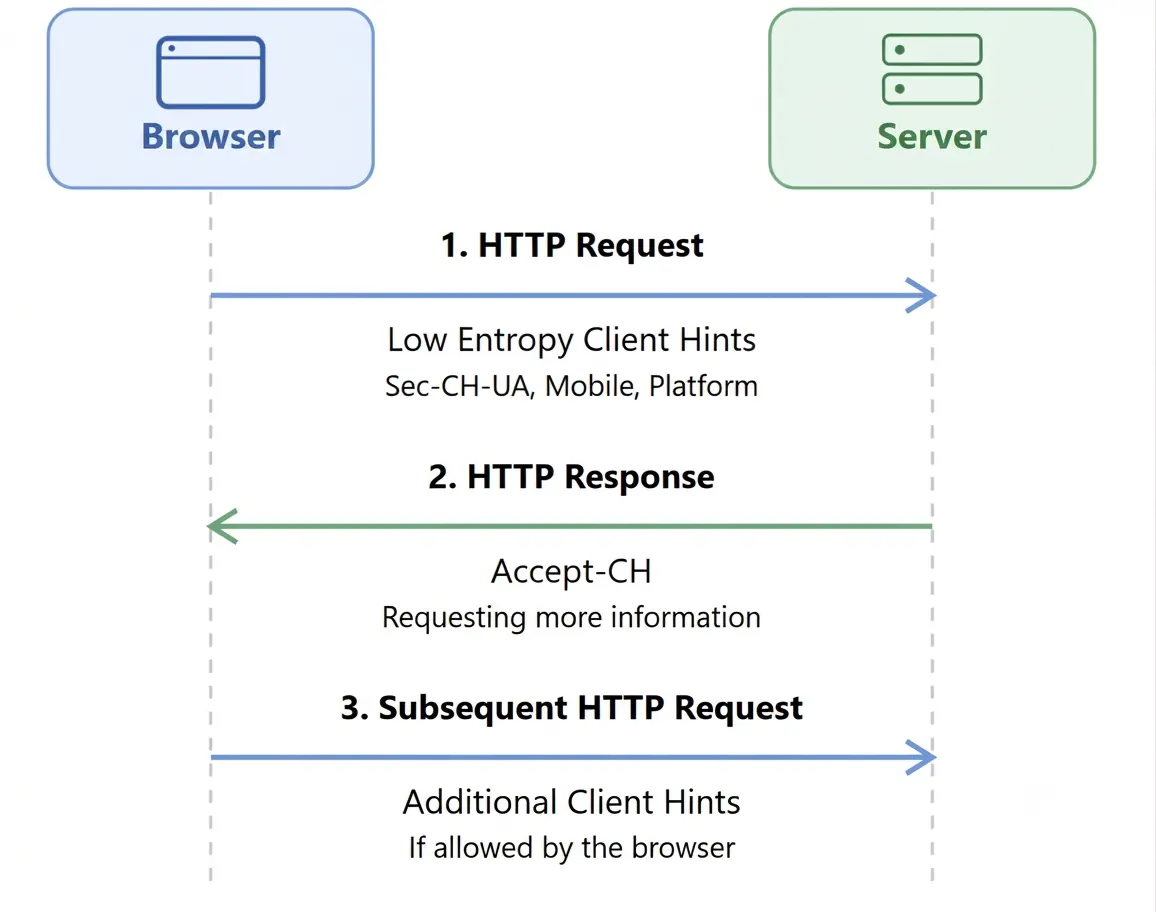
If the website has not previously requested additional Client Hints, the exchange usually works like this:
The browser sends a request containing Low Entropy Client Hints.
The server responds with Accept-CH to request more information.
The browser may send the requested Client Hints in subsequent eligible requests.
For example, a server that wants to receive the device model and operating system version can use the following header:
Accept-CH: Sec-CH-UA-Model, Sec-CH-UA-Platform-Version
Besides Accept-CH, two other HTTP headers also play a role in delivering Client Hints:
Critical-CH: Specifies the Client Hints a website needs to display content properly. These properties must also be declared in Accept-CH. If the initial request is missing this information, a supporting browser may resend the request.
Permissions-Policy: Controls access to and sharing of Client Hints, including allowing cross-origin websites or resources to receive certain information.
These mechanisms help websites control which information they receive to process requests and deliver appropriate content.
3.4. Retrieving Client Hints through the JavaScript API
Websites can also retrieve Client Hints directly with JavaScript using the navigator.userAgentData property. This property provides three basic pieces of information: brands (browser brands), mobile (mobile experience preference), and platform.
To retrieve more detailed information, a website can use the getHighEntropyValues() method as follows:
if (navigator.userAgentData) {
  navigator.userAgentData
    .getHighEntropyValues([
      "platformVersion",
      "architecture",
      "model",
      "fullVersionList"
    ])
    .then(console.log);
}
The code above asks the browser to provide the operating system version, CPU architecture, device model, and full versions of the browser brands. The data provided will appear in the Console.
Unlike the HTTP header method, the JavaScript API does not require the server to send Accept-CH before information can be retrieved. However, the results still depend on the browser's support and permissions policy.
4. Do User Agent Client Hints help protect privacy?
User Agent Client Hints combined with User-Agent Reduction help protect privacy by reducing the amount of information the browser exposes by default. However, this does not mean that websites cannot collect a
browser fingerprint. Instead of receiving a lot of device information in the initial request (passive fingerprinting), websites can actively retrieve additional data through High Entropy Client Hints or other JavaScript APIs (active fingerprinting). Retrieving this information also serves legitimate purposes, such as checking compatibility, optimizing content, and recommending the right software version. In short, UA-CH helps limit the amount of data exposed by default but does not eliminate browser fingerprinting.
5. Why should User Agent Client Hints be consistent with the browser fingerprint?
User-Agent, Client Hints, and browser fingerprint attributes all provide information about the access environment. Keeping this information consistent helps websites and testing tools interpret the data more accurately. However, not every difference between parameters is a sign of something unusual.
5.1. Which fingerprint parameters can be cross-checked?
User Agent Client Hints are just one of many data sources that websites can use to learn about the browser environment. Related sources of information include:
Information from HTTP headers: User-Agent and Sec-CH-UA headers provide information about the browser, version, and platform.
Information from JavaScript: Properties such as navigator.userAgent, navigator.userAgentData, and navigator.platform provide data within the JavaScript environment.
Device information: WebGL, fonts, screen size, and touch support reflect certain characteristics of the device environment.
Connection information: The TLS fingerprint reveals characteristics of the client application during the TLS connection setup.
Each data source reflects a different aspect. Therefore, not every fingerprint attribute can be directly compared with Client Hints.
5.2. Consistency between User-Agent and Client Hints
Consistency between User-Agent and Client Hints does not mean that the parameters must be exactly the same in value or format. Because of User-Agent Reduction, some information is provided as fixed values, while Client Hints can provide more detailed data.
For example, both Windows 10 and Windows 11 may appear as Windows NT 10.0 in the User-Agent string. However, according to Microsoft's guide to detecting Windows versions, websites can use the platformVersion value from UA-CH to tell the two operating systems apart on browsers that support this mechanism.
This is a normal difference caused by the way browsers provide information. So when evaluating a browser fingerprint, you need to understand what each attribute means and how it works rather than simply comparing the displayed values.
5.3. Why is changing only the User-Agent not enough?
Changing the User-Agent string does not mean you also change Client Hints, Canvas, WebGL, or other fingerprint attributes. That is why relying on the User-Agent alone is not enough to evaluate the entire browser environment.
When you need to test websites or manage multiple independent sessions, you should look at the browser configuration as a whole instead of focusing on a single parameter.
To simplify this process, you can use Hidemyacc antidetect browser. The tool lets you create and manage multiple browser profiles with separate fingerprint configurations and browser data. This helps you organize your work environments more efficiently, maintain stable configurations, and limit data sharing between sessions.
6. How to check User Agent Client Hints in your browser
You can check User Agent Client Hints with Chrome DevTools or an online tool to see the information your browser provides through HTTP headers and the JavaScript API.
6.1. Check with Chrome DevTools
Chrome DevTools is a set of developer tools built into Chrome. You can use it to check Client Hints without installing any extra extensions.
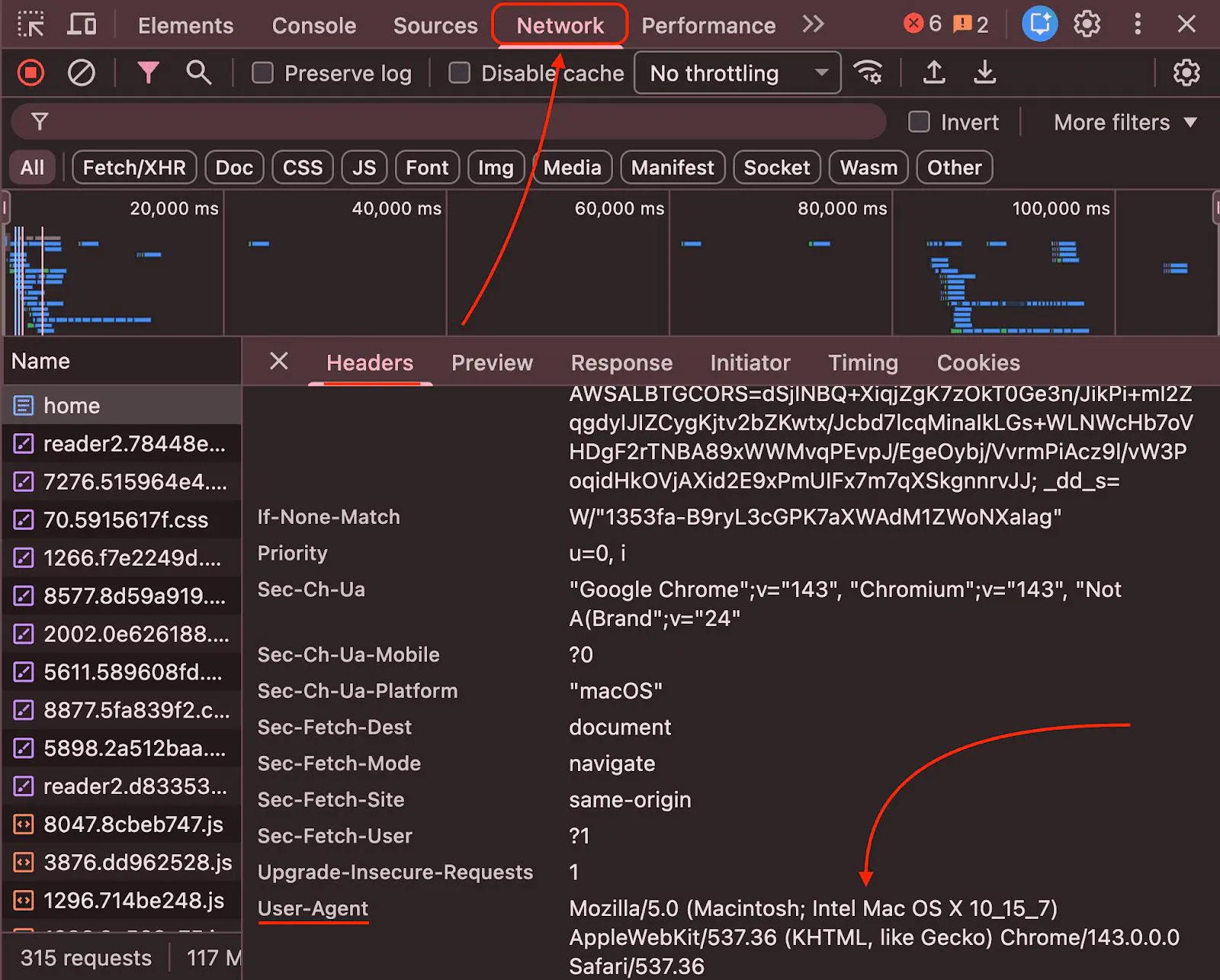
Check Client Hints through HTTP headers:
Open Chrome and visit a website that uses HTTPS.
Press F12 or Ctrl + Shift + I to open DevTools.
Select the Network tab and reload the page.
Select the main document request, then open the Headers tab.
Look for Sec-CH-UA, Sec-CH-UA-Mobile, and Sec-CH-UA-Platform under Request Headers.
In addition to HTTP headers, you can check Client Hints information through the JavaScript API by following these steps:
Switch to the Console tab in Chrome DevTools.
Type navigator.userAgentData and press Enter.
Click the arrow next to the result to view the brands, mobile, and platform properties.
Use the code in section 3.4 to retrieve High Entropy Client Hints.
Expand the result to view details such as the platform version, CPU architecture, device model, and full browser version.
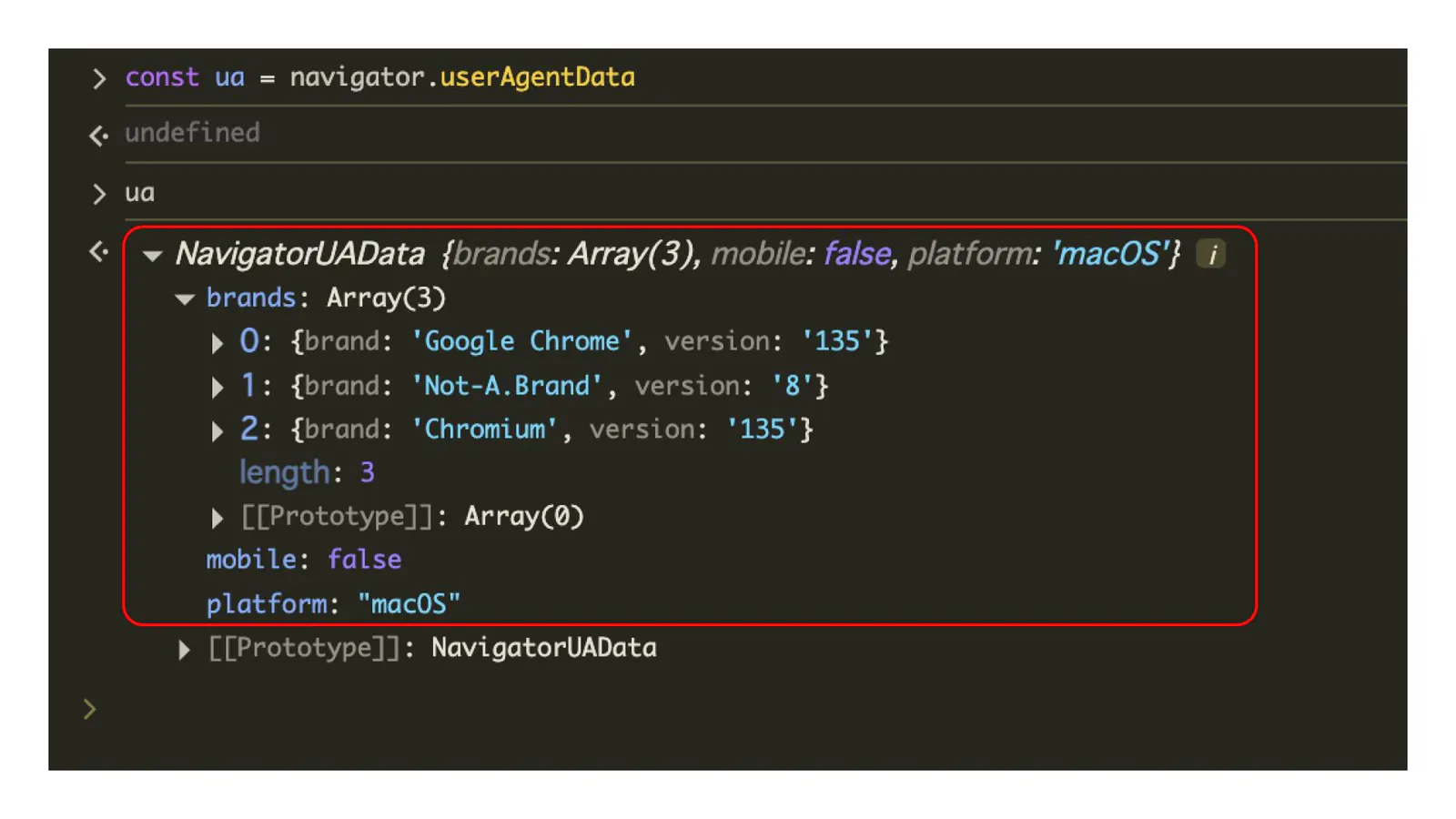
With these two methods, you can see the information your browser provides through HTTP headers and the JavaScript API. The results may vary depending on the browser, website, and permissions policy.
6.2. Check with an online tool
If you prefer not to work directly in Chrome DevTools, you can visit BrowserLeaks Client Hints to view your browser's UA-CH information.
The tool displays results in three main sections:
Your Web Browser: Shows the browser's User-Agent string.
Client Hints JavaScript API: Shows the properties retrieved through JavaScript.
Client Hints HTTP Headers: Shows the Client Hints sent through HTTP headers.
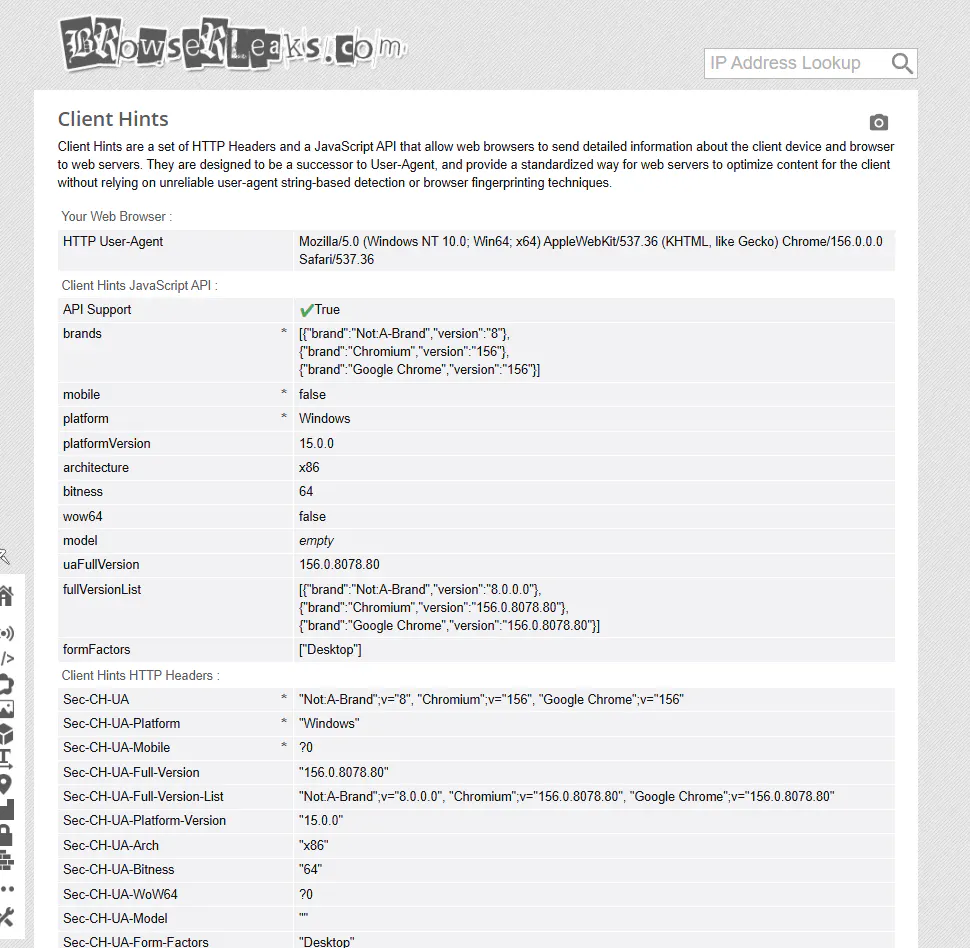
You can check parameters such as platformVersion to see the platform version, fullVersionList to see the full browser version, or architecture and bitness to learn about the device architecture.
You can also refer to the guide on testing your browser fingerprint with CreepJS to learn more about other parameters of the browser environment.
7. Conclusion
Chrome provides information about the browser and device. Instead of exposing a lot of data by default, UA-CH allows websites to retrieve information selectively. Understanding this mechanism helps you read browser parameters accurately, recognize values that are reduced by design, and evaluate browser fingerprints more thoroughly.
8. FAQ
1. What are some common User-Agent examples?
Some examples of identifying components in User-Agent strings include Chrome/130.0.0.0 on Windows, Firefox/130.0 on Linux, and Version/18.0 Safari/605.1.15 on macOS. These values are for illustration only and vary depending on the browser version and operating system.
2. What information does a User-Agent reveal?
A User-Agent provides declared information about the browser, version, operating system, and certain device characteristics. In Chrome, many detailed values have been reduced, and additional details can be retrieved through User Agent Client Hints.
3. Can a User-Agent be spoofed?
Yes. You can change the User-Agent using browser extensions or developer tools. However, changing this string does not mean you also change Client Hints or the entire browser fingerprint.
4. What is the most common User-Agent?
Chrome's User-Agent is among the most widely used because of the browser's popularity. However, no single fixed User-Agent string is always the most common, as statistics vary by time, region, and device.