When you visit a website, you don't just connect through an IP address; you also use a browser or client with its own technical characteristics. While a secure connection is being set up, the TLS parameters can be analyzed to create a connection fingerprint, known as a TLS fingerprint. So what is TLS fingerprinting, how does it work, and how is it different from JA3, JA4 or HTTP/2 fingerprinting? This article explains how it works, its common uses and how to check these signals in practice.
1. What is TLS and how does the TLS handshake work?
To understand TLS fingerprinting, you first need to know what TLS is and what information is exchanged when a secure connection is established. The TLS handshake is the key stage, because this is where the client sends technical parameters that can be used to create a connection fingerprint.
1.1. What is TLS?
TLS (Transport Layer Security) is a security protocol that protects data exchanged between a client and a server over a network. TLS provides data encryption, integrity checking and, where appropriate, server authentication.
When you visit a website over HTTPS, TLS protects the data transmitted between the browser and the server. However, using HTTPS does not mean every piece of technical information in the connection setup is hidden.
TLS has three main functions:
- Server authentication: In a typical connection, the client checks the certificate to verify the server it is connecting to.
- Data encryption: Prevents third parties from reading the exchanged content without the right keys.
- Data integrity protection: Detects data that has been modified in transit.
These functions form the foundation of an HTTPS connection. But TLS setup has another characteristic: the client must send technical parameters so both sides can agree on how to protect the connection. This information can be used to classify clients through TLS fingerprinting.
1.2. What is the TLS handshake?
The TLS handshake is the process in which the client and server exchange information to agree on security parameters before application data is sent over the TLS connection.
During this process, the client sends a ClientHello message announcing information such as the supported TLS versions, cipher suites, TLS extensions and related parameters. The server responds with corresponding messages to choose suitable parameters and continue setting up the connection.
The ClientHello plays a particularly important role in TLS fingerprinting. Its fields can differ depending on the browser, TLS library, software version and client configuration.
It's important to distinguish the TLS handshake from the whole page-loading process. The handshake is only part of establishing a secure connection. Once the connection is established, the client and server go on to exchange application data over it.
2. What is TLS fingerprinting?
TLS fingerprinting helps systems identify and classify clients through the characteristics of their TLS connections, rather than relying solely on browser-declared information. To better understand this technique, it is first necessary to clarify the concept of a TLS fingerprint and how it is used.
2.1. Definition of TLS fingerprinting
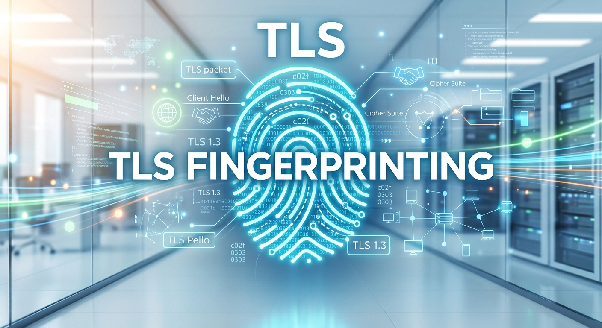
TLS fingerprinting is a technique that analyzes characteristics of the TLS connection setup to create a technical fingerprint of the client. These characteristics can include the protocol version, cipher suites, TLS extensions and related parameters.
Websites or anti-bot systems can use the TLS fingerprint to classify connections, match them against known patterns and detect unusual characteristics.
However, a TLS fingerprint is not a unique identifier for each user. Many clients can produce the same fingerprint. Conversely, the same client may produce a different fingerprint when its software version or connection configuration changes.
2.2. What information can a TLS fingerprint reveal?
A TLS fingerprint is built from selected fields in the connection setup. These fields can reflect the client's TLS capabilities and configuration.
| Information group | Meaning |
|---|---|
| Supported TLS versions | Shows the protocol versions the client can use or offers during connection setup. |
| Cipher suites | The sets of encryption algorithms the client offers |
| TLS extensions | The features or parameters the client includes in the handshake |
| Supported groups and signature algorithms | The cryptographic groups and signature algorithms supported |
| ALPN | The application protocols the client offers, such as HTTP/2 or HTTP/1.1 |
These fields help systems tell apart clients or groups of clients with different TLS implementations. However, they do not directly contain the user's identity, cookies or IP address.
Guessing the browser or software version from a TLS fingerprint can also be inaccurate. If many clients use similar configurations, their fingerprints may be identical or nearly identical. Conversely, one type of client can produce different fingerprints as its version or configuration changes.
2.3. How is a TLS fingerprint different from an IP address and a browser fingerprint?
IP addresses, TLS fingerprints and browser fingerprints can all give a system information to identify a client, but each reflects a different aspect.
| Criteria | IP address | TLS fingerprint | Browser fingerprint |
|---|---|---|---|
| Data source | Network address of the connection | Characteristics of the TLS handshake | Browser and device attributes |
| Observation layer | Network | TLS connection setup | Browser, usually via JavaScript and APIs |
| Example data | IP, ASN, approximate location | Cipher suites, extensions, ALPN | User-Agent, screen, Canvas, WebGL, language |
| Can it change when using a proxy? | Usually yes, depending on proxy type and configuration | Not necessarily | Not necessarily |
| Role in client evaluation | Signals the source of the connection | Helps classify the software making the connection | Adds information about the browser environment |
In practice, these signals complement each other in anti-bot and fraud detection systems. The IP provides information about the connection source, the TLS fingerprint reflects how the client sets up a secure connection, and the browser fingerprint adds information about the browser environment.
For example, a request whose User-Agent claims to be Chrome but whose TLS characteristics resemble a different HTTP library may prompt the system to look more closely at the client's consistency. However, this mismatch alone is not enough to conclude that the user is a bot.
3. How does TLS fingerprinting work?
TLS fingerprinting usually starts by collecting information from the TLS handshake, extracting the relevant fields and converting them into a characteristic string or hash value. The system can then compare the result with known patterns to classify the client or detect connections with unusual characteristics.
The general process has five steps:
- Capture the ClientHello: Record the ClientHello message during TLS connection setup.
- Extract parameters: Pull out the TLS version, cipher suites, extensions, supported groups and related fields.
- Normalize the data: Remove or handle values that aren't suitable for comparison, such as GREASE values in fingerprinting methods that define how to treat them.
- Create the fingerprint: Convert the selected fields into a characteristic string or hash value using a specific algorithm.
- Compare the result: Match the fingerprint against reference data while also considering signals such as the User-Agent and other connection information.
Not every system uses the same algorithm. JA3 and JA4 select, order and represent data differently, so their fingerprints cannot be compared as if they were the same format.
3.1. Which ClientHello fields make up a TLS fingerprint?
The ClientHello contains many fields that can help distinguish how clients implement TLS. The role of each field is shown in the table below.
| Field | Content | Why does it help identify clients? |
|---|---|---|
| TLS version | The TLS version offered or supported | Different clients and software versions may support different protocol versions |
| Cipher suites | The list of offered algorithm suites | The order and composition of the list can differ between clients |
| Extensions | TLS extensions | The presence, content and order of extensions can create distinctive characteristics |
| Supported groups | Supported cryptographic groups | Helps distinguish TLS configurations between clients |
| Signature algorithms | Supported signature algorithms | Reflects the client's security capabilities and configuration |
| ALPN | Offered application protocols | Provides additional information about the protocols the client can use |
A single field is usually not enough to identify a client accurately. The value of a TLS fingerprint comes from the combination of selected fields and how they are represented under each method's rules.
3.2. Why can websites read the ClientHello even over HTTPS?
HTTPS protects the data exchanged over a connection, but that doesn't mean everything is encrypted from the very first byte. In a typical TLS connection without Encrypted Client Hello (ECH), some ClientHello information can be observed before the handshake completes.
ECH is designed to encrypt the inner ClientHello, hiding some information from on-path observers. However, its protection depends on whether the client, server and related infrastructure support and deploy ECH.
So it would be wrong to claim that every intermediary can always read the full ClientHello. Visibility also depends on the connection configuration and where the analyzing component sits. The destination server, or whichever component terminates the TLS connection, can still process the information needed to establish it.
4. How do JA3 and JA4 fingerprints differ?
JA3 and JA4 are two methods for creating a TLS fingerprint from characteristics of the connection setup. They have different representations and data-processing rules, so it's important to separate how a fingerprint is created from how its result is interpreted.
4.1. What is JA3?
JA3 is a method of creating a TLS fingerprint from several fields in the ClientHello message, including the TLS version, cipher suites, TLS extensions, supported elliptic curves and elliptic curve point formats.
These values are arranged in a defined structure and then hashed to create the fingerprint. Systems can use the result to compare connections or match them against known JA3 patterns.
However, JA3 can produce different fingerprints when the fields used in the calculation change, even when the difference comes only from the order of TLS extensions. This is one of the limitations to consider when using JA3 to analyze connections.
Learn more: What is JA3 fingerprint and how websites track users
4.2. Why can JA3 fall short when the order of TLS extensions changes?
The order of data fields can affect the result of a fingerprinting method. With JA3, if the order of TLS extensions included in the string changes, the fingerprint value may change too.
This means two connections from the same type of software can still produce different JA3 results if the order of the relevant fields changes.
For example, some Chrome versions may randomize the order of TLS extensions. If the fingerprinting method records this ordering difference, the JA3 result may no longer match the value generated earlier.
However, you shouldn't conclude that JA3 has no value at all or that every Chrome version produces a different fingerprint on every connection. The result also depends on the version, client configuration and how the data is processed.
4.3. What is the JA4 fingerprint and how to read it
JA4 is a TLS fingerprinting method developed by FoxIO as part of the JA4+ family. It uses a structured format that combines a readable summary with components represented as hash values.
A notable difference between JA4 and JA3 is how they handle data order. JA4 sorts certain fields, including TLS extensions, according to its rules before hashing. This normalization reduces the effect of ordering changes on the fields it processes this way.
JA4 can provide information about the connection type, TLS version, presence of SNI, the number of cipher suites and extensions, and the offered application protocol. However, not the entire JA4 string can be read directly as information about the browser.
JA4 example:
t13d1516h2_8daaf6152771_e5627efa2ab1
This string has three parts separated by underscores, following an a_b_c structure.
| Characters | Meaning |
|---|---|
| t | Connection over TCP (q means QUIC, used for HTTP/3) |
| 13 | TLS 1.3 |
| d | A domain name (SNI) is sent |
| 15 | 15 cipher suites, counted under JA4 rules |
| 16 | 16 TLS extensions, counted under JA4 rules |
| h2 | The first application protocol is HTTP/2 |
The other two parts are hash values, not strings that can simply be decoded to recover the full browser configuration. So when reading JA4, distinguish the prefix, which can be interpreted according to the specification, from the parts that can only be used for matching.
4.4. JA3 vs. JA4
JA3 and JA4 both serve to create TLS fingerprints, but they differ in how data is represented and normalized.
| Criteria | JA3 | JA4 |
|---|---|---|
| Purpose | Creates a fingerprint from selected TLS fields | Creates a TLS fingerprint with a newer format and rules |
| Representation | A string of selected fields and a hash value | A structured string combining a summary and hash values |
| Extension order | Can affect the fingerprint | Some fields are normalized under JA4 rules |
| Readability | Depends on the string and selected data | The prefix provides additional readable information |
| Scope | Mainly the TLS ClientHello | JA4 belongs to a broader family of fingerprinting methods |
JA4 is not conclusive proof of a client's identity or legitimacy. Like JA3, its results should be interpreted in the context of the connection and can be combined with other signals.
Besides JA4 for TLS, the JA4+ family includes variants for other types of data, such as HTTP, TCP, server TLS and related protocols. When a security platform is said to use JA4, check the official documentation to identify exactly which variant and functionality is implemented.
5. What is HTTP/2 fingerprinting?
TLS fingerprinting focuses on the characteristics of the TLS connection setup. However, client identification doesn't have to stop there. How a client communicates over HTTP/2 can also reveal characteristics that distinguish different implementations.
5.1. How does HTTP/2 fingerprinting work and which signals are commonly used?
HTTP/2 fingerprinting is a technique that analyzes a client's characteristics when it communicates over HTTP/2. Unlike TLS fingerprinting, which focuses on setting up the secure connection, this method looks at how the client implements and uses HTTP/2.
Characteristics that can be analyzed include:
- The order and use of HTTP/2 SETTINGS.
- How the client sends frames during the connection.
- Stream characteristics and connection management.
- Certain protocol behaviors observable from the server side.
The specific characteristics used depend on the fingerprinting method and the data the system can collect. Not every website can observe or analyze all of these signals.
5.2. How do TLS and HTTP/2 fingerprints work together?
TLS and HTTP/2 fingerprints reflect different aspects of a client. Analyzed together, they can reveal how consistent the client is between setting up the secure connection and communicating at the HTTP/2 layer.
Consider three scenarios:
- TLS looks like a browser but HTTP/2 differs: The client may use a browser-like TLS component but send HTTP/2 with a different library.
- TLS and HTTP/2 come from different implementations: The TLS fingerprint resembles one type of client, while the SETTINGS or pseudo-header order resembles another library's implementation.
- The fingerprints don't match the User-Agent: The TLS, HTTP/2 and User-Agent signals may point to different versions or types of client.
These scenarios don't automatically prove that a client is spoofing its identity. They only show that the technical signals may not be fully consistent and need to be assessed in context.
That's why looking at the TLS fingerprint, HTTP/2 fingerprint and User-Agent together gives a fuller picture than relying on a single TLS fingerprint.
6. What do websites use TLS fingerprinting for?
TLS fingerprinting helps websites classify connections and detect certain anomalies. It is commonly used in security, anti-bot and fraud prevention systems, combined with other data to reach an appropriate assessment.
Detecting bots and automated scraping: Systems can match TLS fingerprints against known client patterns to find connections with unusual characteristics. However, a fingerprint alone isn't enough to identify a connection as a bot.
Fraud detection and account protection: By combining the TLS fingerprint with the IP, browser fingerprint, login history and access behavior, systems can spot suspicious signs during login or transactions.
Attack analysis: Connections with similar TLS characteristics can be grouped together to help analyze abnormal traffic, automated activity or related attack campaigns.
Identifying outdated or uncommon clients: A TLS fingerprint that differs from common patterns can help systems detect clients using old libraries or uncommon protocol implementations. Even so, such a difference doesn't mean the client is necessarily unsafe.
7. Why doesn't changing your proxy necessarily change your TLS fingerprint?
A proxy can change the IP address the destination server sees, but that doesn't mean the way the client sets up the TLS connection changes too. This is an important point when distinguishing network signals from connection fingerprints.
7.1. What does a proxy affect in a connection?
A proxy acts as an intermediary that relays the connection between the client and the destination server. When you use a proxy, the IP address the website sees may change, but the way the client sets up the TLS connection doesn't necessarily change with it.
If the TLS handshake takes place between the client and the destination server through a regular forwarding proxy, the characteristics generated by the TLS client may stay the same.
Conversely, if the proxy terminates the TLS connection and then opens a new TLS connection to the destination server, the website may see the fingerprint of the component connecting directly to it. The result depends on the proxy architecture and how the connection is implemented.
7.2. Why can the fingerprint stay the same after changing IP?
Consider a scenario where you use a browser or script to send requests to a website. At first, the connection goes through proxy A. Then you switch to proxy B to use a different IP address.
In this case:
- You keep the same browser or script sending the requests.
- You replace proxy A with proxy B, so the IP address the website sees changes.
- The client still uses the same TLS library and connection configuration as before.
- Because the characteristics used to create the TLS fingerprint haven't changed significantly, the fingerprint may stay the same or very similar to the original.
This scenario shows that changing your IP and changing your TLS characteristics are two different things. A proxy can change the network information the website sees, while the TLS characteristics still reflect the same client or a similar connection implementation.
If a website combines IP, TLS fingerprint, HTTP/2 fingerprint and other signals to evaluate requests, simply changing the proxy doesn't guarantee the request will be recognized as coming from a different client. So when checking results, compare multiple signals and look at how the connection is actually established.
7.3. When can a proxy change the TLS fingerprint?
A TLS fingerprint can change when the characteristics used to create it change. Common cases include:
- Switching to a different browser or TLS library.
- Updating the browser or network library version.
- Changing the TLS configuration, cipher suite list or TLS extensions.
- Using an intermediary component that terminates and re-establishes the TLS connection.
Therefore, changing your IP and changing your TLS fingerprint are two different things. If you only change the proxy but keep the same client and TLS configuration, the fingerprint may stay the same.
When checking a connection, identify which signals change because of the proxy, which come from the client and which belong to the application protocol layer. This helps you avoid confusing a change of IP address with a change in the connection's technical characteristics.
7.4. Which signals change when you switch proxy vs. switch client?
To distinguish the effect of a proxy from changing the browser or HTTP client, refer to the table below.
| Signal | Switch proxy | Switch browser or HTTP client |
|---|---|---|
| IP seen by the destination server | Usually changes | Not necessarily |
| TLS fingerprint | Doesn't necessarily change | May change |
| HTTP/2 fingerprint | Doesn't necessarily change | May change |
| User-Agent | Usually doesn't change by itself | May change |
| Cookies and browser-stored data | Don't change automatically | Depends on how data is transferred and configured |
The changes in the table are general, since actual results depend on the proxy type, how the connection is set up and the client configuration. A proxy affects the observed network information, while the way the client sets up the connection shapes the TLS fingerprint.
8. Mistakes that make a TLS fingerprint inconsistent with the client
A TLS fingerprint reflects only part of a connection's characteristics. When the declared browser information doesn't match how the client actually behaves, the identification signals can diverge. Here are four cases to watch out for.
- Changing only the User-Agent while keeping the same HTTP client: The User-Agent is information declared in the HTTP request; it doesn't directly change how the TLS library builds the ClientHello.
- User-Agent version doesn't match the actual client: If the User-Agent declares a new browser version but the TLS characteristics reflect a different library, the system may flag the inconsistency.
- Combining a real browser with a separate HTTP client: Different components may set up TLS and HTTP/2 differently, so the observed signals don't all reflect the same client implementation.
- Changing the fingerprint too often: Constantly changing technical characteristics can make the connection inconsistent over time and make troubleshooting harder.
Not every difference is a sign of a violation. When evaluating results, consider the software version, valid configurations and how the connection is implemented before drawing conclusions.
9. How to check your TLS and HTTP/2 fingerprint
Checking your fingerprint shows you which connection characteristics a tool records and helps identify the cause when results differ from what you expect. For the comparison to be meaningful, keep your test conditions consistent and understand the data each tool provides.
9.1. Steps to check your fingerprint
You can follow these steps:
- Open the profile you want to check: Use the exact profile and proxy you want to evaluate.
- Check the TLS fingerprint: Visit a tool such as BrowserLeaks TLS to see what TLS information it can collect.
- Check additional connection information: You can use tls.peet.ws to view TLS characteristics and related information the tool provides.
- Check the HTTP/2 fingerprint: If the tool supports it, record the HTTP/2 parameters and the protocol information the client uses.
- Compare the results: Compare the TLS fingerprint, HTTP/2 fingerprint and User-Agent with a reference browser of the matching version. Note the version, operating system and connection configuration of each test.
- Re-test after configuration changes: If you update the browser core, change the HTTP client or change how you connect, run the test again to see which fields actually changed.
Not every testing site shows all the TLS or HTTP/2 fields that anti-bot systems can observe. So review the data scope of each tool before evaluating.
9.2. What does it mean if your result differs from regular Chrome?
If your fingerprint differs from a reference Chrome version, it means the measured characteristics aren't exactly the same. The cause could be the Chrome version, operating system, TLS configuration, negotiated protocol or test environment.
Don't rely on a single fingerprint string to conclude whether a connection is spoofed or unsafe. Check the client information and test conditions as well before drawing conclusions.
10. How does Hidemyacc relate to TLS fingerprinting?
When managing multiple accounts, maintaining consistent profile configurations is part of the workflow. You need to look at browser data, profile information and how the network connection is set up, rather than just checking the IP address.
Antidetect browser Hidemyacc helps you manage separate browser profiles so you can organize data and settings for each use case. However, profile management doesn't mean every component of the TLS fingerprint can be customized independently or guaranteed to be identical to another browser.
10.1. Why maintain consistency between signals?
When managing multiple accounts, each profile can use its own browser data and proxy. The TLS fingerprint is one of the connection-related signals, alongside IP, User-Agent, browser fingerprint, cookies and usage behavior.
If a profile declares browser information that doesn't match the actual client, the system may detect differences between signals. However, you can't rely on the TLS fingerprint alone to conclude whether a profile is safe or not.
The goal of testing is to understand the configuration in use and find verifiable inconsistencies. Don't assume that a profile with a common fingerprint will always be accepted by websites, since each platform may apply its own policies and evaluation methods.
10.2. Profile setup and testing process
Follow these steps to set up a profile and check the connection parameters:
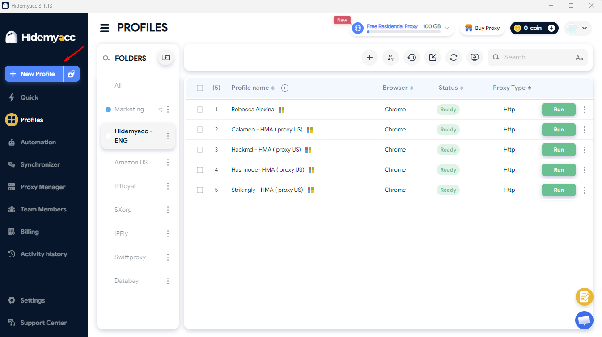
Step 1: Create a profile: Open Hidemyacc, click New Profile and enter a profile name in the Name field.
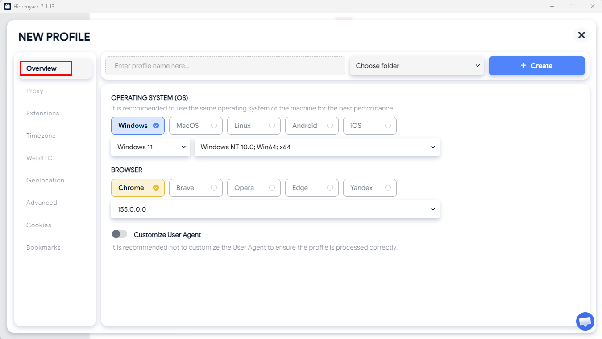
Step 2: Configure the browser: In the Overview section, check the operating system and browser configuration.
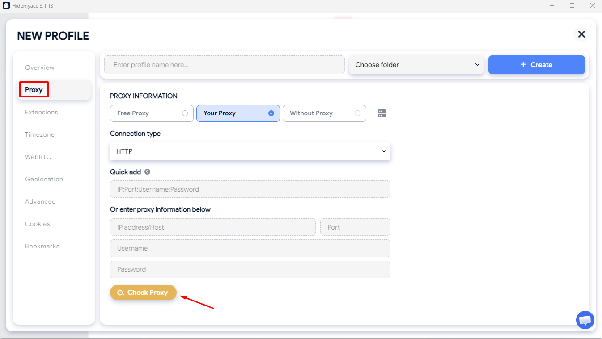
Step 3: Set up the proxy: Switch to the Proxy tab, choose the appropriate proxy type, enter the connection details and click Check Proxy.
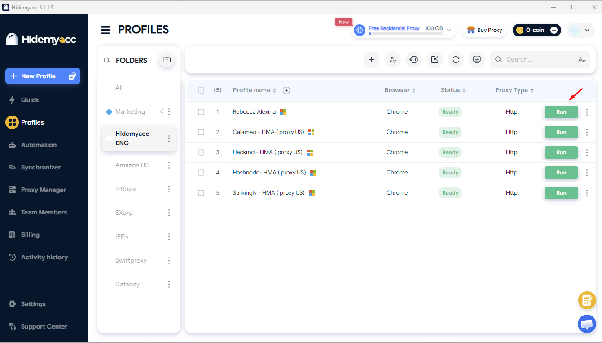
Step 4: Launch the profile: Click Create to save the profile. Then click Run on the newly created profile.
Step 5: Check the fingerprint: Visit BrowserLeaks TLS or tls.peet.ws to view the TLS and HTTP/2 parameters the tool provides.
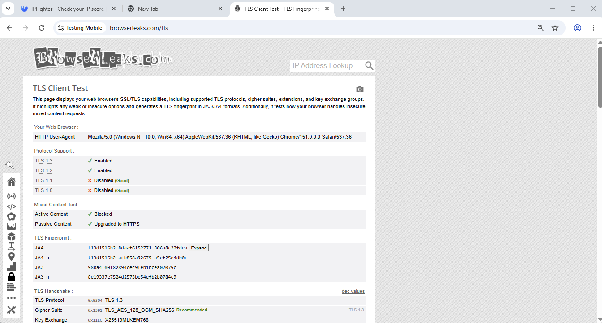
Step 6: Compare the results: Record the results along with the browser version and connection configuration so you can compare when re-testing.
Note: Test results reflect the actual connection parameters at the time of testing. Don't conclude that every component of the TLS fingerprint is identical based only on the User-Agent or a single test result.
10.3. Limitations to understand
Profile management helps you organize browser data and settings, but it doesn't mean you control the entire TLS fingerprint generation process. The result also depends on the browser core, network library, protocol version and connection architecture.
Even if the TLS fingerprint matches a group of reference browsers, that doesn't guarantee the account won't be asked for verification, restricted or banned. Platforms may also consider account history, behavior, payment methods and the requirements in their terms of service.
So treat the TLS fingerprint as a technical signal to understand and check, not the only criterion for evaluating profile quality or the likelihood of being accepted by a platform.
11. Key points to remember when evaluating TLS fingerprinting
When evaluating TLS fingerprinting, look at multiple connection characteristics rather than a single signal. Here are the key points to remember:
- Prioritize consistency: Evaluate the TLS fingerprint, HTTP/2 fingerprint and User-Agent in relation to each other.
- Don't rely only on IP: Changing the proxy doesn't change how the client performs the TLS handshake.
- Check multiple layers: TLS and HTTP/2 fingerprints reflect different characteristics of the connection.
- Re-test after configuration changes: Updating the browser, network library or configuration can affect the fingerprint.
- Don't treat a fingerprint as absolute proof: Bot detection systems may combine many types of data to evaluate a connection.
Understanding these limitations helps you interpret TLS fingerprinting results more accurately, avoid conclusions based on a single metric and know when to check other connection characteristics.
12. Conclusion
TLS fingerprinting helps websites analyze the characteristics of secure connection setup to classify clients and help detect abnormal activity. Alongside JA3 and JA4, HTTP/2 fingerprinting provides more information about how a client communicates at the application layer.
The key is to distinguish the TLS fingerprint from the IP address and the browser fingerprint. Changing your proxy doesn't necessarily change your TLS fingerprint, because the result also depends on the client, TLS library and connection architecture. When testing, look at multiple signals together and put the results in the right technical context.
Read more:
- AudioContext Fingerprint: How it works and how to protect against it
- What is a device fingerprint and how to change it?
- Learn about Canvas fingerprint and how to protect your browser identity
- How to check and enable WebGL fingerprint
13. FAQ
1. How long does a TLS handshake take?
The actual time depends on network latency and how the connection is set up. In a typical flow, TLS 1.3 can complete the handshake in one network round trip, while TLS 1.2 usually needs two. TLS 1.3 also supports 0-RTT for some resumed connections, but this mechanism has its own security limitations.
2. Can a TLS fingerprint reveal my identity?
A TLS fingerprint usually helps classify client groups or connection characteristics; it doesn't directly reveal your real identity. Websites may combine it with IP, cookies, browser fingerprint and account data to evaluate a session.
3. Does using a VPN or incognito mode change my TLS fingerprint?
Usually, a VPN or incognito mode doesn't change the TLS fingerprint generated by the browser. A VPN mainly affects the network route and the IP the website sees, while incognito mode mainly changes how the browser stores data locally. The actual effect still depends on the client and connection architecture.
4. Does HTTP/3 have a TLS fingerprint?
Yes. HTTP/3 uses QUIC, where TLS 1.3-based security is integrated into the QUIC connection setup. Fingerprinting methods that support QUIC can identify characteristics of this connection type, but the format and data collection may differ from TLS over TCP.
5. How do I get a TLS certificate for my website?
You can get a TLS certificate from a certificate provider or use a certificate service such as Let's Encrypt. Some hosting and CDN services also issue or manage certificates for websites. A TLS certificate belongs to the server side and is different from the TLS fingerprint, which is created from the client's connection characteristics.