Trong bài review Browserleaks này, chúng ta sẽ tìm hiểu công cụ kiểm tra được những gì, cách sử dụng để test profile trình duyệt và những dấu hiệu bất thường cần chú ý khi đánh giá fingerprint. Bài viết cũng hướng dẫn cách kết hợp Browserleaks với antidetect browser Hidemyacc để kiểm tra độ nhất quán của hồ sơ trước khi đưa vào sử dụng.
1. Browserleaks là gì và kiểm tra được những gì?
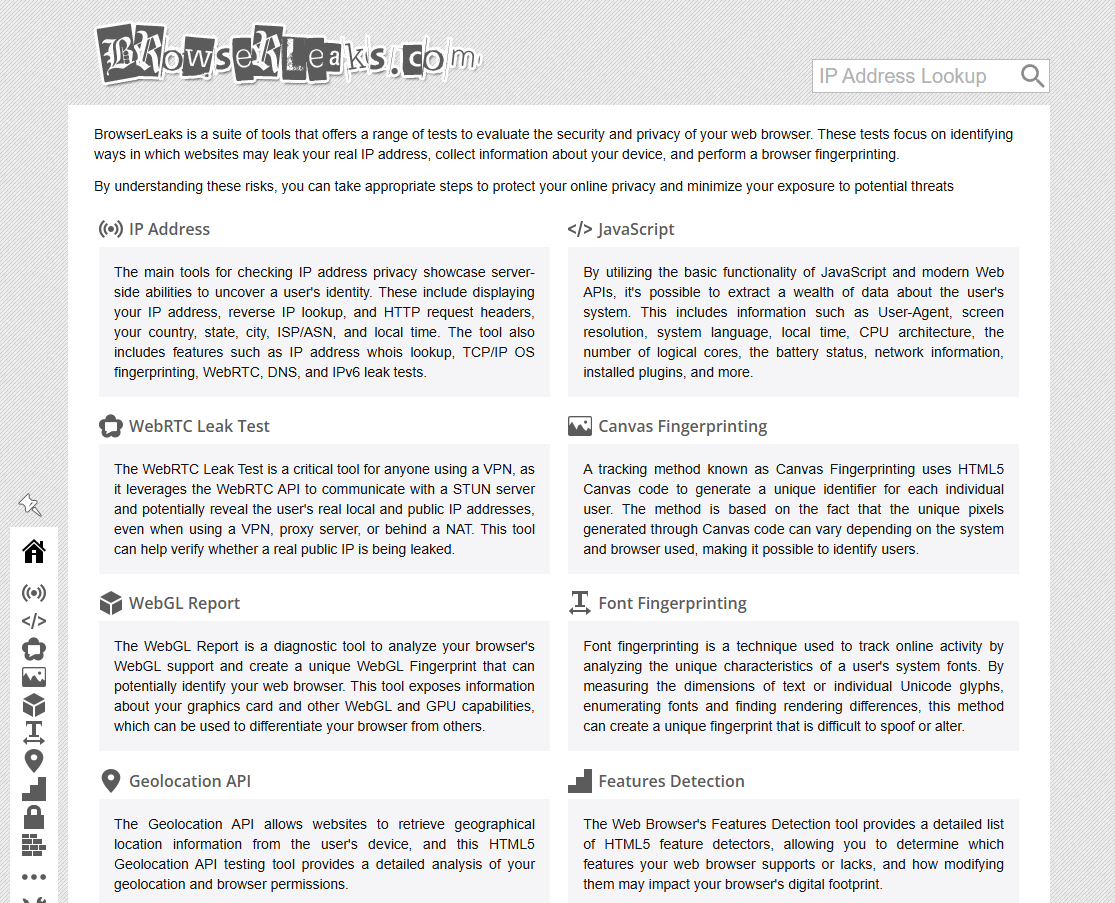
Browserleaks là công cụ web miễn phí giúp phân tích các thông tin mà website có thể thu thập từ trình duyệt của bạn. Thay vì chỉ hiển thị một kết quả tổng hợp, Browserleaks cho phép xem chi tiết từng chỉ số riêng lẻ, từ địa chỉ IP, WebRTC cho đến các dấu vân tay trình duyệt như Canvas hay WebGL.
Đây là công cụ được nhiều người sử dụng khi cần đánh giá profile trình duyệt, kiểm tra mức độ rò rỉ thông tin hoặc xác minh độ nhất quán của browser fingerprint trước khi vận hành tài khoản.
1.1. Tổng quan nhanh về browserleaks
Browserleaks hoạt động hoàn toàn trên nền web và không yêu cầu cài đặt phần mềm. Người dùng chỉ cần truy cập website, mở các module kiểm tra tương ứng và xem kết quả trực tiếp trên trình duyệt.
Điểm mạnh của Browserleaks nằm ở khả năng hiển thị chi tiết từng nhóm dữ liệu. Thay vì chỉ đưa ra một điểm số tổng quát, công cụ này cho phép kiểm tra từng lớp thông tin mà website có thể nhìn thấy.
So với các công cụ khác, Browserleaks có cách tiếp cận khá khác biệt:
- CreepJS tập trung vào việc đánh giá mức độ độc nhất của fingerprint và đưa ra điểm tổng hợp.
- Cover Your Tracks tập trung nhiều hơn vào khả năng theo dõi người dùng.
- Pixelscan cung cấp báo cáo tổng hợp về môi trường trình duyệt.
Trong khi đó, Browserleaks cho phép người dùng đi sâu vào từng chỉ số riêng lẻ để xác định chính xác vị trí xuất hiện bất thường.
Tìm hiểu thêm: Pixelscan Review 2026: Tool kiểm tay dấu vân tay trình duyệt
1.2. Danh sách chỉ số Browserleaks kiểm tra
Browserleaks cung cấp nhiều nhóm công cụ khác nhau để kiểm tra môi trường trình duyệt. Một số chỉ số quan trọng bao gồm:
- IP Address và WebRTC
- Canvas Fingerprint và WebGL Fingerprint
- User Agent, thông tin trình duyệt và hệ điều hành.
- Múi giờ, ngôn ngữ và độ phân giải màn hình.
- JavaScript, Cookie, Local Storage và Do Not Track.
- Vị trí địa lý, thông tin mạng và DNS Leak.
Nhờ số lượng module phong phú, Browserleaks có thể giúp người dùng đánh giá tương đối đầy đủ cách một profile trình duyệt được nhận diện trên Internet.
2. Cách dùng Browserleaks để test profile trình duyệt
Để kết quả kiểm tra phản ánh chính xác môi trường đang sử dụng, bạn nên chuẩn bị profile trước khi tiến hành test.
2.1. Trước khi test cần chuẩn bị gì
Trước khi mở Browserleaks, hãy đảm bảo một số điều kiện cơ bản sau:
- Mở đúng hồ sơ trình duyệt cần kiểm tra, có thể là antidetect browser hoặc trình duyệt thông thường.
- Đảm bảo proxy hoặc VPN đã được kết nối nếu đang sử dụng.
- Tắt các extension không liên quan để tránh làm thay đổi kết quả.
- Hoàn tất các thiết lập về ngôn ngữ, múi giờ hoặc fingerprint nếu cần chỉnh sửa.
Việc chuẩn bị trước sẽ giúp hạn chế tình trạng kết quả kiểm tra bị sai lệch do những yếu tố bên ngoài.
2.2. Các bước test cơ bản
Sau khi chuẩn bị xong, bạn có thể tiến hành kiểm tra theo các bước sau:
- Bước 1: Mở Browserleaks trong hồ sơ trình duyệt cần test: Hãy mở đúng profile muốn kiểm tra thay vì sử dụng trình duyệt mặc định trên máy tính.
- Bước 2: Kiểm tra lần lượt các module quan trọng: Truy cập các module như IP Check, WebRTC, Canvas và User-Agent. Đây là những chỉ số thường ảnh hưởng trực tiếp đến khả năng nhận diện profile.
- Bước 3: Chụp màn hình hoặc lưu kết quả để so sánh giữa các lần test: Bạn có thể chụp màn hình hoặc lưu lại các thông số quan trọng để tiện đối chiếu trong những lần test tiếp theo.
- Bước 4: So sánh với cấu hình đã thiết lập: Đối chiếu các thông số hiển thị trên Browserleaks với cấu hình của profile. Nếu xuất hiện các mâu thuẫn giữa IP, múi giờ, User Agent hoặc thông số phần cứng, cần điều chỉnh lại trước khi sử dụng.
Chỉ mất vài phút kiểm tra nhưng có thể giúp hạn chế nhiều rủi ro liên quan đến rò rỉ thông tin hoặc mâu thuẫn fingerprint.
2.3. Thứ tự ưu tiên khi kiểm tra
Không phải chỉ số nào cũng có mức độ quan trọng như nhau. Khi kiểm tra profile, bạn nên ưu tiên theo thứ tự sau:
- Ưu tiên cao: IP leak và rò rỉ WebRTC vì đây là hai chỉ số dễ lộ nhất và ảnh hưởng trực tiếp đến tài khoản
- Ưu tiên trung bình: dấu vân tay canvas và User-Agent vì liên quan đến nhận diện dài hạn
- Ưu tiên thấp hơn: múi giờ, ngôn ngữ, độ phân giải vì có tính bổ trợ và ít rủi ro hơn khi IP đã sạch
Các chỉ số ở nhóm ưu tiên thấp tuy ít ảnh hưởng hơn IP hoặc WebRTC, nhưng vẫn cần được thiết lập nhất quán với vị trí địa lý, thiết bị và các thông số khác trong profile để tránh tạo ra những dấu hiệu bất thường.
3. Phân tích chi tiết từng nhóm công cụ
Browserleaks cung cấp nhiều module khác nhau để kiểm tra browser fingerprint. Mỗi module phản ánh một nhóm dữ liệu riêng mà website có thể sử dụng để nhận diện hoặc đánh giá độ tin cậy của profile.
3.1. IP Address và WebRTC
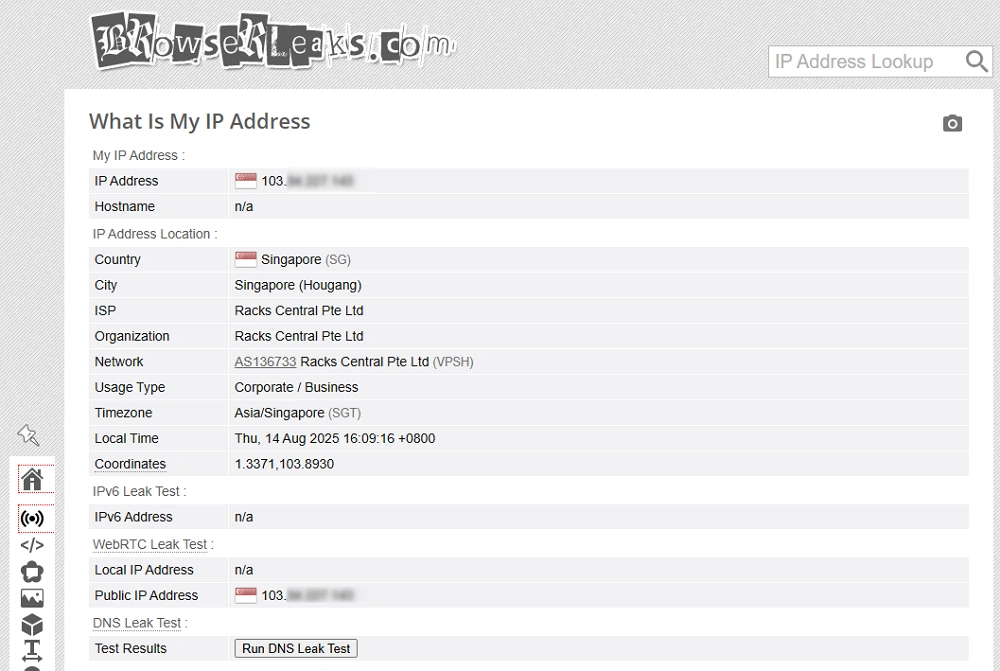
IP address và WebRTC là hai module được kiểm tra đầu tiên khi đánh giá một profile trình duyệt. Đây cũng là những chỉ số có khả năng làm lộ thông tin thực tế của người dùng nếu cấu hình chưa chính xác.
Trong Browserleaks, phần kiểm tra IP không chỉ hiển thị địa chỉ IP công khai mà còn cung cấp nhiều thông tin liên quan như vị trí địa lý, nhà mạng, múi giờ, tiêu đề yêu cầu và một số đặc điểm của kết nối mạng. Các nền tảng thường đánh giá những dữ liệu này cùng nhau thay vì xem từng chỉ số riêng lẻ.
Bên cạnh đó, WebRTC là công nghệ hỗ trợ giao tiếp thời gian thực trên trình duyệt. Khi hoạt động, WebRTC có thể sử dụng máy chủ STUN để xác định địa chỉ mạng của thiết bị. Nếu không được cấu hình phù hợp, địa chỉ IP thật vẫn có thể bị lộ ngay cả khi đang sử dụng proxy hoặc VPN.
Một kết quả được xem là bình thường khi:
- Địa chỉ IP hiển thị trùng với proxy hoặc VPN đang sử dụng.
- Không xuất hiện địa chỉ IP thật trong mục WebRTC.
- Vị trí địa lý, múi giờ và ngôn ngữ không có mâu thuẫn rõ ràng với nhau.
Ngược lại, nếu Browserleaks hiển thị cả IP proxy và IP thật trong phần WebRTC, đây là dấu hiệu cần xử lý trước khi tiếp tục sử dụng profile.
3.2. Canvas Fingerprint
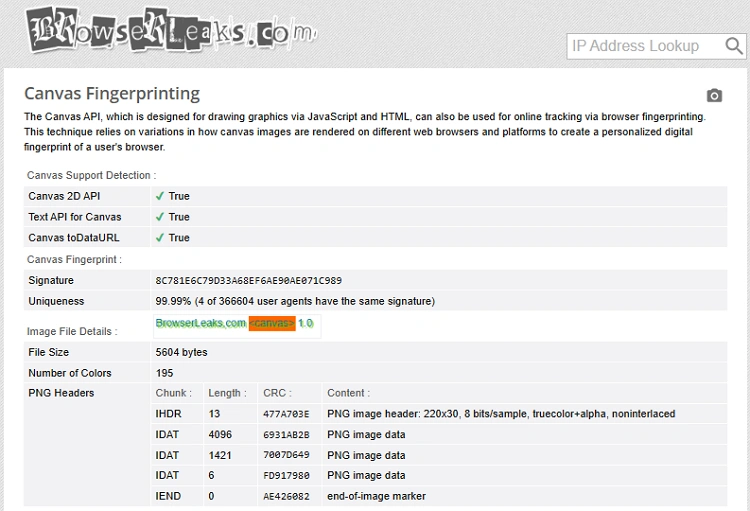
Canvas Fingerprint là một trong những kỹ thuật nhận diện trình duyệt phổ biến hiện nay. Thay vì thu thập thông tin trực tiếp từ người dùng, website sẽ yêu cầu trình duyệt tạo ra một hình ảnh ẩn bằng Canvas API rồi phân tích kết quả trả về.
Kết quả này chịu ảnh hưởng bởi nhiều yếu tố như hệ điều hành, card đồ họa, trình điều khiển, trình duyệt và bộ font chữ đang được cài đặt. Vì vậy, hai thiết bị khác nhau thường sẽ tạo ra các mã nhận dạng khác nhau.
Browserleaks cho phép kiểm tra và hiển thị trực tiếp dấu vân tay Canvas của profile. Đây là thông tin thường được sử dụng để phân biệt các trình duyệt có cùng địa chỉ IP hoặc cùng User-Agent.
Khi đánh giá kết quả Canvas Fingerprint, bạn nên lưu ý:
- Mỗi profile nên có mã nhận dạng phù hợp với môi trường đã khai báo.
- Không nên xuất hiện các tổ hợp thông số bất thường hoặc thiếu nhất quán.
- Nếu nhiều profile có cùng dấu vân tay Canvas, nguy cơ bị liên kết giữa các tài khoản sẽ tăng lên.
Canvas không phải là yếu tố duy nhất quyết định độ an toàn của profile, nhưng đây là một trong những chỉ số được nhiều hệ thống chống gian lận sử dụng.
3.3. WebGL và Audio
Bên cạnh Canvas, Browserleaks còn cung cấp các module kiểm tra WebGL và Audio Fingerprint để đánh giá sâu hơn môi trường trình duyệt.
WebGL là công nghệ hỗ trợ xử lý đồ họa trên trình duyệt. Thông qua WebGL, website có thể thu thập các thông tin liên quan đến card đồ họa, trình điều khiển và khả năng xử lý hình ảnh của thiết bị.
Các dữ liệu này thường được đối chiếu với User-Agent và hệ điều hành. Ví dụ, nếu profile khai báo là thiết bị macOS nhưng thông tin WebGL lại cho thấy dấu hiệu của môi trường Windows, đây có thể được xem là một mâu thuẫn cần chú ý.
Trong khi đó, Audio Fingerprint hoạt động bằng cách yêu cầu trình duyệt xử lý tín hiệu âm thanh thông qua Web Audio API. Giá trị trả về sẽ chịu ảnh hưởng của phần cứng, trình duyệt và hệ điều hành.
Khi kiểm tra Audio, người dùng thường thấy các trạng thái như:
- Probably
- Maybe
Đây là phản hồi bình thường của trình duyệt đối với các định dạng âm thanh khác nhau và không phải dấu hiệu của lỗi cấu hình.
Nhìn chung, WebGL và Audio không phải là những chỉ số được ưu tiên xử lý đầu tiên. Tuy nhiên, chúng vẫn đóng vai trò quan trọng trong việc đánh giá mức độ nhất quán của toàn bộ profile.
3.4. User-Agent
User-Agent là chuỗi thông tin mà trình duyệt gửi tới website để mô tả môi trường đang sử dụng. Dữ liệu này thường bao gồm tên trình duyệt, phiên bản trình duyệt, hệ điều hành và một số thông tin liên quan đến thiết bị.
Nhiều website sử dụng User-Agent như một lớp dữ liệu cơ bản để nhận diện môi trường truy cập. Tuy nhiên, thay vì đánh giá riêng lẻ, User-Agent thường được đối chiếu với các chỉ số khác như WebGL, múi giờ, ngôn ngữ và địa chỉ IP.
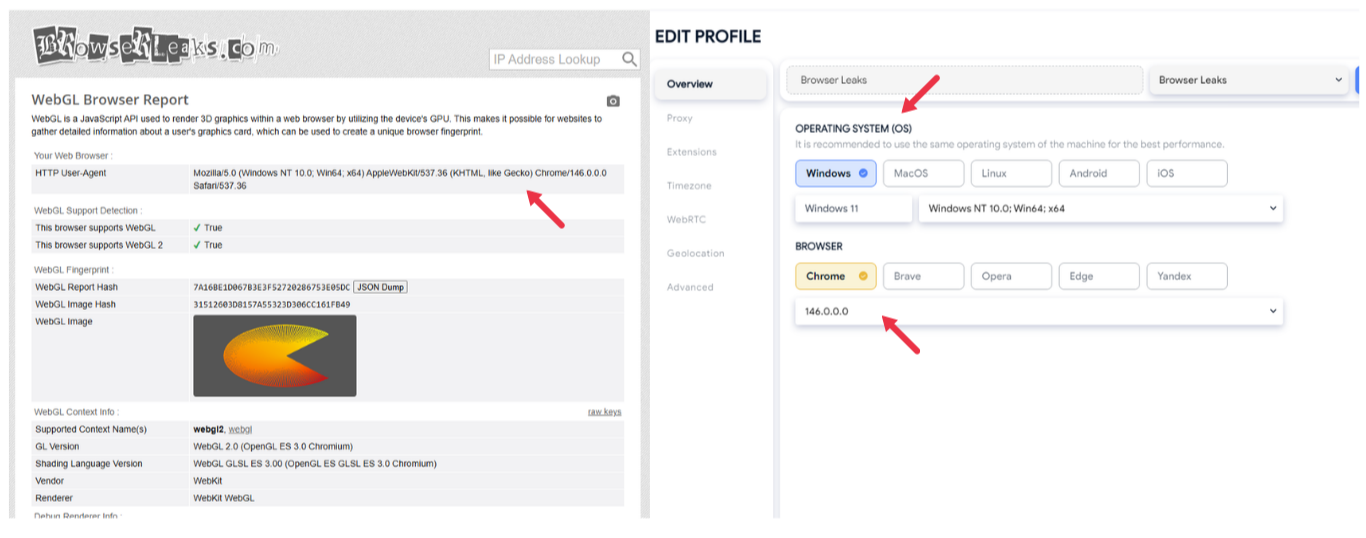
Khi kiểm tra User-Agent trên Browserleaks, điều quan trọng nhất là tính nhất quán với toàn bộ profile. Một User-Agent hợp lý cần khớp với hệ điều hành, trình duyệt và cấu hình đã thiết lập trong hồ sơ.
Một số mâu thuẫn thường gặp bao gồm:
- User-Agent khai báo Windows nhưng các thông số phần cứng lại giống môi trường macOS.
- User-Agent hiển thị phiên bản trình duyệt không tương ứng với các tính năng được hỗ trợ.
- User-Agent phù hợp với một khu vực nhưng múi giờ và vị trí địa lý lại thuộc khu vực khác.
Những bất thường này có thể khiến profile trông thiếu tự nhiên khi được đánh giá cùng các lớp dữ liệu khác.
3.5. Timezone và Geolocation
Timezone và Geolocation là hai chỉ số thường được sử dụng để xác minh tính hợp lý của môi trường truy cập.
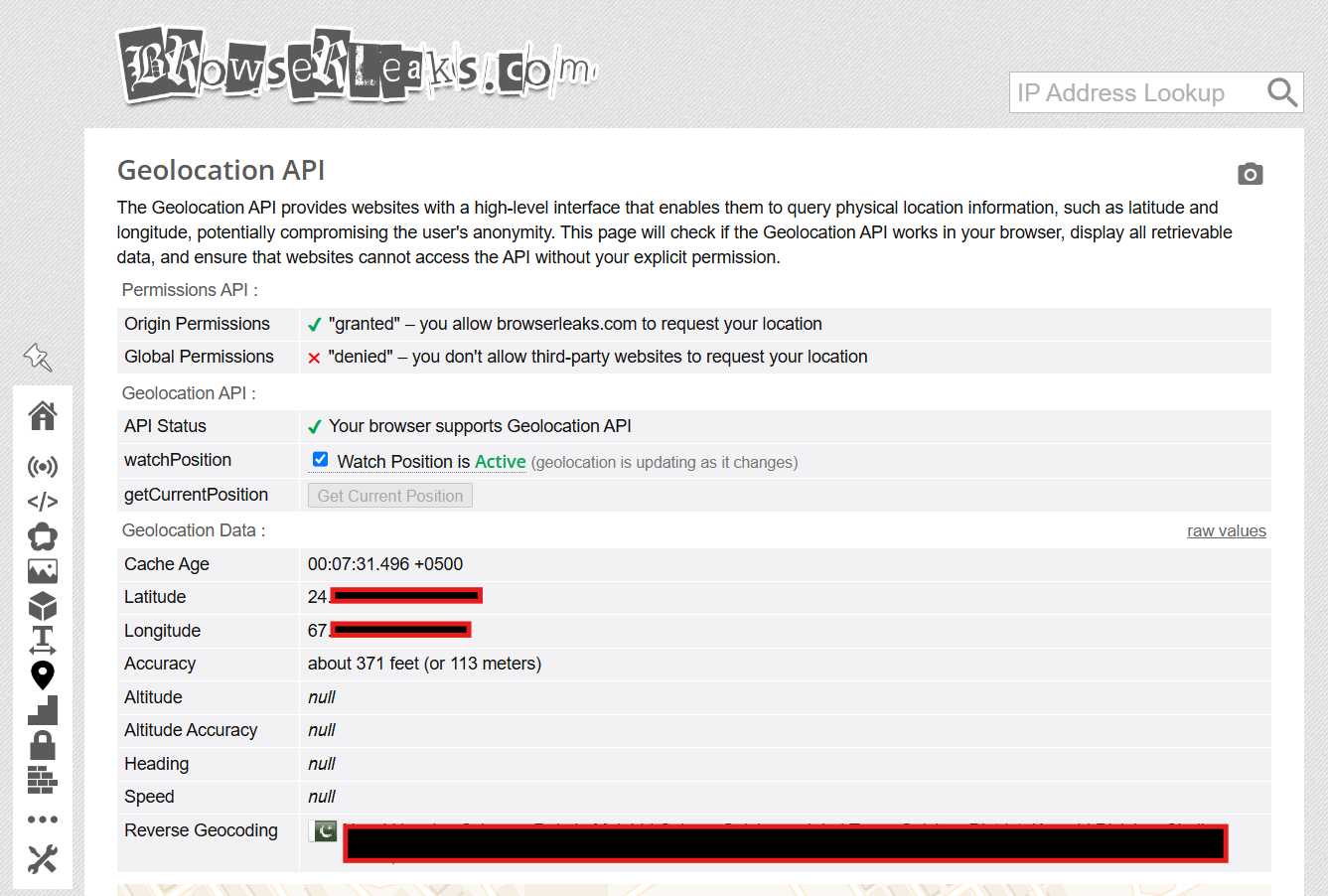
Timezone thể hiện múi giờ mà trình duyệt đang sử dụng. Trong khi đó, Geolocation là vị trí được trả về thông qua Geolocation API khi người dùng cấp quyền truy cập vị trí cho website.
Khi đánh giá profile, các nền tảng thường đối chiếu múi giờ với vị trí địa lý của địa chỉ IP. Nếu hai dữ liệu này không khớp nhau, profile có thể bị xem là bất thường.
Ví dụ, nếu địa chỉ IP đang ở Mỹ nhưng múi giờ lại hiển thị Asia/Ho_Chi_Minh, đây là mâu thuẫn dễ bị phát hiện.
Đối với Geolocation, trình duyệt chỉ cung cấp dữ liệu khi người dùng đồng ý cấp quyền truy cập vị trí. Trong trường hợp đã cấp quyền, vị trí trả về nên tương thích với khu vực của địa chỉ IP đang sử dụng.
Một kết quả được xem là hợp lý khi:
- Múi giờ phù hợp với vị trí địa lý của IP.
- Ngôn ngữ, khu vực và múi giờ không mâu thuẫn với nhau.
- Geolocation phản ánh đúng khu vực đang mô phỏng nếu người dùng cấp quyền truy cập vị trí.
Điều quan trọng không phải là múi giờ hay vị trí địa lý hiển thị ở đâu, mà là chúng phải phù hợp với các thông số khác trong cùng một profile.
3.6. Features Detection và Client Hints
Bên cạnh các dấu vân tay phổ biến, Browserleaks còn cung cấp các công cụ giúp kiểm tra khả năng hỗ trợ tính năng của trình duyệt.
Features Detection là cơ chế xác định những tính năng mà trình duyệt có thể sử dụng, bao gồm các API, CSS, JavaScript và khả năng xử lý đa phương tiện. Thông qua đó, website có thể đánh giá môi trường đang truy cập có thực sự phù hợp với trình duyệt và hệ điều hành đã khai báo hay không.
Xem kết quả Features Detection, điều quan trọng không phải là tất cả tính năng đều được hỗ trợ. Trên thực tế, mỗi trình duyệt sẽ có những giới hạn riêng và việc thiếu một số tính năng là hoàn toàn bình thường.
Trong khi đó, Client Hints là cơ chế cho phép trình duyệt gửi thêm thông tin về thiết bị thông qua các tiêu đề yêu cầu. Các dữ liệu này có thể bao gồm nền tảng, kiến trúc hệ thống hoặc phiên bản trình duyệt. Nếu trình duyệt không hỗ trợ Client Hints, website sẽ chỉ nhận được User-Agent cơ bản. Đây không phải là lỗi cấu hình.
Ví dụ, Safari hiện giới hạn khá nhiều thông tin Client Hints. Đây là hành vi mặc định của trình duyệt và không được xem là dấu hiệu bất thường.
3.7. SSL/TLS và JA3/JA4
Ngoài các thông số hiển thị trên trình duyệt, Browserleaks còn cung cấp một số dữ liệu liên quan đến kết nối mạng như SSL/TLS, JA3 và JA4.
Khi trình duyệt thiết lập kết nối HTTPS, nhiều thông tin kỹ thuật sẽ được trao đổi trong quá trình bắt tay TLS. Từ những dữ liệu này, hệ thống có thể tạo ra dấu vân tay kết nối để phục vụ việc nhận diện môi trường truy cập.
JA3 và JA4 là các phương pháp tổng hợp những thông tin đó thành mã nhận dạng. Chúng giúp đánh giá liệu kết nối mạng có phù hợp với trình duyệt và môi trường đã khai báo hay không.
Một kết quả được xem là bình thường khi:
- TLS 1.3 hoặc TLS 1.2 được sử dụng.
- Các giao thức cũ không còn được bật.
- JA3 và JA4 phù hợp với hành vi thông thường của trình duyệt đang sử dụng.
Đây không phải là nhóm chỉ số cần ưu tiên kiểm tra đầu tiên, nhưng vẫn có thể được sử dụng để phát hiện những bất thường trong cấu hình profile.
4. Dấu hiệu bất thường thường gặp trong kết quả kiểm tra
Phân tích kết quả trên Browserleaks không nên chỉ dựa vào từng chỉ số riêng lẻ. Một thông số bất thường chưa chắc là vấn đề, nhưng nếu nhiều dữ liệu hiển thị không khớp với nhau, profile có thể trở nên thiếu tự nhiên trong mắt các hệ thống nhận diện.
4.1. Mâu thuẫn giữa múi giờ, vị trí địa lý và ngôn ngữ
Đây là một trong những lỗi phổ biến và dễ bị phát hiện nhất. Nếu địa chỉ IP, múi giờ và ngôn ngữ trình duyệt đang trỏ về các khu vực khác nhau, hồ sơ sẽ xuất hiện nhiều dấu hiệu khó giải thích.
Ví dụ, địa chỉ IP ở Mỹ nhưng trình duyệt sử dụng múi giờ Asia/Ho_Chi_Minh và ngôn ngữ mặc định là tiếng Nga. Những tổ hợp như vậy thường làm tăng mức độ nghi ngờ khi hệ thống đánh giá môi trường truy cập.
4.2. Mâu thuẫn giữa các lớp dữ liệu nhận dạng
Nhiều người chỉ tập trung chỉnh sửa một vài thông số riêng lẻ mà bỏ qua mối liên hệ giữa các nhóm dữ liệu.
Một số trường hợp thường gặp bao gồm:
- User-Agent không tương ứng với hệ điều hành đang khai báo.
- Thông tin WebGL không phản ánh đúng môi trường phần cứng.
- Client Hints hiển thị khác với User-Agent.
- Dấu vân tay TLS không giống hành vi thông thường của trình duyệt đang sử dụng.
Những dấu hiệu này khiến hồ sơ trình duyệt trở nên kém tự nhiên và dễ thu hút sự chú ý của các hệ thống đánh giá rủi ro.
4.3. Nhầm lẫn giữa IP sạch và profile sạch
Việc không bị rò rỉ địa chỉ IP không đồng nghĩa với việc profile đã an toàn. Trong nhiều trường hợp, các tài khoản vẫn có thể bị liên kết nếu sử dụng cùng fingerprint hoặc xuất hiện các dấu hiệu bất thường ở những nhóm dữ liệu khác.
Vì vậy, ngoài IP và WebRTC, bạn cũng nên kiểm tra các chỉ số như Canvas, WebGL và User-Agent.
4.4. Bỏ qua kiểm tra WebRTC
Nhiều người chỉ xem phần IP Address rồi kết luận rằng profile đã sạch. Tuy nhiên, WebRTC mới là nơi thường xảy ra tình trạng rò rỉ địa chỉ IP thật.
Nếu WebRTC vẫn hiển thị IP thật của thiết bị hoặc mạng nội bộ, các nền tảng vẫn có thể thu thập được thông tin ngoài proxy hoặc VPN đang sử dụng.
Đây là lý do WebRTC luôn được xếp vào nhóm chỉ số cần ưu tiên kiểm tra đầu tiên.
4.5. Kiểm tra sai hồ sơ trình duyệt
Một lỗi khác khá thường gặp là mở Browserleaks bằng trình duyệt mặc định trên máy tính thay vì profile cần đánh giá.
Khi đó, kết quả hiển thị sẽ không phản ánh đúng cấu hình của hồ sơ đang sử dụng, dẫn đến việc kiểm tra mất ý nghĩa.
Trước khi bắt đầu test, hãy đảm bảo Browserleaks được mở trực tiếp trong profile cần kiểm tra.
4.6. Chỉ kiểm tra một lần duy nhất
Fingerprint có thể thay đổi khi bạn đổi proxy, cập nhật trình duyệt hoặc điều chỉnh cấu hình hồ sơ.
Vì vậy, việc kiểm tra chỉ một lần rồi sử dụng lâu dài chưa chắc đã đủ. Mỗi khi có thay đổi liên quan đến môi trường trình duyệt, bạn nên chạy lại Browserleaks để xác nhận các thông số vẫn hoạt động như mong muốn.
Trên thực tế, nhiều profile gặp vấn đề không phải vì một thông số cụ thể, mà do các dữ liệu hiển thị đang kể những câu chuyện khác nhau về cùng một thiết bị. Việc phát hiện sớm những điểm bất thường này thường hiệu quả hơn nhiều so với việc cố gắng tối ưu từng chỉ số riêng lẻ.
5. Sử dụng Browserleaks cùng antidetect browser Hidemyacc
Browserleaks giúp hiển thị những thông tin mà website có thể thu thập từ trình duyệt của bạn. Tuy nhiên, công cụ này chủ yếu đóng vai trò kiểm tra và đánh giá kết quả. Để hạn chế các dấu hiệu bất thường ngay từ khâu thiết lập, nhiều người lựa chọn sử dụng thêm antidetect browser nhằm xây dựng môi trường trình duyệt tách biệt cho từng tài khoản.
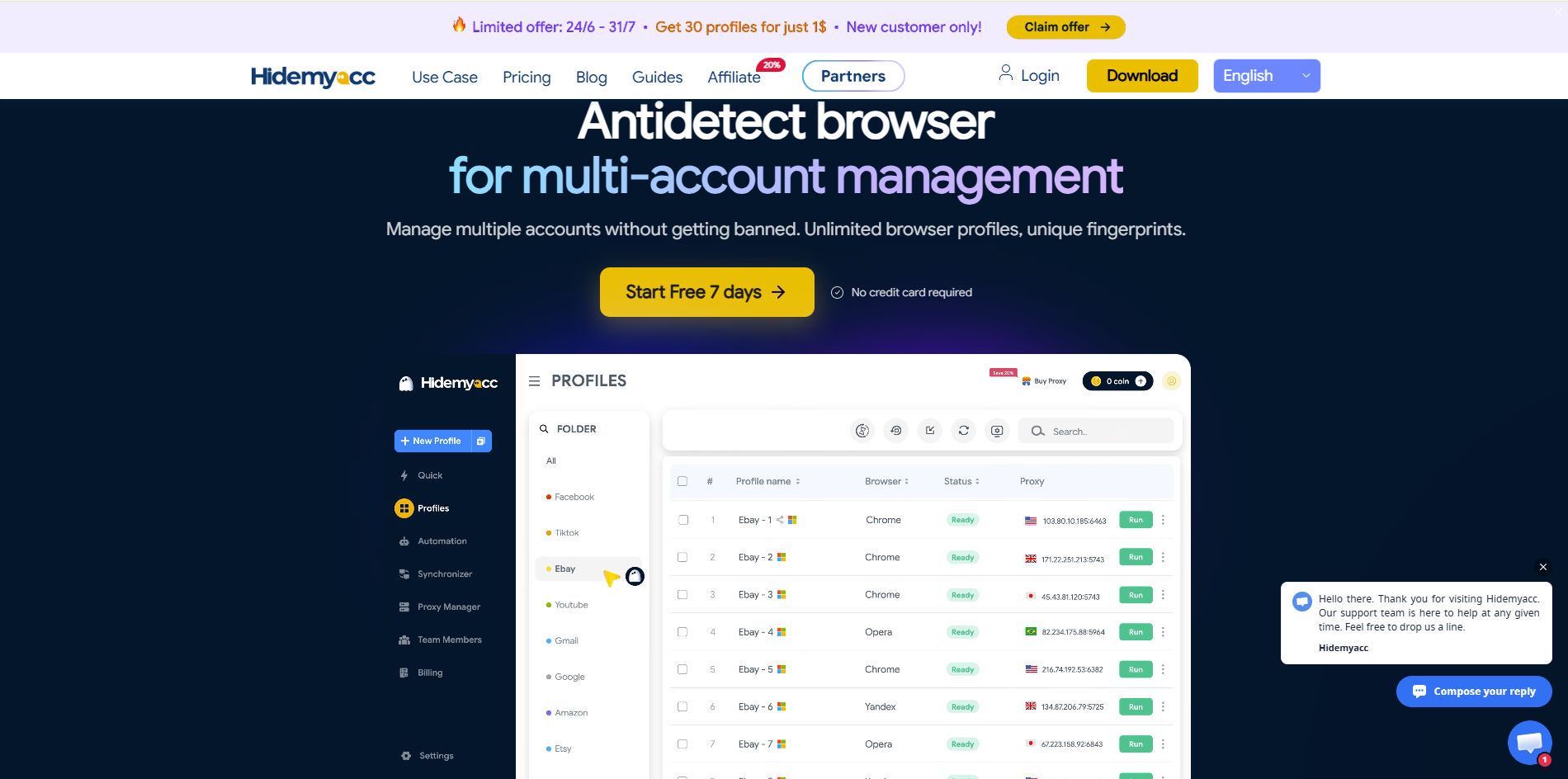
5.1. Hidemyacc là gì? .
Antidetect browser Hidemyacc là công cụ tạo và quản lý nhiều hồ sơ trình duyệt độc lập trên cùng một thiết bị. Mỗi hồ sơ sở hữu bộ dữ liệu riêng biệt, bao gồm browser fingerprint như User-Agent, hệ điều hành, độ phân giải màn hình và các thông số thiết bị khác; các thiết lập hệ thống như ngôn ngữ, múi giờ; cùng dữ liệu trình duyệt như cookie, local storage và lịch sử hoạt động.
Các thông số như dấu vân tay canvas, WebGL, WebRTC và User-Agent được cấu hình đồng bộ ngay từ đầu, giúp hạn chế mâu thuẫn giữa các lớp dữ liệu và tạo ra môi trường duyệt web nhất quán. Khi kết nối proxy, múi giờ và ngôn ngữ cũng tự động điều chỉnh theo vị trí kết nối.
Giải pháp này phù hợp với những người vận hành nhiều tài khoản và cần duy trì môi trường duyệt web tách biệt cho từng hồ sơ.
5.2. Quy trình kiểm tra profile Hidemyacc với Browserleaks
Sau khi tạo hồ sơ trình duyệt, bạn có thể sử dụng Browserleaks để kiểm tra lại các thông số trước khi đưa vào sử dụng. Quy trình này giúp xác nhận rằng môi trường đang hoạt động đúng với cấu hình đã thiết lập.
-
Bước 1: Tạo hồ sơ trình duyệt mới trong Hidemyacc: Tạo một hồ sơ mới và lựa chọn cấu hình phù hợp với nhu cầu sử dụng. Với hầu hết trường hợp, các thiết lập mặc định đã được đồng bộ sẵn nên không cần chỉnh sửa quá nhiều.
-
Bước 2: Kết nối proxy: Thêm proxy cho hồ sơ vừa tạo. Nên sử dụng proxy có vị trí địa lý phù hợp với tài khoản cần quản lý để đảm bảo địa chỉ IP, múi giờ và ngôn ngữ hiển thị nhất quán.
-
Bước 3: Mở Browserleaks để kiểm tra hồ sơ: Khởi chạy hồ sơ trong Hidemyacc và truy cập Browserleaks. Tại đây, hãy kiểm tra lần lượt các thông tin quan trọng như: Địa chỉ IP và vị trí địa lý, múi giờ, WebRTC, Canvas fingerprint,...
-
Bước 4: Đối chiếu kết quả Đối chiếu kết quả với cấu hình đã thiết lập. Nếu các chỉ số nhất quán và không có mâu thuẫn thì hồ sơ đã sẵn sàng sử dụng
Thực hiện thêm bước kiểm tra này sẽ giúp bạn yên tâm hơn trước khi đưa hồ sơ vào sử dụng thực tế.
6. Những lưu ý khi dùng Browserleaks
Browserleaks là công cụ hữu ích để kiểm tra fingerprint và phát hiện các dấu hiệu bất thường trong profile trình duyệt. Tuy nhiên, để kết quả phản ánh chính xác môi trường đang sử dụng, bạn nên lưu ý một số điểm sau
- Kết quả mang tính thời điểm: Các thông số hiển thị trên Browserleaks có thể thay đổi khi bạn đổi proxy, cập nhật trình duyệt hoặc điều chỉnh cấu hình hồ sơ. Vì vậy, kết quả kiểm tra hôm nay chưa chắc sẽ giữ nguyên trong những lần sử dụng sau.
- Không phải chỉ số nào cũng quan trọng như nhau: Khi đánh giá profile, bạn nên ưu tiên xử lý các vấn đề liên quan đến IP, WebRTC và fingerprint trước. Những chỉ số như độ phân giải màn hình hoặc ngôn ngữ thường chỉ đóng vai trò bổ trợ.
- Browserleaks không đưa ra điểm số tổng thể: Khác với một số công cụ như CreepJS, Browserleaks chủ yếu hiển thị dữ liệu chi tiết của từng module. Người dùng cần tự đánh giá và đối chiếu kết quả thay vì dựa vào một điểm số tổng hợp.
- Không nên chỉ dựa vào một công cụ duy nhất: Mỗi công cụ có cách tiếp cận khác nhau. Browserleaks phù hợp để kiểm tra chi tiết từng chỉ số, trong khi các nền tảng khác có thể cung cấp góc nhìn tổng quan hơn về fingerprint hoặc khả năng theo dõi của trình duyệt.
- Kiểm tra lại sau mỗi lần thay đổi cấu hình: Mỗi khi thay đổi proxy, cập nhật trình duyệt hoặc chỉnh sửa fingerprint, bạn nên chạy lại Browserleaks để xác nhận các thông số vẫn hiển thị đúng như mong muốn.
Browserleaks không giúp hồ sơ trở nên an toàn hơn, nhưng có thể cho bạn biết những thông tin nào đang được hiển thị ra bên ngoài. Hiểu rõ các dữ liệu này sẽ giúp việc xây dựng và quản lý profile trở nên chủ động hơn.
7. Kết bài
Browserleaks là công cụ giúp kiểm tra những thông tin mà website có thể thu thập từ trình duyệt của bạn, từ địa chỉ IP, WebRTC đến các chỉ số browser fingerprint. Thay vì tập trung vào từng thông số riêng lẻ, hãy xem kết quả một cách tổng thể để phát hiện những dấu hiệu bất thường trong profile. Khi kết hợp với các giải pháp tạo hồ sơ trình duyệt như Hidemyacc, việc kiểm tra và quản lý nhiều tài khoản cũng trở nên thuận tiện hơn.
8. FAQ
1. Browserleaks có miễn phí không?
Có, browserleaks.com miễn phí hoàn toàn, không cần đăng ký tài khoản. Truy cập trực tiếp và chạy từng bài kiểm tra là đủ.2. Tại sao Browserleaks hiển thị IP thật dù đã dùng proxy?
Nguyên nhân phổ biến nhất là WebRTC đang bật và làm lộ địa chỉ IP cục bộ. Cần tắt WebRTC trong cài đặt trình duyệt hoặc dùng extension kiểm soát WebRTC để khắc phục.3. Browserleaks kiểm tra được dấu vân tay canvas không?
Có. Browserleaks có module Canvas riêng hiển thị mã nhận dạng của trình duyệt. Nếu nhiều hồ sơ cho ra cùng mã nhận dạng, các hồ sơ đó đang bị liên kết với nhau.4. Dùng Browserleaks để test VPN có chính xác không?
Có thể dùng để kiểm tra rò rỉ địa chỉ IP và WebRTC khi dùng VPN. Tuy nhiên Browserleaks không đánh giá toàn diện độ an toàn của VPN mà chỉ cho thấy thông tin nào đang bị lộ ra bên ngoài tại thời điểm test.5. Cần test lại Browserleaks bao lâu một lần?
Nên test lại sau mỗi lần thay đổi proxy, cập nhật cấu hình hồ sơ hoặc nâng cấp phiên bản trình duyệt. Không cần test định kỳ nếu không có thay đổi cấu hình.