Did you just see the link content://cz.mobilesoft.appblock.fileprovider/cache/blank.html appear on your browser and wonder what it means? Many people often mistake this for a system error, a virus, or a network issue. In reality, this is simply a website-blocking mechanism used by the AppBlock application on Android.
In this article, let's join Hidemyacc to find out what content://cz.mobilesoft.appblock.fileprovider/cache/blank.html is, why it appears on your browser, and how to fix it when a blank page unexpectedly displays.
1. What is Content://cz.mobilesoft.appblock and Why does it appear?
First of all, you don't need to worry when you see the code content://cz.mobilesoft.appblock.fileprovider/cache/blank.html. This is not a virus or malware, but a technical component belonging to the AppBlock application on the Android operating system, designed to block distracting websites.
The reason this code appears in the browser is due to a redirection mechanism. When you access a website on the blocklist, the AppBlock app automatically redirects the browser to a blank page file named blank.html. At this point, the address bar and browsing history will record the technical path of that file instead of the original domain you typed.

The purpose of displaying a blank page is to act as a safe replacement file. This mechanism helps the browser continue loading pages smoothly without freezing or reporting a connection error, while silently notifying the system that the access block is being actively executed by the app.
When applications on a device interfere with web access, they can change how the browser displays content. This is also related to how websites identify the access environment through technical browser markers. You can learn more about this mechanism in the article: What is Browser Fingerprint? How to prevent browser fingerprinting
2. Decoding the technical meaning of the URL
The code content://cz.mobilesoft.appblock.fileprovider/cache/blank.html is actually composed of several technical components within the Android system. Analyzing each part will help you understand how AppBlock blocks websites and displays blank pages.
- content://: This is a special URI protocol for Android. Unlike standard links like http:// or https://, the content:// protocol is used when applications share internal data with each other through the Android system. This mechanism helps protect data and prevents direct access to files in the application's storage.
- cz.mobilesoft.appblock: This is the official package name of the AppBlock application, a tool that helps users block distracting websites or apps to stay focused.
- fileprovider: The Android FileProvider component acts as a secure intermediary layer, allowing applications to share files with other system components without revealing the actual storage location on the device. Additionally, websites can identify the access environment through browser information, such as the user agent, which indicates the browser, operating system, and device being used.
- blank.html: This is the blank page file used by AppBlock when blocking a website. When a user visits a blocked site, the app replaces the website content with the blank.html file, causing the browser to display only a white screen.
Thanks to this mechanism, AppBlock can block websites stably without causing browser network errors or system disruptions.
3. How does the cz.mobilesoft.appblock issue affect the browser?
When the path content://cz.mobilesoft.appblock.fileprovider/cache/blank.html appears, it can cause certain impacts during internet usage, especially when the user doesn't understand the cause. Some common impacts include:
- Causes user confusion: When a blank page appears with the technical content:// path, many people may think their device has a system error, is infected with a virus, or has been hacked.
- Disrupts website access: If the block occurs while a user is logging in or performing a task on an online service, the process may stop abruptly, and the original page will not display. Sudden web blocking can break user behavior authentication and cause the loss of important data like Internet Cookies, leading to unexpected logouts.
- Affects automation tools: Some automation tools used in SEO or multi-account management may face serious errors because the target website has been replaced by the blank.html file. In such cases, bot systems cannot find buttons or input fields on the blank page, leading to errors and stalling the entire workflow. This is particularly critical for Web Scraping tasks as bots will collect empty data, skewing metrics like bot traffic or automated access data.
Advice: If you frequently use support tools or work with multiple online accounts, you should limit the installation of unnecessary web-blocking apps to avoid accidental redirection to blank pages.
4. How to fix the content://cz.mobilesoft.appblock.fileprovider/cache/blank.html error
If your browser displays the path content://cz.mobilesoft.appblock.fileprovider/cache/blank.html, it's very likely the website is being blocked by the AppBlock app. In this case, you can try the following steps to fix it and access the website normally.
- Step 1: Check the Blocklist: First, open the AppBlock app on your phone and check if the website you are trying to access is on the blocklist. If it is, remove it from the list to allow access again.
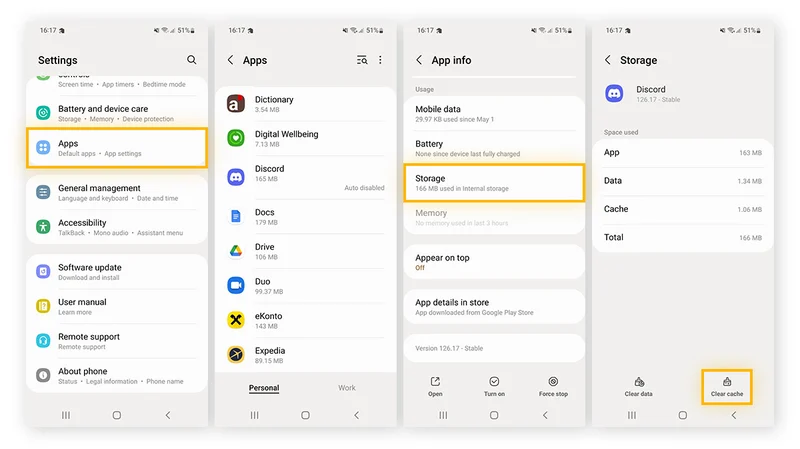
- Step 2: Clear Cache: Sometimes errors occur due to conflicting temporary app data. You can fix this by going to Phone Settings → Application Management → AppBlock → Clear Cache. This will help clear any redirection commands stored in the system.
-
Step 3: If you need to access the website immediately, try pausing the restriction settings in AppBlock. If you no longer need the app, you can also uninstall AppBlock to prevent the browser from being redirected to a blank page.
After performing these steps, the browser will usually function normally again, and the website will display its correct content instead of the blank page created by AppBlock.
If you frequently encounter this error on emulators or mobile devices, consider learning what Device Fingerprint is to better understand how to manage device parameters and avoid unintended software conflicts.
Common Scenarios
During use, users may encounter several situations related to content://cz.mobilesoft.appblock.fileprovider/cache/blank.html as follows:
- Unexpected Blank Page: This can happen when AppBlock has a scheduled block active. You should open the app and check the Rules or Schedules section to see if a blocking rule is currently triggered.
- File Not Found Error: This usually happens when the AppBlock cache has been cleared. The app will automatically recreate the blank.html file when needed, so users just need to reopen AppBlock or clear cache for the system to re-initialize the data.
Most of the above situations are related to AppBlock's block settings or temporary data. Checking the block rules and clearing the cache will usually resolve the issue quickly.
5. How to distinguish AppBlock errors from proxy and network errors
When a website fails to display content, many people assume the internet connection or proxy is having trouble. However, if the address bar shows content://cz.mobilesoft.appblock.fileprovider/cache/blank.html, the cause is likely the AppBlock app, not a network error. To avoid wasting time checking the wrong cause, you need to recognize the differences between these browser display errors:
-
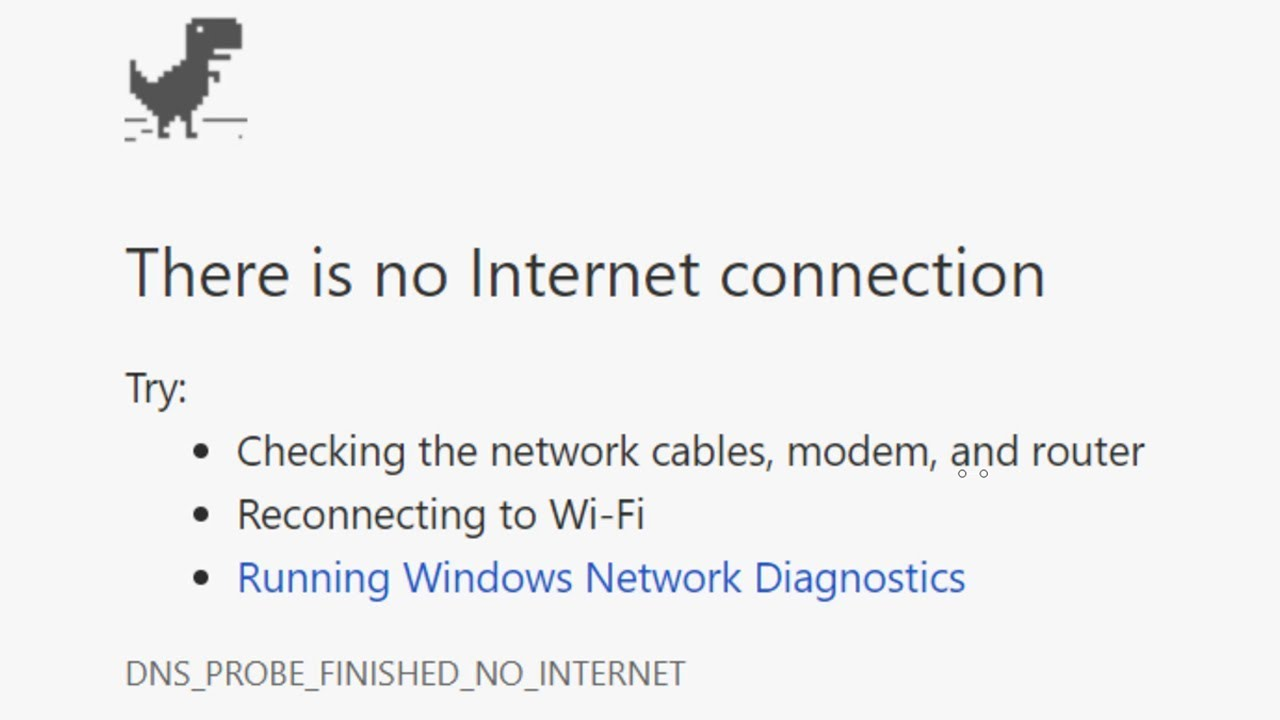
Network or Proxy Error: The browser typically displays a message saying there is no internet connection or the website cannot be reached. Some browsers show a continuous loading icon or the familiar error page, like the dinosaur on Chrome.
-
AppBlock Error: The website loads almost instantly but only shows a white screen. The browser address bar will contain the path content://cz.mobilesoft.appblock.fileprovider/cache/blank.html. In this case, the internet connection and proxy are still working normally; the issue lies solely with the device's web-blocking filter.
Identifying the correct cause will help you resolve the issue faster, avoiding unnecessary network or proxy checks when the real cause is in the app settings.
6. Is content://cz.mobilesoft.appblock.fileprovider/cache/blank.html safe?
After knowing why the blank page appears, many wonder if content://cz.mobilesoft.appblock.fileprovider/cache/blank.html poses a security risk. In fact, this is just a technical component of the AppBlock app and is completely harmless.
- Neutrality: The blank.html file is just a simple HTML page used by AppBlock to replace the content of blocked websites. It does not contain malware, does not track users, and does not collect personal data.
- Temporary Access Permissions: Android uses the FileProvider mechanism to allow applications to access internal files securely. Only authorized components can access this file, thereby limiting the risk of unauthorized access to application data.
- Automatic Permission Revocation: After the browser displays the blank page, the system automatically revokes the file access permission. This ensures that the data-sharing process between the app and the browser does not create a security vulnerability.
- Should you delete the blank.html file? You do not need to delete this file manually. AppBlock will automatically manage and recreate it as needed. Deleting the file offers no benefit and can sometimes make the app unstable or force it to recreate the cache from scratch.
Overall, content://cz.mobilesoft.appblock.fileprovider/cache/blank.html is just a technical component used to block websites and display a replacement blank page. It does not affect device security, and users can feel safe when encountering this link in their browser.
7. Conclusion
In summary, the path content://cz.mobilesoft.appblock.fileprovider/cache/blank.html is a completely safe internal mechanism of the AppBlock app designed to display a replacement blank page for blocked websites. By understanding this mechanism, you can easily identify why a white screen appears in your browser and quickly resolve it by checking the blocklist, clearing the cache, or adjusting rules in AppBlock.
However, to ensure a seamless internet experience, especially when working with automation tools, Hidemyacc encourages you to actively manage and strictly control the auxiliary applications on your device.
8. FAQ
1. What is content://cz.mobilesoft.appblock.fileprovider/cache/blank.html?
This is an internal Android path created by the AppBlock app. It is used to display a blank page file when a website is blocked; it is not a virus or malware.
2. Why does my browser show content://cz.mobilesoft.appblock.fileprovider/cache/blank.html?
This happens when you visit a website that has been blocked by AppBlock. Instead of showing a network error, the app redirects the browser to the blank.html file.
3. Is content://cz.mobilesoft.appblock.fileprovider/cache/blank.html dangerous?
No. It is just a blank page file used to replace the content of blocked websites. It does not collect personal data and does not affect the device.
4. Do I need to delete the blank.html file?
No. AppBlock will automatically manage and recreate this file when necessary. Manual deletion provides no benefit and may cause the app to re-initialize its cache.
5. How do I stop seeing the blank.html page?
You can open the AppBlock app and check the list of blocked websites. If you need to access a specific page, remove it from the list or temporarily disable the blocking rules.