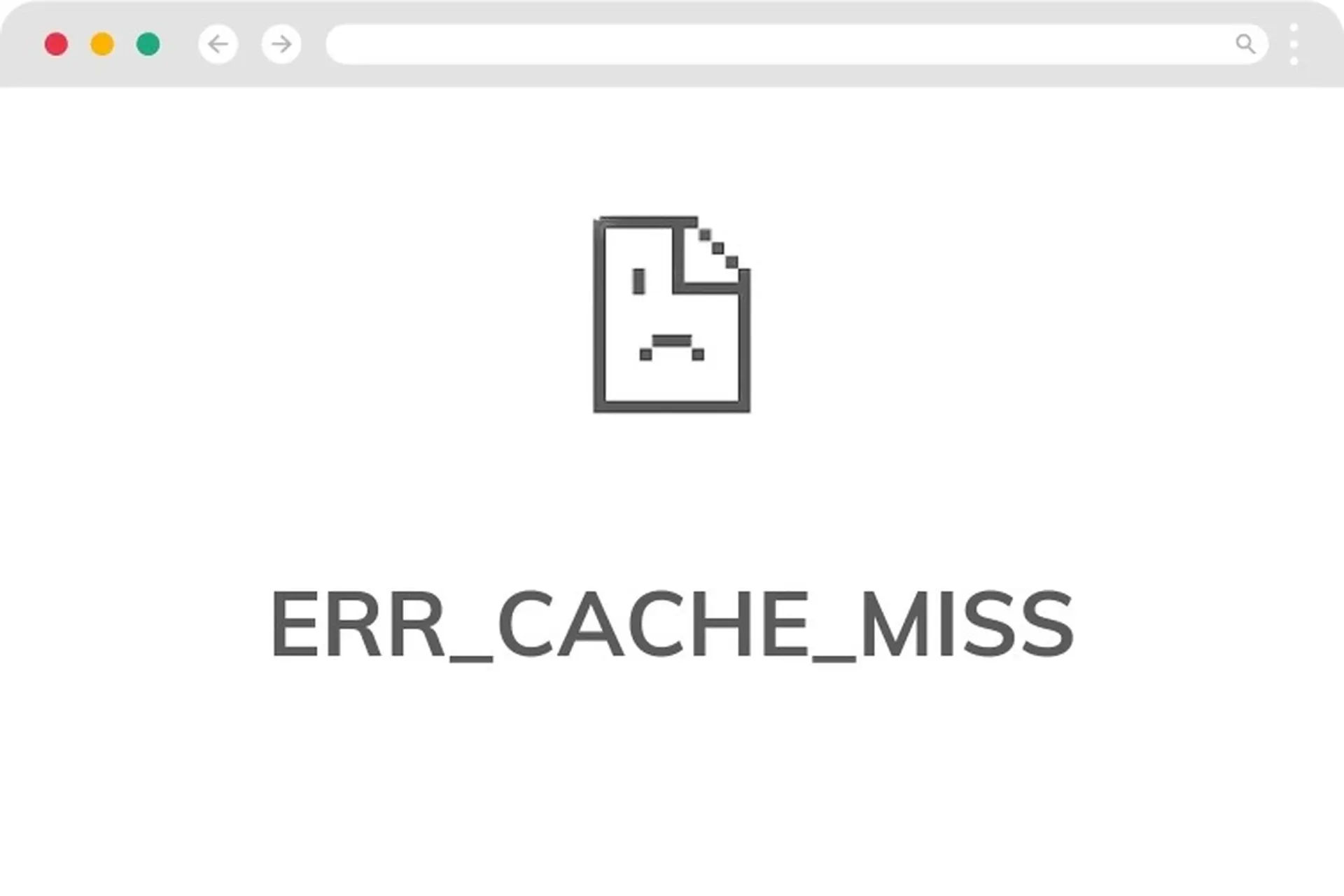
Have you ever encountered the ERR_CACHE_MISS error on Google Chrome and found yourself unable to continue browsing or resubmitting data? This is a common issue that typically arises when the browser experiences problems with its cache or during a page reload. It can be quite disruptive, especially when you are filling out forms, logging in, or performing critical online tasks.
Don't worry! In this blog, Hidemyacc will help you understand exactly what the ERR_CACHE_MISS is, why it happens, and provide quick, simple solutions to get you back to browsing normally.
1. What is the ERR_CACHE_MISS?
The ERR_CACHE_MISS error is a frequent notification on Google Chrome directly related to the browser's caching system. The cache is responsible for storing temporary data to help websites load faster during subsequent visits. However, when Chrome fails to retrieve or utilize this data correctly, the ERR_CACHE_MISS error appears.
In practice, this error often occurs when you reload a page, particularly after submitting form data such as during login, checkout, or entering personal information. In these cases, the browser asks for confirmation to resubmit the data. If this process is interrupted due to a faulty cache or a failed request, the ERR_CACHE_MISS message will display, preventing you from proceeding.
See more:
- What is Browser Fingerprint? How it tracks you online
- What is a browser cache? Understanding how browser cache works
2. What Causes ERR_CACHE_MISS?
The ERR_CACHE_MISS error can stem from various sources, ranging from browser issues and faulty extensions to network connectivity problems. Here are the most common causes:
- Outdated or corrupted cache files: Chrome uses a cache to speed up page loading. However, when this data becomes corrupted, out of sync, or obsolete, the browser fails to retrieve it correctly, resulting in the error.
- Form resubmission: When you reload a page after entering data (such as during checkout or login), Chrome requires you to resubmit that information. This process can sometimes trigger a conflict and lead to the ERR_CACHE_MISS notification.
- Browser extension conflicts: Certain extensions, such as ad blockers, VPNs, or security tools, can interfere with how Chrome handles network requests and caching, ultimately causing the error.
- Network or connection issues: An unstable internet connection, DNS errors, or network interruptions can prevent data from being loaded or cached properly.
- Outdated chrome version: Using an older version of the browser may cause compatibility issues with modern websites, leading to errors when processing cached data.
3. How to fix the ERR_CACHE_MISS on Chrome
If you are encountering this issue, try the following methods in order to resolve the ERR_CACHE_MISS error quickly:
3.1. Clear Cache and Cookies
This is the simplest and most effective way to handle cache-related issues.
- Go to Settings → Privacy and Security → Delete browsing data.
- Select Cached images and files and Cookies and other site data.
- Click Delete data to clear the information.
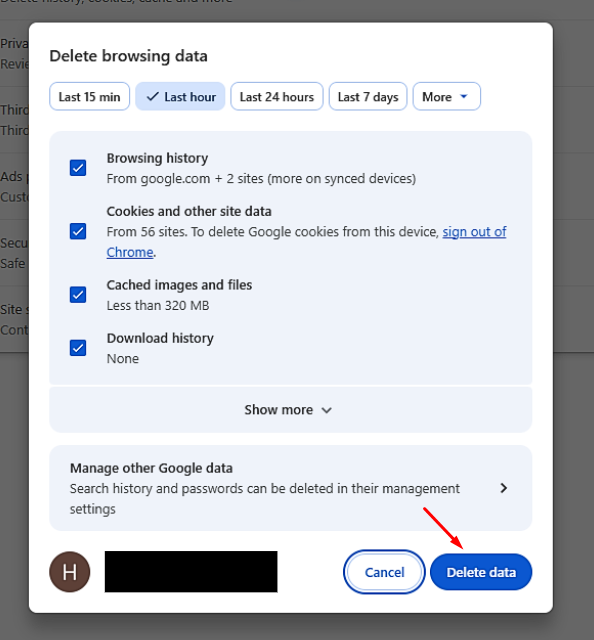
Once completed, reload the page to check if the error has been resolved.
3.2. Reload the page correctly
In many cases, the error appears simply because the page was not reloaded properly.
- Press Ctrl + F5 to perform a hard reload (this forces the browser to bypass the cache).
- Avoid pressing F5 repeatedly while data is being submitted.
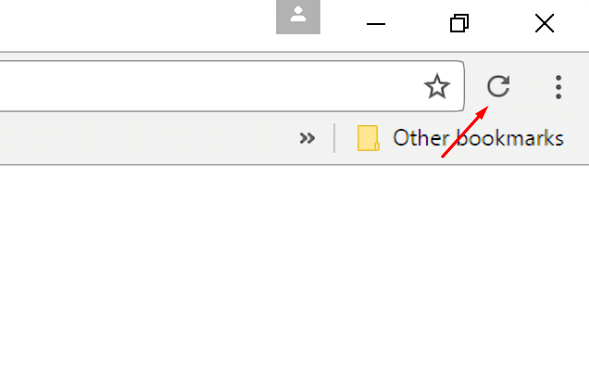
This method ensures Chrome fetches all new data directly from the server instead of relying on outdated cache.
3.3. Disable browser Extensions
Extensions can often be the culprit behind conflicts.
- Click the three dots in the top-right corner of Chrome.
- Hover over Extensions and select Manage Extensions.
- Toggle off all active extensions.
- Restart Chrome and check the website again.
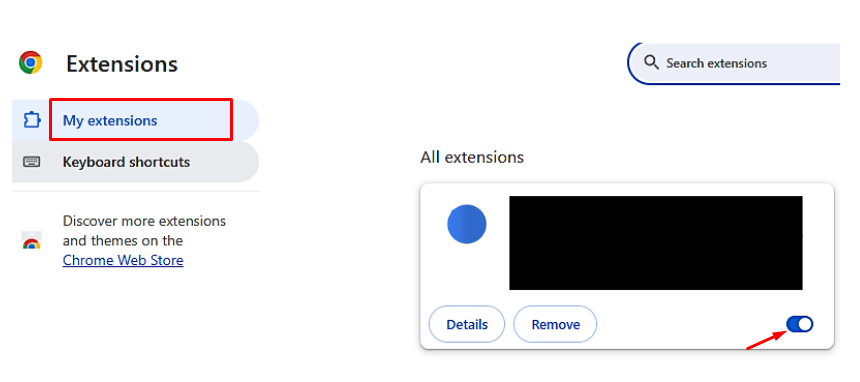
If the ERR_CACHE_MISS error disappears, you can re-enable each extension one by one to identify the specific cause.
3.4. Reset Chrome Settings
If the above methods do not work, you can reset the browser to its original default state.
- Go to Settings → Reset settings.
- Select Restore settings to their original defaults.
- Click Reset settings.
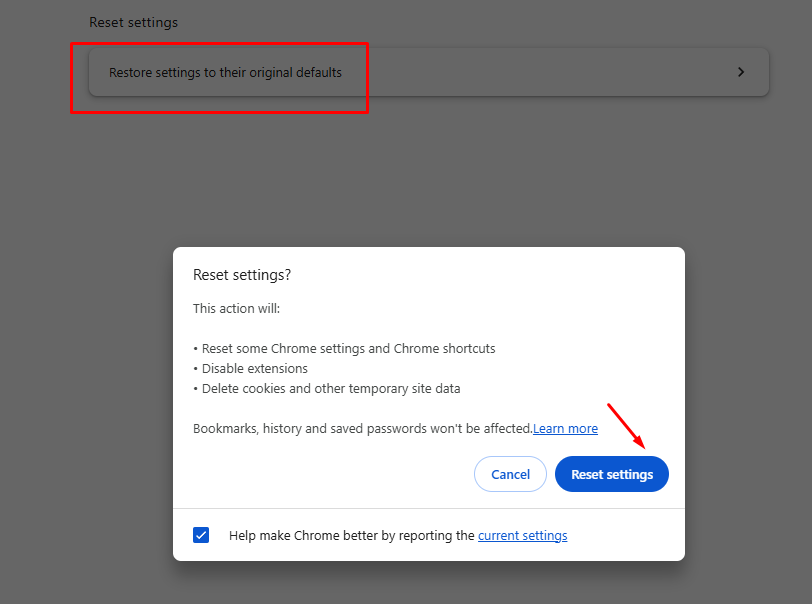
This action will eliminate faulty configurations or hidden conflicts within the browser.
4. Tips to prevent the ERR_CACHE_MISS in the future
To minimize the chances of encountering the ERR_CACHE_MISS error again, you should maintain the following habits:
-
Periodically clear your cache:
- Clear your cache weekly or whenever the browser shows signs of slowing down.
- Prevent the accumulation of corrupted or outdated data over long periods.
-
Update your browser regularly:
- Always use the latest version of Google Chrome.
- Stay up to date with the newest bug fixes and performance improvements.
-
Check your network connection:
- Ensure a stable internet connection when accessing websites.
- Minimize interruptions during data submission or page loading.
Maintaining these simple habits will significantly reduce the likelihood of facing the ERR_CACHE_MISS error, while providing a smoother and more stable browsing experience.
Read more related blogs here:
- Defining Internet Cookies: How do they work?
- Ways to Manage Cookie Settings in Browsers: Chrome, Firefox & Edge
- How to enable third-party cookies on Chrome, Safari, and Firefox
5. Conclusion
The ERR_CACHE_MISS on Chrome is not a critical issue, but it can be frustrating and disruptive to the user experience. The primary causes usually stem from corrupted cache, conflicting extensions, or an unstable network connection.
With just a few simple steps, such as clearing your cache, reloading the page correctly, or resetting your browser, you can easily fix this error and continue using Chrome as usual.
6. FAQ
1. How do I fix the ERR_CACHE_MISS error?
You can resolve the error by clearing your cache, performing a hard reload with Ctrl + F5, disabling extensions, or resetting Chrome to its default settings.
2. How can I fix cache memory errors?
Go to Clear browsing data to delete your cached files and ensure your browser is always updated to the latest version.
3. What does the ERR_CACHE_MISS error mean?
This error occurs when the browser is unable to use cached data to reload a website properly.
4. Which buttons do I press to clear the cache?
Go to Settings → Privacy → Clear browsing data, then select the cache option and click Clear data.
5. Why does the ERR_CACHE_MISS error keep happening?
The error may recur due to corrupted cache, extension conflicts, an unstable network, or an outdated browser version.