Have you ever noticed that a website often loads slowly on your first visit but becomes significantly faster when you return? This isn't a coincidence - it’s thanks to browser cache.
This mechanism allows your browser to temporarily store website resources, such as images, CSS, JavaScript files, or fonts, directly on your device. As a result, when you revisit a site, the browser doesn't need to re-download all the data from the server. This leads to faster page rendering and a much smoother user experience.
In this article, we will explore what browser cache is, how it works, its pros and cons, and how to clear your browser cache when necessary.
1. What is a browser cache?
What is a browser cache? Simply put, it is a mechanism that temporarily stores website data on a user's device to be reused during future visits.
When you visit a website for the first time, your browser downloads resources from the server. Subsequently, a portion of this data is saved in the browser cache to make the next visit faster.
Common resources stored in the browser cache include:
- Images (logos, banners, illustrations)
- HTML files
- CSS files
- JavaScript files
Generally, browser cache primarily stores static assets - components that rarely change between visits.
However, data in the browser cache is not stored permanently. The storage duration depends on the website's configuration, which can range from a few days to several months.
While storing data on your device might concern some people, in reality, browser caching is primarily designed to improve speed and user experience, and it is harmless if you practice safe browsing.
Read more:
- What Information can a Website know about you? Explain about browser fingerprinting
- What is Browser Fingerprint? How it tracks you online
- Local Storage vs Session Storage: Which to Use?
2. How browser cache works
To fully appreciate the value of what is browser cache, you need to understand how it functions during the page loading process.
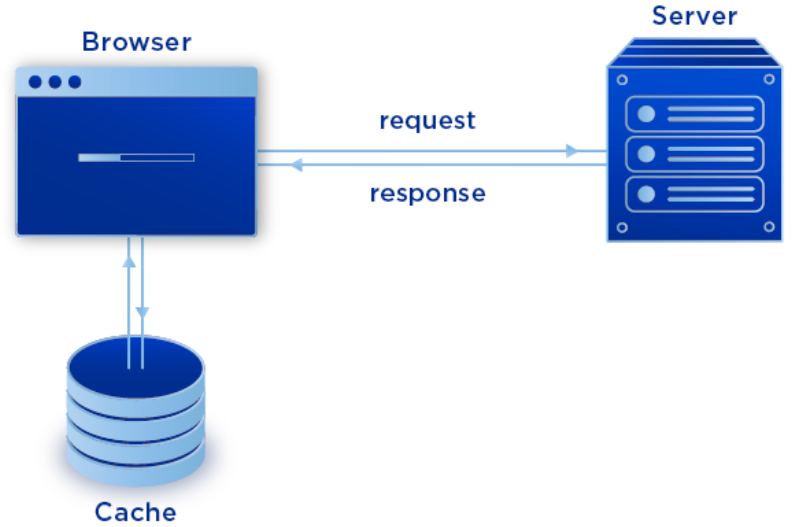
When you visit a website for the first time, the browser sends a request to the server to download all necessary resources, such as HTML, CSS, JavaScript, images, and fonts. After receiving the data from the server, the browser not only displays the website content but also saves a portion of these resources into the browser cache on your device. These files are typically static components that rarely change.
On subsequent visits, instead of re-downloading everything from scratch, the browser checks the browser cache first. If the required resources are already in the cache and still valid, the browser will reuse them immediately. Conversely, if the data has expired or has been updated, the browser will send a new request to the server to fetch the latest version.
For example, when you visit the Hidemyacc website, the logo in the header is downloaded and saved to the browser cache from your very first visit. As you navigate to other pages within the same website, the browser won't need to re-download this logo from the server; instead, it retrieves it directly from the cache, allowing the page to display faster.
Thanks to this mechanism, browser cache significantly reduces page load times, saves bandwidth, and improves the overall user experience, especially for websites with many static resources.
You can learn more about related topics in the article below:
- What is Brave fingerprinting? How it really works
- Pixelscan Review: Check your browser fingerprint in seconds
- Spoof browser agent explained: A simple guide for beginners
3. Pros and cons of browser cache
Like most tools operating behind the scenes, browser caching comes with its own set of advantages and disadvantages.
3.1. Pros of browser cache
What is browser cache beneficial for? It provides several key advantages for both users and websites, such as:
- Faster browsing: By pre-storing certain website resources, the browser doesn't need to re-download all data upon every visit. Consequently, websites with many images or scripts load much faster than they did on the initial visit.
- Reduced bandwidth usage: Once files are stored in the cache, the browser reuses them instead of downloading them from the server. This helps reduce data consumption, which is especially helpful if you are using a slow network or a limited data plan.
- Improved performance on return visits: Websites you visit frequently respond faster and more smoothly thanks to the resources already stored in the cache.
- Reduced server load: When users load data from the cache instead of the server, the number of requests sent to the server decreases. This helps the website operate more stably, particularly during high-traffic periods.
Overall, browser caching is a vital factor in enhancing website speed and user experience.
3.2. Cons of browser cache
Despite its many benefits, there are still some limitations to what is browser cache capable of:
- Content may become outdated: Since the browser uses previously saved data, you might occasionally see an old version of a webpage instead of the latest update. This can lead to the display of inaccurate information.
- Potential display errors: If a website has been updated but the browser still uses old cached files (such as CSS or JavaScript), the page might show a broken layout, missing features, or function incorrectly.
- Cache accumulation over time: Over time, the cache can accumulate many old or unnecessary files. If not cleaned periodically, these can take up storage space and potentially slow down the browser.
Therefore, in cases where a website glitches or fails to update content, you should clear your browser cache to ensure the site functions correctly and displays the most recent version.
You should also learn more about:
- WebRTC Leak: Why your VPN/Proxy fails and How to fix it
- Ad blocker Chrome extension: Stop ads instantly with this tool!
4. What does clearing browser cache do?
Clearing your browser cache means removing the temporary files that the browser has stored from previous website visits. Once the cache is cleared, websites will load as if you are visiting them for the first time, and the browser will have to download the latest version of all resources from the server.

This is particularly useful when a website displays incorrect content or operates unstably. If a file was corrupted during a previous download and saved into the cache, the browser might continue to use that faulty file in subsequent visits. When you clear the cache, you force the browser to re-download fresh data, helping the website display and function correctly.
In addition, understanding what is browser cache management can help:
- Fix website display errors, such as broken layouts or missing images.
- Resolve functional bugs, such as buttons or page features not working.
- Free up storage space occupied by old cached files that have accumulated over time.
However, after clearing the cache, websites may load more slowly on the first visit because the browser needs to re-download all data from the server. Afterward, once the cache is rebuilt, page loading speeds will return to normal.
See also:
- What is Telnet? A Comprehensive guide to the Telnet Protocol
- What is WLAN? Are WLAN and WiFi the same?
- What is Postman? Learn about the top API testing tool
5. Differences between browser cache and cookies
While browsing the internet, many people confuse browser cache with cookies because both are stored in the browser. However, these are two completely different mechanisms that serve distinct purposes.
In short, browser cache helps websites load faster, while cookies help websites remember user information. Understanding this difference will help you use your browser more effectively and avoid unnecessary confusion when clearing browsing data.
5.1. What are cookies?
Cookies are small data files that websites save on your browser to remember information during your visit. This information is usually directly related to the user, helping the website personalize the experience.
Specifically, cookies can store:
- Login status (whether you are logged in or not)
- Shopping cart information for online shopping
- Personal preferences such as language, theme, or region
For example, when you log into a website and leave without logging out, you will still be logged in when you return. This happens because a cookie has saved your session information.
Thanks to this mechanism, cookies make using websites more convenient and personalized, instead of requiring you to reset everything from scratch every time you visit.
Read more articles about cookies here:
- Defining Internet Cookies: How do they work?
- Ways to Manage Cookie Settings in Browsers: Chrome, Firefox & Edge
- How do 1st Party and 3rd Party Cookies differ? (Detailed explanation)
5.2. Comparison between browser cache and cookies
To better understand what is browser cache compared to cookies, you can see the detailed differences in the table below:
|
Criteria |
Browser cache |
Cookies |
|
Purpose |
Speed up page loading and optimize performance |
Remember user info and personalize experience |
|
Data types |
HTML, CSS, JavaScript, images, fonts |
User IDs, login status, shopping carts, preferences |
|
Mechanism |
Stores copies of resources to be reused |
Stores session info and user behavior |
|
Personalization |
Non-personal |
Linked to each individual user |
|
Storage location |
Hard drive (and partially RAM for fast access) |
Primarily on the browser/hard drive |
|
Capacity |
Large, can occupy significant memory |
Small, usually only a few KB |
|
Expiration |
Set by cache configuration (cache-control, expires) |
Can be session-based or long-term |
|
Impact after clearing |
Website loads slower on the first visit |
Logged out, personal preferences are lost |
|
Security |
Relatively safe, less related to personal data |
Can involve user privacy |
6. How to clear browser cache on popular browsers
In some cases, knowing what is browser cache and how to clear it can help fix display errors or ensure you are viewing the latest version of a website. Depending on the browser, the steps may vary slightly, but they are generally quite simple.
6.1. How to clear browser cache on Google Chrome
To clear your browser cache on Google Chrome, you can quickly follow these steps:
-
Open the Google Chrome browser.
-
Press the keyboard shortcut Ctrl + Shift + Delete (Windows) or Command + Shift + Delete (Mac).
-
In the Clear browsing data window, select Cached images and files.
-
Choose the time range you want to clear (e.g., Last hour, Last 7 days, or All time).
-
Click Delete data to complete the process.
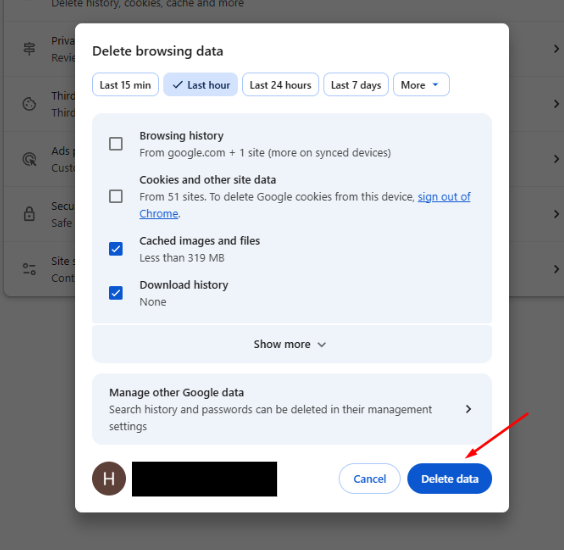
Once finished, the browser cache will be cleared, forcing the browser to reload fresh data and fix any display issues.
6.2. How to clear browser cache on Firefox
If you are using Firefox, clearing the browser cache is also very straightforward and only takes a few steps:
-
Open Firefox and go to the Settings menu.
-
Select Privacy & Security.
-
Scroll down to the Cookies and Site Data section.
-
Click Clear Data and check the box for Cached Web Content.
-
Confirm to clear the cache.
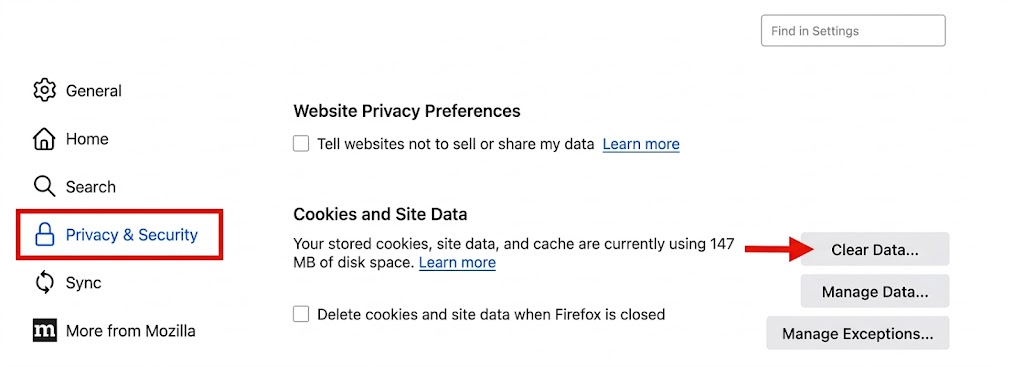
After completion, the browser cache in Firefox will be refreshed, helping websites display the correct latest version and reducing potential errors.
6.3. How to clear browser cache on Microsoft Edge
To clear the browser cache on Microsoft Edge, you can quickly perform these steps:
-
Open the Microsoft Edge browser.
-
Press Ctrl + Shift + Delete.
-
Select Cached images and files.
-
Click Clear now to delete the cached data.
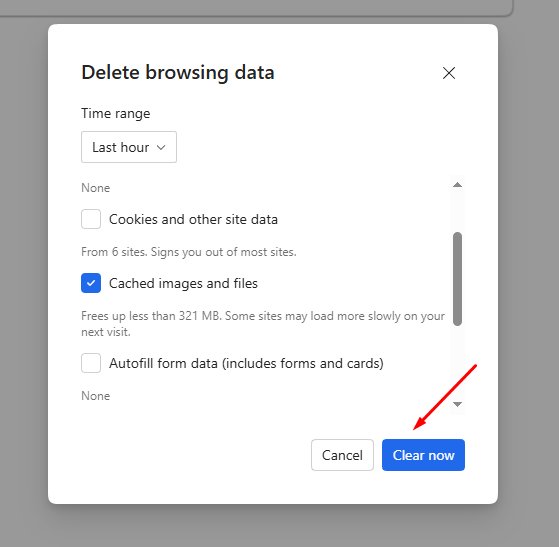
Once completed, the browser cache will be refreshed, allowing the browser to reload new data and resolve any display glitches.
See more:
- How to get 2FA: Protect your accounts with this easy guide
- What is Port 443? Learn the functions and how to use Port 443
7. Conclusion
What is browser cache's role in the digital world? It plays a vital part in optimizing page load speeds and enhancing the user experience. By temporarily storing resources such as images, CSS, or JavaScript, the browser can significantly reduce loading times on subsequent visits, while also saving bandwidth and reducing server load.
However, in certain cases, cached data can become outdated or cause display errors. In these situations, clearing the cache will help the browser reload the latest version of the website and resolve these issues.
In summary, understanding how it works and properly managing your browser cache will help you browse the web faster, more stably, and effectively handle common errors.
8. FAQ
1. What is browser cache?
What is browser cache? It is a temporary storage area for website resources like images, CSS, and JavaScript, helping the website load faster during subsequent visits.
2. Does clearing browser cache log me out of my accounts?
No. Clearing the browser cache only removes temporary resource files. However, if you choose to clear cookies as well, you will need to log back into your accounts on websites.
3. When should I clear browser cache?
You should clear your browser cache when a website displays the wrong interface, fails to update with new content, or when certain features on the page are not working correctly.
4. Should I clear browser cache frequently?
Typically, you do not need to clear your browser cache too often because it helps improve loading speeds. You should only clear it when you encounter errors or want to refresh website data.
5. What does browser cache store?
Browser cache stores static website resources such as images, CSS files, JavaScript, and some HTML to help reduce page load times for future visits.