When managing multiple accounts or accessing platforms equipped with anti-fraud systems, simply hiding your IP address is not enough, as websites can still collect extensive information from your browser and device to construct a browser fingerprint. iPhey Test is a tool that allows you to see exactly how this information is being exposed. This article will explain what iPhey Test is, what parameters it checks, how to interpret results, common errors, and how to use Hidemyacc to set up a consistent browser environment to improve your iPhey Fingerprint Test results.
1. What is iPhey Test?
You have just attached a US proxy to your browser profile and verified that the IP has moved to the correct location. But how do you know what other information websites can see from this environment? This is where iPhey Test becomes essential, helping you inspect the exact data your browser provides to web servers.
iPhey Test is a tool used to inspect browser and device identification parameters. It shows you what details websites can collect from your active environment, including data you do not actively provide.
How iPhey Test works
When you visit the test page, your browser automatically exposes information accessible to web scripts. iPhey Test aggregates this data into a structured report on the user interface, allowing you to observe how your active environment is being identified.
This information includes your IP address, browser build, operating system, WebRTC status, Canvas fingerprint, WebGL metrics, and other configuration parameters. These items will be analyzed in detail in the following sections.
Based on the test results, you can spot inconsistencies or potential leak points within your active browser environment.
2. Why should you use iPhey Test?
Changing your IP address alone is insufficient to evaluate whether a browser environment is operating reliably and securely. iPhey Test provides a comprehensive overview, helping you identify subtle details that might be overlooked during setup.
Key reasons to use iPhey Test include:
- See what websites actually see: Inspect the precise data your browser and device expose to websites instead of focusing solely on your IP address.
- Detect browser environment issues: Identify parameters that appear unnatural or conflicting within your active profile early on.
- Verify proxy connectivity: Confirm that your proxy functions properly and detect potential issues during connection.
- Audit environments before deployment: Proactively test and resolve issues before using profiles for operations that require stable browser environments.
This enables you to address environment discrepancies early rather than troubleshooting after an issue occurs.
3. What parameters does iPhey Test inspect?
iPhey Test audits numerous parameters within a browser environment. These parameters can be categorized into two primary groups: network data and browser/device data.
3.1. Network data group
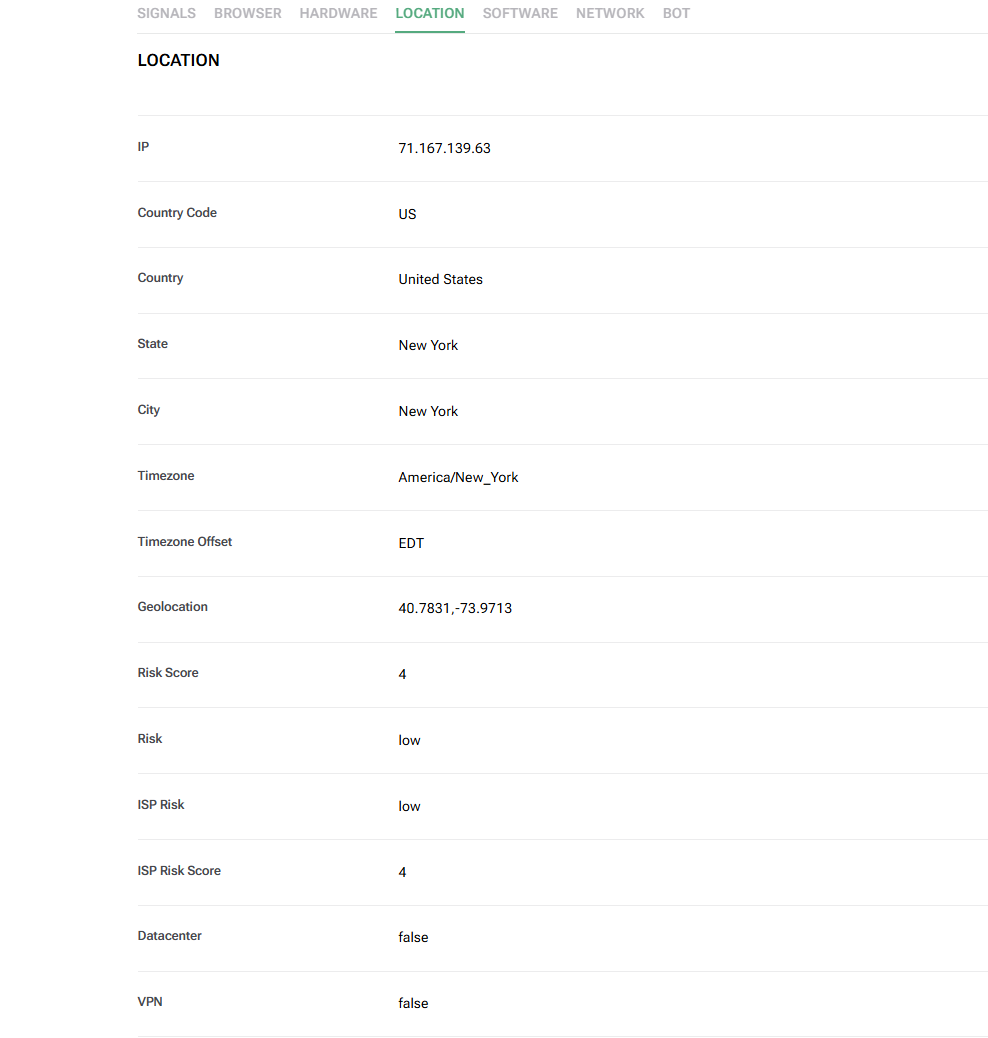
IP Address
What is an IP address? An IP address is the primary parameter to verify when connecting via a proxy. It represents the network address visible to target websites, so you must confirm that the displayed IP matches your proxy configuration and target location.
However, an IP address is only one component of your total fingerprint. Having a correct IP does not mean all other identification markers are consistent. Therefore, check your IP every time you rotate proxies or launch a new profile to ensure the connection works as expected.
WebRTC
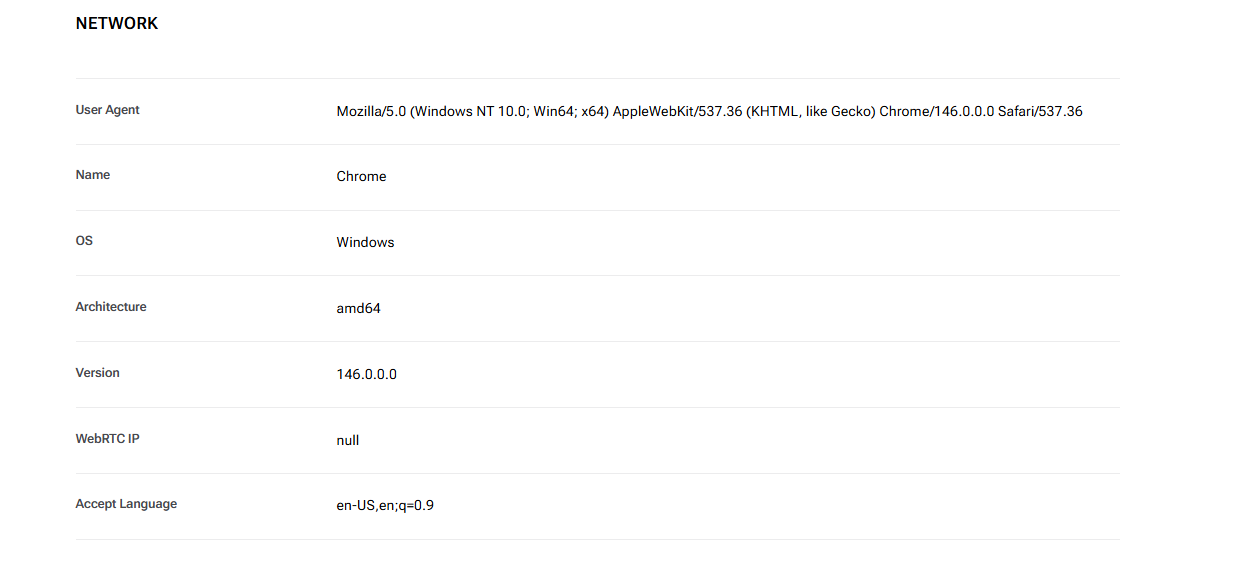
WebRTC is a real-time browser communication protocol that can inadvertently expose local network endpoints. Even when operating behind a proxy, you should test WebRTC parameters to verify that your real IP address is not leaking.
Never assume that connecting a proxy automatically hides all network details. Audit WebRTC every time you connect a new proxy or modify browser configurations.
Read more:
What is WebRTC? How it works and key benefits
What is a WebRTC leak? Why VPNs/proxies can still leak your real IP
3.2. Browser and device data group
Beyond network parameters, iPhey Test audits data points related to your browser software and underlying hardware. These details collectively build your browser fingerprint and must be evaluated cohesively.
Browser and User-Agent
The browser engine and User-Agent supply details about the browser type, build version, and operating system to external servers. When running a test, verify whether the User-Agent string aligns logically with your target environment.
The User-Agent must strictly match the operating system and surrounding configuration markers. This is a critical check whenever you create a new profile or emulate a different OS.
Canvas Fingerprint
Canvas Fingerprinting is a technique websites use to profile browsers based on how image graphics are rendered on an HTML5 Canvas element. You can check whether your browser produces anomalous or mismatched Canvas rendering outputs.
Because Canvas is only one aspect of a complete fingerprint, it should not be evaluated in isolation. Inspect Canvas output alongside WebGL and other hardware metrics, especially when managing multiple profiles concurrently.
WebGL
WebGL handles graphics rendering within the browser and can expose GPU hardware details. It forms a key part of the total fingerprint used by security algorithms to categorize browser environments.
When reviewing WebGL, pay attention to graphics rendering parameters and GPU vendor information. This data is particularly valuable when auditing profiles configured with distinct hardware specs.
Related article: How to check and enable WebGL fingerprints
Audio Fingerprint
An Audio Fingerprint is an identification signature derived from how your device processes mathematical audio signals. Along with Canvas and WebGL, audio processing signatures serve as an additional data layer used to differentiate browser environments.
This is a subtle parameter that users often overlook during fingerprint checks. For a comprehensive evaluation, assess your Audio Fingerprint alongside other hardware parameters rather than focusing solely on IP or User-Agent strings.
Recommended reading: AudioContext Fingerprint: How it works and defense strategies
Fonts and hardware specs
In addition to the parameters above, iPhey Test reads installed system fonts, screen resolution, CPU core counts, and device RAM capacity. These metrics complete a browser profile and are evaluated as part of your total digital footprint. They are particularly noteworthy if your OS, screen resolution, or hardware parameters show logical contradictions.
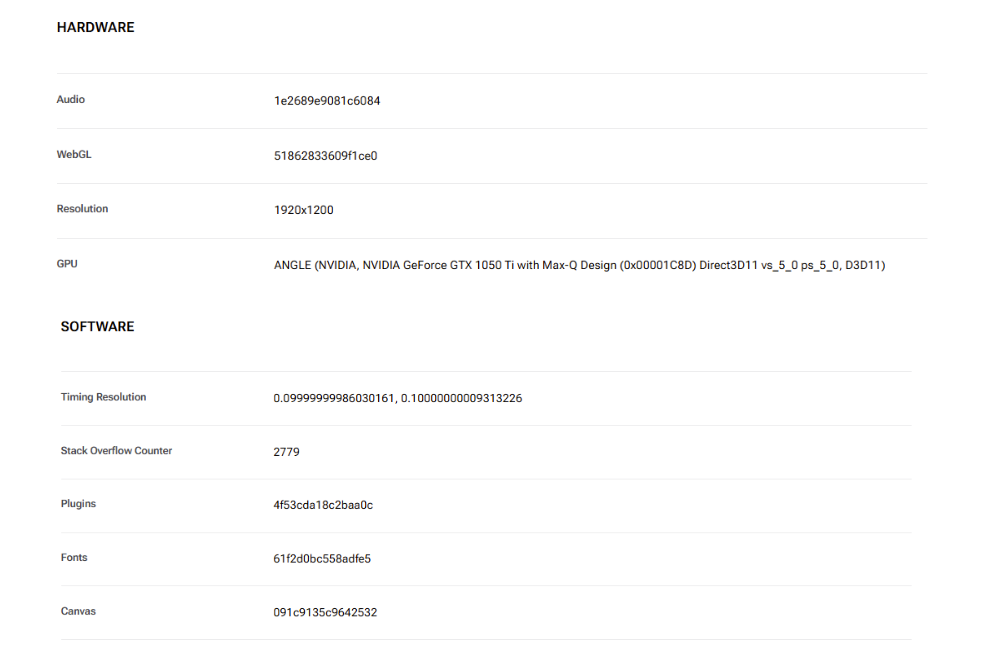
3.3. Overview table of parameters tested by iPhey Test
To quickly review each category, consult the reference table below for importance levels and recommended inspection frequency.
| Metric / Parameter | Group | Importance | When to Check |
|---|---|---|---|
| IP Address | Network | High | Every proxy change |
| WebRTC | Network | High | After connecting a proxy |
| User-Agent | Browser | High | When creating new profiles |
| Canvas Fingerprint | Browser | Medium | When running multiple profiles |
| WebGL | Browser | Medium | When configuring fingerprints |
| Audio Fingerprint | Browser | Low | During full environment audits |
| Fonts, Screen, CPU, RAM | Device | Medium | During overall health checks |
4. Common errors detected during iPhey Tests
iPhey Test results do not always reflect a completely natural environment. Errors frequently arise from mismatched parameters inside a profile or from modifying settings too often. Common issues include:
- Proxy IP and timezone mismatch: For example, using a US IP address while your browser timezone remains set to Vietnam creates a clear structural discrepancy.
- WebRTC leaking real network information: Many users only verify IP changes but neglect WebRTC. If WebRTC leaks your underlying IP address, the environment remains flagged despite an active proxy.
- User-Agent conflicting with hardware parameters: A User-Agent string may indicate a specific OS, while fonts, screen parameters, or graphics drivers reflect a completely different system architecture.
- Changing fingerprints too frequently: Constantly randomizing fingerprints destabilizes your browser context. Instead of modifying multiple parameters repeatedly, identify specific conflicting variables and adjust them in a controlled manner.
These errors demonstrate that testing fingerprints requires analyzing parameter relationships across the entire environment rather than focusing on a single isolated metric.
5. Guide to using Hidemyacc to pass the iPhey Fingerprint Test
After identifying factors that cause inconsistent iPhey Test results, the next step is configuring and auditing your browser environment systematically—from profile setup and proxy connection to fingerprint verification.
5.1. Why use Hidemyacc?
The antidetect browser Hidemyacc allows you to create and manage multiple distinct browser environments, each backed by an independent fingerprint matrix and proxy connection. This ensures complete isolation between accounts, preventing cross-linking risks across profiles.
Hidemyacc provides granular control over parameters such as proxies, User-Agent strings, Canvas, WebGL, and timezones within individual profile cards, making it simple to audit and fine-tune environments as needed.
As a result, you can configure profiles individually and run iPhey Test audits to resolve parameter mismatches before deploying accounts into production.
5.2. Detailed setup steps
Follow this step-by-step workflow to configure profiles, attach proxies, perform iPhey Test audits, and resolve parameter mismatches.
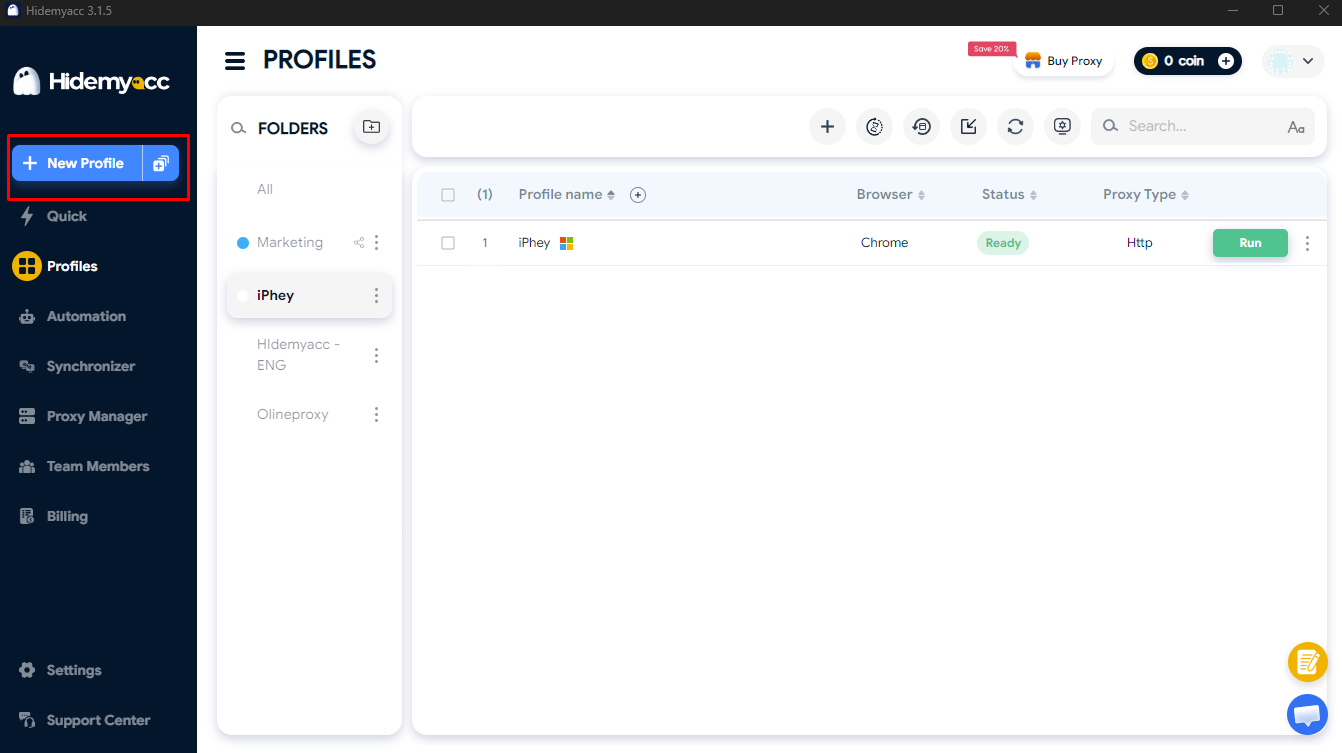
Step 1: Create a new profile in Hidemyacc
Step 2: Configure proxy settings for the profile
Add a proxy matching your target location to the profile card, then test the connection to confirm proper routing and IP exposure.
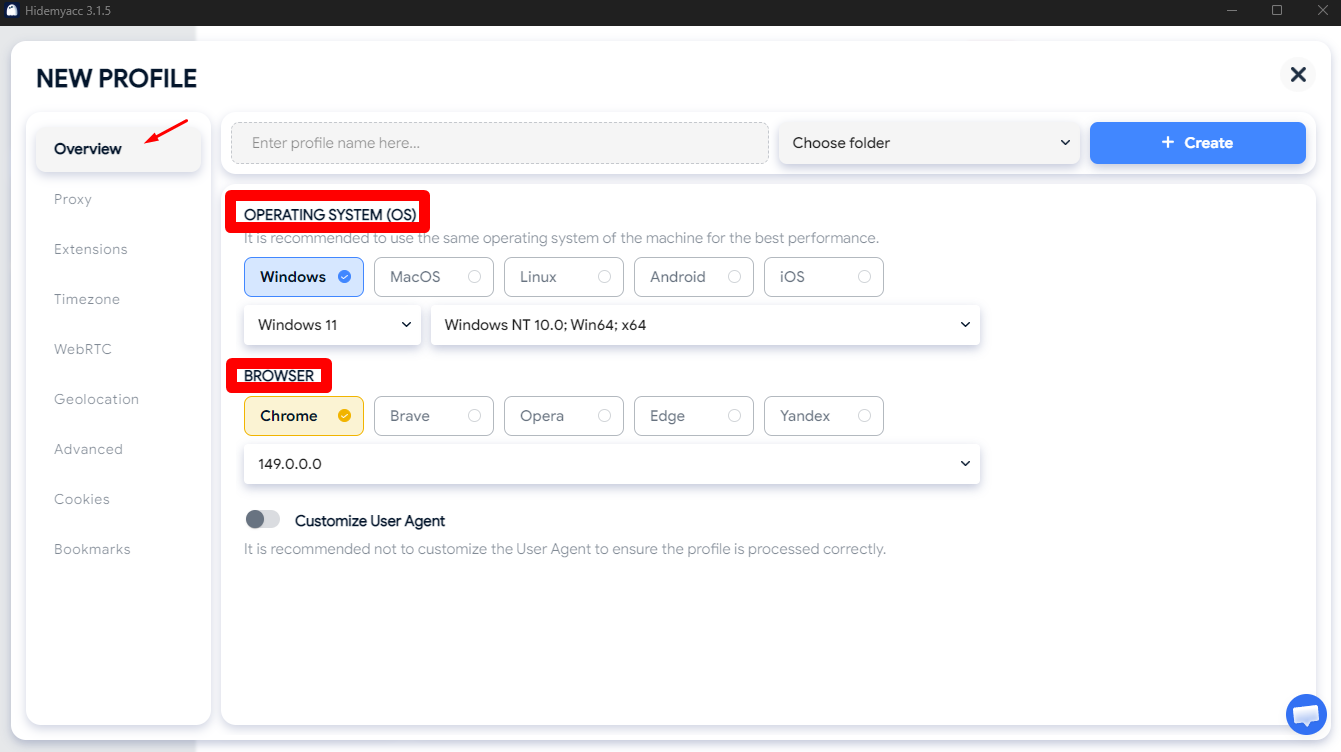
Step 3: Configure fingerprint and environment parameters
In the Overview tab, select the Operating System and Browser build for your profile. It is recommended to choose an OS matching your host machine for maximum stability, as this directly shapes the profile's User-Agent string.
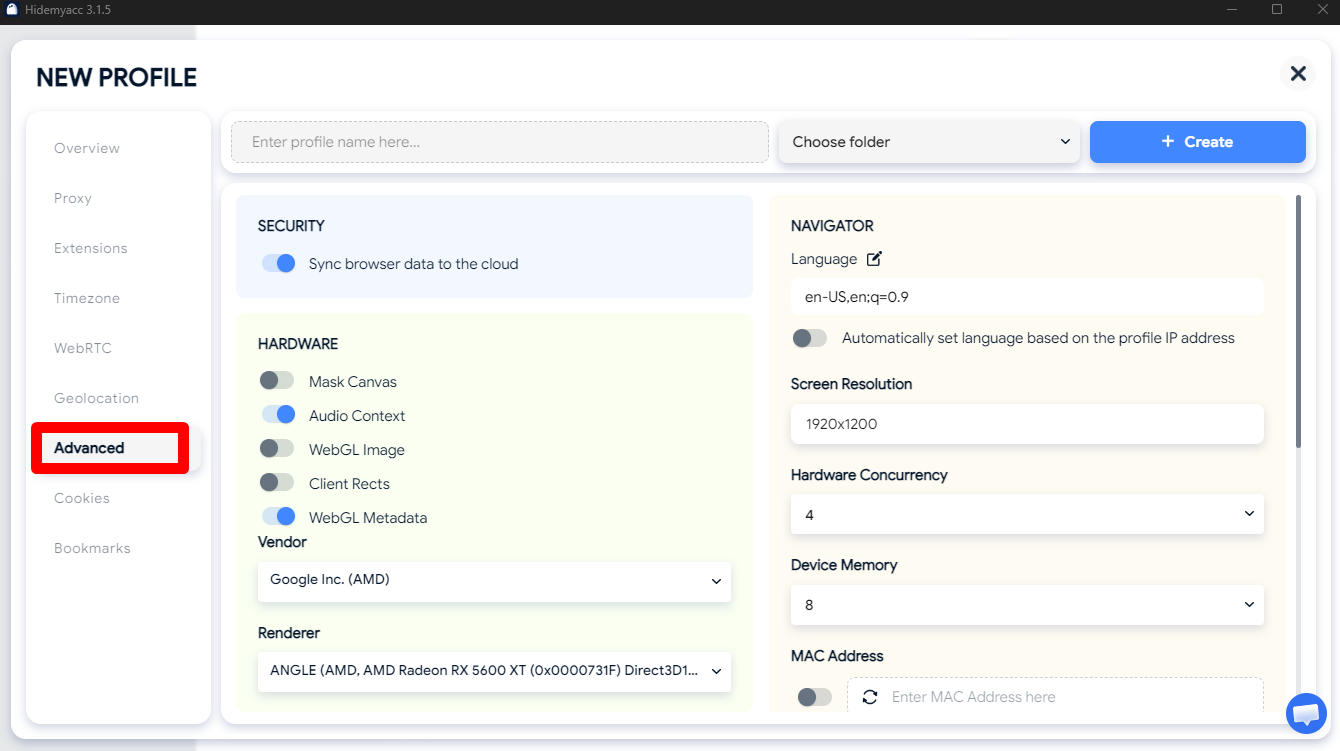
For parameters in the Advanced tab (such as Canvas, WebGL, and Media Devices), manual edits are unnecessary—Hidemyacc automatically sets realistic default configurations. Hardware-related toggles (like Mask Canvas) can simply be enabled or disabled according to your needs.
Step 4: Audit and adjust using iPhey Test
Hidemyacc automatically syncs timezone and geolocation parameters based on your proxy location, minimizing manual configuration. Review these parameters inside your profile card before executing an iPhey Test.
If an audit reveals conflicting values, return to your profile settings in Hidemyacc and adjust the specific item. Resolve parameters one by one to isolate and fix issues accurately.
6. Important considerations when performing an iPhey Test
While iPhey Test provides valuable diagnostic data about your browser environment, results should never be judged solely on a single score or isolated metric. Keep these guidelines in mind during testing:
- Do not chase a perfect score on iPhey Test: A high numerical score does not guarantee a natural browser footprint. Focus on detecting actual data contradictions or abnormal parameter combinations instead.
- Prioritize checking WebRTC leaks: WebRTC exposure is a primary vulnerability when using proxies. Ensure WebRTC does not leak your real network address.
- Maintain User-Agent and OS alignment: Browser and operating system parameters must remain logically consistent to prevent detection flags.
- Match timezone settings to proxy location: When using a proxy in a specific country, ensure your browser timezone automatically aligns with that geographic region to avoid location conflicts.
- Avoid constant fingerprint modification: Once a profile is operating stably, avoid changing fingerprint parameters unnecessarily to maintain session continuity and test stability.
Ultimately, iPhey Test simply reveals what websites see from your active environment. Evaluate results based on your operational use case and overall profile health rather than optimizing an isolated metric.
7. Conclusion
iPhey Test inspects far more than just your IP address; it exposes the full suite of browser and hardware parameters that websites analyze to identify devices. From WebRTC and User-Agent strings to Canvas, WebGL, and hardware specs, every detail contributes to your total digital fingerprint.
To improve your iPhey Fingerprint Test results, changing your IP address alone is insufficient. You must review the complete data profile, detect structural inconsistencies, and correct underlying configuration mismatches.
For operations requiring multiple accounts across isolated browser environments, Hidemyacc provides profile isolation, proxy integration, and centralized fingerprint management. Combining Hidemyacc with iPhey Test enables you to audit and verify browser environments effectively before deploying them for live operations.
8. FAQ
1. Is iPhey Test free to use?
iPhey Test is a free online browser fingerprint testing tool accessible directly from your browser without installing any external software. You can use it anytime to audit your active browser environment.
2. Does iPhey Test require installation?
No. You simply open the iPhey Test website in your browser to run diagnostics. The results display the exact parameters your browser exposes to web servers in real time.
3. Can I run iPhey Test on a mobile device?
Yes, you can access iPhey Test using mobile browsers. However, to test a specific desktop browser environment or antidetect profile, you should execute the test directly within that specific desktop profile.
4. When should I run an iPhey Test?
Run an iPhey Test whenever you create a new profile, attach or change a proxy, or adjust fingerprint parameters. Testing after configuration updates confirms whether the environment behaves as intended.
5. Does iPhey Test detect VPNs or proxies?
iPhey Test reveals the visible IP address and associated network parameters. However, it should not be viewed as a tool that can definitively classify every type of VPN or proxy connection.
6. How should I interpret iPhey Test results?
Inspect your IP, WebRTC, Browser Fingerprint, and hardware parameters sequentially rather than relying solely on a summary score. Pay close attention to items that conflict with your proxy location or intended environment.
7. Can iPhey Test verify if my proxy is working correctly?
Yes. You can use iPhey Test to confirm the IP address visible to external websites after connecting a proxy. If the displayed IP or location is incorrect, review your proxy configuration.
8. How does changing a proxy affect iPhey Test results?
Changing a proxy alters your visible IP address and geographic location data. Run an iPhey Test afterward to verify that your new network location aligns consistently with your profile's browser timezone and environmental settings.