Are you having trouble logging into websites, seeing broken page layouts, or finding that essential features aren't loading? This is a common issue, especially as modern browsers now block third-party cookies by default to enhance user privacy.
While privacy is important, these blocks can often disrupt your browsing experience or prevent specific web services from functioning correctly. Quickly enabling third-party cookies can resolve these technical glitches in seconds. In this guide, Hidemyacc will walk you through the step-by-step process for the most popular browsers as Chrome, Safari, and Firefox, making it simple and easy to follow.
1. What are third-party cookies?
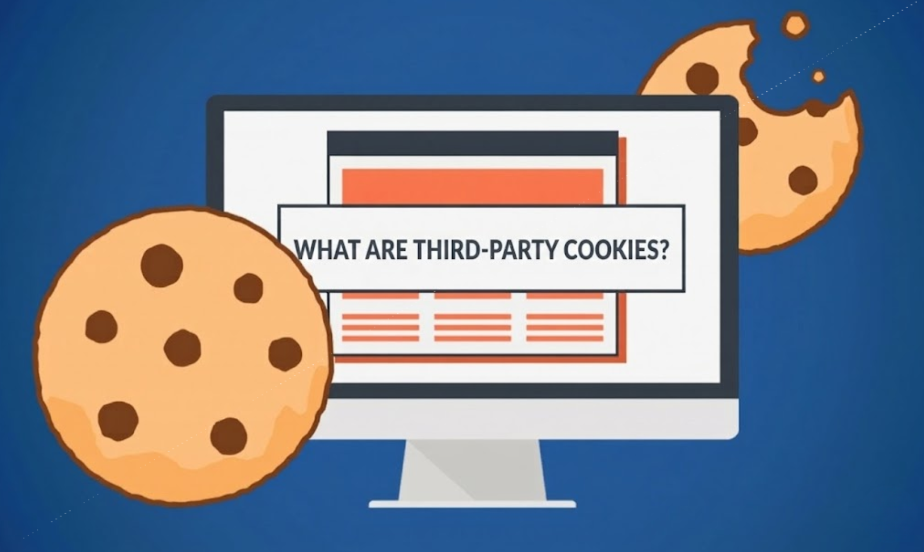
A third-party cookie is a small data file created by a domain other than the website you are currently visiting. In other words, when you browse a site, in addition to the site's own "first-party" cookies, there may be cookies from third-party providers such as advertising platforms, social networks, or analytics tools.
These cookies are primarily used to:
- Track user behavior across multiple websites.
- Deliver personalized ads based on your interests.
- Support integrated features, such as "Log in with Google" or Facebook.
- Collect data for measurement and website analytics.
Example: If you visit an e-commerce site and later see an ad for that exact product on Facebook or other platforms, it is highly likely that third-party cookies were used to track your activity.
While third-party cookies play a vital role in the modern internet ecosystem, their tracking capabilities have led many browsers to restrict or block them by default.
If you find that certain features aren't working, you may need to read more:
- Defining Internet Cookies: How do they work?
- Ways to Manage Cookie Settings in Browsers: Chrome, Firefox & Edge
- How do 1st Party and 3rd Party Cookies differ? (Detailed explanation)
2. When should you enable third-party cookies?
You don't always need to keep them on, but in certain scenarios, knowing how to enable third-party cookies is essential for a website to function correctly.
Common situations where enabling cookies is necessary include:
- Login Issues: You are unable to sign in to your accounts or stay logged in.
- Broken Features: Essential elements like forms, pop-ups, or checkout buttons fail to load.
- Site Display Errors: The website appears "broken," with missing content or incomplete page layouts.
- Social Login Failures: You cannot use "Log in with Google" or "Log in with Facebook" services.
- Tracking & Analytics Gaps: Marketing tools or ad platforms are unable to record data accurately.
Often, users assume a website is down or broken when, in reality, the browser is simply blocking necessary third-party cookies.
If you encounter any of these issues, checking your settings and enabling third-party cookies is a simple yet highly effective first step before attempting more complex technical fixes.
See more:
- What Information can a Website know about you? Explain about browser fingerprinting
- What is Browser Fingerprint? How it tracks you online
- Local Storage vs Session Storage: Which to Use?
3. How to enable third-party cookies on Chrome
As the world’s most popular browser, Google Chrome has strict cookie controls to protect user data. However, if a site isn't loading correctly, you can follow these simple steps to adjust your settings.
On Desktop (Windows)
-
Open Chrome and click the three-dot icon (Menu) in the top-right corner.
-
Select Settings.
-
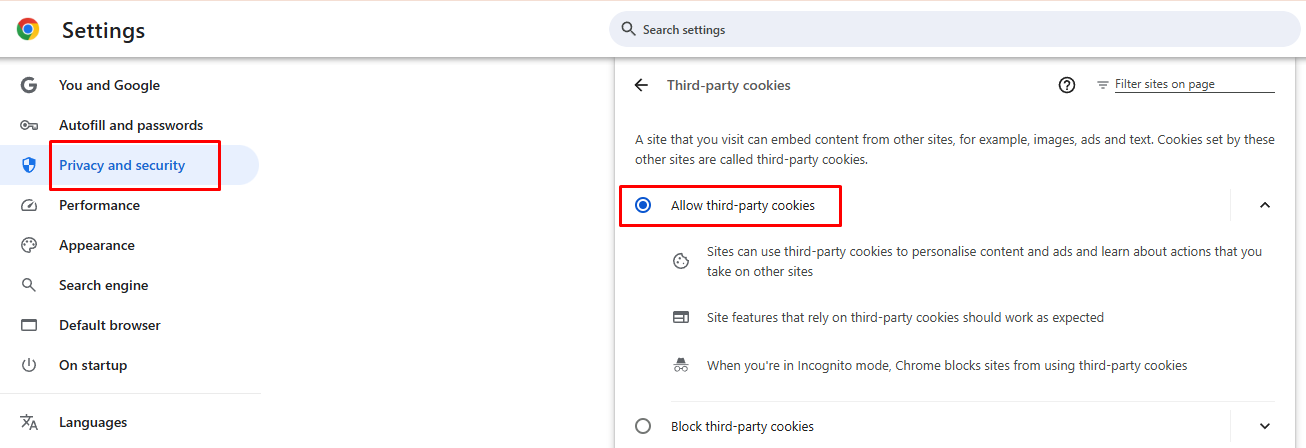
Go to Privacy and security in the left-hand sidebar.
-
Click on Third-party cookies.
-
Select Allow third-party cookies.
On Android Devices
-
Open the Chrome app.
-
Tap the three dots in the top-right corner and select Settings.
-
Scroll down and tap Site settings.
-
Tap on Cookies (or Third-party cookies).
-
Toggle the setting to Allow.
Pro Tip: After following these steps, refresh your webpage. In most cases, learning how to enable third-party cookies is all it takes to fix login issues and display errors instantly.
Read more related blogs:
- What is Brave fingerprinting? How it really works
- Pixelscan Review: Check your browser fingerprint in seconds
- Spoof browser agent explained: A simple guide for beginners
4. How to enable third-party cookies on Safari
Safari is known for its strict Intelligent Tracking Prevention (ITP), especially on Apple devices. Because of this, third-party cookies are often blocked more aggressively than on other browsers.
On macOS (MacBook & iMac)
-
Launch Safari.
-
Click Safari in the top menu bar and select Settings (formerly Preferences).
-
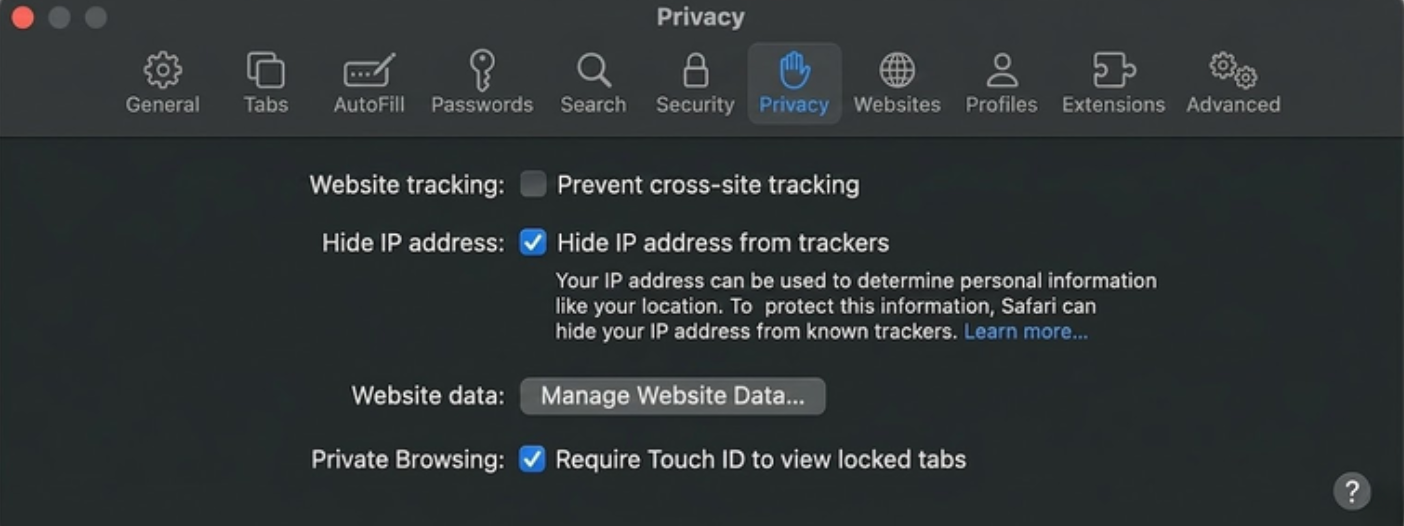
Click the Privacy tab.
-
Uncheck the box for Prevent cross-site tracking.
On iPhone & iPad
-
Open the Settings app on your device.
-
Scroll down and tap Safari.
-
Under the Privacy & Security section, find Prevent Cross-Site Tracking.
-
Toggle the switch to OFF.
Note: After adjusting these settings, remember to reload the website to ensure the features load correctly and cookies are permitted.
5. How to enable third-party cookies on Firefox
Firefox is famous for its privacy-first approach, often restricting third-party cookies through its Enhanced Tracking Protection (ETP) feature.
To adjust these settings and allow cookies, follow these steps:
-
Open Firefox.
-
Click the hamburger menu (three horizontal lines) and select Settings.
-
Click Privacy & Security in the left-hand menu.
-
Under the Enhanced Tracking Protection section, select the Standard mode (instead of Strict).
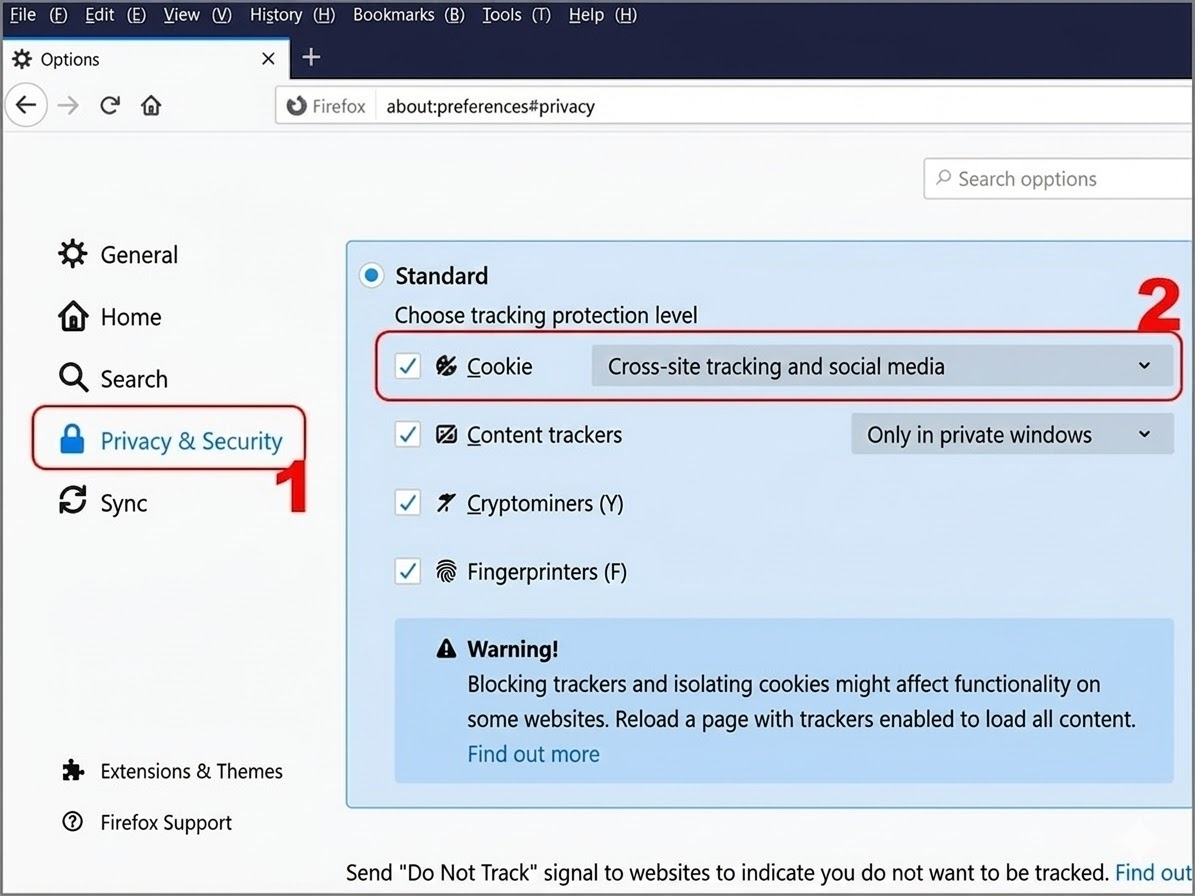
Alternative method:
- Scroll down to the Cookies and Site Data section.
- Click Manage Exceptions if you only want to allow cookies for a specific website.
Once finished, revisit the site you were having trouble with to verify that the issue is resolved. Knowing how to enable third-party cookies in Firefox is often the quickest fix for "looping" login screens or missing interactive elements.
6. Important considerations when enabling third-party cookies
While knowing how to enable third-party cookies can fix common site errors and improve your browsing experience, it's important to balance functionality with your online privacy and security.
Here are a few things to keep in mind:
- User tracking: Third-party cookies can track your browsing habits across different websites.
- Targeted advertising: Your data is often used to build a profile for personalized ads.
- Data collection: Some websites may collect more information than you initially realize.
- Cross-platform monitoring: You can be followed across various platforms and social networks.
How to stay safe while using cookies:
To enjoy a smooth browsing experience without compromising your security, we recommend these best practices:
- Enable on an as-needed basis: Only enable third-party cookies when a specific website requires them to function.
- Disable after use: Once you've finished your task (like a payment or login), consider disabling them again.
- Use site-specific exceptions: Instead of a global "Allow" setting, manually allow cookies only for trusted websites.
Managing your cookie settings effectively allows you to avoid security risks while ensuring your favorite web services work exactly as they should.
You should also learn more about:
- WebRTC Leak: Why your VPN/Proxy fails and How to fix it
- Ad blocker Chrome extension: Stop ads instantly with this tool!
7. Conclusion
Learning how to enable third-party cookies is a quick and effective way to fix common browsing issues, such as login failures, unstable website performance, or missing features. However, this convenience comes with certain privacy trade-offs.
Ultimately, instead of enabling third-party cookies, the best approach is to understand when they are necessary. By managing your settings wisely, you can enjoy a seamless web experience while still keeping your personal data secure.
8. FAQ
1. Are third-party cookies safe?
Not entirely. While they serve many useful purposes like keeping you logged in across services, they can also be used to track your browsing habits across the web.
2. Should I always keep third-party cookies enabled?
No. For better privacy, it is recommended to enable them only when necessary and disable them once you’ve finished your task.
3. Why is the website still not working after I enabled cookies?
If you've followed the steps on how to enable third-party cookies but the site still fails to load, the issue might be caused by a corrupted browser cache, ad-blocking extensions, or strict firewall settings.
4. Can I enable third-party cookies for just one specific website?
Yes. Most modern browsers like Chrome and Firefox allow you to add "Exceptions" or a "Whitelist," so you only permit cookies for trusted sites while blocking them everywhere else.
5. What happens if I clear my cookies?
When you clear cookies, you will likely be signed out of your accounts, and any personalized site preferences (like items in a shopping cart or dark mode settings) may be reset.