You are browsing normally when a verification request suddenly pops up. After completing it, you expect everything to be fine, but just a few minutes later, another CAPTCHA appears—and the more you try, the easier it is to get blocked. The issue usually lies not in the CAPTCHA itself, but in the underlying signals causing the system to distrust your browsing session. This article explains the mechanics behind DataDome CAPTCHA, why you repeatedly face verification prompts, why real users get blocked, and how to handle it step-by-step.
1. What is DataDome CAPTCHA and Where Do You Encounter It?
Before attempting to resolve CAPTCHAs, it is essential to understand what DataDome CAPTCHA is and where it fits into DataDome's security ecosystem. This prevents confusing CAPTCHA with the entire anti-bot infrastructure and clarifies why solving a single challenge does not always fix the underlying issue.
1.1. Definition of DataDome CAPTCHA
DataDome is a protection platform for websites, mobile applications, and APIs against bots, automated traffic, and fraud. The system evaluates the risk level of a browsing session using various signals, including IP addresses, browser fingerprints, environment configurations, interaction behavior, and cross-layer correlations.
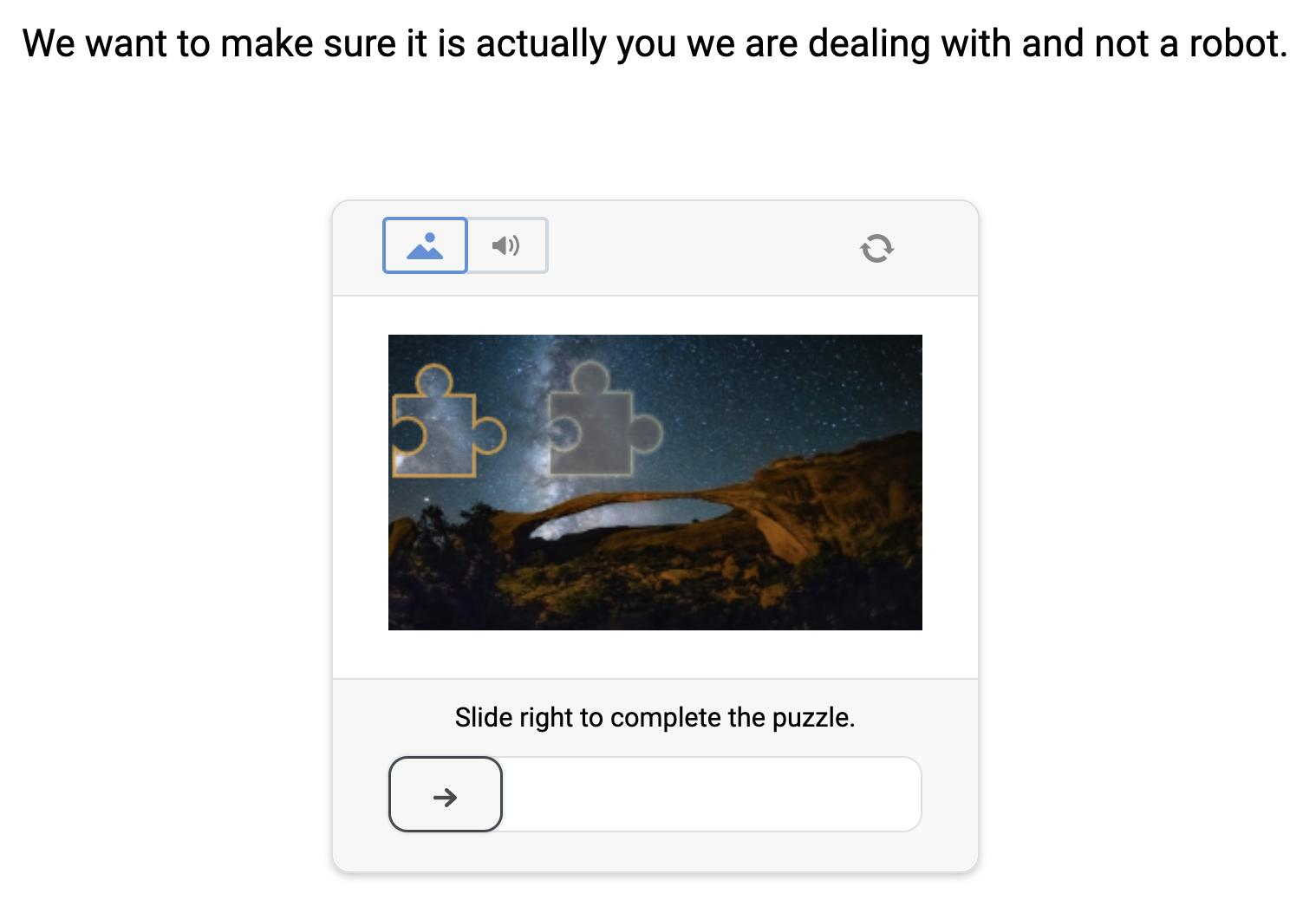
DataDome CAPTCHA is a verification prompt that triggers when the system detects suspicious activity during a session. However, CAPTCHA is merely one of many detection and protection layers within DataDome, not the whole system itself.
This explains why successfully solving a CAPTCHA does not automatically mark a session as completely safe. The system continues evaluating other telemetry signals as you browse.
1.2. When Does DataDome CAPTCHA Appear?
Not every visitor encounters a CAPTCHA. Verification requests trigger only when the system identifies one or more signals that push the session's overall risk score past a security threshold.
Legitimate users can also be flagged if they connect via low-reputation IPs, run unusual browser configurations, or display interaction patterns differing from standard human behavior.
Depending on the assessed risk level, users may encounter different responses:
- Challenge or CAPTCHA: The user receives an opportunity to verify identity and proceed.
- Access Denied or Block Page: Access is blocked outright, with no CAPTCHA option provided.
- Silent Blocking: The page loads partially or lacks content, certain features fail, or API calls return error codes without displaying a CAPTCHA.
These three responses correspond to different risk severity levels. Therefore, focusing strictly on solving CAPTCHAs without addressing why the session was flagged will likely cause the blocks to recur.
1.3. Comparing DataDome CAPTCHA with reCAPTCHA and hCaptcha
DataDome, reCAPTCHA, and hCaptcha all serve user verification and threat detection functions, but their design goals and architectural approaches differ.
DataDome is a comprehensive bot protection and fraud prevention solution. CAPTCHA is simply one verification checkpoint inside a larger traffic intelligence engine.
In contrast, reCAPTCHA and hCaptcha are primarily standalone user verification tools embedded at specific touchpoints on a website or app. Newer versions of these tools also incorporate risk scoring and behavioral analysis, making the distinction less absolute.
The core difference is scope: DataDome is designed to analyze and secure entire traffic flows across websites, mobile apps, and APIs, rather than serving solely as a standalone challenge widget.
| Criteria | DataDome CAPTCHA | reCAPTCHA | hCaptcha |
|---|---|---|---|
| Primary Purpose | A verification step inside an end-to-end anti-bot system | User verification with risk scoring | User verification with risk scoring |
| Placement | Integrated into full-stack traffic analysis | Standalone widget placed at verification points | Standalone widget placed at verification points |
| Behavioral Analysis | Yes | Yes | Yes |
| Protection Scope | Websites, APIs, Mobile Apps | Websites, Apps; APIs in Enterprise edition | Websites, Apps; expanded in paid tiers |
In short, DataDome CAPTCHA is not an isolated test. It operates within a broader access evaluation system where multiple signals combine to determine session legitimacy.
2. Why Do You Encounter DataDome CAPTCHA?
Understanding why DataDome CAPTCHA appears requires evaluating the entire browsing session rather than focusing on a single variable like an IP address or browser type. The system collects data across multiple layers and correlates them to determine overall risk.
It helps to recognize that the system evaluates the session, not you as an individual. Every visit emits signals across network, browser, and behavior layers. When combined signals cross a risk threshold, verification is triggered.
Instead of asking what you did wrong, consider what the combined signal profile of your browsing session looks like.
DataDome does not publicly disclose its specific scoring algorithms or exact signal weights. Consequently, the analysis below is based on standard industry detection mechanisms and public research on browser fingerprinting. While accurate at the structural level, exact internal weighting cannot be independently verified.
2.1. Network Layer: IP, Proxy, and Connection Signatures
Your IP address directly impacts session trust. The system reviews historical reputation, network provider details, IP range categorization, and whether the IP is shared among multiple concurrent users.
Key network-layer signals include:
- IP Reputation: Historical activity and risk scores linked to the IP address.
- ASN: Autonomous System Number identifying the network provider and infrastructure type.
- Shared IPs: IP addresses shared by many users or automated processes may carry lower base trust scores.
- Proxy Types: Proxies (Datacenter vs. Residential) carry different risk profiles, though proxy type alone does not dictate whether a CAPTCHA appears.
- TLS Fingerprints: Unique SSL/TLS handshake signatures captured via methods like JA3 or JA4.
- HTTP/2 Fingerprints: Client-side handshake parameters, such as HTTP/2 SETTINGS frames.
Notably, connection signatures are evaluated before JavaScript even executes on the page. If a TLS handshake resembles a Python HTTP library while the User-Agent claims to be standard Chrome, this cross-layer mismatch immediately raises suspicion.
Read more:
- What is a Datacenter Proxy? Everything You Need to Know
- Residential Proxies - How They Work and Why You Should Use Them
- Residential vs. Datacenter Proxies: Differences and How to Choose
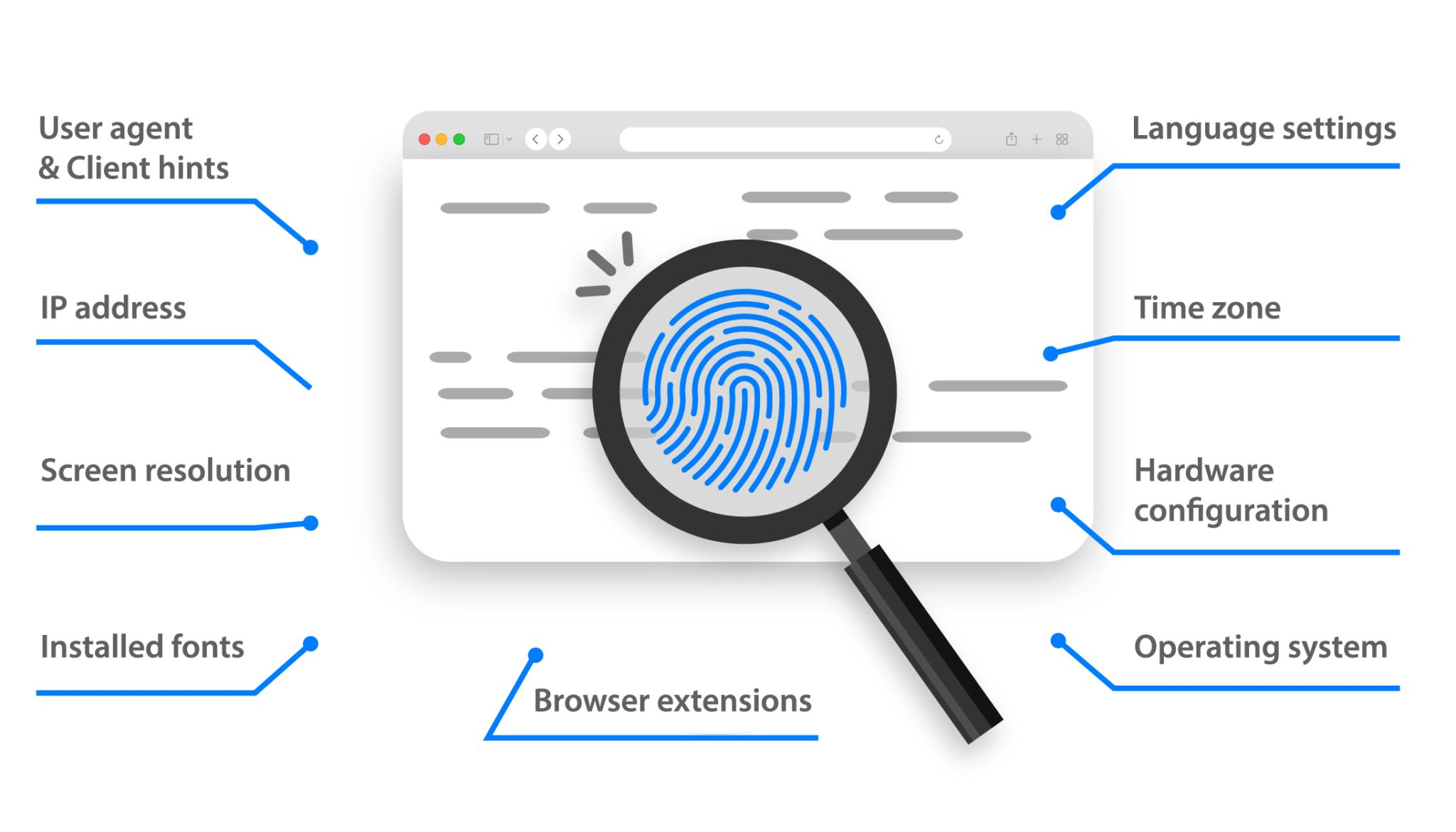
2.2. Browser Layer: Fingerprinting
Browser fingerprinting is not just about whether a configuration is unique. A browser profile is also evaluated on its internal consistency, plausibility, and stability across parameters.
Four primary dimensions are assessed:
- Uniqueness: Is the profile so rare that it serves as an explicit tracking identifier?
- Consistency: Do individual browser attributes contradict each other?
- Plausibility: Could this exact hardware and software combination exist on a real physical device?
- Stability: Does the fingerprint remain static during the session, or does it shift unnaturally between requests?
Examples of common profile mismatches include:
- A User-Agent claiming macOS while installed fonts are exclusive to Windows.
- JavaScript reporting a Vietnam timezone while the IP resolves to Frankfurt.
- Browser rendering capabilities that contradict the declared operating system version.
A unique fingerprint is not inherently safe. Randomizing parameters too frequently breaks profile consistency, plausibility, and stability, increasing security flags.
Read more: What Information Can Websites See About You? Explaining Browser Fingerprinting
2.3. Behavioral Layer
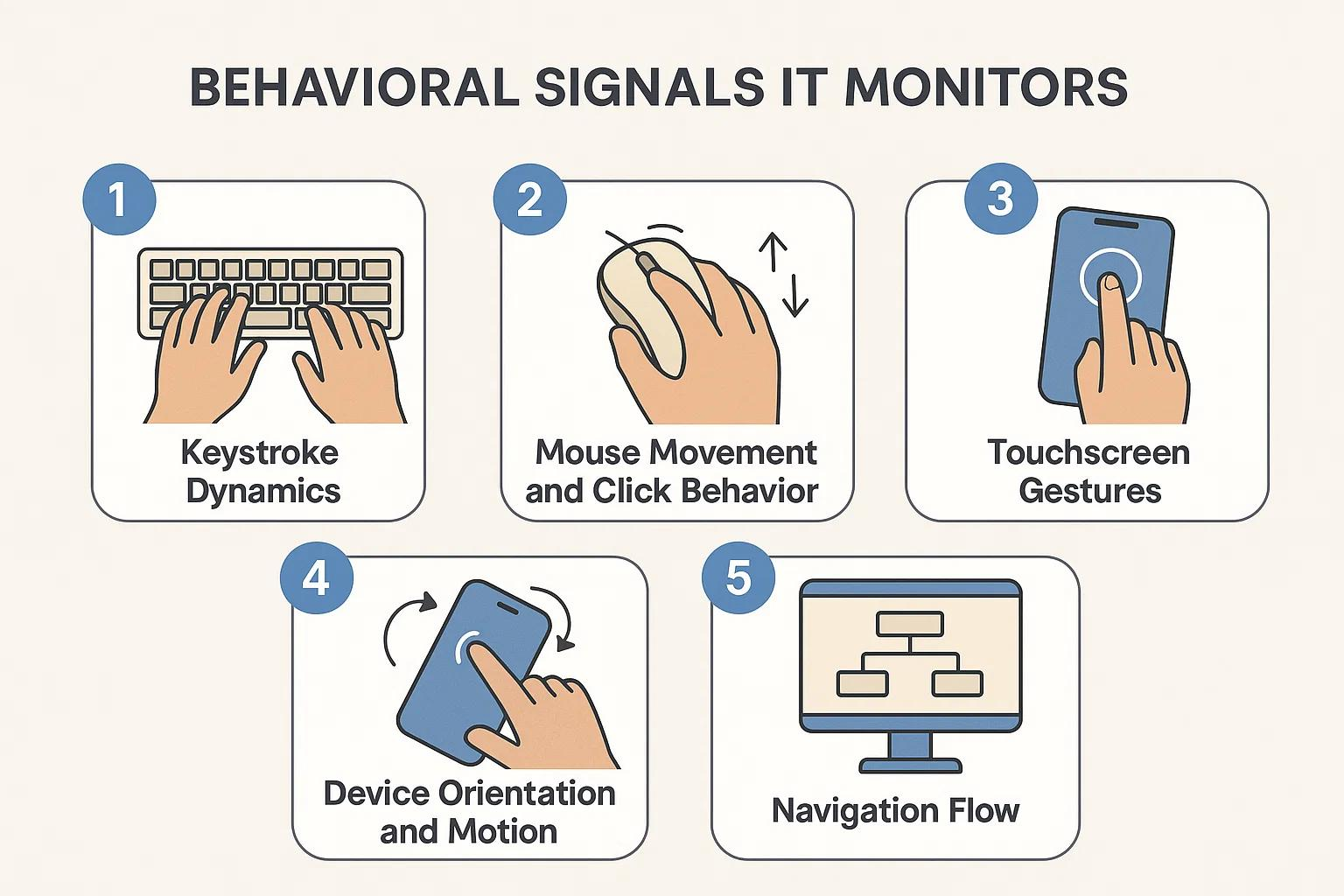
Beyond technical fingerprints, the system monitors user interaction styles to detect automation patterns. Key behavioral indicators include:
- Mouse Movement: Real humans generate curved, irregular trajectories with varying speeds. Basic scripts often produce straight, perfectly linear, or unnaturally uniform movements.
- Click Timing: The duration between mouse press and release events varies naturally for humans, whereas automated tools often execute clicks with fixed millisecond delays.
- Page Navigation: Navigating pages at precise, uniform intervals or repeating identical action sequences triggers automation detectors.
- Action Delays: Interactions executing too fast or following mathematical cadences raise risk scores.
- Scrolling Behavior: How a user scrolls, hovers, and interacts across page sections forms a distinct behavioral profile.
A single anomaly does not automatically classify a user as a bot. Humans can also click rapidly, browse quickly, or display non-standard interaction habits.
2.4. Site Configuration Layer
Security rules vary by website. High-target platforms often enforce stricter thresholds, prompting CAPTCHAs under conditions that other sites might allow without challenge.
Consequently, two users performing similar actions may receive different responses depending on the site's configuration, target endpoint, and current threat levels.
Facing a DataDome CAPTCHA does not mean you have been conclusively identified as a bot; it means your session signals triggered a risk threshold requiring verification.
2.5. Summary Table of Potential CAPTCHA Trigger Factors
| Signal Category | Examples | Why It Can Be Suspicious |
|---|---|---|
| Fingerprint | Canvas, WebGL, User-Agent | Inconsistencies between hardware, OS, and browser declarations |
| Behavior | Click timing, scrolling, action speed | Unnatural interaction patterns (too fast, linear, or uniform) |
| IP | IP reputation | IP listed on blacklists or associated with malicious history |
| Network | JA3/JA4, HTTP/2 SETTINGS | Connection signature does not match the User-Agent string |
| Automation | Headless, WebDriver | Traces of automated browser controls or headless environments |
3. Why Can DataDome Mistakenly Flag Real Users?
When legitimate users face CAPTCHAs or blocks, it is considered a false positive. This does not mean the system concluded you are a bot—it simply means your session lacked sufficient trust signals to pass unverified.
Common causes include:
- VPNs and Shared IPs: Many users route traffic through a single VPN IP. If that IP has a history of automated activity, innocent users sharing the address are affected.
- ISP CGNAT: Mobile and residential ISPs route thousands of households through shared public IPs using Carrier-Grade NAT. Malicious traffic from others on the same IP degrades trust for everyone.
- Outdated Browsers or Custom Settings: Older browsers lack modern Web APIs, while heavy customization creates rare fingerprint combinations that look suspicious.
- Privacy Extensions: Ad blockers, script blockers, anti-tracking add-ons, or User-Agent spoofers alter or block security scripts from gathering baseline telemetry.
- Screen Readers & Assistive Tools: Accessibility software alters page navigation and input events, deviating from standard mouse and keyboard patterns.
- Corporate Networks: Hundreds of employees accessing the internet through a single corporate egress IP can generate traffic volumes that resemble botnets.
Privacy tools intended to protect users can inadvertently make browser sessions harder to verify. False positives are a known trade-off for high-security environments, especially for users on VPNs, corporate networks, CGNAT, or privacy extensions.
Encountering a CAPTCHA simply means your current session signals require additional verification before access is granted.
4. Why Might You Re-encounter Verification After Solving a DataDome CAPTCHA?
Solving a DataDome CAPTCHA and encountering another shortly after does not mean your first answer was incorrect. CAPTCHA is just one step in an ongoing evaluation process. The system continues monitoring session signals as you interact with the site.
4.1. CAPTCHA is Only One Step in Evaluation
Solving a CAPTCHA proves humanity at that specific moment. However, background evaluation continues. If underlying telemetry signals remain high-risk, subsequent requests may trigger another challenge.
4.2. Persistent Environment or Fingerprint Issues
Factors that cause recurring verification prompts include:
- Inconsistent browser fingerprints.
- Low IP reputation scores.
- Mismatches between system timezone and IP geolocation.
- Corrupted or rejected session cookies.
- Fingerprint attributes changing dynamically during the session.
If CAPTCHAs loop continuously, address your browser environment and network setup rather than repeatedly solving the puzzle.
4.3. Request Frequency Remains Too High
Sending requests too quickly, opening excessive tabs simultaneously, or maintaining rapid browsing patterns triggers rate-limiting rules, re-initiating CAPTCHA challenges.
If post-CAPTCHA behavior continues to mirror automated patterns, challenges will reappear.
5. How to Resolve DataDome CAPTCHA Issues
Instead of repeatedly trying to solve looping CAPTCHAs, address the root causes step-by-step. General users should begin by inspecting their browser, session cookies, and network settings. If issues persist on legitimate visits, contact the target website directly.
5.1. Complete the CAPTCHA as Instructed
When the CAPTCHA appears, complete it carefully. Once submitted, allow the page time to validate rather than aggressively refreshing or submitting multiple requests.
If the CAPTCHA re-appears immediately, stop solving it and proceed to troubleshoot your browser, network, and cookies.
5.2. Check Your Browser
Browser configurations can trigger automated risk flags. Try the following:
- Update your browser to the latest version.
- Ensure JavaScript is enabled.
- Check if cookies are blocked for the site.
- Temporarily disable extensions that modify page DOM or block scripts.
- Test the site in a clean browser profile or private window.
If access works smoothly in a clean profile, the issue likely stems from extensions, cached data, or corrupted session cookies.
5.3. Check Your VPN or Proxy
If using a VPN, disconnect and try your standard connection. If using proxies, test IP reputation and switch nodes if the current IP carries a bad history. You can also test on a different network (e.g., mobile hot-spot).
5.4. Clear Cookies and Session Data
Stale cookies and corrupted session states can lock your session into a flagged status. Try:
- Clearing cookies for the specific domain.
- Clearing browser cache.
- Restarting the browser to establish a fresh session.
Clearing cookies resolves session state issues, but if your IP reputation or fingerprint is flagged, CAPTCHAs may return.
5.5. Contact Website Support for Persistent Issues
If you are a legitimate user repeatedly blocked despite clean settings, contact the website support team. Provide your IP address, browser details, and time of occurrence so administrators can adjust false-positive detection rules.
6. Multi-Account Management: How to Maintain a Stable Environment?
Standard user solutions handle single-session friction. However, managing multiple accounts requires running isolated, consistent environments to prevent cross-account linking.
6.1. Unique Challenges of Operating Multiple Accounts
Running multiple accounts on a single browser or machine causes shared data leakage across:
- Cookies
- Local Storage & IndexedDB
- Browser Fingerprints
- IP Addresses
For risk assessment engines evaluating per-session signals, shared environments link accounts together. The risk stems from operating multiple identities within overlapping, inconsistent environments.
When multiple profiles share digital footprints, security systems flag them for association. Maintaining strict environment separation is crucial for multi-account management.
6.2. Three Principles for Maintaining Stable Account Environments
To manage multiple accounts safely, adhere to three core principles: Separation, Consistency, and Stability.
Separation: Each account requires its own completely isolated environment, including separate cookies, storage, fingerprints, and dedicated IP addresses.
Consistency: Telemetry signals within a single environment must logically align:
- Operating system declarations must match installed fonts and rendering features.
- System timezone must match the IP location.
- Browser language parameters must align with location and headers.
Stability: Keep environment profiles static over time rather than constantly randomizing settings.
Constantly randomizing profile settings introduces mismatches rather than trust. The goal is to maintain a plausible, consistent, and stable environment for each profile.
6.3. How Can Browser Profile Management Tools Help?
Managing cookies, proxies, and fingerprint parameters manually across dozens of accounts is difficult. Dedicated browser profile management tools streamline this by isolating environments per profile, allowing users to:
- Create and manage isolated browser profiles.
- Isolate cookies and local storage per profile.
- Control profile-specific fingerprint parameters.
- Bind dedicated proxies to individual profiles.
- Persist static environment settings over time.
- Organize multiple profiles within a unified dashboard.
Each profile operates independently, eliminating cross-contamination. However, profile tools simplify environment management—they do not guarantee CAPTCHA immunity, as DataDome continuously evaluates real-time behavioral and network telemetry.
6.4. Managing Isolated Browser Profiles with Hidemyacc
Hidemyacc antidetect browser is an example of a profile management platform built to structure isolated browsing environments. Instead of juggling multiple accounts in one browser, you can create isolated profiles with unique configurations.
Hidemyacc helps you:
- Create and configure separate browser profiles.
- Isolate session storage and cookies completely.
- Manage individual profile fingerprints.
- Assign dedicated proxies per profile.
- Centralize profile workflows in one interface.
To set up a profile, follow these steps:
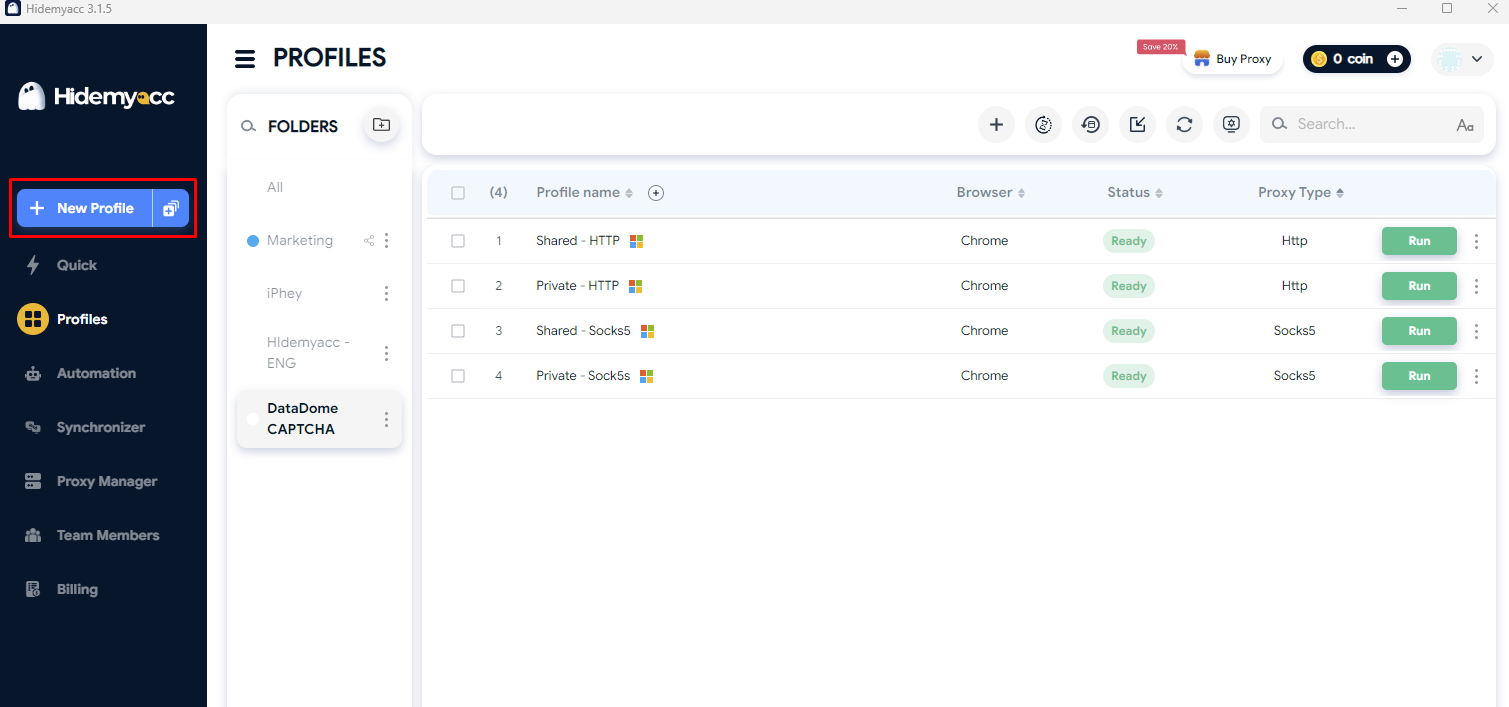
Step 1: Create a New Profile in Hidemyacc
Open Hidemyacc and click New Profile. Assign a distinct name to easily organize and identify profiles across workflows.
Step 2: Configure Proxy and Browser Environment
Add a dedicated proxy to the profile. Once saved, verify IP connectivity and geolocation details to ensure the proxy is functioning correctly.
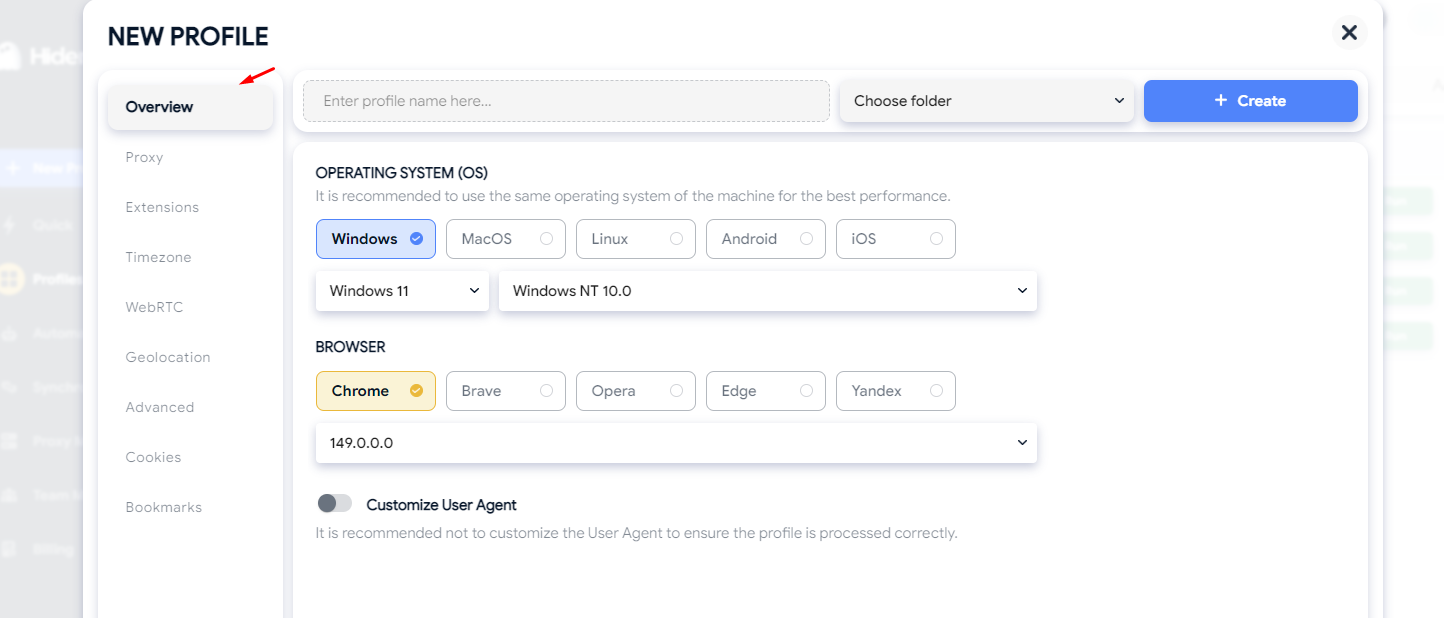
Next, under the Overview tab, select your target operating system and browser engine. Select an OS matching your host device to maintain natural hardware rendering signatures. This setting configures the profile's User-Agent, which should remain stable over time.
Learn more: Guide to Using Proxies in Hidemyacc
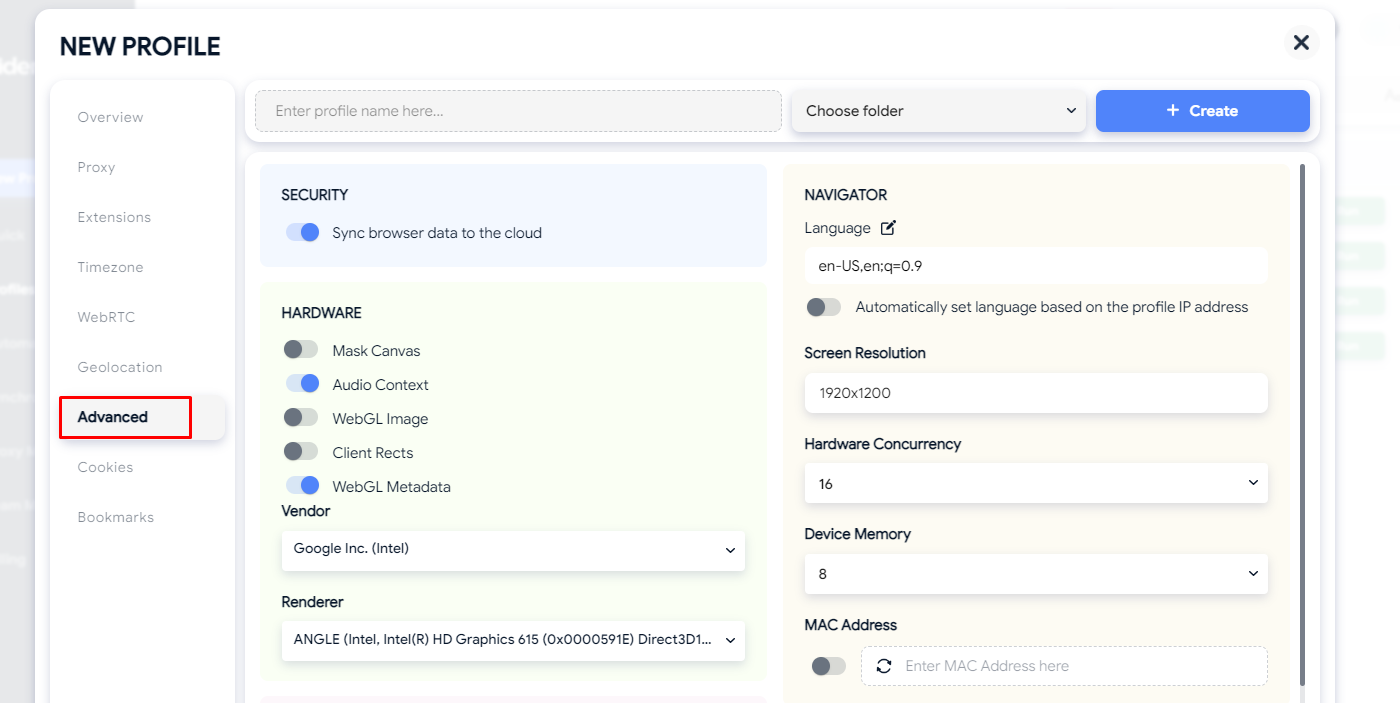
Step 3: Configure and Verify Fingerprint Settings
Hidemyacc provides fingerprint configuration controls under the Advanced tab, including Canvas, WebGL, and Media Devices. You do not need to manually tweak every value.
Review default configurations and adjust only necessary parameters. Modes like Mask Canvas can be toggled according to your operational requirements.
The objective is to maintain a plausible, coherent fingerprint profile rather than hyper-randomizing parameters.
Step 4: Verify the Entire Environment
Before launching, verify core environment variables: IP address, proxy location, system timezone, and browser fingerprint. Resolve any glaring parameter contradictions before starting your session.
Once verified, keep profile settings static during operational use. Maintaining consistent profile parameters reduces environmental friction across sessions.
6.5. Pre-Automation Checklist
Before executing automated tasks, audit critical environment variables using the checklist below.
| Category | Checklist Item |
|---|---|
| Fingerprint | Ensure OS and browser align; verify User-Agent, WebGL, Canvas, and timezone consistency. |
| IP & Network | Check IP reputation score, IP location matching, and proxy stability. |
| Request Frequency | Pace request rates; avoid rapid bursts or unnatural request volume spikes. |
| Session Isolation | Avoid running excessive concurrent sessions on a single IP; keep profile states isolated. |
| Result Monitoring | Track CAPTCHA rates, Access Denied responses, and HTTP status codes; audit environments if errors spike. |
| Compliance | Adhere to site Terms of Service, respect robots.txt guidelines where applicable, and maintain legal compliance. |
7. Conclusion
DataDome CAPTCHA triggers when session risk assessments exceed acceptable security thresholds based on IP reputation, fingerprint signals, behavior, and network properties. Randomly rotating IPs or constantly tweaking fingerprints without underlying consistency rarely solves the issue.
General users should check browser settings, clear cookies, test clean profiles, or verify network connections. For multi-account operators, maintaining isolated, consistent, and stable environments per profile is key to managing operational risk. While anti-detect browsers like Hidemyacc help structure isolated environments, no tool guarantees total CAPTCHA immunity, as DataDome continuously evaluates real-time telemetry across every session.
Understanding how DataDome evaluates risk enables precise troubleshooting rather than relying on random parameter changes.
8. FAQ
1. Is DataDome CAPTCHA the same as reCAPTCHA?
No. DataDome CAPTCHA is a component of DataDome's proprietary anti-bot system, whereas reCAPTCHA is a security product developed by Google.
2. Why do I repeatedly encounter DataDome CAPTCHAs even after solving them correctly?
Solving a CAPTCHA verifies identity for that moment, but if other session signals (such as IP reputation, profile inconsistencies, or request rates) remain high-risk, subsequent requests will trigger new verification challenges.
3. Can CAPTCHA-solving services completely bypass DataDome?
Not necessarily. Solving a CAPTCHA only completes one challenge point; DataDome continues evaluating background behavioral and network signals throughout the session.
4. What type of proxy is best for avoiding DataDome CAPTCHAs?
No proxy type guarantees zero CAPTCHAs. Focus on IP reputation, subnet cleanliness, and connection stability rather than proxy category alone.
5. Do antidetect browsers help reduce CAPTCHAs?
Antidetect browsers help manage isolated profiles, fingerprints, and proxies per environment. However, they do not guarantee complete CAPTCHA elimination, as DataDome evaluates real-time network and interaction behavior alongside fingerprints.