In digital marketing campaigns and large-scale business operations, owning and operating multiple Outlook email accounts simultaneously has become an indispensable part of reaching potential customers. However, along with this convenience comes a headache regarding security, as Microsoft's automated scanning systems grow increasingly strict, ready to permanently ban the entire system if device or network address duplication is detected.
To help you optimize your workflow and protect your valuable assets, this article will analyze current popular email management solutions in detail, guiding you on how to set up an independent, clean working environment to maintain your account fleet's stability and longevity.
1. Managing multiple accounts with the Outlook Desktop App
Managing multiple Outlook accounts using the Outlook application installed directly on your computer is a familiar method. This software allows you to add numerous email accounts, such as Microsoft 365, Outlook.com, Gmail, Yahoo, or iCloud, to operate concurrently without any quantity restrictions.
Quick setup process
To configure a centralized email system, you can quickly follow these specific instructional steps:
- Open the platform application: First, you need to launch the Outlook Desktop software that has been pre-installed on your computer.
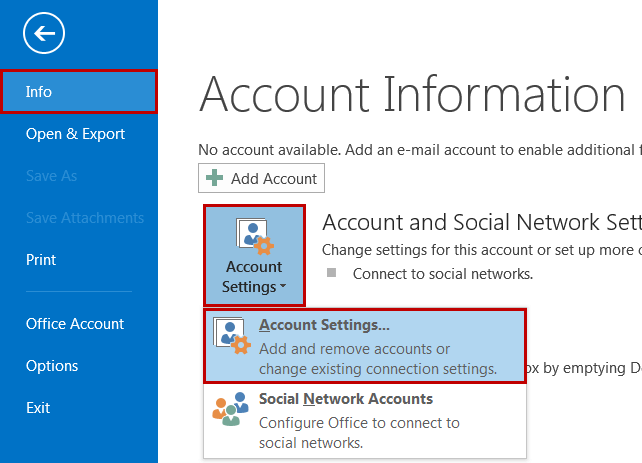
- Access the administration area: On the main interface, locate and navigate to the system's account settings.
-
Add new and repeat the action: Next, click on the Add Account command to display the input box, fill in the new email information, and repeat this process for all subsequent accounts.
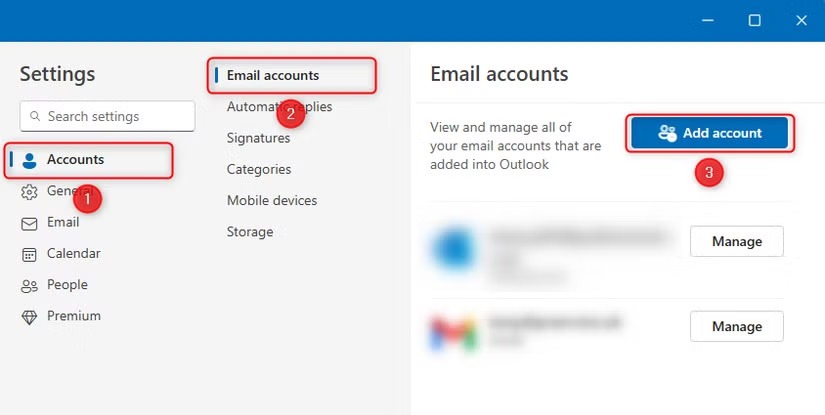
After completing the setup steps above, you can simultaneously operate your entire email system on a single manager. At this point, Outlook's interface allows you to click directly on the profile picture in the upper corner to switch quickly and smoothly between inboxes. On the Outlook mobile version for Android and iOS, a single-swipe feature also makes data control extremely fast.
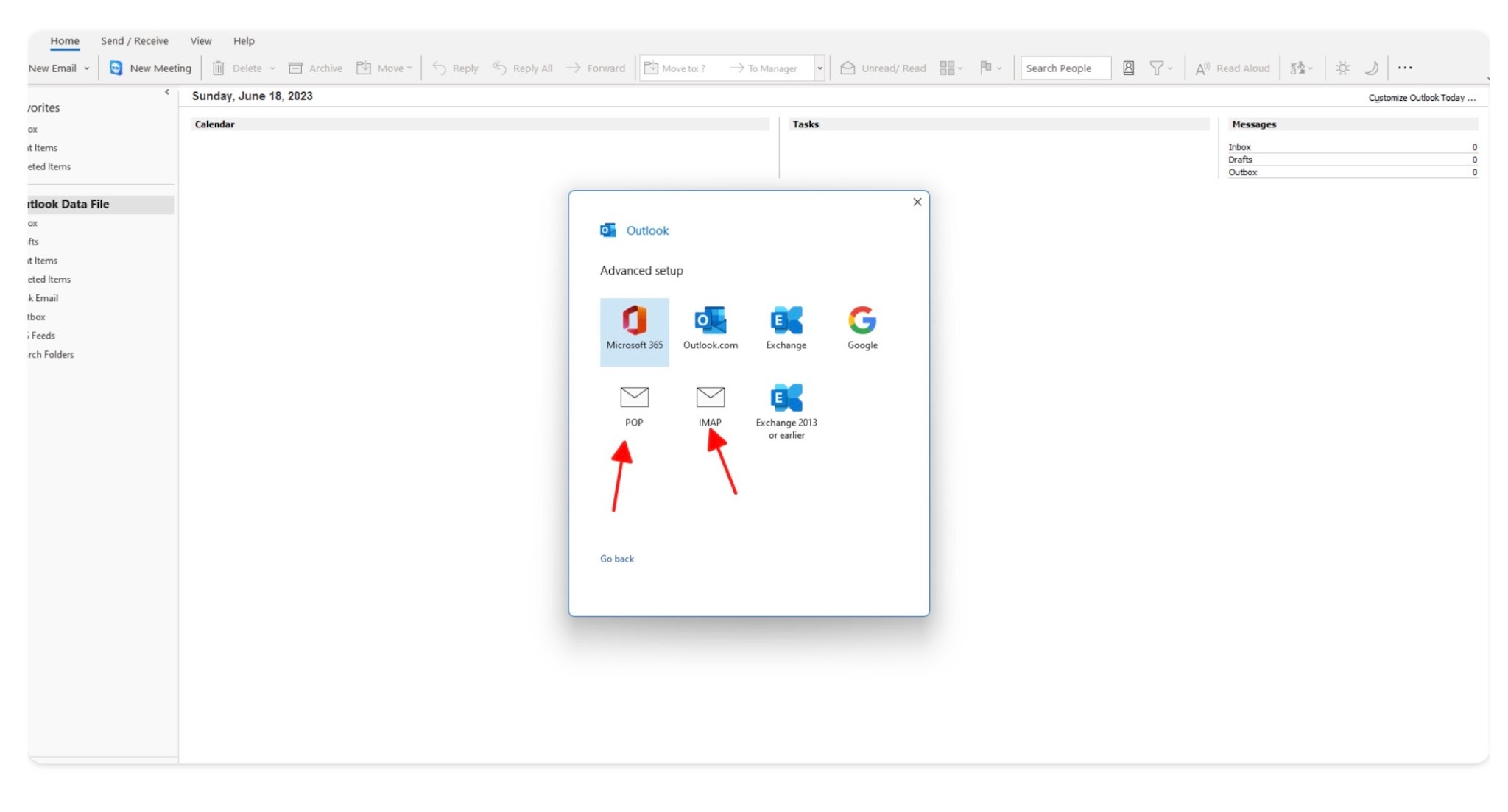
Note: When setting up a new account, always prioritize selecting the IMAP connection standard instead of POP3 so the system automatically synchronizes two-way data between your computer and phone, preventing POP3 from downloading emails onto one specific device and deleting them from the server, which causes data loss.
2. Managing multiple Outlook accounts using Auto-forwarding
Instead of wasting time logging into each individual inbox, you can leverage the auto-forwarding feature available on Outlook's web version to aggregate all emails into one place. This method helps you sync the entire information flow quickly using the Rules or Auto-forwarding features built into the system.
How to set up the forwarding system
This email aggregation mechanism operates simply through the following steps:
- Email reception: When any new email is sent to your secondary accounts.
- Automatic forwarding: The Outlook system will immediately and automatically send a copy of that email.
- Centralized aggregation: This copy is forwarded directly to a primary email account that you choose as the hub.
Thanks to this feature, you no longer need to log into each secondary account to check for messages. Every day, you only need to open one single primary inbox to view all incoming mail from other accounts.
Usage note: When you reply to a forwarded email, Outlook will default to using your primary email address to send it rather than the original secondary email that received the mail, so you need to manually adjust the sender address before hitting send.
3. How to manage multiple Outlook accounts on Chrome/Edge
Modern web browsers allow you to create multiple separate user profiles. Each profile operates independently like a brand-new browser, without sharing history or session data with one another.
Simple execution steps
To create separate workspaces and prevent overlapping data, simply follow these three steps:
- Create new profiles: First, open Chrome or Edge and create new user profiles.
- Log into email: Next, open each profile, access Outlook, and log in with a fixed email account.
- Save password: Finally, click the stay logged in button and allow the browser to save that account's password.
Once completed, your entire email system is spread neatly across your taskbar. This method is completely free, easy to do, and saves you the trouble of constantly logging in and out when switching accounts.
However, this method essentially still uses the same network IP address and hardware configuration of your computer. Therefore, if you open too many profiles and log into numerous accounts simultaneously, Microsoft's security system can still detect this duplication and perform mass account locks for inspection.
4. How to manage multiple Outlook accounts with Hidemyacc
When conventional methods no longer meet your needs and your accounts face the risk of being banned, switching to a specialized solution like the antidetect browser Hidemyacc is essential to protect your infrastructure.
4.1. How does Hidemyacc support managing multiple Outlook accounts?
Hidemyacc operates based on a simulation mechanism that creates multiple distinct browser configurations. Each profile possesses a unique set of computer parameters, from the operating system and fonts to deep technical data like Canvas fingerprints, WebGL, or AudioContext.
Thanks to this mechanism, Microsoft's moderation system will recognize each of your Outlook accounts as logging in from a completely new and clean device. When you combine this by attaching a separate network address, such as a static SOCKS5 proxy or a residential proxy, to each profile, each email will possess an independent internet line. This completely eliminates any connection traces and prevents the risk of chain bans.
4.2. Instructions for setting up a safe environment for multiple accounts
If you want to stop accounts from being locked without cause and build an email system that operates stably, configure it using the following four-step process:
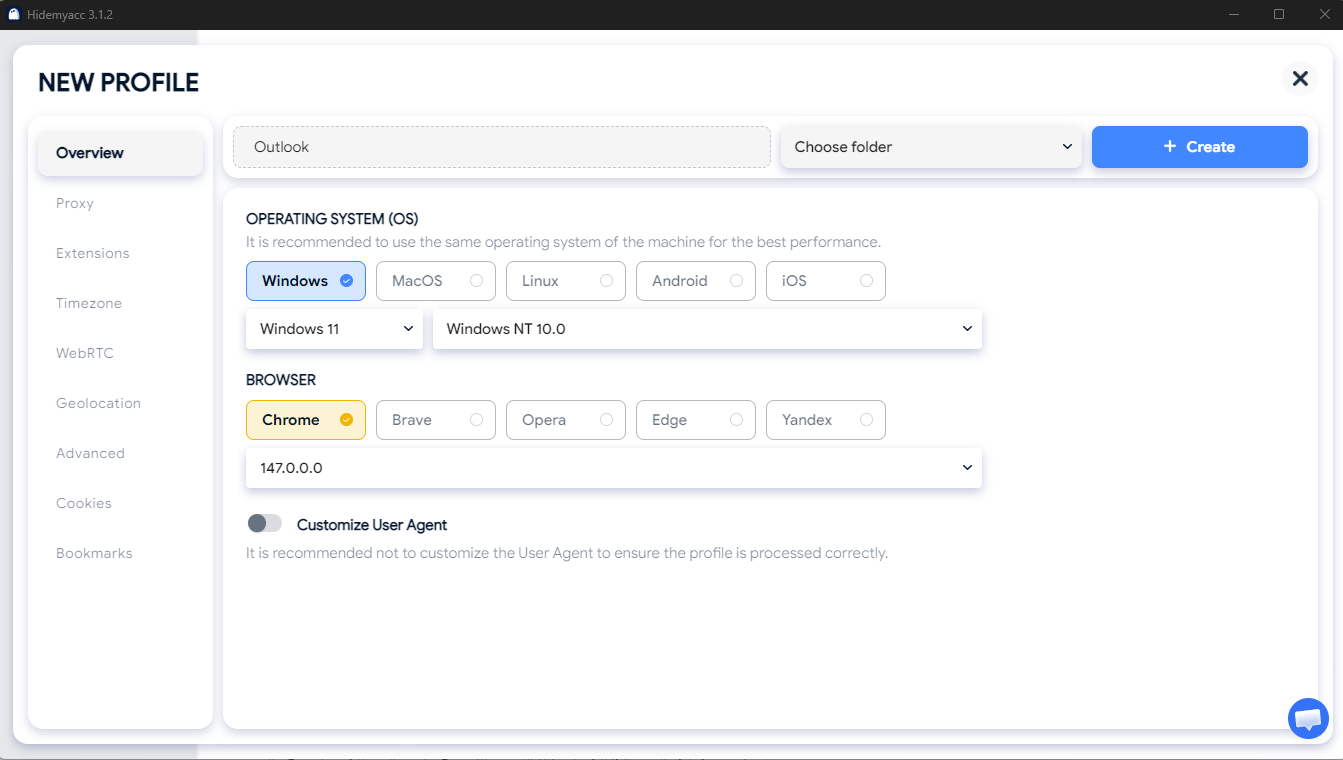
- Step 1: Launch Hidemyacc and create new browser profiles corresponding to the number of Outlook accounts you need to manage.
- Step 2: Configure the technical parameters for each profile so the system automatically randomizes these values, ensuring maximum naturalness against security filters.
-
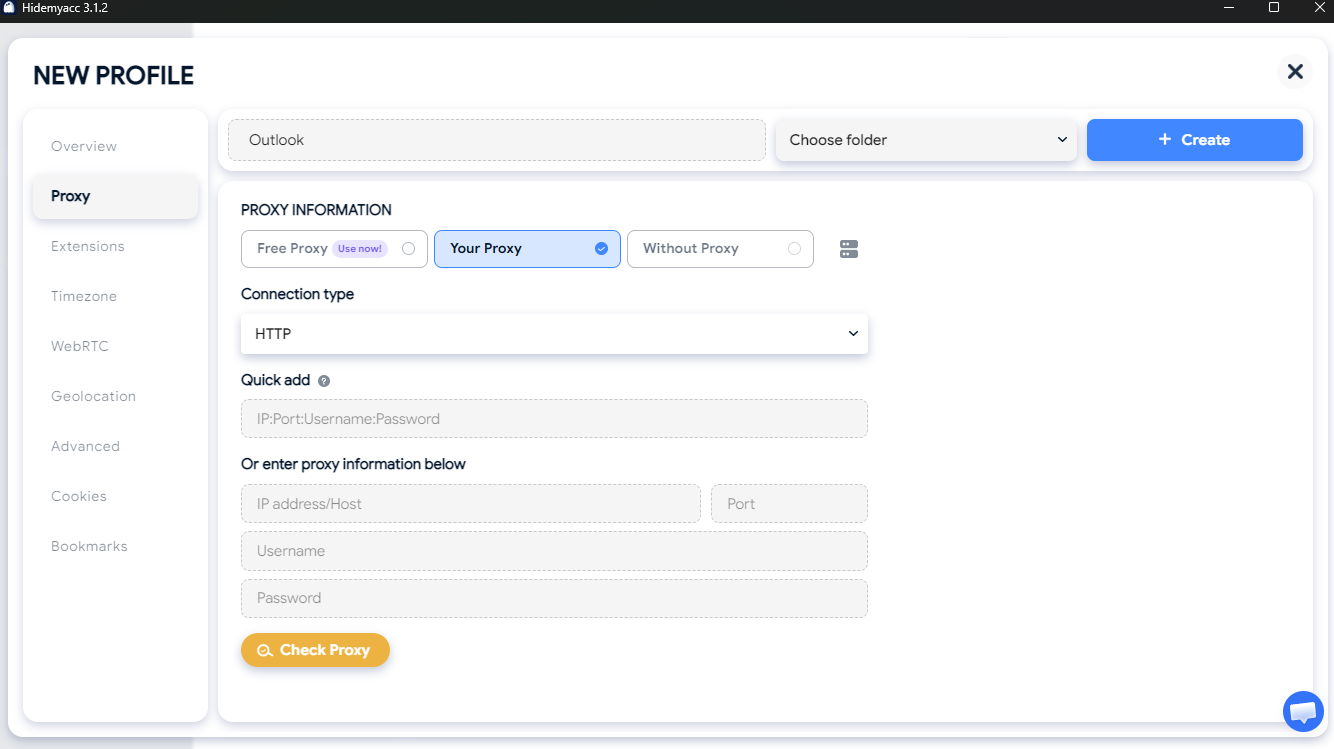
Step 3: Integrate a high-quality static proxy into the network configuration section of each profile to fix a separate IP address for each account.
-
Step 4: Launch the profile, access Outlook, log in to the account, and operate like a regular user on an entirely new device.
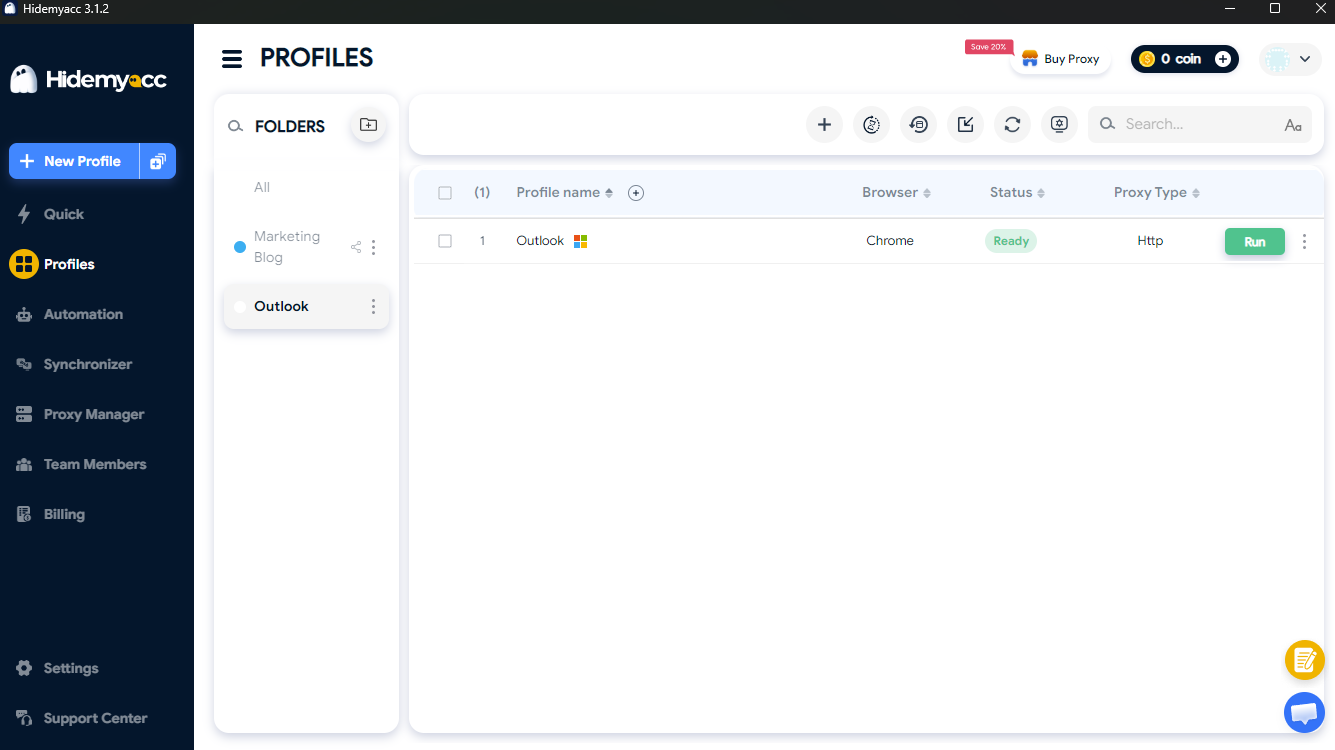
Completing the setup steps above means you have created a solid protective shield for your assets. Now, each Outlook account has an entirely separate operational space, allowing you to run your business comfortably without worrying about account sweeps from Microsoft.
4.3. Advantages of managing multiple Outlook accounts with Hidemyacc
Compared to conventional manual methods, moving your email system into the antidetect browser Hidemyacc brings clear benefits to users:
- Maximum safety: The software thoroughly isolates browsing data, cookies, IP addresses, and hardware parameters for each account. Consequently, if one account is unfortunately locked due to a policy violation, the remaining accounts in Hidemyacc still function normally without chain-sweep worries.
- Smart centralized management: The entire list of hundreds of browser profiles is arranged neatly on a single interface. This allows you to open, close, or assign team permissions extremely quickly.
- Hardware optimization: Unlike opening dozens of traditional Chrome windows which easily freezes your computer, this software is highly optimized to ensure smooth system operation without consuming excessive RAM or causing crashes.
These major advantages are why large-scale account warm-up systems today choose this solution to replace old manual methods.
5. Comparing default methods vs. Hidemyacc for managing multiple Outlook accounts
To help you easily decide which method fits your current work scale best, take a look at the objective comparison table below:
|
Comparison Criteria |
Default Outlook Desktop App |
Chrome / Edge Profiles |
Auto-forwarding |
Antidetect Browser Hidemyacc |
|
Optimal Scale |
Under 5 accounts. |
From 5 to 15 accounts. |
From 5 to 10 accounts. |
Over 15 accounts (Unlimited quantity). |
|
Investment Cost |
Free. |
Free. |
Free. |
Paid software license and monthly proxy maintenance fees. |
|
Security & Privacy |
Low. Depends heavily on account activity frequency. |
Medium. Cookies are separated, but IP and hardware duplication are exposed. |
Medium. Only forwards email data, does not intervene with hardware. |
Very High. Thoroughly isolates browsing data, network IP addresses, and hardware configurations. |
|
PC Requirements |
Light at a small scale under 5 accounts. |
Consumes a lot of RAM if opening multiple profiles simultaneously. |
Does not consume PC resources as processing is entirely web-based. |
Excellent hardware optimization, running hundreds of profiles smoothly. |
|
Operational Convenience |
Convenient switching in the left-side list column. |
Must open multiple browser windows, easily causing confusion during operation. |
Very convenient for reading (only open 1 primary email), but inconvenient for replying as sender addresses must be adjusted manually. |
Centralized management of the entire list on a single interface, extremely fast to open and close. |
Based on the comparison table above, it is clear that if you only use a few basic personal emails, free default solutions are more than enough. However, once you decide to work on large projects or run marketing campaigns with a high volume of accounts, investing in a specialized tool is a wise choice to protect your asset system over the long term.
6. Why is managing multiple Outlook accounts important?
When starting to work with a large volume of emails, many people often think they just need to log in and use them. However, without a structured and methodical management plan from the beginning, you can easily encounter these unnecessary troubles:
- Helps divide work more professionally: For businesses, separating emails for each specific department—such as customer service, accounting, or human resources—is the best way to ensure operational workflows do not overlap, making it easy for everyone to track their duties.
- Creates leverage for marketing campaigns: For those doing MMO, running ads, or managing account fleets, a massive system of Outlook emails is the core tool. Proper centralized management helps you separate clean environments to run marketing campaigns or register bulk social media accounts without fearing chain scans.
- Overcomes Microsoft's security filters: Microsoft's automated scanning system is becoming increasingly smart. If you maintain the habit of constantly logging in and out of multiple accounts on the same conventional device, the system will immediately trigger automated lock mechanisms due to suspected unusual intrusion behaviors.
- Minimizes missing important information: When inboxes are scattered without planning, missing critical feedback emails from partners or sending the wrong content from one project to another project's client can easily happen.
Overall, building a standardized management system not only helps you protect your email accounts safely but is also a critical factor determining the success and efficiency of your daily operations.
7. Tips for managing multiple Outlook accounts safely
Regardless of the tool used, the operational mindset and control of user behavior are what dictate the long-term lifespan of your Outlook system:
7.1. Maintain stable IP addresses and login environments
The first and most important factor to prevent accounts from being swept is maintaining a truly clean and fixed login space:
- Fixed network principle: Avoid having accounts constantly change geographical locations within short timeframes—for example, logging in from one province and switching to another country a few minutes later. You should use reputable static proxies to fix the IP address and absolutely avoid free public proxies.
- Fixed clean environment: Do not log in indiscriminately on multiple unfamiliar devices. Avoid abusing the incognito windows of conventional browsers because they actually still share the same IP address and computer parameters, making them highly susceptible to chain bans.
Strictly controlling network addresses and login devices will help accounts maintain a stable operational state and minimize the risk of being locked by security systems.
7.2. Establish a safe account warming process (Warm-up)
To ensure accounts build high credibility with Microsoft's scanning system, you need a natural acclimation and usage roadmap like a real user:
- System adaptation phase: For newly created or newly purchased emails, do not use them to run large campaigns immediately. During the first 3 to 5 days, perform actions that simulate real users, such as reading news, subscribing to newsletters, and sending or receiving a small number of emails to generate authority for the email account.
- Limit spamming behavior: Absolutely do not send identical email content to too many recipients at the same time. Furthermore, attaching multiple strange links or large files when the account is still fresh must be restricted as much as possible.
This natural interaction process will help your account be better evaluated by the system, allowing it to transition into serving important tasks safely.
7.3. Manage information and handle alerts scientifically
Finally, organizing data and staying sharp with system notifications will help you proactively protect your resources from any potential risks:
- Avoid sharing information: Do not set identical passwords or use a single recovery email for a mass of Outlook accounts to avoid a domino effect if an issue occurs. Instead, set up a cross-recovery email system and keep clear operational logs.
- Respond to security alerts: Never ignore system notifications. When Microsoft sends an identity verification request or a strange login alert, handle and verify it immediately. Delaying for too long makes the account highly vulnerable to permanent locks.
Prudence in data storage and speed in handling security issues are the final defense steps to help you control your large email system safely.
8. Common mistakes when managing multiple Outlook accounts
In addition to applying safe operational tips, you must also clearly recognize the erroneous habits that many managers of large email systems often make to prevent them in time:
8.1. Failing to separate the purpose and configuration info of each email
Many users often have a habit of merging security administration info for convenience, which carries immense risk. Using the same password or a single recovery email for hundreds of Outlook accounts is a severe mistake. If one account is unfortunately attacked by malicious actors or locked by Microsoft, all remaining accounts in the system will face the risk of being completely lost due to a chain effect. Therefore, separating security information for each independent email is mandatory so you can isolate risks and protect the remaining accounts when incidents happen.
8.2. Ignoring security alerts and verification requests from Microsoft
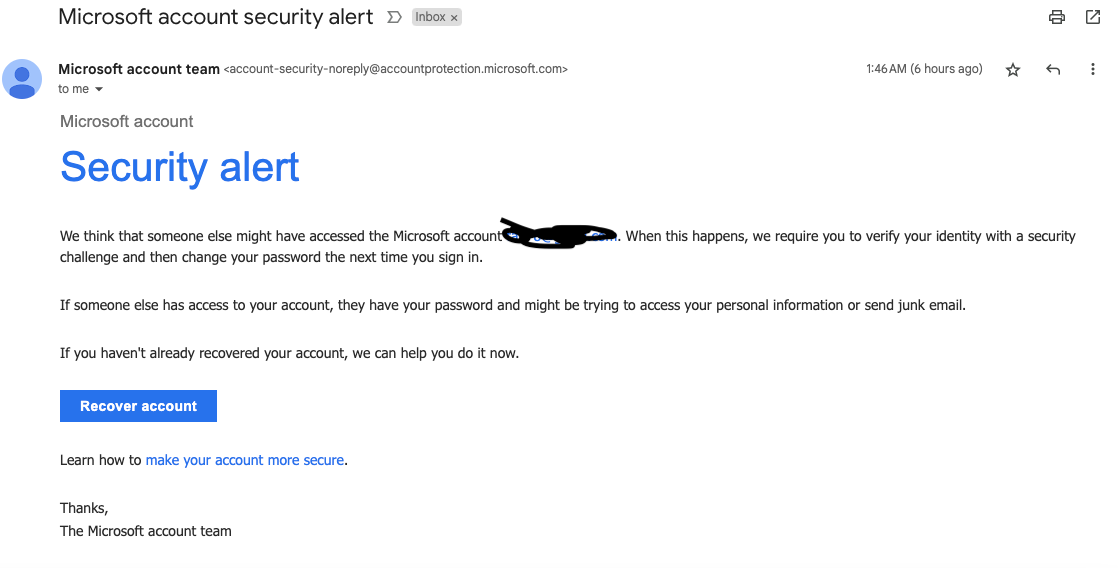
Automated security systems always provide warning signals before applying harsh measures to your account. When Microsoft detects a login activity from an unfamiliar location, the system sends a security alert email or requests the user to update a verification code. Ignoring these notifications or delaying processing for too long causes the system to automatically evaluate the account as highly vulnerable to intrusion, leading to permanent locks. Checking the mailbox periodically and responding quickly to requests from the provider will help you maintain safety and stable reliability for your email system.
8.3. Lacking a clear account information storage and management system
When operating a large volume of assets, loose data control directly causes massive losses to your work. When the number of emails reaches dozens or hundreds, managing by memory is impossible. The mistake many make is failing to log detailed info about passwords, two-factor authentication codes, and attached network addresses for each account. This leads to data confusion, wasting time searching, or logging in via the wrong network address, which kills the account. Therefore, you should proactively build a scientific information storage table from the start so the tracking, searching, and operating process always takes place accurately and smoothly.
9. Conclusion
Managing multiple Outlook accounts on the same device is an essential need for business and marketing professionals, but it also carries numerous risks of being scanned and locked by Microsoft if not done correctly.
Depending on whether your fleet is under 5, under 15, or over 15 accounts, users should select appropriate solutions, such as using default software, splitting multiple conventional browser profiles, or employing an antidetect browser combined with distinct network addresses. For the email system to operate long-term and stably, users must establish an environment cleaning process, fix network paths for each account, and adhere to security policies from the issuer.
You may also be interested in:
- Where to buy email domains? Top reputable platforms
- Buy Gmail accounts: Things to know before purchasing
- How many Gmail accounts can I have? How to manage multiple accounts effectively
- How to create a Gmail account without a phone number?
- How to use automatic Gmail creation tools to manage multiple accounts effectively
10. FAQ
1. What is the maximum number of accounts I can log into on the Outlook Desktop application?
Theoretically, the system does not limit the number of email accounts added to the Outlook Desktop software. However, the actual limit depends on your computer's hardware configuration (processor and RAM capacity). Usually, when users add more than 10 accounts with large data volumes, the software will start experiencing lag, stuttering, or crashes due to continuous data synchronization.
2. Why does my Outlook account constantly require phone verification or get locked?
There are two main reasons for this situation. First, users log into too many accounts on the same network address (IP) or the same browser, causing Microsoft's security system to evaluate it as abnormal behavior. Second, the account performs actions like sending spam, distributing identical content, or attaching strange links immediately after logging in on a new device.
3. Is it safe to use incognito tabs on Chrome or Edge to log into multiple emails?
This method is completely unsafe if users want to manage a large number of accounts. Incognito tabs on the same conventional browser window only refrain from saving browsing history after closure, but they still share the same network address (IP) and device fingerprint (Browser Fingerprint). Microsoft's system can still detect the relationship between these emails and execute chain locks.
4. Which type of proxy is best for warming up multiple Outlook accounts without being swept?
Users should prioritize selecting static proxies, such as residential proxies or mobile proxies from reputable providers. This type of network address possesses high reliability, helping to fix the geographical location of each account and avoiding constant network address changes that cause Microsoft's security system to trigger automatic account locks.
5. Should I use IMAP or POP3 when adding an account to Outlook?
You should use IMAP. IMAP synchronizes emails across all devices, while POP3 only downloads emails to a single device and can easily cause data loss.