Amazon Error 7031 often appears when users play videos on Prime Video, but the system reports Video Unavailable and cannot continue watching the content. This is a fairly common error, which can be related to accounts, cache, network, VPN, browsers, or even issues from Amazon's server side. In this article, Hidemyacc will guide you to understand what Amazon Error 7031 is, why this error appears, and which methods you should try first to fix it faster. The goal is to help you handle the correct cause instead of trying too many unnecessary ways.
1. What is Amazon Error 7031?
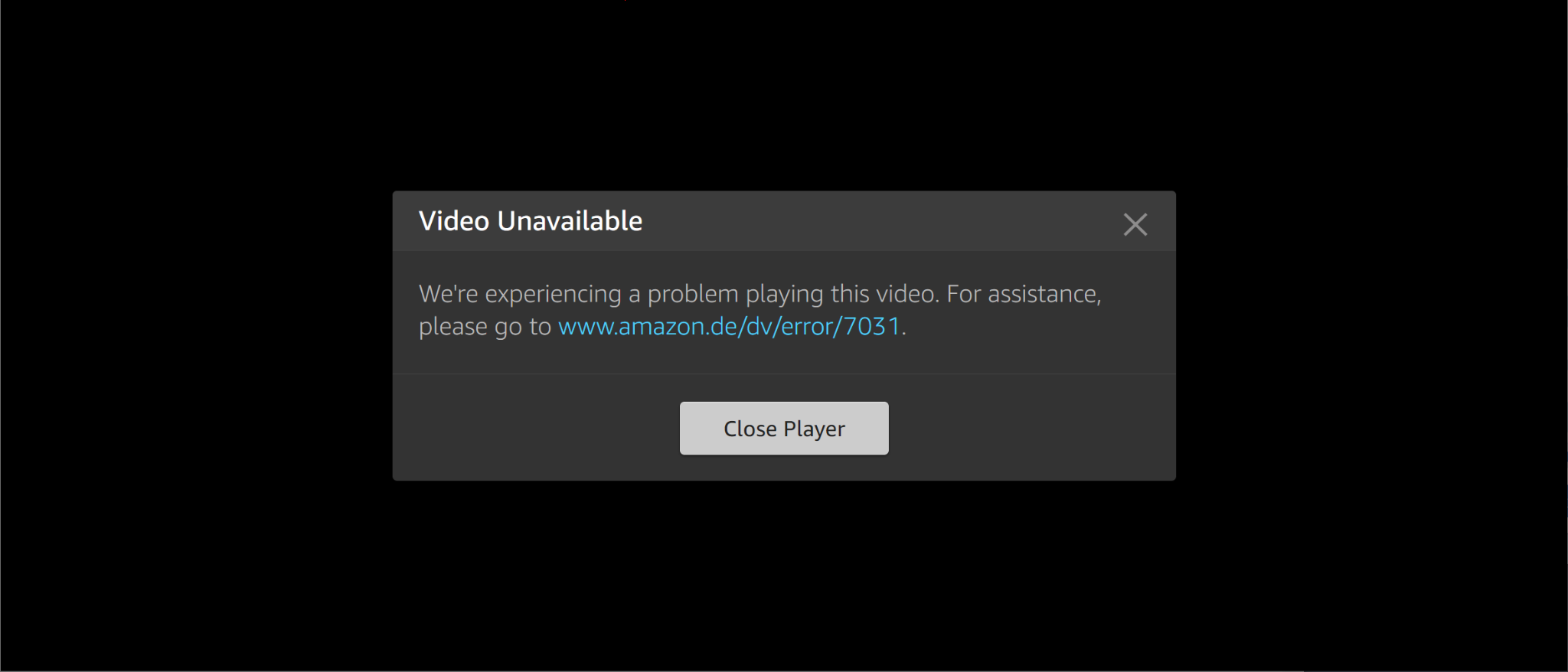
Amazon Error 7031 is a common error code appearing on the Prime Video platform, which is different from Amazon error 8572 and Amazon error 2063, which are two errors on the Amazon e-commerce marketplace. When encountered, users cannot play videos and often see a Video Unavailable message. This error interrupts the experience of watching movies, series, or other entertainment content.
1.1. When does Amazon Error 7031 appear?
Amazon Error 7031 usually appears as soon as you press the play button on Prime Video. At this point, the screen displays a Video Unavailable message and the video does not load. You may encounter this error on many different platforms.
The error often occurs on web browsers like Chrome or Firefox. It also commonly appears on the Prime Video app for phones and tablets. Additionally, you may encounter it on streaming devices like Fire TV, smart TVs, or HDMI-connected devices.
Identifying when the error appears helps you quickly determine the direction for a fix. If the error only occurs on a specific platform, you can focus on checking that device or application first.
1.2. What content does the Amazon Error 7031 message usually have?
Amazon Error 7031 often displays a clear message when you try to play a video. The system reports that the content cannot be played. The screen shows the text Video Unavailable accompanied by the error code.
The main message indicates that there is a problem loading and playing the video. Sometimes the error only shows the code 7031. Some cases are also accompanied by similar error codes like 9074.
This message helps you quickly identify the problem happening with Prime Video. It reminds you to check the connection, cache, or account to fix it. Reading the message carefully will guide your next troubleshooting steps.
Before finding out if Amazon Error 7031 is always caused by the account, you should know that the error message is only a surface sign. The real cause can lie in many different factors, and a deeper analysis will help determine the correct direction for a fix.
Before learning about specific error messages, clearly understand that Amazon Error 7031 is not limited to a single device. Checking across multiple platforms will help you rule out causes faster and get closer to an effective solution.
1.3. Is Amazon Error 7031 always caused by the account?
No, Amazon Error 7031 does not always originate from the account. Many cases of errors come from network connections, browser cache, or devices. Some other causes are related to VPNs, outdated apps, or Amazon server issues.
The error may only affect a specific device. Or it occurs on all platforms when using the same account. Therefore, you should not jump to the conclusion that the problem lies with the Amazon account.
Understanding this clearly helps avoid wasting time on unnecessary steps. You need to check in a logical order to find the true root cause of Amazon Error 7031.
Before diving deep into the causes of Amazon Error 7031, remember that this error has many different origins. Distinguishing them clearly will help you choose the appropriate and more effective fix, rather than randomly trying many methods.
2. What causes Amazon Error 7031?
Amazon Error 7031 can stem from many different causes. Some cases are related to network connections or temporary data. Other causes come from device settings, VPNs, or issues from the Amazon server side. Understanding these causes will help you fix Amazon Error 7031 more quickly and accurately. If you have knowledge of internet infrastructure, you will more easily predict the reason you encounter error 7031 and fix it faster.
2.1. Due to network or unstable connection
A weak or flickering internet network is one of the common causes of Amazon Error 7031. When the connection speed is insufficient, Prime Video cannot load video data smoothly. This leads to the Video Unavailable message and the appearance of error code 7031.
A router experiencing temporary errors also causes a similar situation. An unstable Wi-Fi connection causes the video stream to be interrupted. Especially with high-quality content like HD or 4K, the network requirements are stronger and more continuous.
You can check quickly by trying to open other websites or other streaming apps. If they also load slowly, the problem definitely lies in the network connection. Resolving network stability usually helps fix Amazon Error 7031 quickly.
Before moving to the next cause related to temporary data, please note that an unstable network connection can combine with other factors. Checking the network first will help you rule out a major cause and focus on more effective fix steps for Amazon Error 7031.
2.2. Due to cache or corrupted browser data
Old cache or corrupted temporary files are common causes of Amazon Error 7031. This data accumulates over time and conflicts with the Prime Video system. As a result, the video fails to load and displays the Video Unavailable message.
Browsing data on Chrome, Firefox, or other browsers also causes similar issues. The Prime Video app cache on phones accumulating for too long leads to operational errors. Leaving the cache for many days without cleaning reduces video playback performance.
You can recognize this when the error only appears on a specific browser or application. If other websites still work normally but Prime Video has an error, the cache is likely the culprit. Clearing the cache often brings high and fast efficiency.
Before learning about causes related to VPNs and proxies, remember that a corrupted cache can combine with other factors like an unstable network. Handling the cache first will help you rule out a common problem and clarify the next fix direction for Amazon Error 7031.
2.3. Due to VPN, proxy, or privacy settings
VPNs and proxies are common causes of Amazon Error 7031. Amazon often detects and blocks access from tools that change IP addresses. When blocked, the Prime Video system does not allow video playback and displays the Video Unavailable message with error code 7031.
Proxies also misrepresent the access region, leading to incompatibility with content. Some privacy settings on browsers like "Do Not Track" cause severe conflicts. These settings prevent the loading of data necessary for video playback.
You can recognize this when the error only appears when the VPN or proxy is turned on. If you turn them off and the video plays normally, this is definitely the cause. Many users encounter this situation when trying to watch content from another region.
Before learning about causes related to browsers, apps, or old devices, note that VPNs and privacy settings often combine with other factors. Turning off the VPN first will help you rule out a major cause and clarify the next fix direction for Amazon Error 7031.
2.4. Due to outdated browser, app, or device
An unupdated browser, Prime Video app, or device is a common cause of Amazon Error 7031. Older versions are incompatible with the new Prime Video system. As a result, the video cannot play and displays the Video Unavailable message.
Browsers like Chrome or Firefox, if not updated, will experience conflicts. An outdated Prime Video app on a phone or tablet also leads to similar errors. Fire TV, smart TVs, or streaming devices not on the latest version often encounter this problem.
You can recognize it when the error only appears on a specific device or application. If other devices still watch normally, the cause is very likely the old version. Updating to the new version usually solves the problem quickly.
Before learning about causes from the Amazon server side, note that old browsers and devices can combine with other factors like cache or network. Updating first will help you rule out a common cause and clarify the next fix direction for Amazon Error 7031.
2.5. Due to Amazon servers
Issues from Amazon servers are the reason Amazon Error 7031 appears on a large scale. Prime Video experiences temporary interruptions from Amazon's system side. At this time, users cannot play videos even if the network connection is stable.
Many users reporting the error at the same time is a clear sign. You can check through sites like Downdetector or community forums. If thousands of people are experiencing the same situation, the problem definitely lies with the server.
In this case, users cannot completely fix it themselves. You can only wait for Amazon to process and fix it from their side. Errors are usually fixed within a few hours or a day.
Before moving to the quick check section before fixing Amazon Error 7031, note that server causes often combine with other factors. Identifying a system error first will help you avoid trying many unnecessary ways and focus on the most appropriate solution.
3. Quick checks before fixing Amazon Error 7031
Before applying detailed fixes, you should perform some quick checks. These steps help accurately identify the cause of Amazon Error 7031. From there, you avoid wasting time on trial and error and focus on the most suitable solution.
3.1. Check if Prime Video is having a widespread error
You should check if Amazon Error 7031 is a server-side issue before trying other fixes. Visit Downdetector or forums like Reddit and Twitter. If many users are reporting the Video Unavailable error with code 7031, this is likely an outage from Amazon.
Check quickly by searching for “Prime Video down” or “Amazon Prime Video outage” on Google. See if the number of reports has spiked recently. If the error occurs simultaneously, you don't need to change devices or accounts immediately.
When identified as a widespread error, the best way is to wait for Amazon to handle it. Server errors are usually fixed within a few hours to a day. This check helps you avoid pointlessly trying many other steps.
Before checking if the error only occurs on one video or all content, note that identifying a system error will save a lot of time. If it's not a server error, you can move on to checking the impact scope of Amazon Error 7031 to narrow down the cause more quickly.
3.2. Check if the error occurs on one video or all content
You should try playing many different videos on Prime Video to determine the scope of Amazon Error 7031. If only a single video reports Video Unavailable, the problem may lie with that specific content. At this point, the error is usually not related to your account or device.
Conversely, if most videos display the error message with code 7031, the cause most likely comes from the account, network, cache, or device. This check helps you quickly rule out the case where the error only affects an individual movie or series.
Choose videos of many different genres and resolutions to check accurately. Try both free content and content that requires rental or purchase. The results will clearly guide the next fix steps.
Before checking if the error occurs on one device or many devices, note that distinguishing the content scope will help narrow down the cause effectively. If the error affects all content, you need to focus on general factors like the account or connection before checking each individual device for Amazon Error 7031.
3.3. Check if the error occurs on one device or many devices
You should try playing videos on many different platforms to clearly determine the scope of Amazon Error 7031. Try opening Prime Video on a web browser, mobile app, and TV device. If the error only appears on one browser or one device, the problem very likely lies with that platform.
Conversely, if Amazon Error 7031 occurs on all devices when using the same account, the cause is usually related to the Amazon account or a server issue. This check helps you quickly rule out local issues on the device.
Log into the same account on your phone, computer, and smart TV and then try playing the same video. Note which devices have errors and which devices work normally. The test results will determine the order of the next troubleshooting steps.
After completing checks on different devices, you have enough information to apply the appropriate fix. Identifying whether the error is limited to one device or affects everything will help prioritize the fastest and most accurate solution for Amazon Error 7031.
4. How to fix Amazon Error 7031
After a quick check and identifying the likely cause, you can start fixing Amazon Error 7031. The methods below are arranged in order from easiest to more complex. Try each step one by one and check the video again after each implementation. Most users resolve the error with just the first 2-3 steps.
4.1. Log out and log back into your Amazon account
This is the fastest and most effective way to fix Amazon Error 7031 that many users have successfully applied. You just need to completely log out of your Amazon account on the device experiencing the error. Then log back in with your account information. This action helps refresh the login session and remove temporary errors during the connection process.
The process is very simple. On a browser, click the account icon and select Sign Out. On the Prime Video app, go to account settings and log out. After logging back in, try playing a video immediately to check the result.
This method usually resolves Amazon Error 7031 in less than a minute. It is especially effective when the error is related to a corrupted login session or account data conflict.
Before moving to the device restart step, note that logging out and back in can combine well with other methods. If the error persists after this step, you should continue with the next simple solutions to thoroughly fix Amazon Error 7031.
4.2. Close Prime Video and restart the device
If you still encounter Amazon Error 7031 after logging out and back in, you should completely close the app or browser and restart the device. This helps clear background processes causing conflicts and starts the system cleanly.
On a computer, close all Prime Video tabs and exit the browser. On a phone, swipe the Prime Video app out of the multi-tasking list. With Fire TV or smart TVs, turn off the app completely and then restart the device. After restarting, open Prime Video and try playing a video.
This step removes temporary errors from the system cache and is very effective for random errors. Many users report that simply restarting the device allows them to watch videos normally.
Before re-checking the network connection, remember that restarting the device often brings quick results. If Amazon Error 7031 continues to appear, the problem may lie in the network connection or other factors. Performing these in order will help you fix the error logically and save the most time.
4.3. Re-check the network connection
An unstable network connection is one of the common causes of Amazon Error 7031. When internet speed is weak or flickering, Prime Video cannot load video data smoothly. Therefore, the system reports Video Unavailable along with error code 7031.
You should disconnect from Wi-Fi and then reconnect immediately. If that doesn't work, restart your modem or router by unplugging the power for 30 seconds and then plugging it back in. If possible, try switching to mobile data or a different Wi-Fi network to check.
This method helps quickly rule out connection-side issues. If the video plays normally after resetting the network, you have fixed Amazon Error 7031 without needing to perform further complex steps.
Before proceeding to clear the app cache or browser data, note that an unstable network often combines with other issues. Checking and stabilizing the connection first will help you more clearly identify the cause and avoid repeated trial and error when fixing Amazon Error 7031.
4.4. Clear app cache or browser data
Old cache or corrupted temporary data often cause conflicts with Prime Video and lead to Amazon Error 7031. These files accumulate over time and reduce video playback performance. Clearing the cache is a simple and highly effective fix.
On Android, go to Settings → Apps → Prime Video → Storage → Clear Cache. On Chrome or Firefox, open browser settings and clear browsing data including cache and cookies. With iPhone, you can uninstall the Prime Video app and then reinstall it to clean out old data.
After clearing the cache, open Prime Video and try playing a video immediately. In most cases, the error will disappear after this step. This is one of the recommended ways to perform early when encountering Amazon Error 7031.
Before turning off the VPN or proxy if you are using one, note that a corrupted cache can combine with other factors like privacy settings. Clearing the cache first will help you rule out a common cause and clarify the next fix direction for Amazon Error 7031.
4.5. Turn off VPN or proxy if in use
VPNs and proxies are often detected and blocked by Amazon, leading to Amazon Error 7031. When using these tools, the Prime Video system does not allow video playback and displays a Video Unavailable message. This is a common cause for users wanting to change their access region.
You just need to completely turn off the VPN or proxy on your device. Then reopen Prime Video and try playing a video immediately. If the error disappears, the main cause is from the VPN or proxy.
On phones and computers, go to network settings to turn off VPN apps. For browsers, disable any extensions related to proxies. Many users successfully fix Amazon Error 7031 just by turning off their VPN.
Before updating the Prime Video app, browser, or device, note that VPNs often combine with other compatibility issues. Turning off the VPN first will help you rule out a major cause and clarify the next fix direction for Amazon Error 7031.
4.6. Update the Prime Video app, browser, or device
Outdated versions of the application, browser, or device often cause incompatibility and lead to Amazon Error 7031. Prime Video constantly updates its system, so old versions are prone to video playback errors. Updating to the latest version is an important fix.
On Chrome or Firefox, open the menu and select update browser. For the Prime Video app, go to the Google Play Store or App Store to update. On Fire TV or smart TVs, check for and install the latest firmware version.
After the update is complete, restart the device and try playing a video. In most cases, the error will be resolved after this step. This is a necessary way to maintain a stable viewing experience on Prime Video.
Before checking browser settings that may cause conflicts, note that old versions often combine with other software conflicts. Updating first will help you rule out a common cause and clarify the next fix direction for Amazon Error 7031.
4.7. Check browser settings that may cause conflicts
Browser settings sometimes cause conflicts and lead to Amazon Error 7031. The Do Not Track feature or security extensions can prevent Prime Video from loading video data. This is a common cause on Chrome and Firefox.
You should turn off Do Not Track if it is on. Go to browser settings, find the Privacy section, and turn off this option. Then disable any extensions that might affect video playback, such as ad blockers or privacy tools.
Next, try playing the video in an incognito window. If the error disappears, the problem lies with an extension or setting. You can also switch to another browser for a quick check.
This method helps rule out software conflicts without needing to reinstall the app. Many users successfully fix Amazon Error 7031 with just a few simple operations in the browser.
Before checking HDMI cables and HDCP standards if watching via TV, note that browser settings usually cause errors on web platforms. Checking and adjusting them first will help you rule out a common cause and clarify the next fix direction for Amazon Error 7031.
4.8. Check HDMI cable and HDCP standard if watching via TV
When watching Prime Video via TV, the HDMI cable and HDCP standard can cause Amazon Error 7031. Low-quality cables or those that do not support HDCP will cause videos to fail to play. HD or UHD content requires HDCP 1.4 or 2.2 standards.
You should check the HDMI cable you are using. Ensure the cable is not damaged and is compatible with the TV. Try switching to a different HDMI cable or moving to a different HDMI port on the TV to check.
If the TV supports HDCP, check if the playback device is connected correctly to the standard. In some cases, a new cable is needed to fix the error.
This method focuses on the connection hardware. It helps resolve Amazon Error 7031 when the error only appears on the TV and does not affect the browser or phone.
If fix steps 4.1 to 4.8 still haven't resolved Amazon Error 7031, you need to try additional advanced measures. These next steps usually apply when the error persists after basic checking and processing.
5. When can Amazon Error 7031 not be fixed by yourself?
Not every case of Amazon Error 7031 can be fixed at home. Some causes require intervention from Amazon's side or in-depth hardware checks. Recognizing this early will help you avoid wasting time trying methods that yield no results.
5.1. When Amazon servers are experiencing issues

An issue from Amazon servers is one of the reasons Amazon Error 7031 cannot be fixed by yourself. At this time, Prime Video experiences a widespread outage. Users cannot play videos despite trying many ways on their devices.
You can recognize this by many people reporting the error at the same time. Amazon Error 7031 appears on all devices and all accounts. A quick check on Downdetector or searching for “Prime Video down” will show a high number of reports.
In this case, users cannot fix it themselves. The best way is to wait for Amazon to process and fix it from their side. Server errors are usually resolved within a few hours to a day.
Before learning about errors related to accounts or security verification, note that identifying a server error first will help you avoid pointlessly trying many other steps. If it's not a system outage, you can continue checking other causes of Amazon Error 7031.
5.2. When the error is related to accounts or security verification

Amazon Error 7031 sometimes stems from account issues or security verification. After changing a password, activating two-factor authentication, or having unusual login activity, the Amazon system may temporarily block you. At this point, the video will not play even though basic steps have been tried.
You can recognize this when the error only happens on that specific account while other accounts still watch normally. Or the error appears immediately after making security-related changes. These cases require direct support from Amazon.
The best way to handle this is to contact Amazon support. They will check the account, request additional verification, or reset some security settings. Trying yourself multiple times can make the situation worse.
Before learning about errors related to hardware or device configuration, note that account issues usually need intervention from Amazon's side. If you have ruled out server and account errors, the next cause likely lies in connection hardware. Distinguishing this clearly will help fix Amazon Error 7031 more accurately and effectively.
5.3. When the error is related to hardware or device configuration

Amazon Error 7031 sometimes stems from hardware issues or device configuration. Especially when watching via TV, the error could be due to an incompatible HDMI cable or one that doesn't support the HDCP standard. At this point, the video will not play even if you have tried all methods on the browser and app.
You can recognize this when the error only occurs on the TV or HDMI-connected device, while phones and computers still watch normally. Old, damaged, or non-HDCP 1.4 / 2.2 compliant HDMI cables are often the culprit. Some older TVs or players are also incompatible with current Prime Video requirements.
In this case, simply updating the app or clearing the cache usually won't solve the problem. You need to check and replace the HDMI cable, try a different HDMI port, or check if the playback device fully supports the HDCP standard. If necessary, you may have to replace the device or use a different one to watch.
Before moving to the section on how to limit Amazon Error 7031 from appearing again, note that hardware issues require physical inspection rather than just software operations. Distinguishing this clearly will help you avoid wasting time on inappropriate steps and find the most correct solution for Amazon Error 7031.
6. How to limit Amazon Error 7031 from reappearing
After successfully fixing Amazon Error 7031, you should apply good habits to prevent the error from returning. Maintaining periodic maintenance will help the Prime Video viewing experience be more stable and less interrupted. Below are simple but highly effective ways.
6.1. Always update Prime Video and your browser
Regular updates are an important way to limit Amazon Error 7031 from reappearing. Amazon constantly improves Prime Video to fix bugs and increase compatibility. If you use an old version, the risk of encountering video playback errors will be much higher.
Check and update the Prime Video app on your phone, tablet, or Fire TV. Simultaneously update Chrome or Firefox browsers to the latest version. On smart TVs, don't forget to update the system firmware when a new version is available.
This habit not only resolves Amazon Error 7031 but also brings better image and sound quality. Many users find that errors decrease significantly after maintaining periodic updates.
Before learning about limiting VPN use, note that old versions often combine with other causes like cache or network. Updating first will create a stable foundation, helping subsequent measures achieve maximum effectiveness in preventing Amazon Error 7031 from recurring.
6.2. Limit VPN use when watching Prime Video
Using a VPN is one of the common reasons why Amazon Error 7031 easily returns. Amazon often detects and blocks access from VPNs to protect content copyright. When blocked, the system will report Video Unavailable with error code 7031.
You should completely turn off the VPN before opening Prime Video. Only use direct internet connections from home or mobile networks. If you need to watch content from another region, consider official solutions instead of a regular VPN.
This habit helps significantly reduce the risk of encountering video playback errors. Many users find that Amazon Error 7031 disappears completely after stopping VPN use while watching Prime Video.
Before learning about periodic cache cleaning and regular network checks, note that VPNs often combine with other issues like cache or browser settings. Limiting VPNs first will create conditions for subsequent maintenance measures to achieve maximum effectiveness, helping to prevent Amazon Error 7031 from recurring in the long term.
6.3. Periodic cache cleaning and regular network checks
Periodic cache cleaning is an important habit that helps limit Amazon Error 7031 from reappearing. Old cache accumulating over time easily causes conflicts with the Prime Video system. Cleaning helps devices and browsers operate more smoothly.
Clear the cache of the Prime Video app and your browser at least once a month. On phones, go to app settings to clear the cache. On computers, clear browsing data including cache and cookies in Chrome or Firefox.
Besides, check the network regularly before watching movies. Restart the router periodically and check the internet speed. A stable connection will reduce the risk of video playback errors due to a flickering network. These simple habits help maintain a stable Prime Video viewing experience in the long run.
After fixing the error on Amazon Prime Video, you can participate in commerce on Amazon and refer to the following articles:
- Opening multiple Amazon seller accounts: What is the process?
- What is Amazon FBA? The most complete guide for beginners
- Merch by Amazon: How to make money with it?
7. Conclusion
Amazon Error 7031 is a common error when playing videos on Prime Video. The main cause usually stems from an unstable network, corrupted cache, VPN, old browser, or server issues. Understanding the causes helps you fix it quickly and effectively.
You can fix Amazon Error 7031 by logging out and back into your account, restarting the device, clearing the cache, turning off the VPN, and updating the application. If the error persists, check if this is an issue from Amazon servers or a hardware problem.
To limit Amazon Error 7031 from recurring, always update Prime Video and your browser, limit VPN use, and clear the cache periodically while checking the network regularly. These habits help the Prime Video viewing experience be more stable.
Amazon Error 7031 can be fixed easily if you apply the steps in the correct order. Thanks to that, you will enjoy Prime Video content more seamlessly and comfortably.
8. FAQ
1. What is Amazon Error 7031?
This is a video playback error on Prime Video, usually accompanied by a Video Unavailable message when users cannot watch content.
2. Is Amazon Error 7031 caused by the network?
It can be. A weak or unstable network is one of the common causes of this error.
3. What is the fastest way to fix Amazon Error 7031?
You should try logging out and then logging back in, then restart the app or device and check the network connection.
4. Does a VPN cause Amazon Error 7031?
It can be. If Amazon detects a VPN or proxy, the platform may block content playback and report an error.
5. Does clearing the cache help fix Amazon Error 7031?
Yes. If the error comes from a corrupted app cache or browser data, clearing the cache can help fix it.
6. When should I contact Amazon support?
You should contact support when you have tried basic methods but the error persists, or when you suspect the error comes from the account or Amazon's system.