Most antidetect browsers use Chrome as their default browser. When you need to manage multiple accounts or test websites across different browsers, Chrome alone may not cover every need. A Firefox antidetect browser gives you an extra option, letting you create multiple independent profiles with Firefox-specific fingerprints. In the November 2026 update, Hidemyacc added Firefox to its list of supported browsers. This article explains what a Firefox antidetect browser is, the benefits of using one, 6 real-world use cases and how to create a Firefox profile on Hidemyacc.
1. What is a Firefox antidetect browser?
A Firefox antidetect browser is an antidetect browser that lets you create multiple independent Firefox profiles on the same device. Each profile can have its own cookies, site data, login sessions, proxy and browser fingerprint.
When you visit a website, your browser shares a lot of information about your device and environment. Websites can combine this information to identify your browser, which is collectively known as a browser fingerprint.
Commonly used parameters include:
User Agent: The browser and version in use.
Platform: The device's operating system.
Screen Resolution: The screen resolution.
Language and Fonts: Language and installed fonts.
Canvas fingerprint, WebGL and Audio: How the browser renders graphics and processes audio.
Timezone and Geolocation: Time zone and geographic location.
WebRTC: Information related to your network connection.
HTTP Headers: Information sent when you access a website.
What sets a Firefox antidetect browser apart is that its profiles carry Firefox characteristics instead of Chrome's. On Hidemyacc, you can choose the Firefox version and operating system when creating a profile.
Fingerprint parameters should match the configuration you choose. For example, if you use a proxy in Australia, you should check the time zone and geolocation to avoid unwanted mismatches. Consistency helps reduce configuration errors, but it does not guarantee that a profile will bypass every detection system.
2. Why use a Firefox profile instead of only Chrome?
Chrome is the go-to choice in many antidetect browsers, but Firefox still offers its own advantages. You can combine the two browsers for different tasks without changing the profiles you already use.
2.1. Use multiple browser types
Chrome uses the Blink engine to render websites, while Firefox uses Gecko. As a result, the two browsers have different characteristics and handle websites differently.
When managing many profiles, you can keep Chrome for your current projects and create Firefox profiles for tasks that require a Firefox environment. This gives you more options without having to move all your work to a different browser.
Combining Firefox and Chrome helps diversify your working environment, but it does not guarantee that your accounts won't be linked.
2.2. Test websites on Firefox
Not every visitor uses Chrome. If you only test your website on one browser, you may miss bugs that appear only on Firefox.
For example, an e-commerce site displays correctly on Chrome, but the Add to Cart button breaks when opened in Firefox. You can create a Firefox profile to investigate the issue and compare results across versions.
This is a useful option for QA teams, web developers and SEO specialists who need to evaluate the user experience across multiple browsers.
2.3. Manage each account in its own profile
Each Firefox profile can store its own cookies, site data and login sessions. This means you don't have to keep logging out when switching between accounts you're authorized to manage.
For example, an agency handling websites for three clients can create three corresponding profiles. Each profile stores data for one client, reducing the risk of mix-ups during work.
You can also set up a separate proxy for each profile when you need different connections.
3. What are the features of Firefox profiles on Hidemyacc?
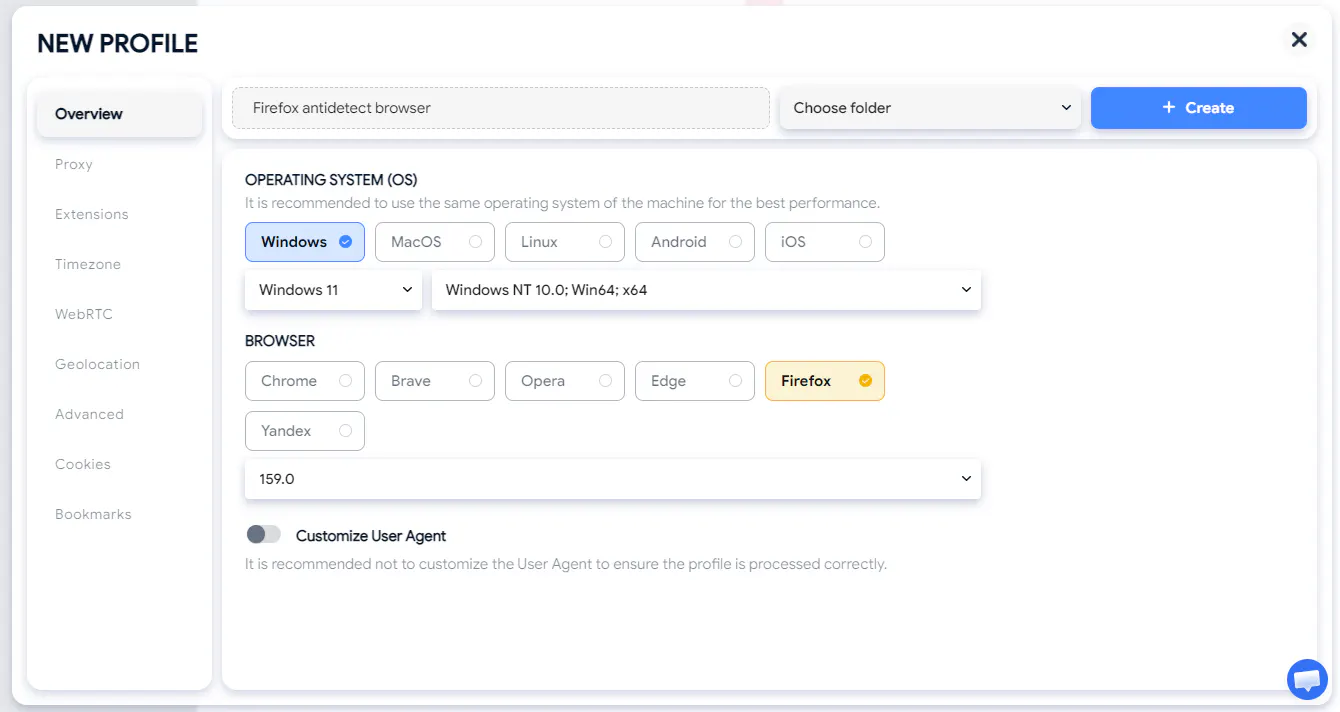
In the November 2026 update, Hidemyacc added Firefox to its list of supported browsers. When creating a new profile, you can select Firefox in the Overview tab, alongside Chrome, Brave, Opera, Edge and Yandex.
Key features include:
Feature | Support |
Firefox versions | Firefox 158.0 and 159.0 |
Operating system configurations | Windows, macOS, Linux, Android and iOS |
Profile management | Create and manage multiple independent Firefox profiles |
Proxy configuration | Free Residential Proxy, your own proxy or no proxy |
Firefox extensions | Installed through the Hidemyacc app |
Version updates | Can be updated within the same browser type |
Switching from Chrome to Firefox | Not supported for existing profiles |
Besides the Overview tab, Hidemyacc also offers configuration sections such as Proxy, Extensions, Timezone, WebRTC, Geolocation, Advanced, Cookies and Bookmarks. You can use these sections to tailor each profile to your work needs.
There are two important points to keep in mind when using Firefox on Hidemyacc. First, Firefox extensions must be installed through the Hidemyacc app and cannot be installed directly from the Firefox Add-ons website. Second, Hidemyacc lets you update versions within the same browser type, for example from Firefox 158.0 to Firefox 159.0 when supported. You cannot convert an existing Chrome profile to Firefox or vice versa, so be sure to pick the right browser type when creating a new profile.
4. Firefox fingerprint test results on Hidemyacc
To see how the Firefox fingerprint is detected, our team tested a Firefox profile on Hidemyacc using three tools: IPFighter, CreepJS and Pixelscan. The test was carried out on November 18, 2026 with the following configuration:
Parameter | Test condition |
Browser | Firefox 159.0 |
Operating system | Windows |
Proxy type | Residential Proxy |
Proxy location | Melbourne, Australia |
Test date | November 18, 2026 |
4.1. Results from the three testing tools
After setting up the Firefox profile with the configuration above, the team ran checks with IPFighter, CreepJS and Pixelscan. Each tool evaluates different parameters, from browser information and network connection to fingerprint consistency. The table below summarizes the results from all three tools.
Tool | Result |
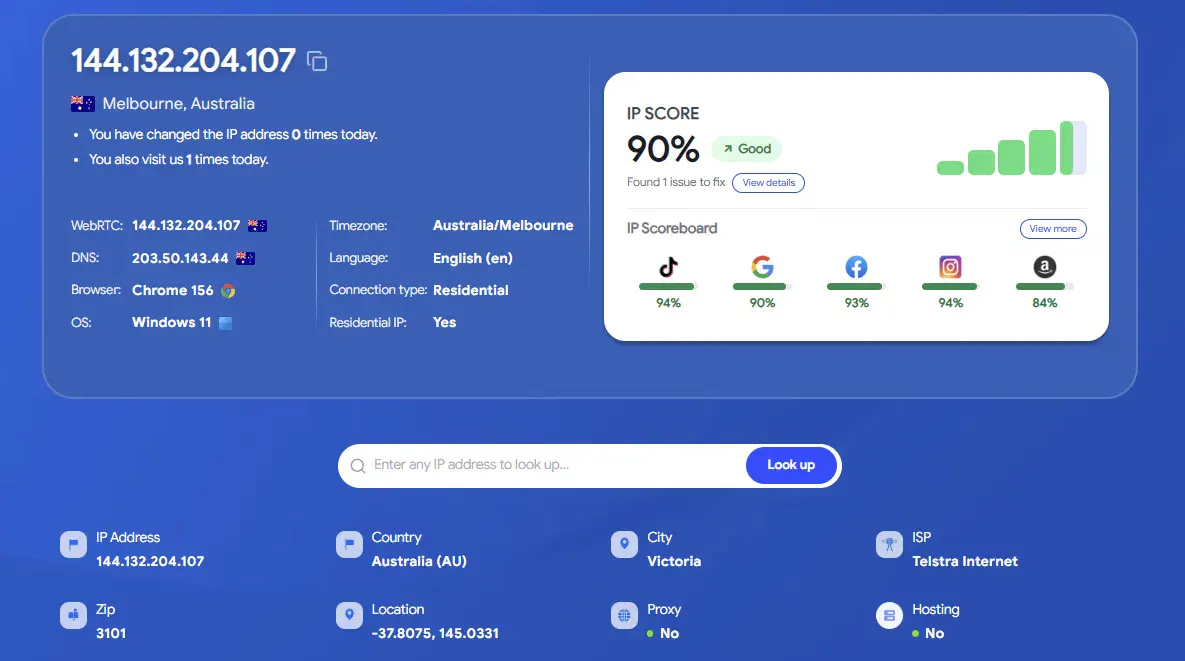
IPFighter | Detected Firefox 159, Windows, Australia/Melbourne time zone and a Residential connection |
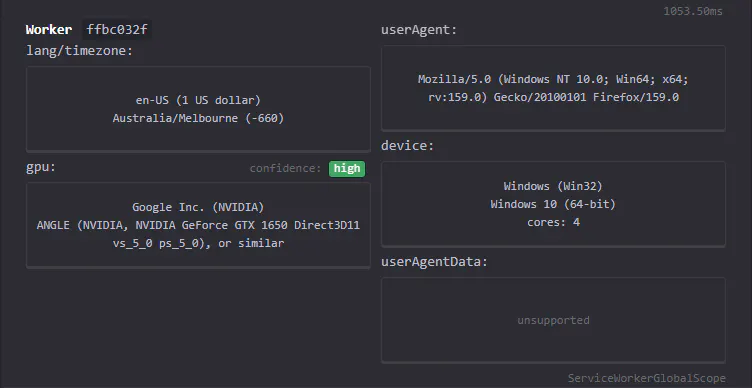
CreepJS | Trust score 93/100, no signs of automation detected |
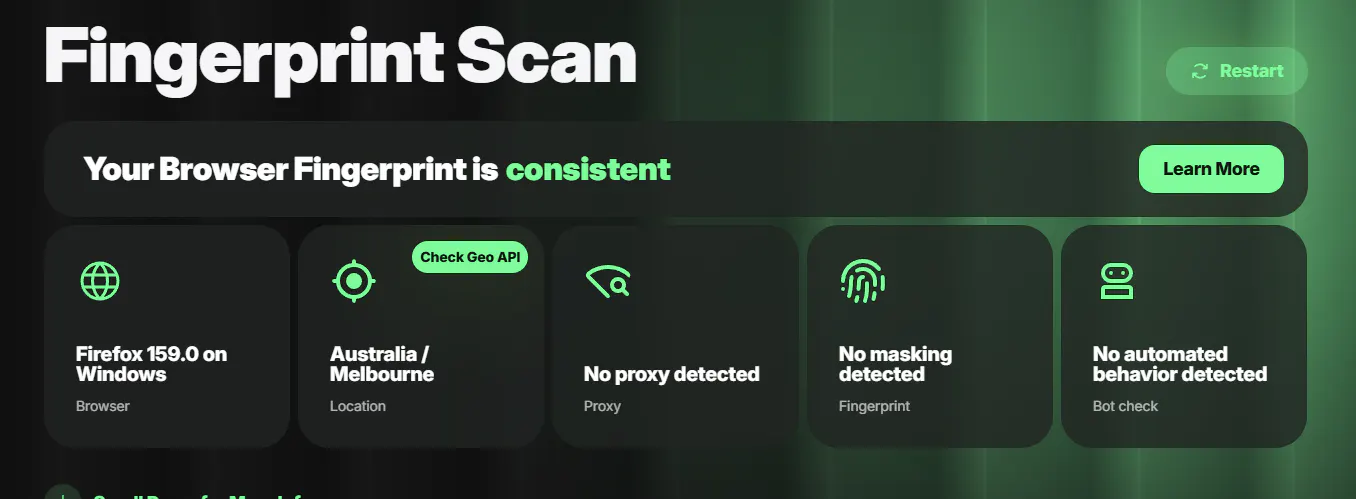
Pixelscan | Consistent fingerprint, Melbourne location, no automation detected |
IPFighter: The tool detected a Firefox version, operating system, time zone and connection type that matched the test configuration
CreepJS: In this test, the Firefox profile achieved a trust score of 93/100 and showed no signs of automation detectable by the tool. Detailed results show the browser was identified as Firefox 159 on Windows 10 (64-bit), using the en-US language, the Australia/Melbourne time zone and an NVIDIA GeForce GTX 1650 GPU. The browser and time zone parameters matched the test configuration.
Pixelscan: The tool rated the fingerprint as consistent and detected the location as Melbourne, Australia.
4.2. What do the test results show?
Results from all three tools show that Firefox 159 on Hidemyacc was detected with parameters matching the test configuration, including browser, operating system, time zone and network connection. This indicates the fingerprint parameters were recorded consistently during the test.
These results reflect only one profile with a specific configuration. IPFighter, CreepJS and Pixelscan do not represent the detection systems of individual websites, so a consistent fingerprint does not guarantee your account will avoid CAPTCHAs or verification requests.
5. 6 real-world use cases for a Firefox antidetect browser
A Firefox antidetect browser can support many tasks related to account management, market research and website testing. Below are six use cases, along with tips for implementing them on Hidemyacc.
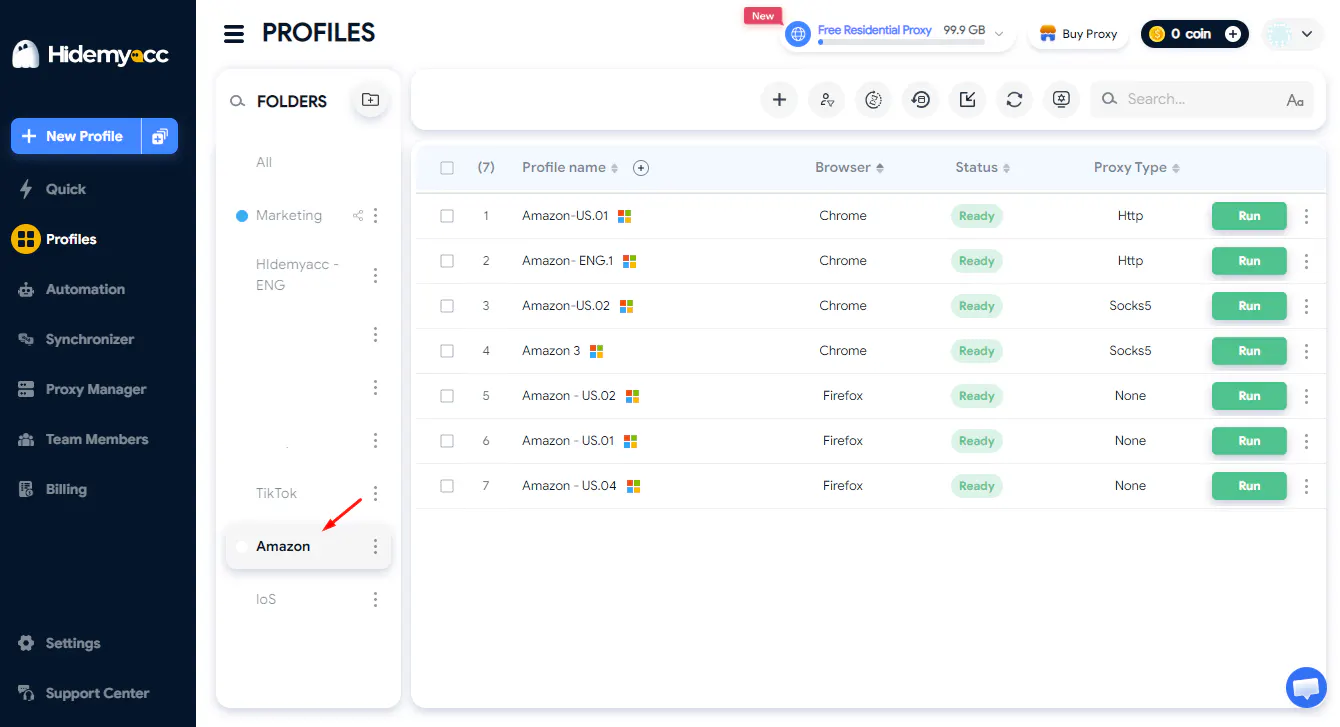
5.1. Manage multiple e-commerce accounts
Sellers and agencies may need to manage several e-commerce stores. Using a single browser makes it easy to mix up cookies and login sessions when switching between stores.
With a Firefox antidetect browser, you can create a separate profile for each store you're authorized to manage. For example, store A uses a Chrome profile while store B uses a Firefox profile. Each profile stores its own data, so you always open the right workspace without constantly logging out.
You can also check how the store's admin panel works on both Firefox and Chrome.
Tips: Name profiles after each store, keep a stable connection and use a suitable proxy if needed. Managing multiple accounts must still comply with each platform's policies.
5.2. Manage social media accounts
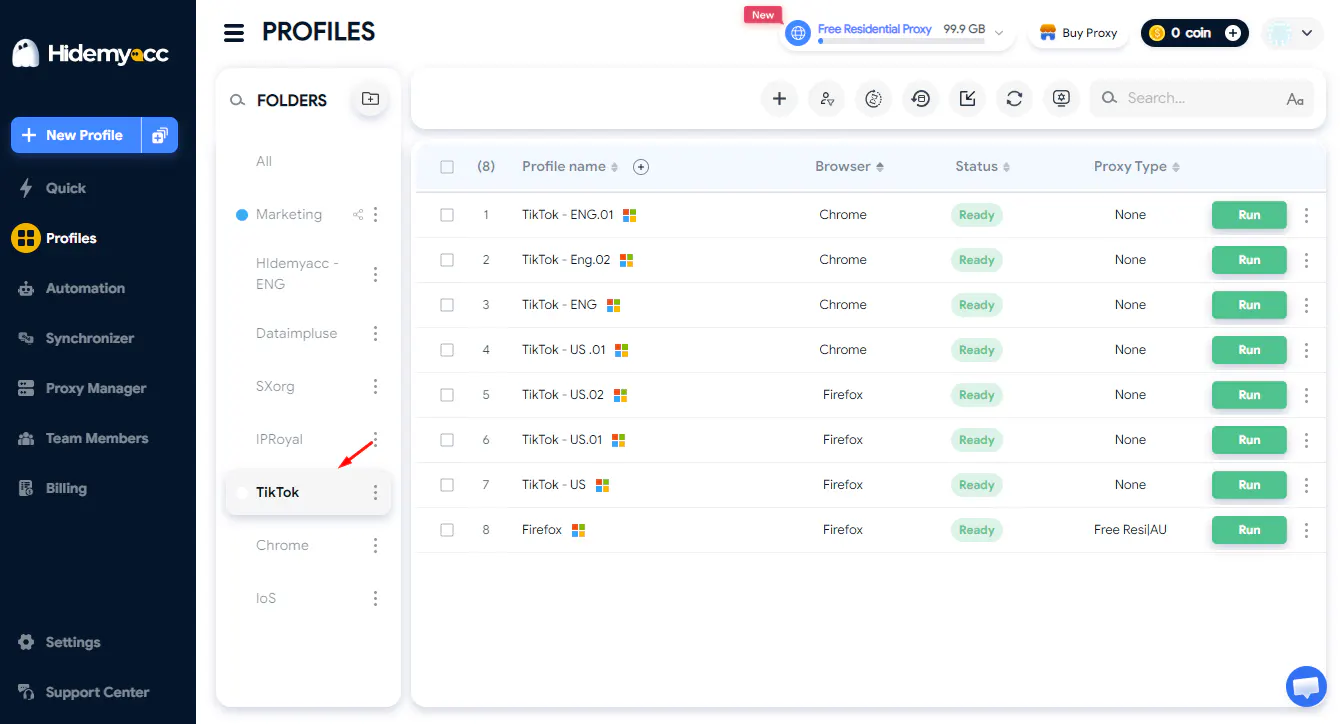
Marketing agencies often handle multiple social media accounts for their clients. Sharing a single browser can lead staff to post on the wrong account or struggle to switch between login sessions.
Firefox profiles keep cookies and login data separate for each account. For instance, if you manage three brands, you can create three separate profiles named after each client. When you need to post or check notifications, simply open the right profile.
This approach keeps work organized, especially when several team members are involved in a project.
Tips: Use one profile per account or per group of related accounts. Keep a familiar network connection and avoid changing IPs frequently when it isn't necessary.
5.3. Check ads and landing pages by region
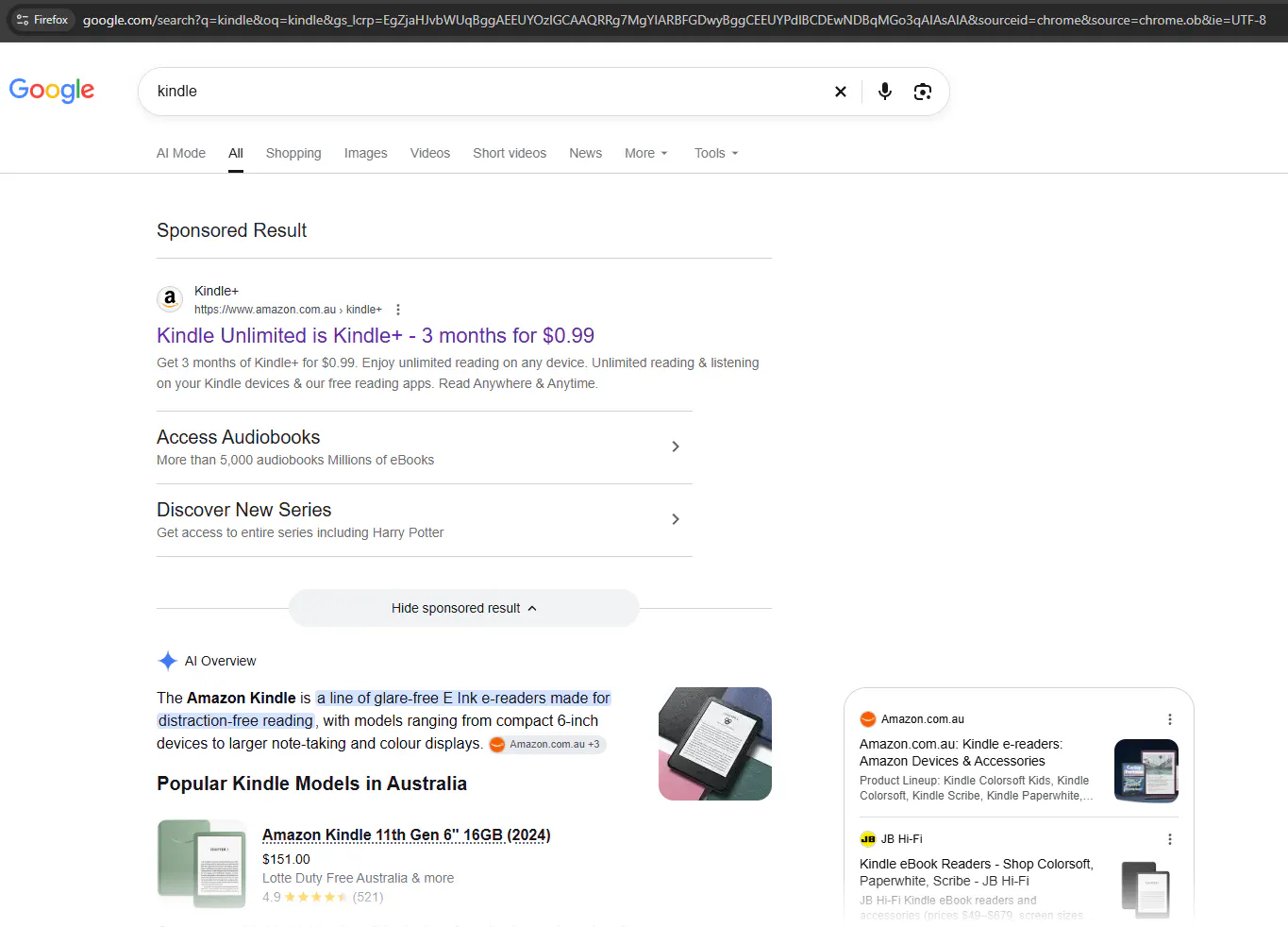
When running campaigns across multiple countries, marketing teams need to verify that landing pages display the right content for each market.
For example, a campaign running in the US and Australia may use different languages, currencies or promotions. You can create Firefox profiles combined with proxies in each country to check how the landing page displays.
Firefox also helps you catch UI or form bugs that only appear in this browser. This is especially useful before scaling up your ads.
Tips: Check the proxy, time zone, language and geolocation. Actual content also depends on cookies, accounts and how the platform delivers ads.
5.4. Track product prices and search results
SEO specialists and market researchers often need to compare product prices or search results across countries.
For example, you want to check a product's price in the US and Australia. Firefox profiles combined with regional proxies help you organize separate research sessions while reducing the influence of cookies from previous visits.
When researching SERPs, you can also use Firefox to check how search results look and compare them with Chrome. This information supports website evaluation and market monitoring.
Tips: Record when each check was done, choose a suitable proxy and keep a reasonable access frequency. When collecting data, you must comply with each website's terms and rate limits.
5.5. Cross-browser website testing
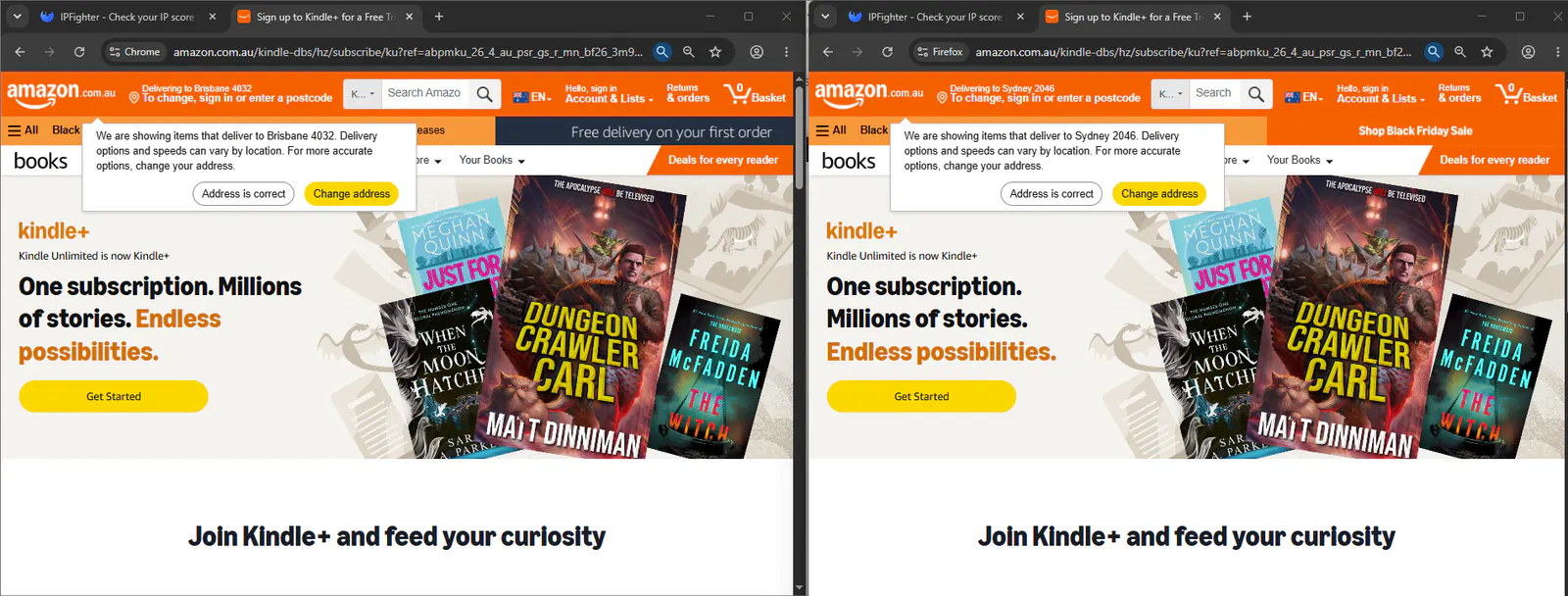
A website may work fine on Chrome but break on Firefox because the two browsers handle layouts and code differently.
For example, the QA team finds that the Add to Cart button works on Chrome but doesn't respond on Firefox. In that case, you can test the website on Firefox 158.0 and 159.0 to determine whether the bug is tied to a specific browser version.
Hidemyacc lets you create multiple profiles for testing, helping QA teams save the configurations they need and compare results easily. This use case is especially suited to projects that must support multiple browsers.
Tips: Name profiles by version and operating system, such as QA_FF159_Win. Keep test conditions consistent to make it easier to pinpoint the cause of a bug.
5.6. Collaboration in agencies and teams
When multiple members work on the same project, sharing browser profiles cuts down the time spent recreating the working environment.
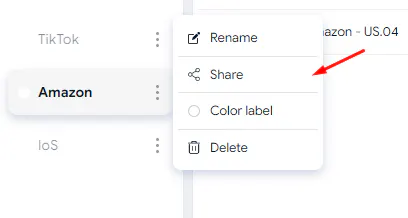
For example, an agency can create a separate folder for each client, store the corresponding Firefox profiles and share them with assigned staff. Hidemyacc supports Share Profile and Permission & Limits, allowing team owners to manage member permissions within assigned folders.
This way, team members can use shared profiles without having to send each other their Hidemyacc login passwords.
Tips: Create folders by client and grant only the permissions needed. To delete a profile, a member must be given Admin rights when the profile is shared and have the Delete permission enabled in Permission & Limits.
6. How to create a Firefox profile on Hidemyacc
You can create a Firefox profile directly in the Hidemyacc app. Before you start, decide which Firefox version you want to use and prepare your proxy details if needed.
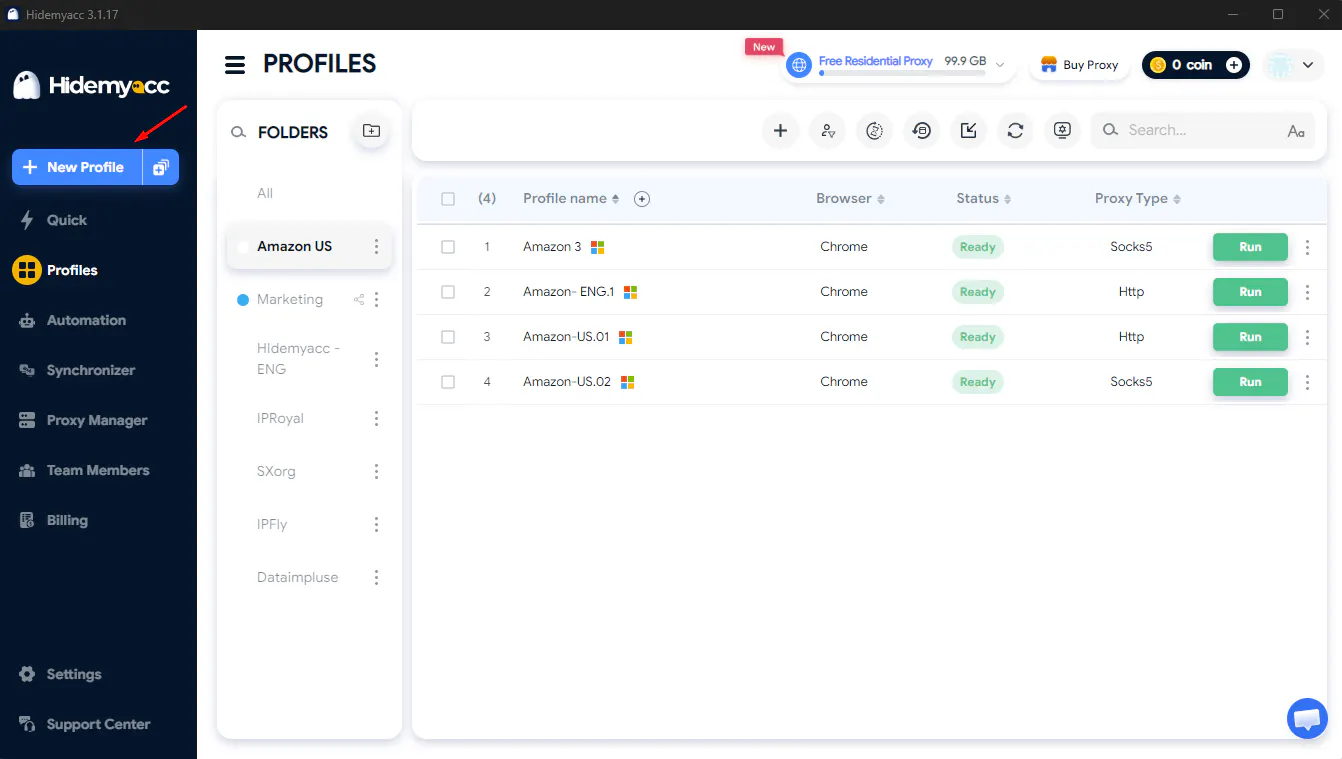
Step 1. Open Hidemyacc and select New Profile
Launch the app, go to Profiles and click New Profile.
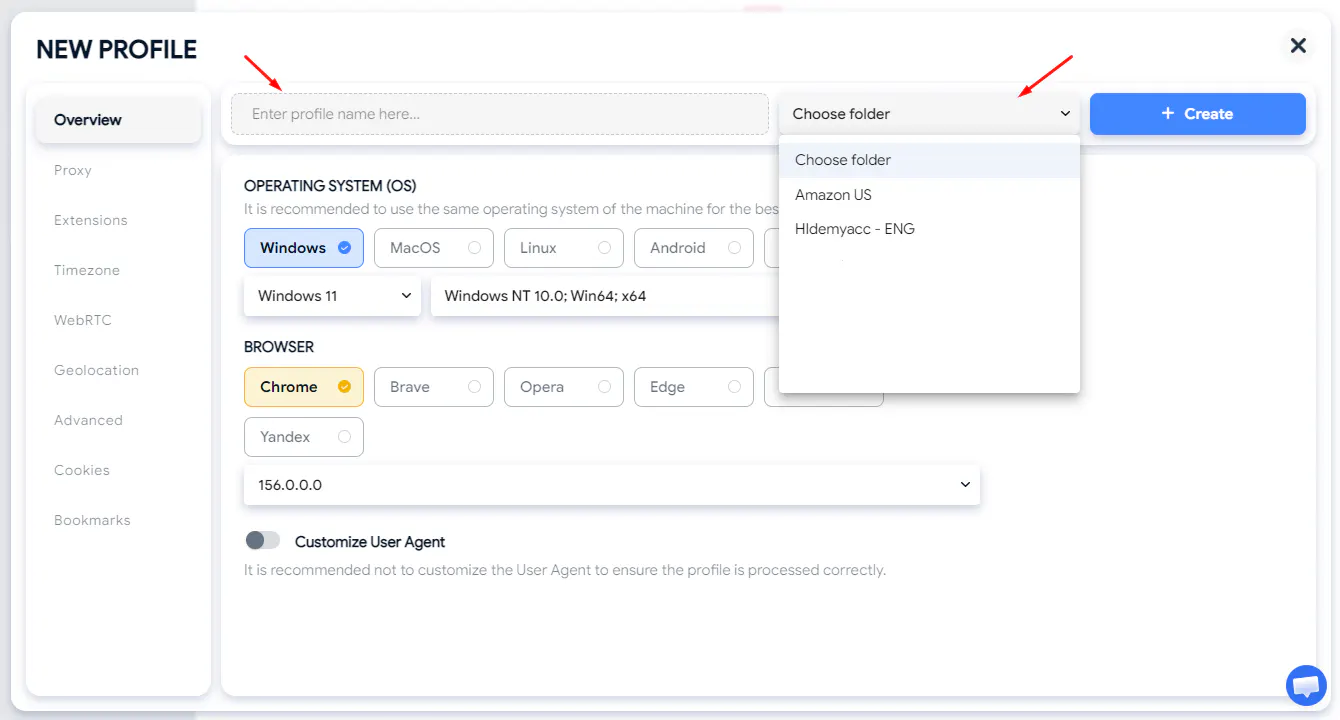
Step 2. Name the profile and choose a folder
Enter an easy-to-recognize name, such as Firefox antidetect browser If you manage multiple projects, you can select the corresponding folder.
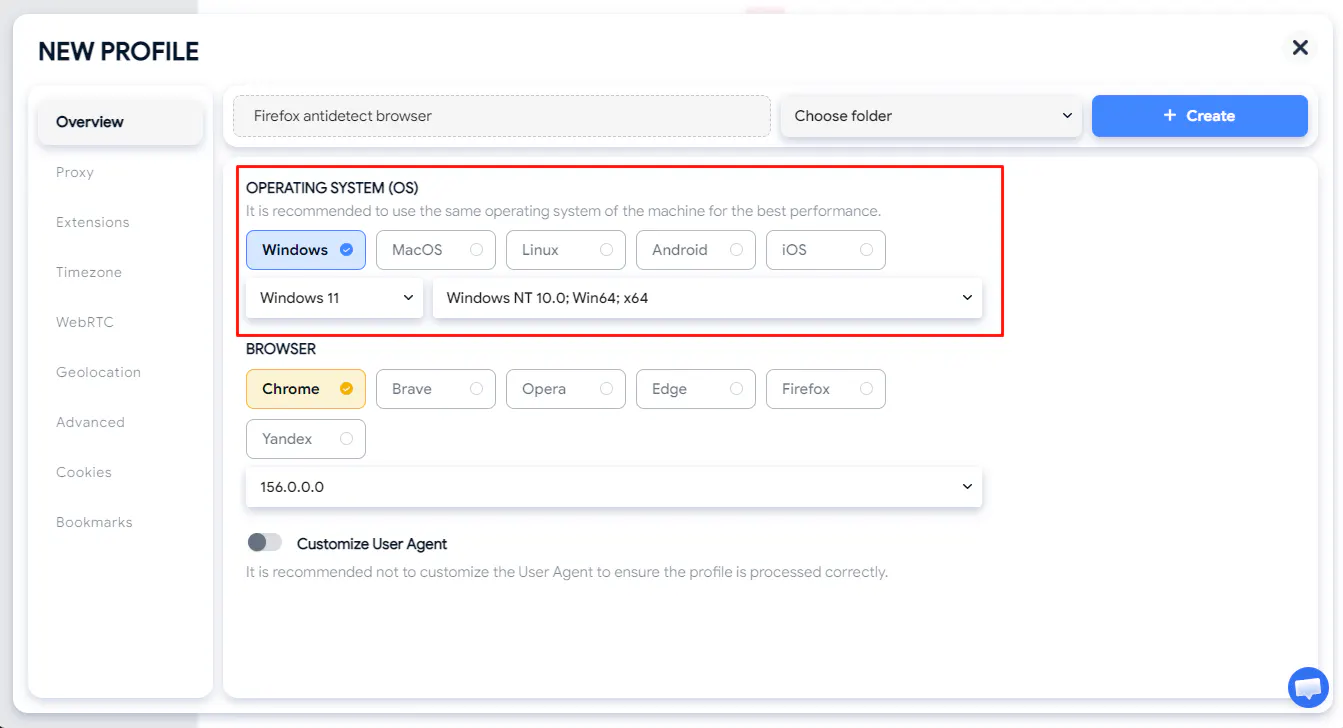
Step 3. Select the operating system
In the Overview tab, choose Windows, macOS, Linux, Android or iOS. Hidemyacc recommends choosing the same operating system as the computer you're using.
Step 4. Select Firefox and the browser version
Under Browser, choose Firefox 158.0 or Firefox 159.0.
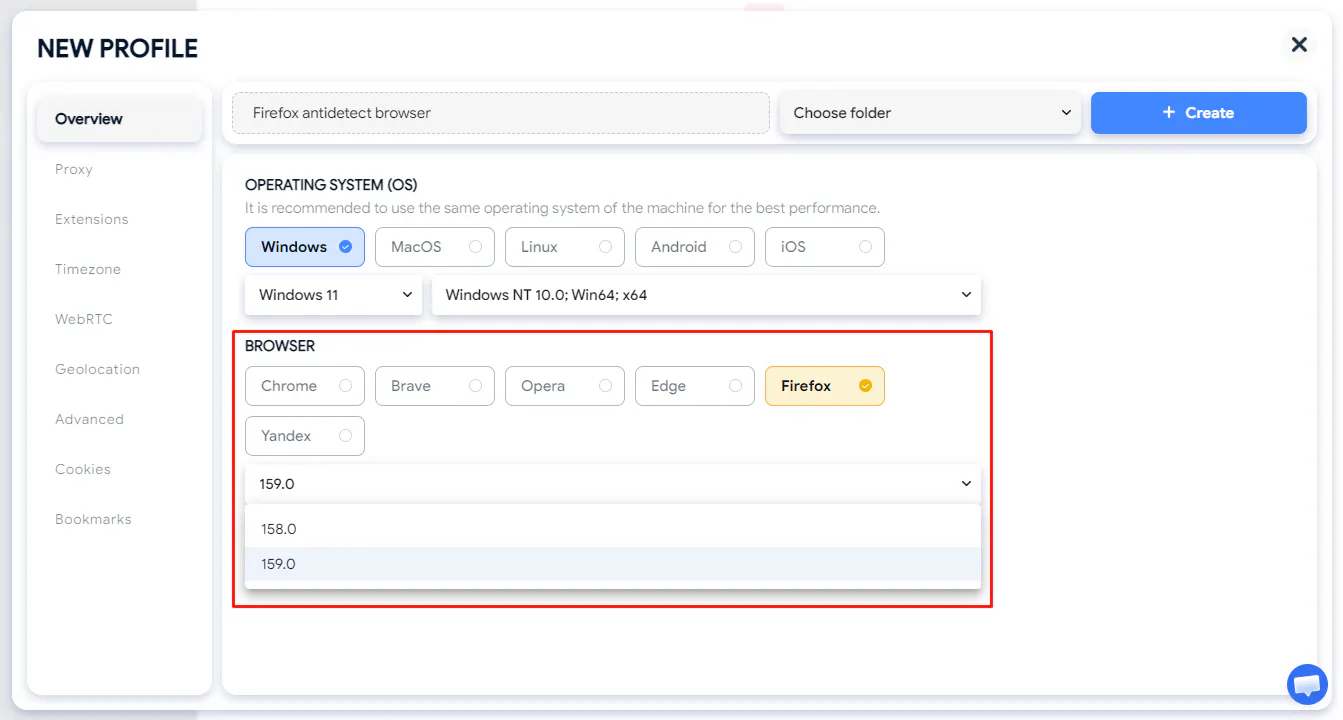
Select Firefox and the version in the Overview tab
Step 5. Set up the proxy
Open the Proxy tab and choose one of three options:
Free Proxy: Use the proxy included in your Hidemyacc plan.
Your Proxy: Enter your own proxy.
Without Proxy: Don't use a proxy.
If you choose Free Residential Proxy, you'll need to select a suitable country.
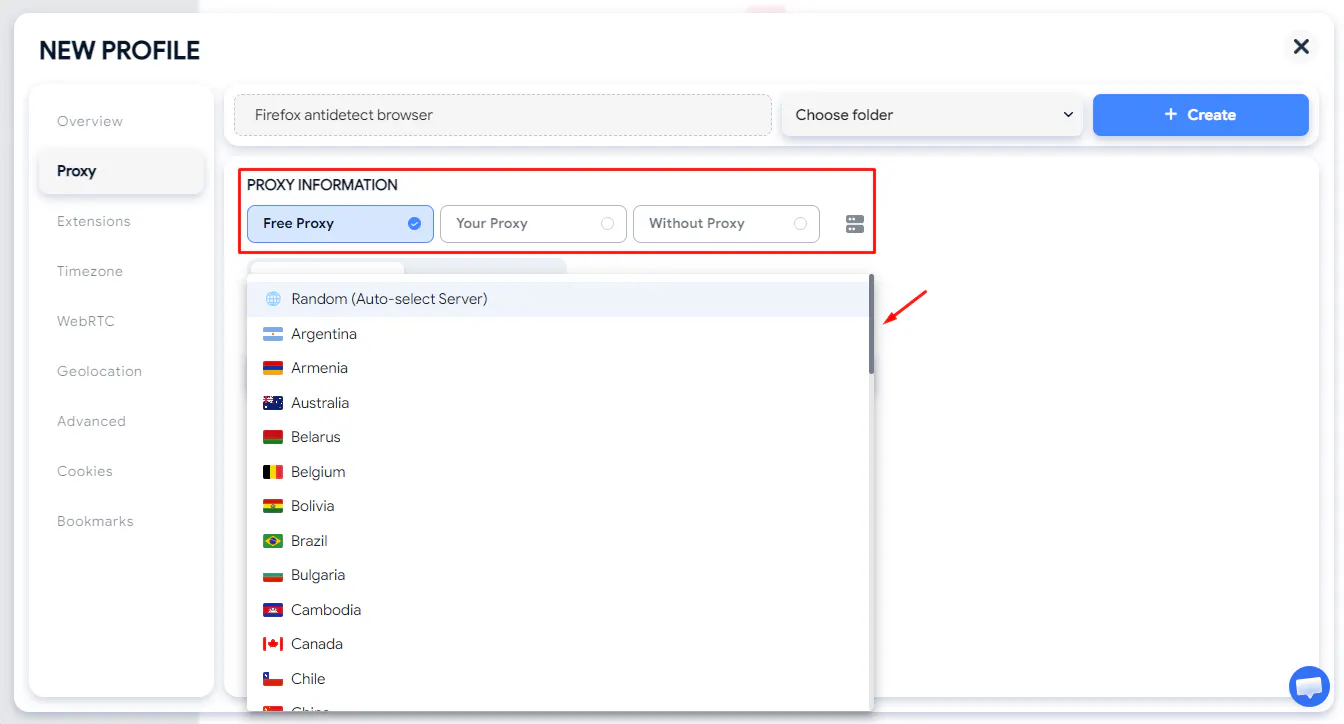
Proxy configuration screen
Step 6. Check Timezone, WebRTC and Geolocation
Review the time zone, WebRTC and geolocation to make sure these parameters match your connection setup.
Step 7. Add extensions, cookies or bookmarks
Set up the data you need, then click Create. Firefox extensions must be installed through the Hidemyacc app, not directly from Firefox Add-ons.
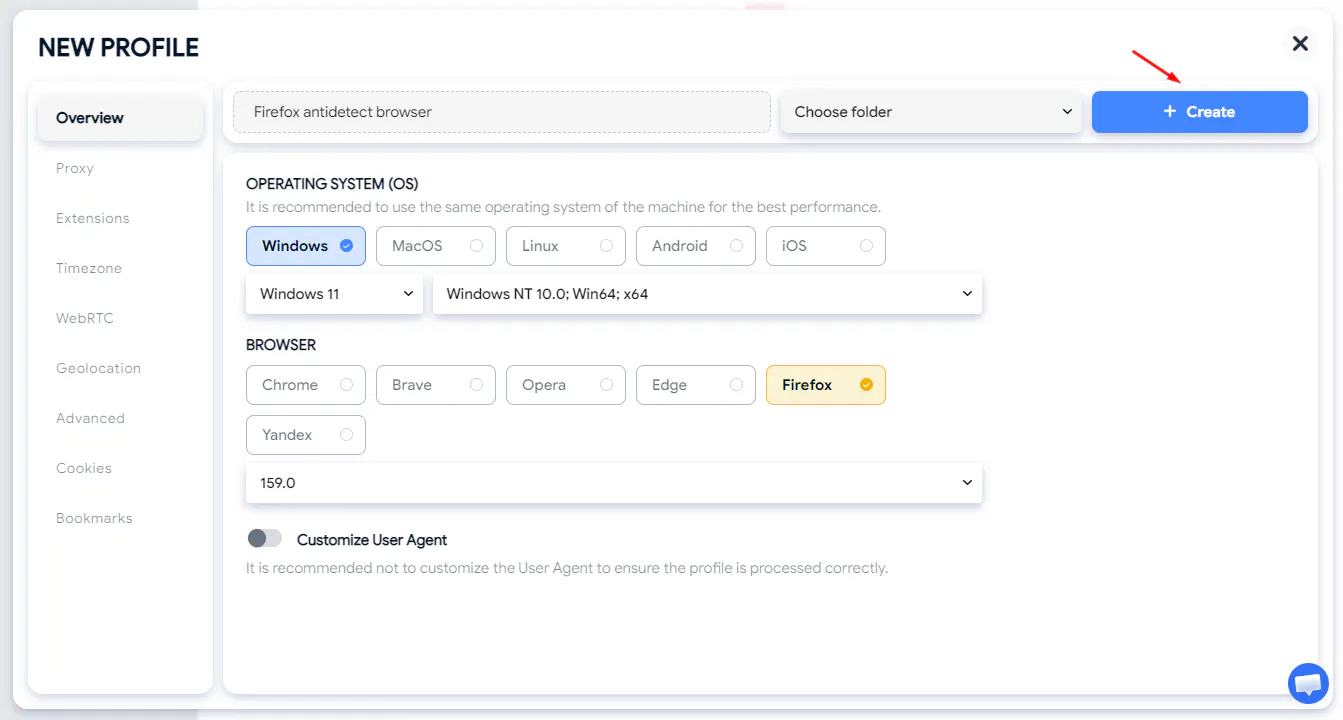
Step 8. Launch and check the fingerprint
Click Run to open the profile. Then use IPFighter, CreepJS or Pixelscan to check the browser version, IP, time zone and fingerprint.
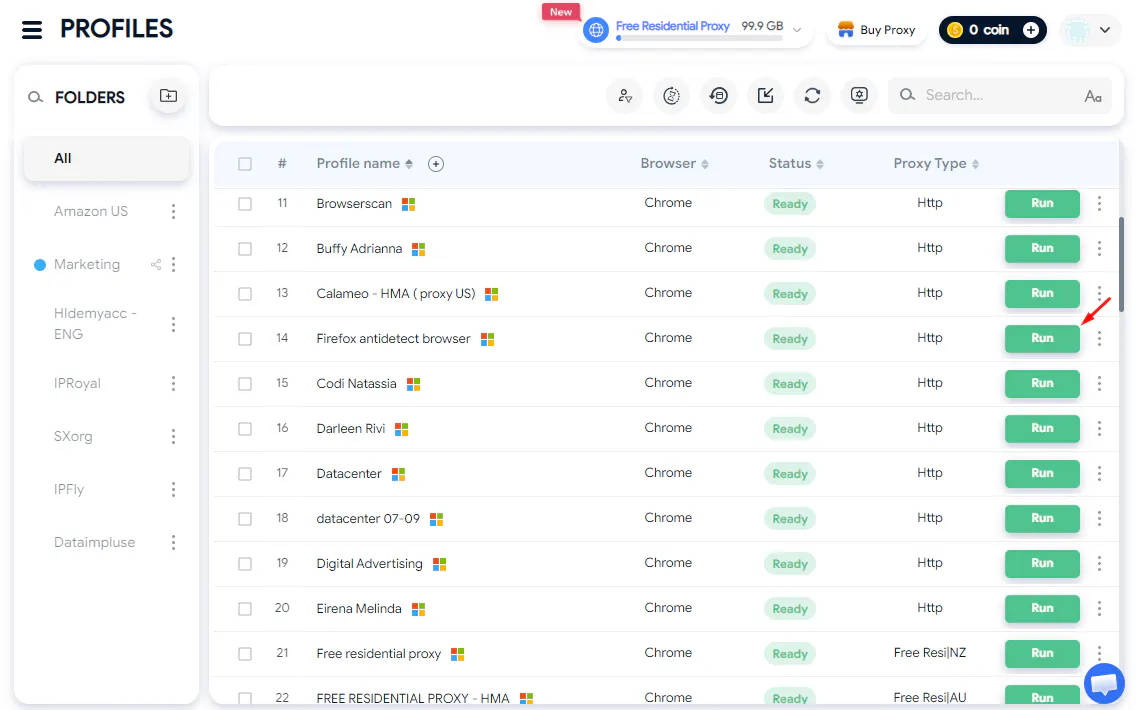
7. Tips for using a Firefox antidetect browser
To keep your Firefox profiles running smoothly, keep the following in mind:
Keep parameters consistent: Make sure the proxy, time zone, language and geolocation match.
Choose the right operating system: Prefer the same operating system as the computer running Hidemyacc.
Separate accounts when needed: Use dedicated profiles to avoid mixing up cookies and login sessions.
Choose a supported Firefox version: Check compatibility before updating.
Keep account activity normal: Complete required verifications and avoid unusual bulk activity.
Test before scaling up: Try a few profiles first to catch configuration or connection issues.
These tips help you manage Firefox profiles more easily. Using an antidetect browser does not guarantee your account will bypass every detection system or website verification request.
8. Conclusion
A Firefox antidetect browser gives you an extra option for managing multiple independent profiles and testing websites across different browsers. With Firefox 158.0 and 159.0, Hidemyacc lets you configure fingerprints, set up proxies and manage Firefox profiles all in one app.
If you want to try Firefox, you can download the Hidemyacc antidetect browser, create your first Firefox profile and check the configuration before using it for work.
Learn more: Top 10 antidetect browsers for managing multiple accounts
9. FAQ
1. What is a Firefox antidetect browser?
A Firefox antidetect browser is a browser that lets you create multiple independent Firefox profiles on the same device. Each profile can store its own cookies, site data, login sessions, proxy and browser fingerprint. It's well suited to work that requires managing multiple browser environments.
2. Does Hidemyacc support Firefox?
Yes. In the November 2026 update, Hidemyacc added support for Firefox 158.0 and 159.0. You can select Firefox when creating a new profile, with five operating system configurations: Windows, macOS, Linux, Android and iOS.
3. Is a Firefox profile better than a Chrome profile?
Neither option is better in every case. Firefox is a good fit when you need to test websites on Firefox or add another browser type. Chrome is better for work that requires a Chromium environment and its corresponding extensions.
4. Can I use the same proxy for Firefox and Chrome profiles?
Yes, if your proxy provider allows it. When using the same IP, the profiles will share the same network connection information. If you need to separate connections between accounts or projects, consider using dedicated proxies.
5. Does a Firefox antidetect browser keep accounts from being detected?
No. A Firefox antidetect browser helps manage fingerprints and isolate profile data, but websites can also check your IP, browsing behavior and account information. As a result, Firefox profiles may still encounter CAPTCHAs or verification requests.
6. Which tools should I use to check a Firefox fingerprint?
You can use IPFighter, CreepJS and Pixelscan. IPFighter checks browser and connection information, CreepJS analyzes the fingerprint, and Pixelscan evaluates environment consistency. It's best to cross-check multiple results rather than relying on a single score.
7. Can I choose and update the Firefox version on Hidemyacc?
Yes. Hidemyacc supports Firefox 158.0 and 159.0 and lets you update versions within the same browser type when supported. You cannot convert an existing Chrome profile to Firefox; you need to create a new profile instead.