Whoer.net is a popular tool for checking your browser's anonymity and browser fingerprint, but many users only look at the Anonymity Score without understanding the meaning of WebRTC, DNS, or Timezone. This article explains every result in a Whoer.net test, shows which signs indicate an abnormal configuration, and helps you optimize your browser before managing multiple accounts.
1. What results does the Whoer.net test show?
When you run a test on Whoer.net, the report provides several results related to your connection and browser environment. The main sections include:
| Section | What it means | Importance |
|---|---|---|
| Anonymity Score | Overall anonymity rating | Medium |
| IP Address | Network identity | High |
| DNS | Domain name resolution server | High |
| WebRTC | Checks for IP leaks | Very High |
| Timezone | Browser time zone | Medium |
| Browser Fingerprint | Browser fingerprint characteristics | Very High |
Among these, IP Address, DNS, and WebRTC mainly reflect your network connection, while Browser Fingerprint shows the identifying characteristics your browser exposes to websites. Whoer also separates the Browser Fingerprint section to display details such as User-Agent, HTTP Headers, screen information, language, timezone, WebRTC, JavaScript, and plugins.
Therefore, when running a Whoer test, you shouldn't focus only on your anonymity score. It's more important to check whether all of these indicators are consistent with one another.
If you want to learn more about the tool itself, check out our Whoer.net review for a closer look at its features and testing capabilities.
2. How to read IP results on Whoer.net
As soon as Whoer.net finishes loading, you'll see the My IP summary card. This is the first section you should check because it provides an overview of the basic information that websites can see from your network connection and browser.
The card doesn't just display your IP address—it also shows your location, ISP, DNS, operating system, browser, and several status indicators related to proxies, anonymizers, and blacklists.
- Public IP: The IP address visible to websites.
- Location: The country, region, or city associated with the IP address.
- ISP: Your internet service provider or IP provider.
- Proxy Detection: Whether Whoer detects signs that you're using a proxy.
- Blacklist: Whether the IP appears on any risk or blacklist databases.
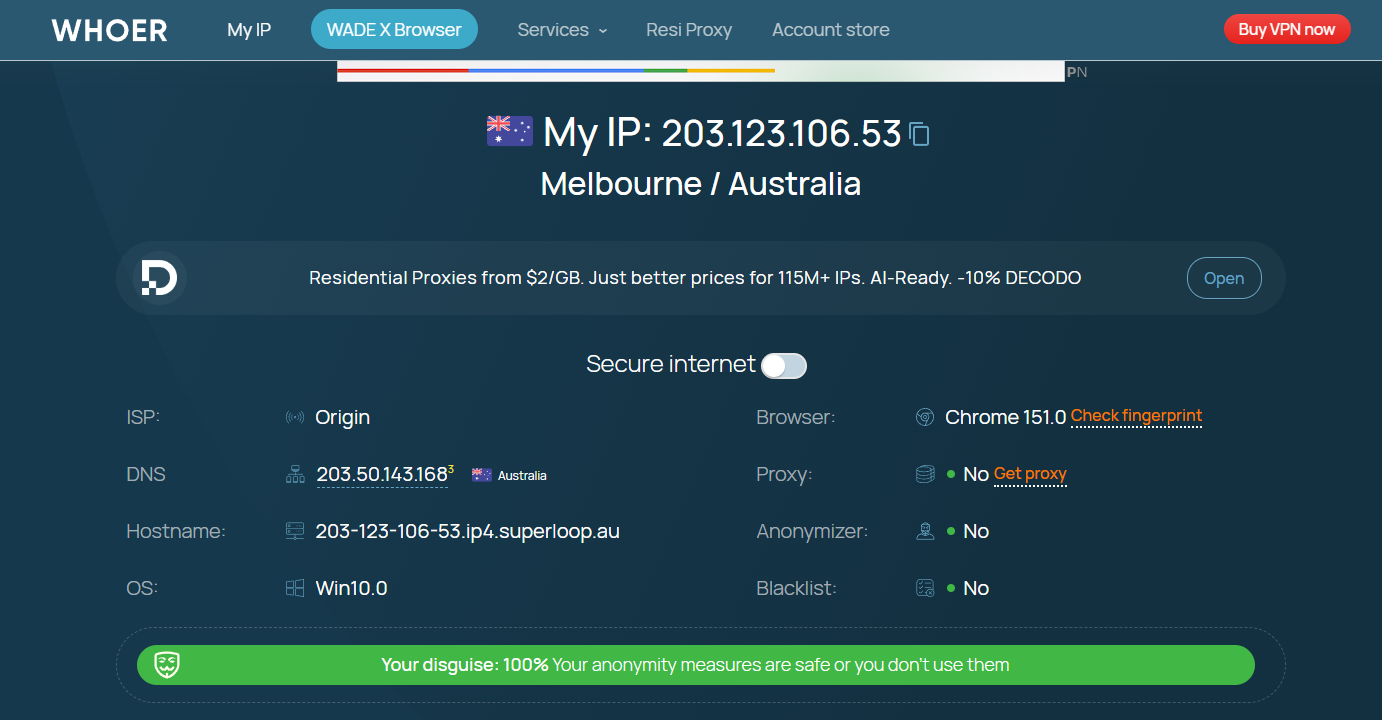
These three details show how websites see your network connection.
IP is the public IP address detected by Whoer. If you're using a proxy, this is usually the proxy's IP rather than your original network IP. Location shows the country and city associated with that IP, while ISP identifies the internet service provider or the organization that owns the IP range.
When checking your results, make sure these three values are consistent with the proxy you're using. For example, if you're connected to a Singapore proxy but Whoer still shows a Vietnamese IP and ISP, your proxy may not be working correctly. Keep in mind that city-level geolocation is not always accurate, so don't judge an IP based on the city name alone.
2.2. DNS and Hostname
On the My IP card, Whoer summarizes DNS as the country of your DNS resolver. Hostname is the server name associated with the IP address and can sometimes reveal the IP provider.
For example, if both the IP and DNS are shown as Australia, the network configuration is generally consistent. If the IP is in Singapore but the DNS is still detected in Vietnam, that's a sign you should investigate a possible DNS leak in the detailed DNS section.
2.3. OS and Browser
OS identifies the operating system detected by Whoer, while Browser shows the browser you're using. Next to the browser information, you'll also find the Check fingerprint link, which opens the detailed browser fingerprint analysis.
These values should match your actual browsing environment. If the detected browser or operating system is incorrect, review your User-Agent and fingerprint settings instead of relying only on the overall score.
2.4. Proxy, Anonymizer, and Blacklist
These three indicators appear as simple Yes/No statuses and show how Whoer evaluates your IP address.
| Result | Meaning |
|---|---|
| Proxy: No | Whoer does not detect the IP as a proxy. |
| Proxy: Yes | Whoer detects signs that the IP belongs to a proxy. |
| Anonymizer: No | The IP is not recognized as an anonymizing service. |
| Anonymizer: Yes | The IP is identified as potentially belonging to an anonymizing service. |
| Blacklist: No | The IP is not found in the blacklist databases checked by Whoer. |
| Blacklist: Yes | The IP appears in one or more blacklist databases checked by Whoer. |
For example, if the card shows Proxy: No, Anonymizer: No, Blacklist: No, it means Whoer did not detect proxy usage, did not classify the IP as an anonymizer, and did not find it on the checked blacklists.
However, this is only the high-level network assessment. An IP may pass all three checks and still have issues with DNS, WebRTC, or browser fingerprint consistency. That's why these indicators should never be used as the only basis for evaluating your setup.
2.5. Your Disguise: X%
At the bottom of the My IP card, you'll see the Your Disguise: X% bar. This is Whoer's anonymity score, displayed under a different label in the interface.
You can use these ranges as a general reference:
- 70–85%: Acceptable
- 85–95%: Good
- 95–100%: Very good, but not necessary to achieve 100%
A higher score generally means your overall test results are more consistent, but 100% does not mean you're impossible to detect. It is only Whoer's own scoring system, and different websites use different fingerprinting and detection methods.
Instead of focusing only on the Your Disguise percentage, continue reviewing the individual sections below to identify any issues with your IP, DNS, WebRTC, or browser fingerprint.

3. IP address details: What does each result mean?
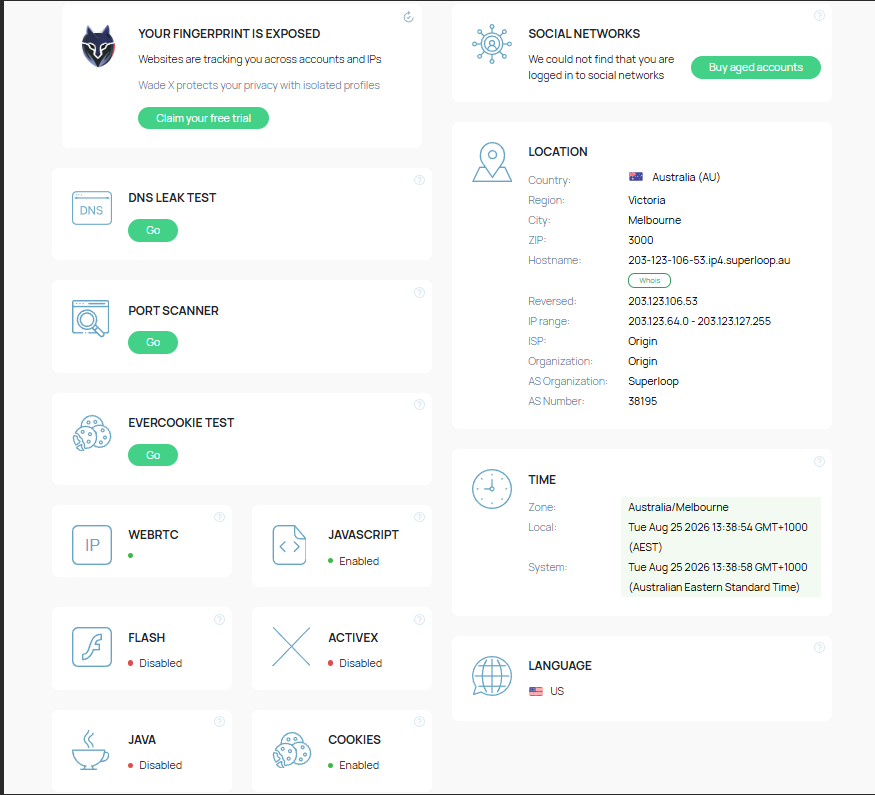
After the My IP card, Whoer provides the IP Address Details section with more detailed network information and security checks. This is where you can examine the items that were only summarized in the overview card, especially DNS, Port Scanner, and Evercookie.
3.1. DNS
In the detailed section, Whoer displays more complete information about the DNS resolver your connection is using. You can view the IP address, provider, and country for each DNS request..
At the top of the DNS test, Whoer may show one of two statuses:
- Protected: Your DNS is protected, and no DNS leak is detected.
- Vulnerable: Your DNS appears to be unprotected, meaning DNS resolvers may still be able to see the websites you visit.
If your IP is located in Australia and the DNS also shows Australia, the two results are generally consistent. However, being in the same country does not guarantee that your DNS is not leaking.
When you open the detailed Your IP / Provider / Country table, you may see multiple DNS requests handled by different providers. For example, the list may include providers such as Vocus, Optus, and Google, even though they all resolve to Australia.
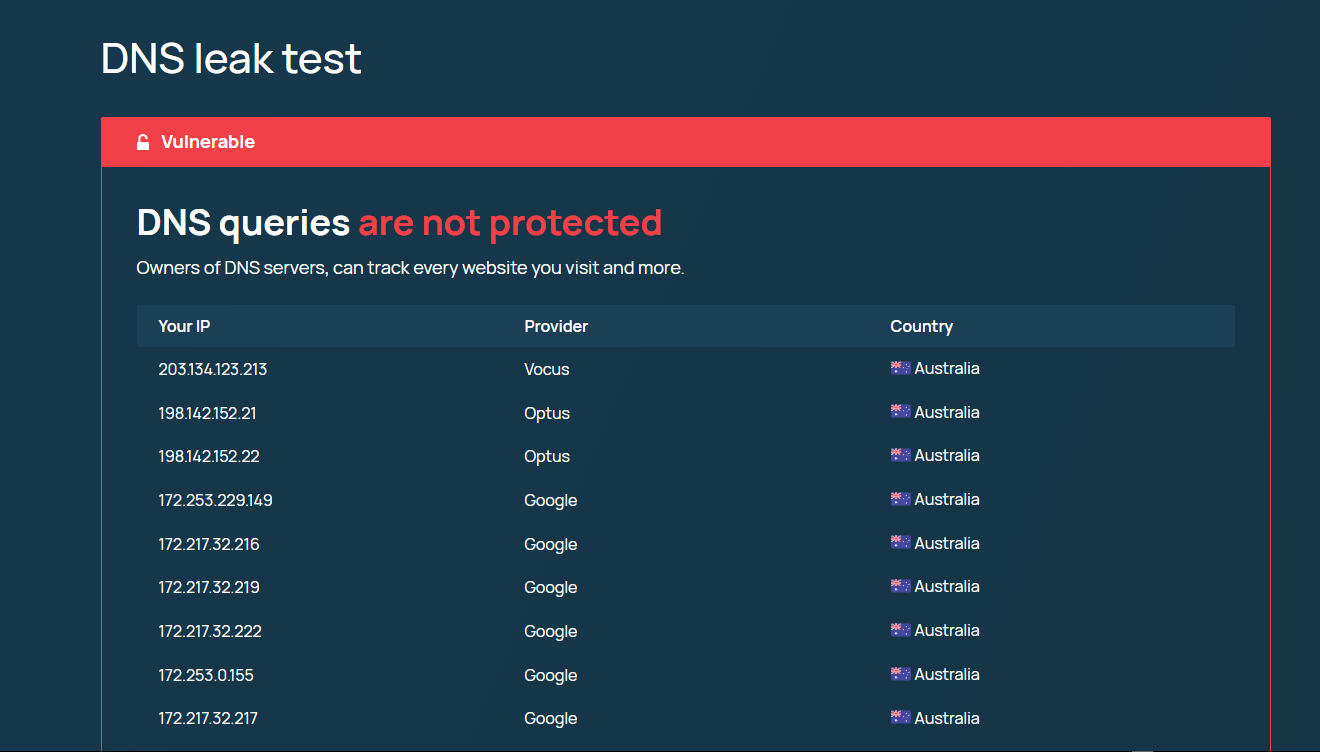
In this case, the result can still be Vulnerable. The issue is not that the DNS is in a different country from the IP—it is that your requests are being handled by multiple DNS resolvers, including the DNS provider of your original network connection. This means your ISP or those DNS providers may still be able to see your DNS queries.
Whoer also displays the warning “DNS queries are not protected”, indicating that your DNS requests are unprotected and the DNS server owner may be able to monitor the websites you visit.
Therefore, when checking for a DNS leak, don't rely only on the simplified DNS line in the My IP card. Open the detailed table and review the Provider, Country, and the number of DNS resolvers to verify whether your DNS traffic is being routed correctly.
3.2. Port Scanner
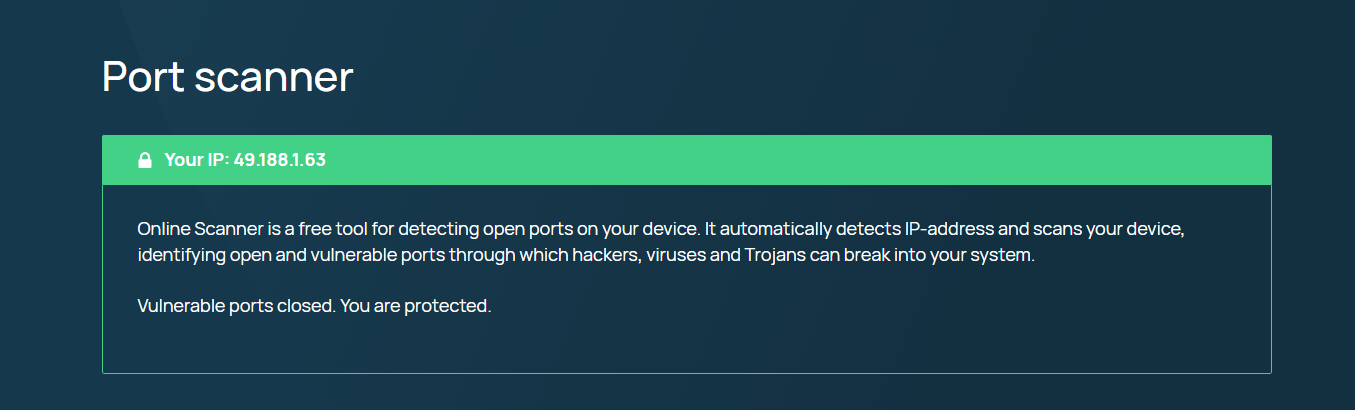
Port Scanner checks which network ports are open on your device to identify ports that could provide an entry point for hackers, malware, or Trojans. This is a device security test rather than a direct measure of browser fingerprinting or anti-detect capability.
Whoer typically returns one of two results:
- Vulnerable ports open: One or more potentially vulnerable ports are open. This is a warning state and is usually shown in red.
- Vulnerable ports closed. You are protected.: Potentially vulnerable ports are closed, and Whoer does not detect a risk in this test. This status is typically shown in green.
Below the result, Whoer also displays Your IP to indicate which IP address is being scanned.
If you're using a VPS or Remote Desktop, some ports may be intentionally open to support remote access. For that reason, an open port does not automatically mean your device has been compromised. You should identify which service is using the port and whether it is actually necessary.
For multi-account environments, unusual open ports are worth investigating because they may indicate unnecessary services running on the device. However, Port Scanner is not a browser fingerprint metric. If your goal is to evaluate browser detectability, focus on the WebRTC, Timezone, and Browser Fingerprint sections instead.
3.3. Evercookie Test
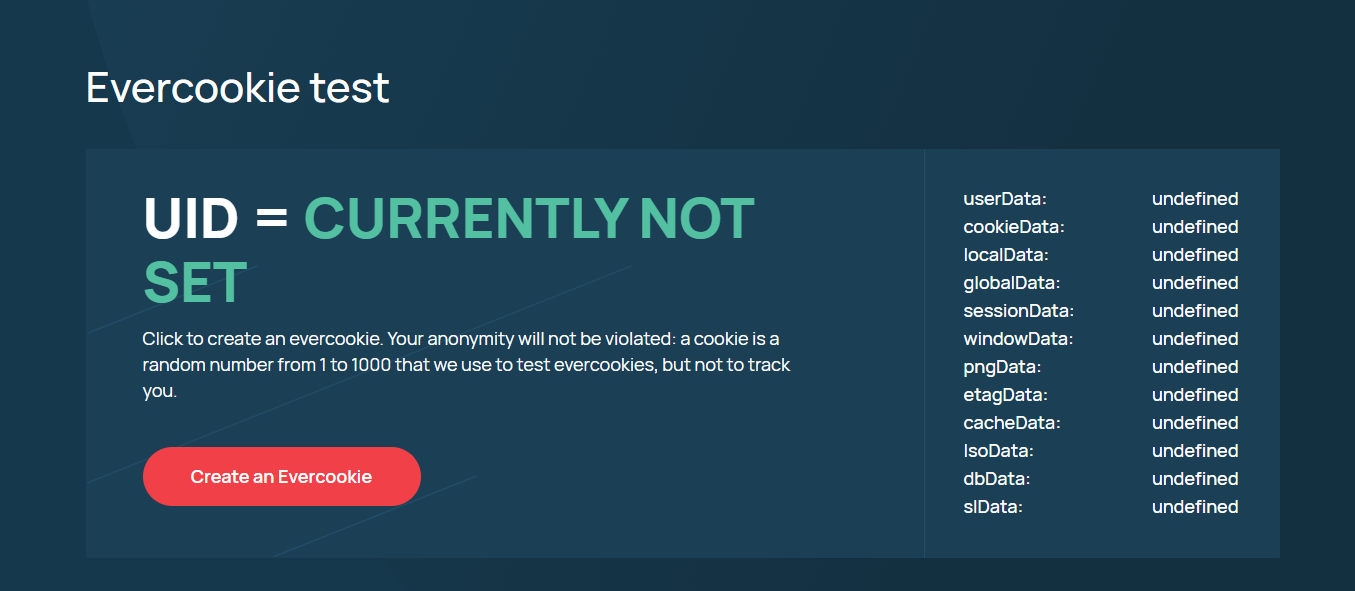
Evercookie Test kiểm tra khả năng một mã nhận diện vẫn tồn tại trong trình duyệt sau khi bạn đã xóa cookie thông thường. Khác với DNS hoặc Port Scanner, đây là bài test tương tác, bạn cần chủ động tạo và kiểm tra Evercookie.
Step 1: Create an Evercookie
Initially, Whoer displays UID = CURRENTLY NOT SET along with the Create an Evercookie button. Storage fields such as cookieData, localData, sessionData, windowData, and others are shown as undefined.
When you click Create an Evercookie, Whoer generates a random UID and attempts to store it across multiple browser storage mechanisms.
Step 2: Delete and Rediscover Cookies
After the UID is created, Whoer asks you to delete the cookie using any method you can, then click Rediscover cookies. It will check whether the same UID can still be recovered from other browser storage locations.
For example, a UID such as 977 may appear simultaneously in cookieData, localData, sessionData, and windowData. Some other fields may show N/A or remain empty because certain legacy storage technologies are no longer supported by modern browsers.
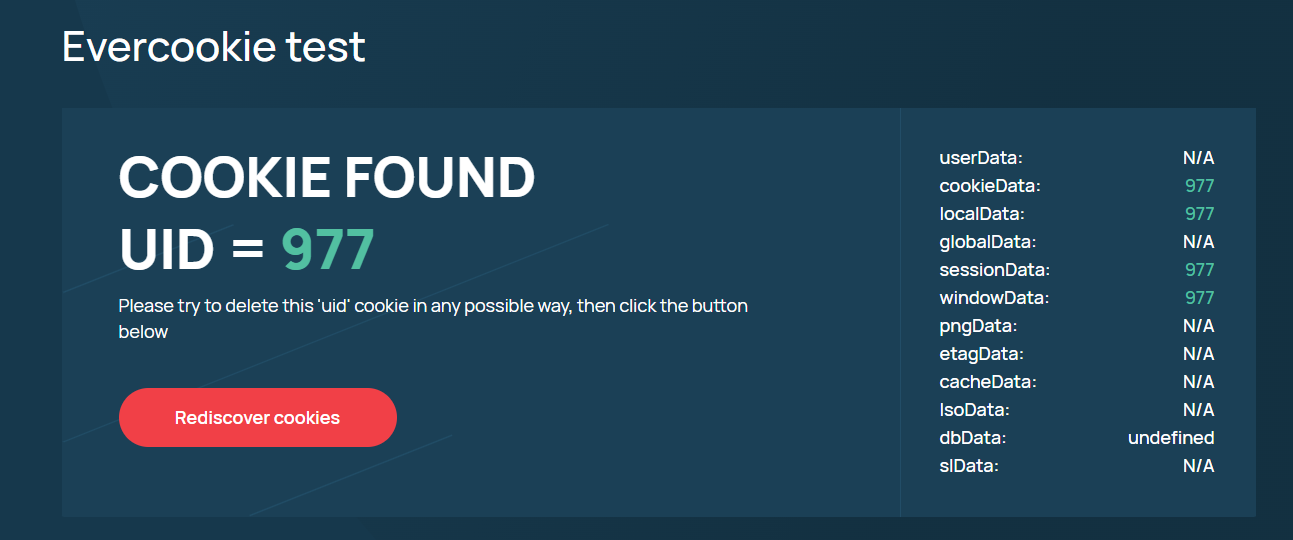
The key point is that deleting cookie data does not necessarily remove the entire UID. If the UID is still found in localData, sessionData, or windowData, your browser may still retain an identifiable trace.
If you want a completely clean environment before using a new browser profile, you should clear all browser storage related to that profile or use a new browser profile instead of deleting only regular cookies.
Learn more: What are internet cookies? .
3.4. Other quick checks
Besides DNS, Port Scanner, and Evercookie, the IP Address Details section also includes several quick browser and network status checks:
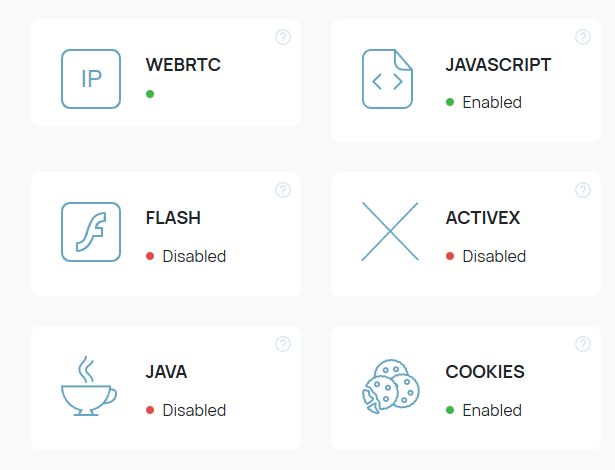
- WebRTC: Shows the status of WebRTC and whether your real IP may be leaking. If WebRTC exposes an IP address different from the one you're using, you should review your configuration.
- JavaScript: Enabled means JavaScript is turned on, while Disabled means it is blocked. Most modern browsers keep JavaScript enabled.
- Cookies: Enabled indicates that cookies are allowed, while Disabled means they are blocked.
- Flash / Java / ActiveX / VBScript: These are legacy technologies. A Disabled status is normal for modern browsers and is not a concern.
- Social Networks: Indicates whether Whoer detects certain active social media login sessions.
Among these checks, WebRTC is the most important if you're using a proxy or VPN, because it can directly reveal your real IP address. The remaining indicators mainly show which browser features are currently enabled or disabled.
If you want to see the full set of browser attributes collected by Whoer, switch to the Extended tab or open the Browser Fingerprint section. This area includes detailed information such as Screen, Navigator, HTTP Headers, Scripts, and Plugins.
Learn more:
- What is WebRTC? How WebRTC works and its key benefits.
- What is a WebRTC leak? Why your real IP can still be exposed even when using a VPN or proxy.
4. Browser fingerprint: What does each result mean?
After the IP Address Details section, the Browser Fingerprint tab provides a much more detailed view of the information websites can read from your browser. This is also the most important section if you want to understand what a browser fingerprint test is actually analyzing.
4.1. Browser
The Browser section identifies your browser through the User-Agent and HTTP headers.
It typically includes:
- Chrome or Chromium version
- Operating system such as Windows or macOS
- Browser engine such as Blink or WebKit
- The User-Agent string sent to websites
The key point is not the Chrome or Chromium version itself, but whether all of these values are consistent. For example, if the User-Agent claims Chrome on Windows while other attributes indicate a different environment, the mismatch can create an unusual browser fingerprint.
Related articles:
- What is Browser Fingerprint? How to prevent browser fingerprint tracking.
- What information can websites see about you? Understanding browser fingerprints.
4.2. Screen
The Screen section displays attributes related to your monitor and browser window.
| Parameter | Meaning |
|---|---|
| Resolution | The physical screen resolution |
| Color Depth | Number of color bits supported by the display |
| Pixel Depth | Color depth used for rendering |
| Available Width / Height | Usable display area excluding system UI |
| Window Size | Current browser window dimensions |
These values are part of your browser fingerprint. Among them, Resolution, Available Width / Height, and Window Size generally have the greatest impact. Coordinates such as Top, Left, AvailTop, and AvailLeft are usually less significant.
An uncommon screen resolution or an unusual combination of display values can make your fingerprint more distinctive.
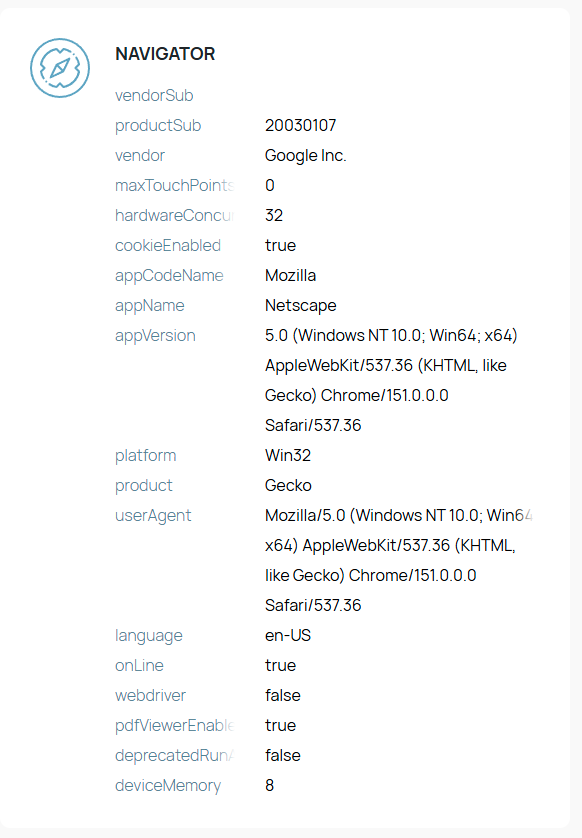
4.3. Navigator
The Navigator section contains JavaScript properties that websites can read directly from your browser.
Common fields include:
- Vendor: Browser vendor
- Platform: Operating system platform, such as Win32
- Language: Browser language
- Hardware Concurrency: Number of CPU threads reported by the browser
- Device Memory: Amount of RAM exposed to websites
- WebDriver: Indicates whether the browser declares that it is controlled by automation
Among these, WebDriver is the most important if you're using automation tools. A value of true can act as a strong signal that the browser is being automated, while false means the browser is not exposing the WebDriver flag.
Other fields such as cookieEnabled, onLine, and maxTouchPoints mainly describe basic browser and device capabilities, so they typically have less influence on fingerprint uniqueness. For example, maxTouchPoints: 0 usually indicates that the device does not support touch input.
4.4. HTTP Headers
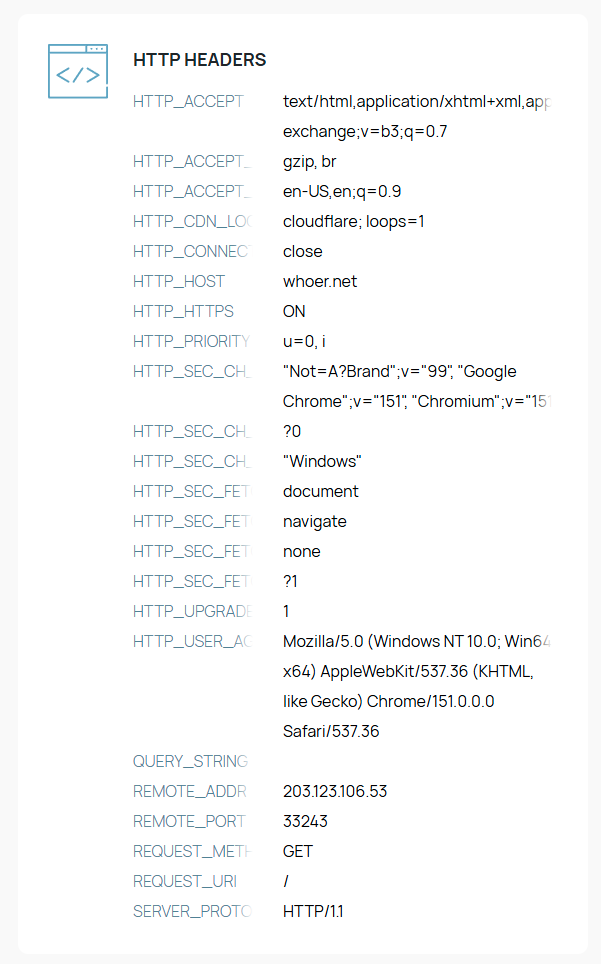
HTTP Headers are the pieces of information your browser sends to a website with every request.
Some of the most important headers include:
- User-Agent: Identifies your browser and operating system.
- Accept-Language: The browser's preferred language.
- Sec-CH-UA: Client Hints that provide additional browser information.
- Accept: The content types your browser can process.
- REMOTE_ADDR: The IP address the server receives from your connection.
A useful quick check is to compare REMOTE_ADDR with the IP shown in the My IP card from Section 2. If the two addresses match, your connection appears consistent across both sections. If they are different, you should review your network or proxy configuration.
These key headers should also be consistent with your User-Agent, language settings, and overall browser environment to avoid creating conflicting fingerprint signals.
4.5. Scripts
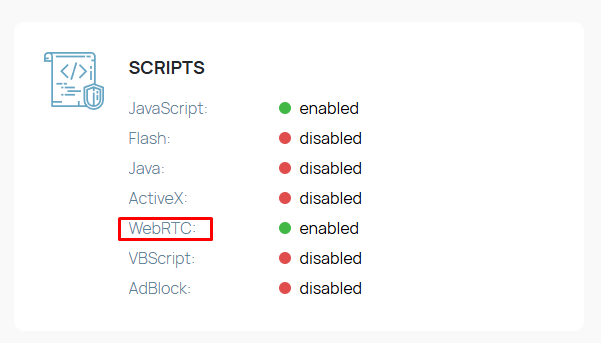
The Scripts section shows the status of browser technologies and features supported by your browser.
It typically includes:
- JavaScript: Enabled or Disabled
- Cookies: Enabled or Disabled
- WebRTC: Enabled or Disabled
- Flash: Enabled or Disabled
- Java: Enabled or Disabled
- ActiveX: Enabled or Disabled
- VBScript: Enabled or Disabled
- AdBlock: Enabled or Disabled
In modern browsers, JavaScript and Cookies are usually enabled, while Flash, Java, ActiveX, and VBScript are typically disabled. AdBlock: Disabled is also common if the browser profile does not have an ad blocker installed.
If your goal is to check for potential IP leaks, pay particular attention to WebRTC. An Enabled status does not automatically mean your real IP is leaking—it simply indicates that WebRTC is available. You still need to verify whether WebRTC is actually exposing an unexpected IP address.
4.6. Plugins
The Plugins section lists the browser plugins and built-in components that Whoer can detect, such as:
- Chrome PDF Viewer
- Chromium PDF Viewer
- Microsoft Edge PDF Viewer
- WebKit PDF
Plugins are part of your browser fingerprint, but they should not be evaluated in isolation. What matters more is whether all browser attributes form a consistent profile.
After reviewing Browser, Screen, Navigator, HTTP Headers, Scripts, and Plugins, compare those results with your IP, DNS, WebRTC, and Timezone settings. This gives you a much more accurate assessment of your browser profile than relying on a single browser fingerprint score.
5. Does passing the Whoer.net test mean you are completely anonymous?
No. A good Whoer result only means your current setup passes the checks performed by Whoer. It does not guarantee that every website will be unable to identify your browser or evaluate your account.
For example, you can still get Your Disguise: 100% and be detected if:
- Multiple browser profiles share unusually similar fingerprints.
- Your login behavior or interactions resemble automation.
- Different accounts have been used in the same browser environment.
- Old cookies or browser data are still present.
- Your device, IP, or login history creates detectable links between accounts.
Think of Whoer as a configuration testing tool, not proof of complete anonymity. Its real value is helping you identify issues with IP, DNS, WebRTC, and browser fingerprinting before using a browser profile for activities that require isolated environments.
6. When should you use Whoer.net?
Whoer.net is best used as a quick browser configuration check before and after making changes. Common use cases include:
- Before logging into multiple accounts: Verify your IP, DNS, WebRTC, and browser fingerprint before using a profile.
- After changing proxies: Confirm that the new IP is detected correctly and that no DNS or WebRTC leaks are present.
- After creating a new browser profile: Validate the profile before signing into any accounts.
- For routine DNS and WebRTC checks: Especially if you frequently switch proxies or browser environments.
- Before running automation: Review WebDriver, User-Agent, and fingerprint attributes for unusual signals.
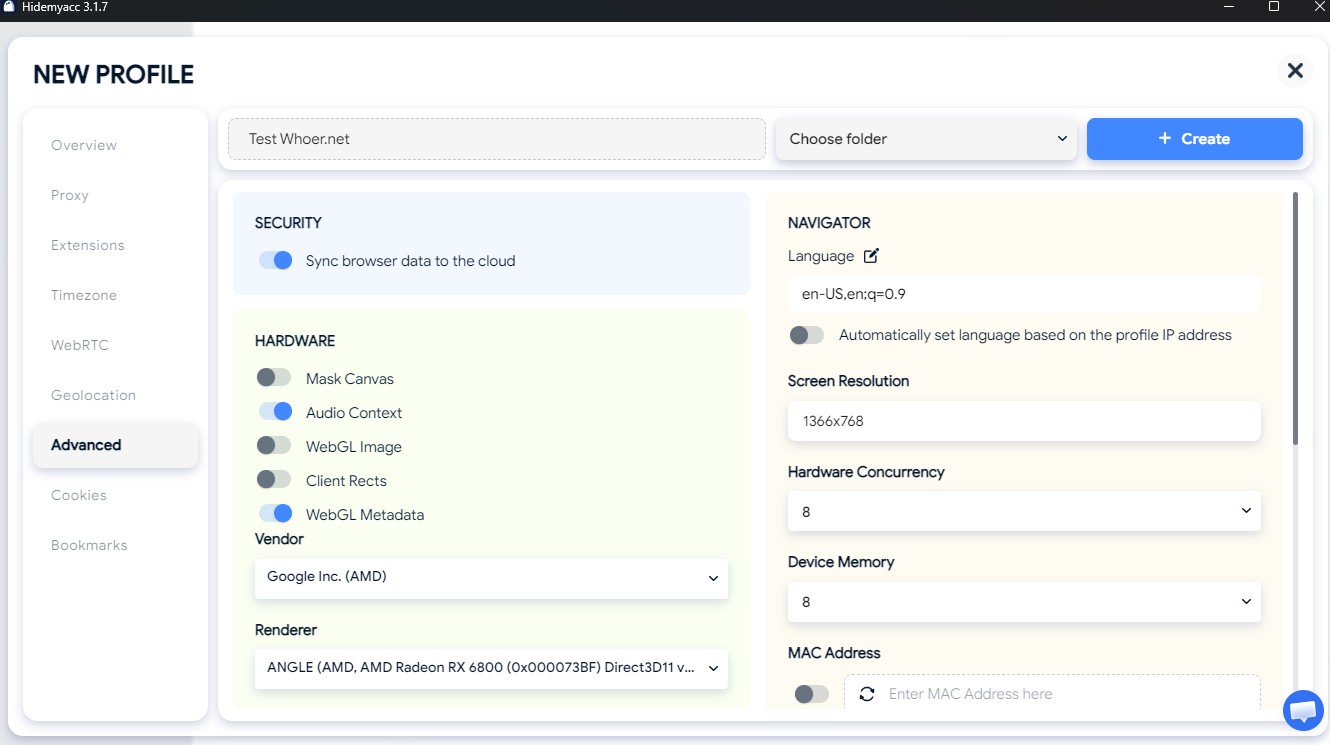
If you regularly create and manage multiple browser profiles, configuring every parameter manually can be time-consuming. Antidetect browser Hidemyacc lets you create an isolated environment for each profile and configure settings like proxy, timezone, language, and browser fingerprint from the start.
A typical workflow is straightforward: create a profile → assign a proxy → synchronize timezone and language → adjust the fingerprint → test the profile on Whoer.net. This final check helps confirm that the profile behaves as expected before you use it.
7. Conclusion
Whoer.net is more than an IP checker. It also provides detailed information about DNS, WebRTC, and browser fingerprint. The Your Disguise or Anonymity Score is only an overall summary and does not reflect your browser's complete level of anonymity.
Instead of focusing on a single score, review each result individually to identify where the issue comes from: whether the IP is correct, whether DNS is leaking, whether WebRTC exposes your real IP, and whether the fingerprint is consistent.
Understanding every result in a Whoer.net test will help you verify and fine tune your browser configuration before using a browser profile.
8. FAQ
1. Does Whoer.net detect VPNs?
Yes. Whoer.net checks signals such as your IP address, DNS, and WebRTC information to identify potential VPN or proxy usage.
2. What is a dirty IP address?
A dirty IP address is an IP with a poor reputation because it has previously been associated with spam, abuse, fraud, or other suspicious activity.
3. Does 1.1.1.1 hide your IP?
No. 1.1.1.1 is a DNS resolver, not a VPN or proxy. It can change how DNS requests are resolved, but it does not hide your public IP address.
4. How can I tell if my IP has been leaked?
You can check your IP through Whoer.net and compare the IP shown in the main result with the IP information reported by WebRTC. If your original ISP IP appears while you are using a proxy or VPN, there may be an IP leak.
5. How often should I run a Whoer.net test?
Run a test whenever you change your proxy, create a new browser profile, modify fingerprint settings, or notice unexpected changes in your browser environment.
6. Is Whoer.net better than BrowserLeaks?
Not necessarily. Whoer.net is useful for a quick overview of IP, DNS, WebRTC, anonymity, and fingerprint information, while BrowserLeaks provides more detailed tests for individual browser fingerprinting technologies.