The DNS_PROBE_FINISHED_BAD_CONFIG error usually appears when your browser cannot connect to the internet because of incorrect DNS or network settings. Fortunately, this issue can often be fixed within minutes.
In this guide, you’ll learn the most effective ways to fix DNS_PROBE_FINISHED_BAD_CONFIG on Chrome, Windows, Mac, and mobile devices.
Quick Fixes for DNS_PROBE_FINISHED_BAD_CONFIG
- Restart your router
- Restart Chrome
- Flush DNS cache
- Change DNS server
- Disable VPN or proxy
- Reset network settings
1. What is the DNS_Probe_Finished_Bad_Config error?
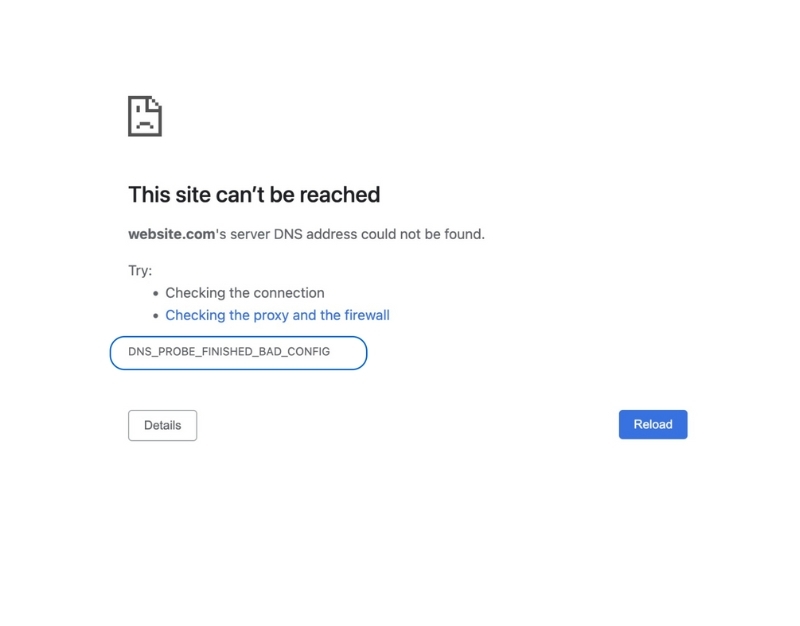
DNS_Probe_Finished_Bad_Config is a network connection error that commonly appears when there is an issue with DNS configuration (DNS is responsible for routing traffic on the Internet and linking nameservers, URLs, and IP addresses to servers). This error occurs when the DNS fails to connect to the network on any browser or operating system, such as Chrome, Windows, macOS, or mobile devices running Android and iOS.
2. What Causes DNS_PROBE_FINISHED_BAD_CONFIG?
The DNS_Probe_Finished_Bad_Config error may occur due to several reasons:
- Network configuration changes.
- Router configuration being altered by certain unidentified applications.
- Browser plugins such as VPNs or other interventions that cause IP or DNS address errors.
- Firewall or antivirus interference.
- Corrupted files on the device.
- Issues with the fiber optic network.
- The website is undergoing maintenance.
>>>> SEE MORE:
- Flush DNS: How to clear DNS Cache on your computer and browser
- What is a DNS Zone? Benefits and effective ways to manage DNS Zones
3. How to Fix DNS_PROBE_FINISHED_BAD_CONFIG
When encountering the DNS_Probe_Finished_Bad_Config error, you should first check whether your network cable, modem, and router are functioning properly. If everything is working normally but your browser still shows the error, you can apply the seven troubleshooting methods we suggest below:
3.1 Restart the Router
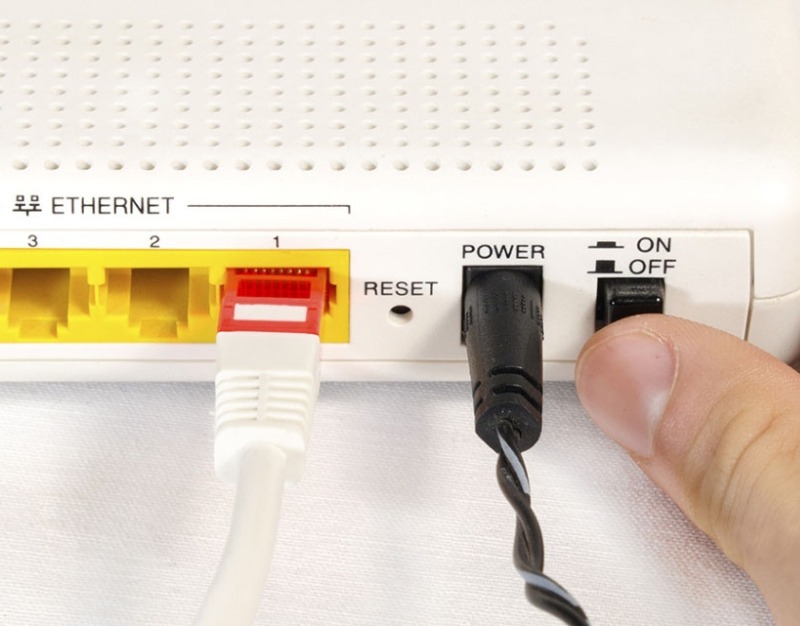
Restarting the router is a simple and effective way to fix this error. Network devices may sometimes malfunction due to IP address conflicts or unstable connections. Restarting helps refresh the IP address and re-establish the connection.
To do this, simply press the power button on the router, turn it off for about 10–15 seconds, then turn it back on. At the same time, restart your computer to ensure the system operates properly after the connection has been reset.
3.2 Clear DNS cache and renew IP
If the DNS_Probe_Finished_Bad_Config error appears due to recent changes made to your DNS settings, it is possible that the old cache is still being used to connect to the Internet. To fix this issue, follow the steps below:
For Windows operating systems
Step 1: Select Start, type “cmd”, and open the Command Prompt application.
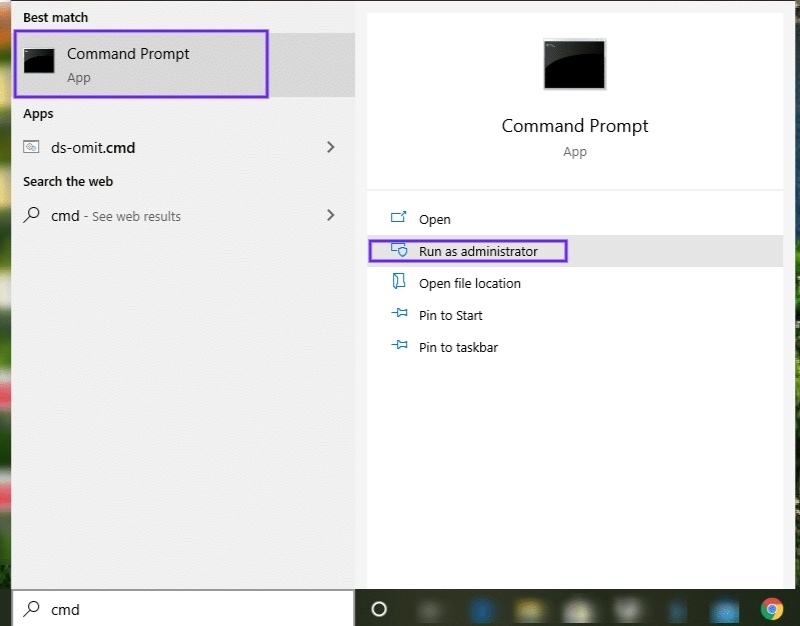
Step 2: In the Command Prompt window, type the following commands:
-
ipconfig /flushdns
-
ipconfig /release
-
ipconfig /renew
For macOS
Step 1: Open the Terminal application by going to Launchpad - Utilities - Terminal.
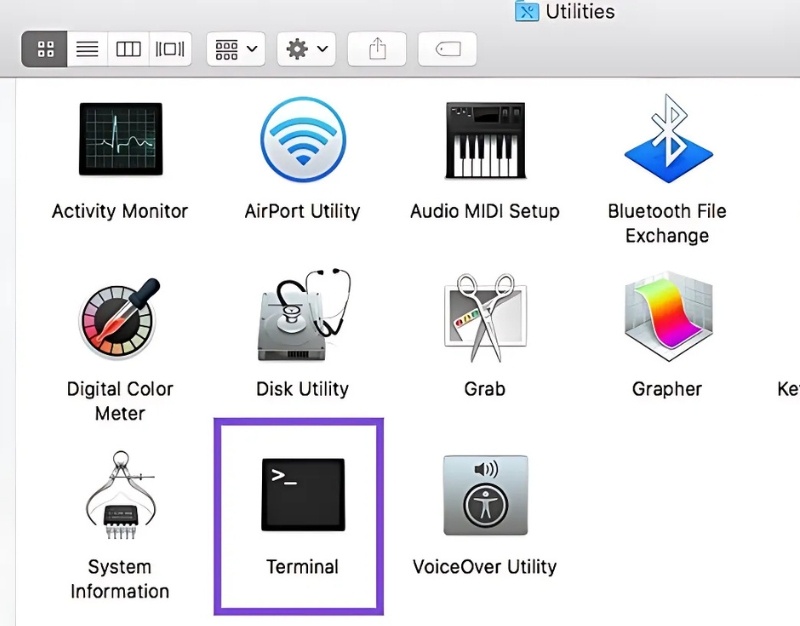
Step 2: In the Terminal interface, enter the following commands:
-
For macOS versions 10.11 and later:: Sudo killall -HUP mDNSResponder
-
For macOS Yosemite 10.10 – 10.10.3: Sudo discoveryutil mdnsflushcache
-
For macOS Mavericks, Mountain Lion, Lion: Sudo killall -HUP mDNSResponder
-
For macOS Snow Leopard: Sudo dnscacheutil -flushcache
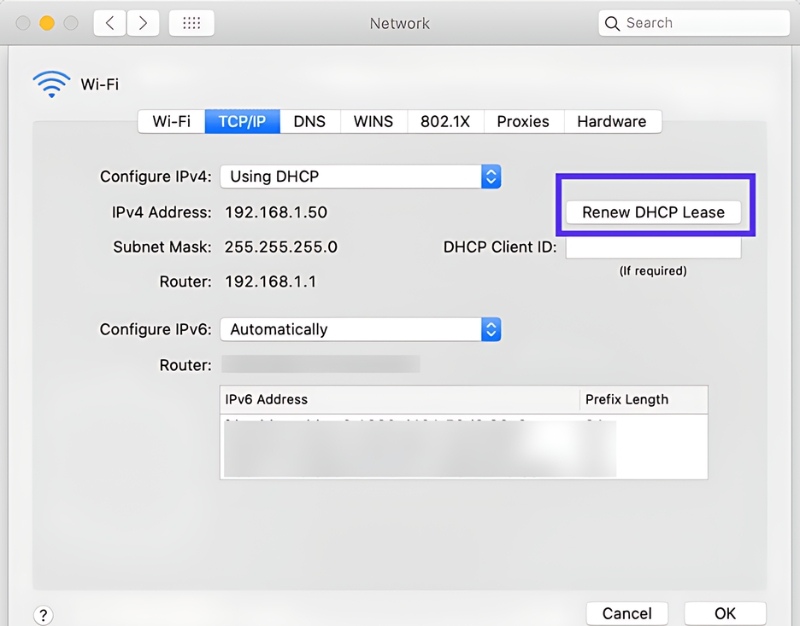
Step 3: To renew the IP address:Click the Apple icon in the top-left corner → select System Preferences → choose Network → Advanced → select Renew DHCP Lease.
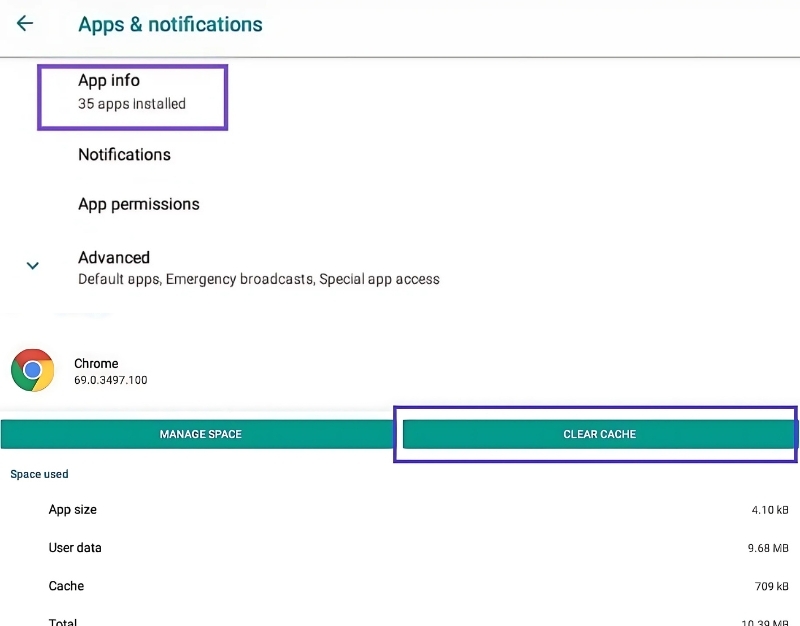
For Android operating systems
Step 1: Go to Settings → Applications → App info.
Step 2: From the list of apps, select Chrome or any browser you are using → choose Storage → select Clear Cache.
>>>> CHECK OUT NOW:
- What is AdGuard DNS? How to install AdGuard DNS on all devices
- What is Chrome net internals DNS? How to clear DNS cache in Chrome
3.3 Disable browser extensions
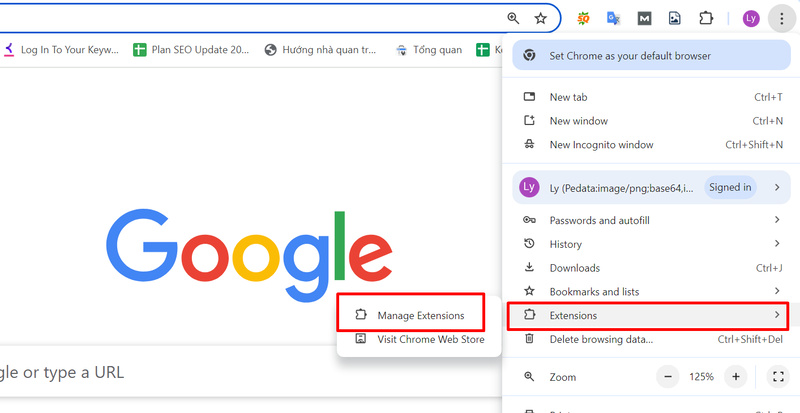
Browser extensions offer many benefits that enhance the browsing experience, such as blocking ads, managing passwords, or supporting note-taking. However, in some cases, these extensions may interfere with a website’s connection, causing the DNS_Probe_Finished_Bad_Config error. To disable extensions, follow the steps below:
Step 1: Open the Menu in your browser (top-right corner) → select Tools → choose Extensions.
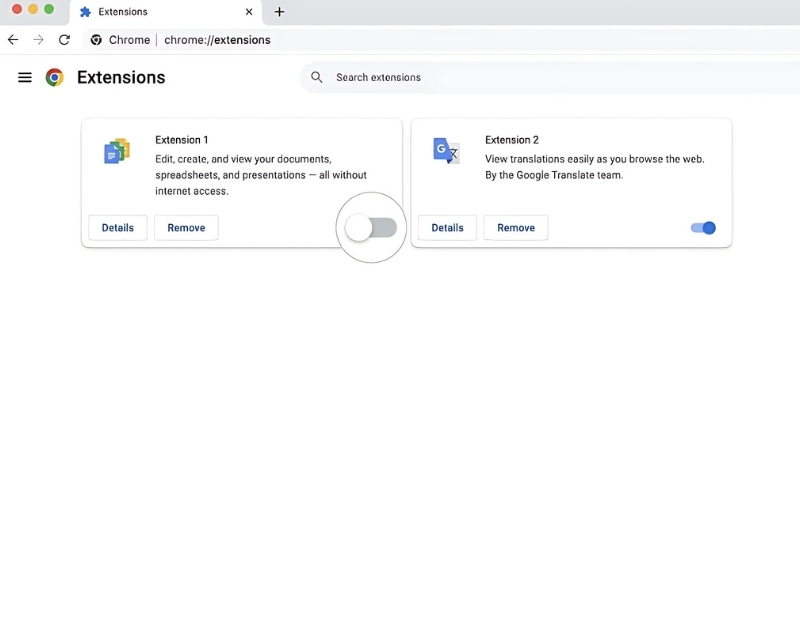
Step 2: Here, you will see a list of extensions - disable the ones you are not using.
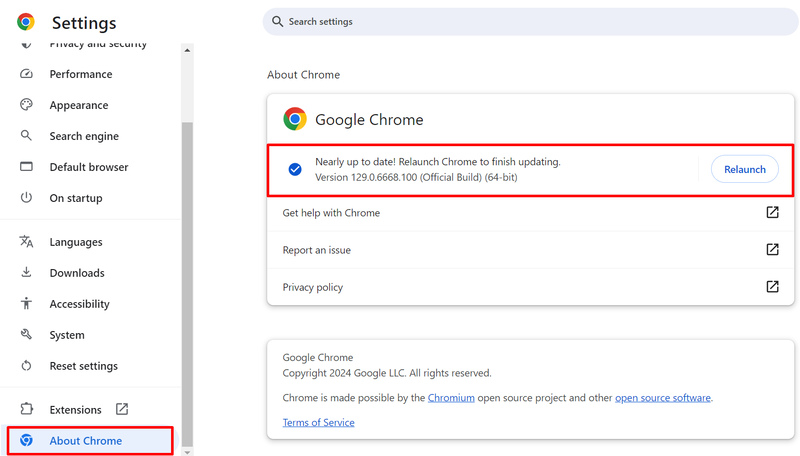
3.4 Update the browser
Using an outdated browser version may cause connection errors due to incompatibility with new web protocols or standards. To update your browser, follow the steps below:
Step 1: Click the three-dot icon in the top-right corner of the screen → select Settings.
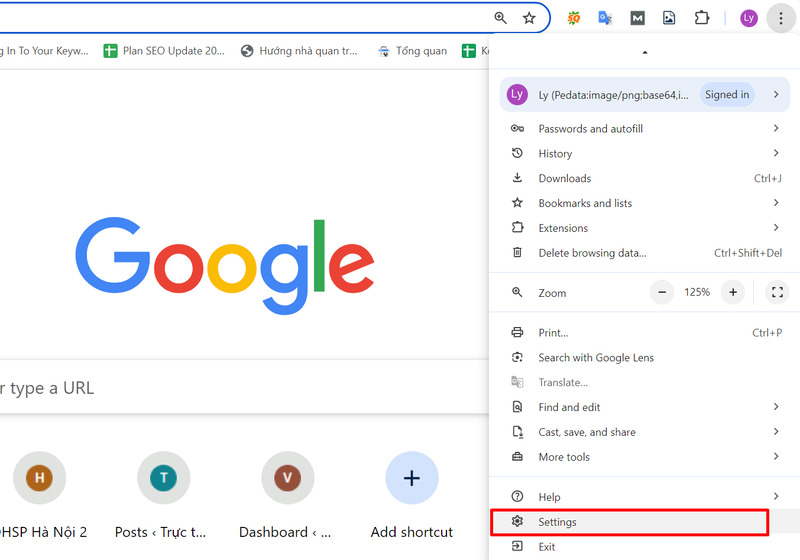
Step 2: Select About Chrome → click Update Google Chrome.
3.5 Disable antivirus software and firewall
Antivirus programs and firewalls may sometimes conflict with network configurations and cause the DNS_Probe_Finished_Bad_Config error. To check this, you can temporarily disable one of these programs and then try reloading the webpage.
If the error disappears, it indicates that the security software was causing the issue. You may consider contacting support or replacing the software. Additionally, if the issue only occurs on specific websites, you can add those sites to the whitelist of your firewall or antivirus program.

>>>> LEARN MORE:
- What is Google DNS? Detailed guide on how to change Google DNS on various devices
- What is DNS 1.1.1.1? How to install and change DNS 1.1.1.1 quickly
3.6 Change the DNS configuration
If you have tried all the methods above and the browser error still persists, you can try changing the DNS configuration by following these steps:
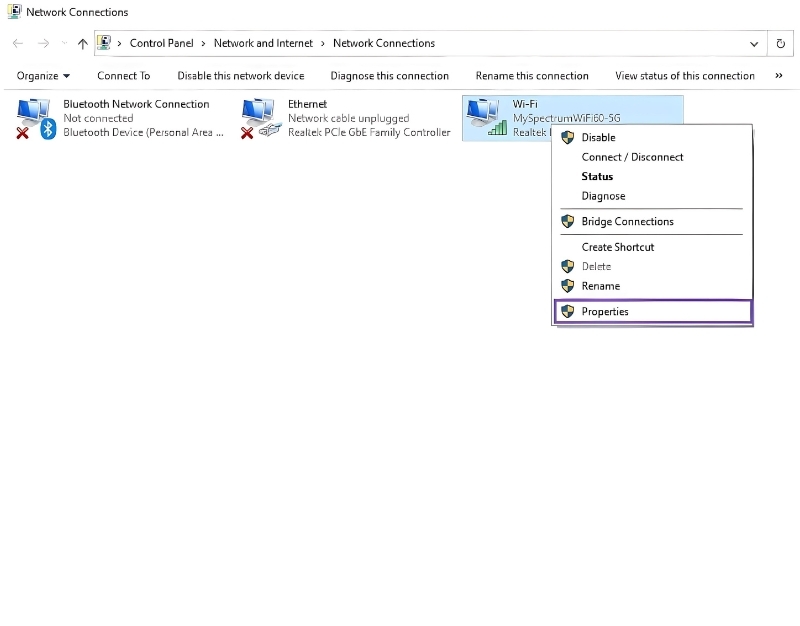
Step 1: Click the Network icon in the bottom-right corner of the screen → select Open Network and Sharing Center.
Step 2: In the Network window → select Properties.
Step 3: Under Networking, select Internet Protocol Version 4 (TCP/IPv4) → click Properties.
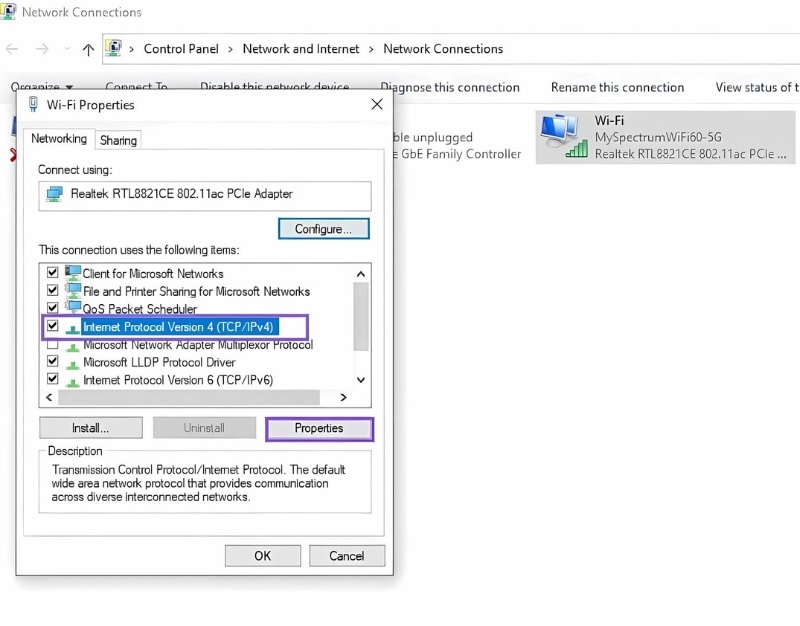
Step 4: Under Use the following DNS server addresses, enter 8.8.8.8 and 8.8.4.4 respectively → click OK.
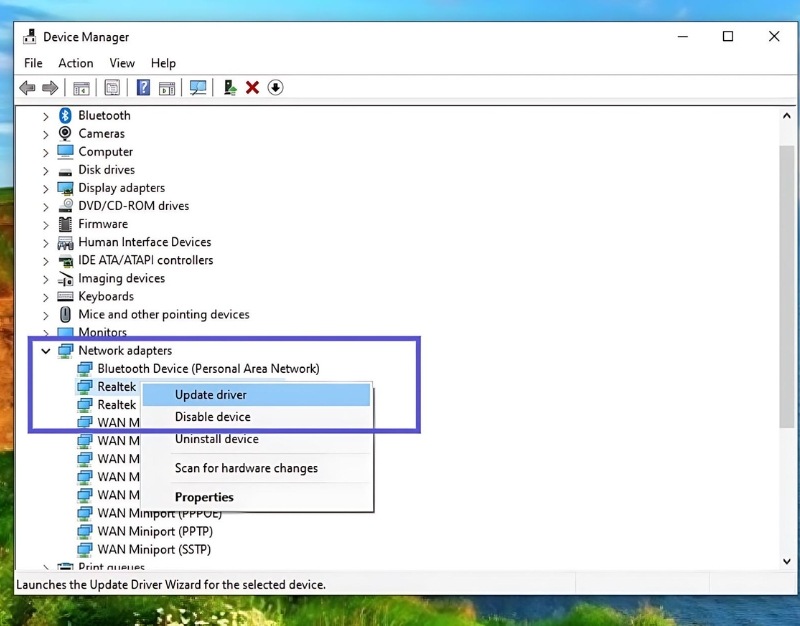
3.7 Update the network driver
If you have tried the methods above but the issue still isn’t resolved, you can update your network driver to quickly fix the DNS_Probe_Finished_Bad_Config error. To update the driver, follow these steps:
Step 1: In the Start Menu, select Device Manager.
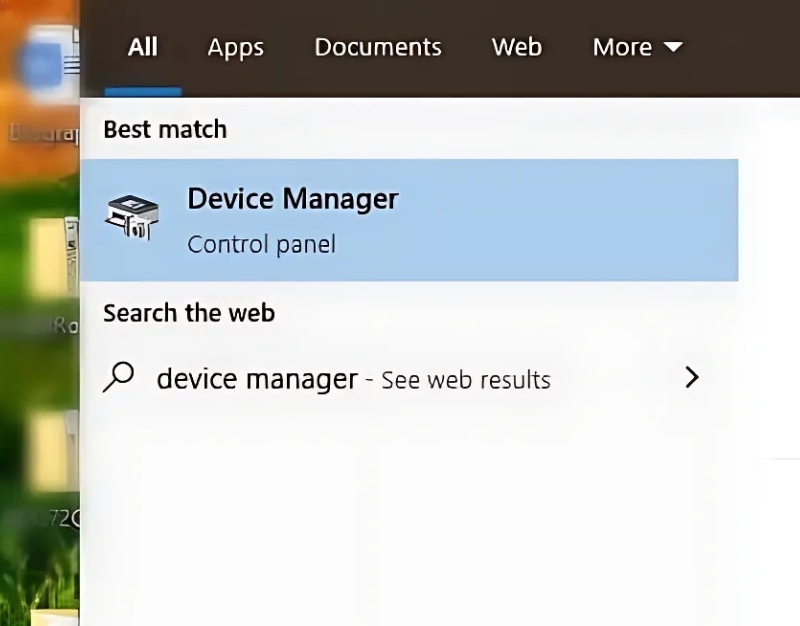
Step 2: Select Network Adapters → right-click on your network driver → choose Update Driver.
Step 3: Restart your computer to check whether the system still encounters the error.
Through this article, Hidemyacc has guided you on how to effectively fix the DNS_Probe_Finished_Bad_Config error on your computer browser. We hope this information helps you resolve the issue quickly and enjoy a more stable Internet connection. If you have any further questions, feel free to contact Hidemyacc for the fastest support!
>>>> RELATED ARTICLES:
- Simple and quick guide to changing DNS on Windows 10, 11, and macOS
- How to change DNS to block ads on phones and computers effectively
4. FAQ
What does DNS_PROBE_FINISHED_BAD_CONFIG mean?
DNS_PROBE_FINISHED_BAD_CONFIG is a browser error that usually appears when DNS or network settings are configured incorrectly.
What causes DNS_PROBE_FINISHED_BAD_CONFIG?
This error can be caused by incorrect DNS settings, corrupted DNS cache, router problems, VPN conflicts, or unstable network connections.
How do I fix DNS_PROBE_FINISHED_BAD_CONFIG?
You can fix this error by restarting your router, flushing DNS cache, changing DNS servers, or resetting network settings.
Can DNS_PROBE_FINISHED_BAD_CONFIG be fixed by changing DNS servers?
Yes, switching to public DNS servers like Google DNS or Cloudflare DNS can often resolve the issue.
Does restarting the router fix DNS_PROBE_FINISHED_BAD_CONFIG?
Yes, restarting the router can refresh your network connection and fix temporary DNS problems.
Can VPN or proxy settings cause DNS_PROBE_FINISHED_BAD_CONFIG?
Yes, incorrect VPN or proxy configurations may interfere with DNS resolution and trigger this error.
Is DNS_PROBE_FINISHED_BAD_CONFIG a Chrome-only error?
This error commonly appears in Chrome-based browsers, but similar DNS issues can affect other browsers as well.
How do I clear DNS cache on Windows?
Open Command Prompt as administrator and run the command: ipconfig /flushdns.
Can antivirus software cause DNS_PROBE_FINISHED_BAD_CONFIG?
Yes, some antivirus or firewall programs may block DNS requests and create connection issues.
Is DNS_PROBE_FINISHED_BAD_CONFIG a virus?
No, DNS_PROBE_FINISHED_BAD_CONFIG is not a virus but a network or DNS configuration error.